
Invite your accountant or a teammate, and what each role can see
Invites are free and there is no seat limit on any plan.
Send an invite
- Open All pages in the left sidebar, then under Setup click Members.
- Type their email under Invite someone.
- Pick a role. The hint under the picker tells you exactly what that role can do.
- Click Send invite.
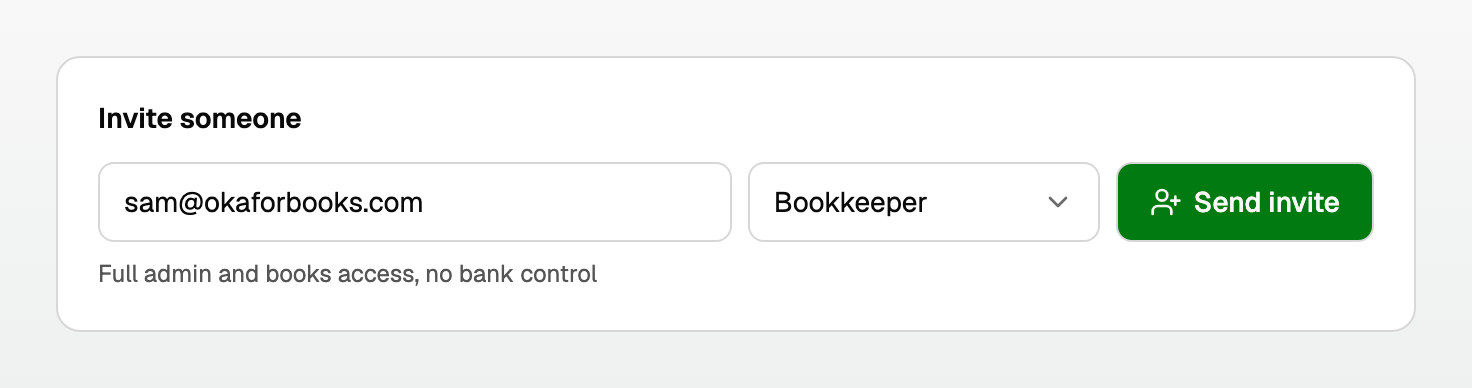
Only the workspace owner or a bookkeeper can invite or manage members.
The four roles
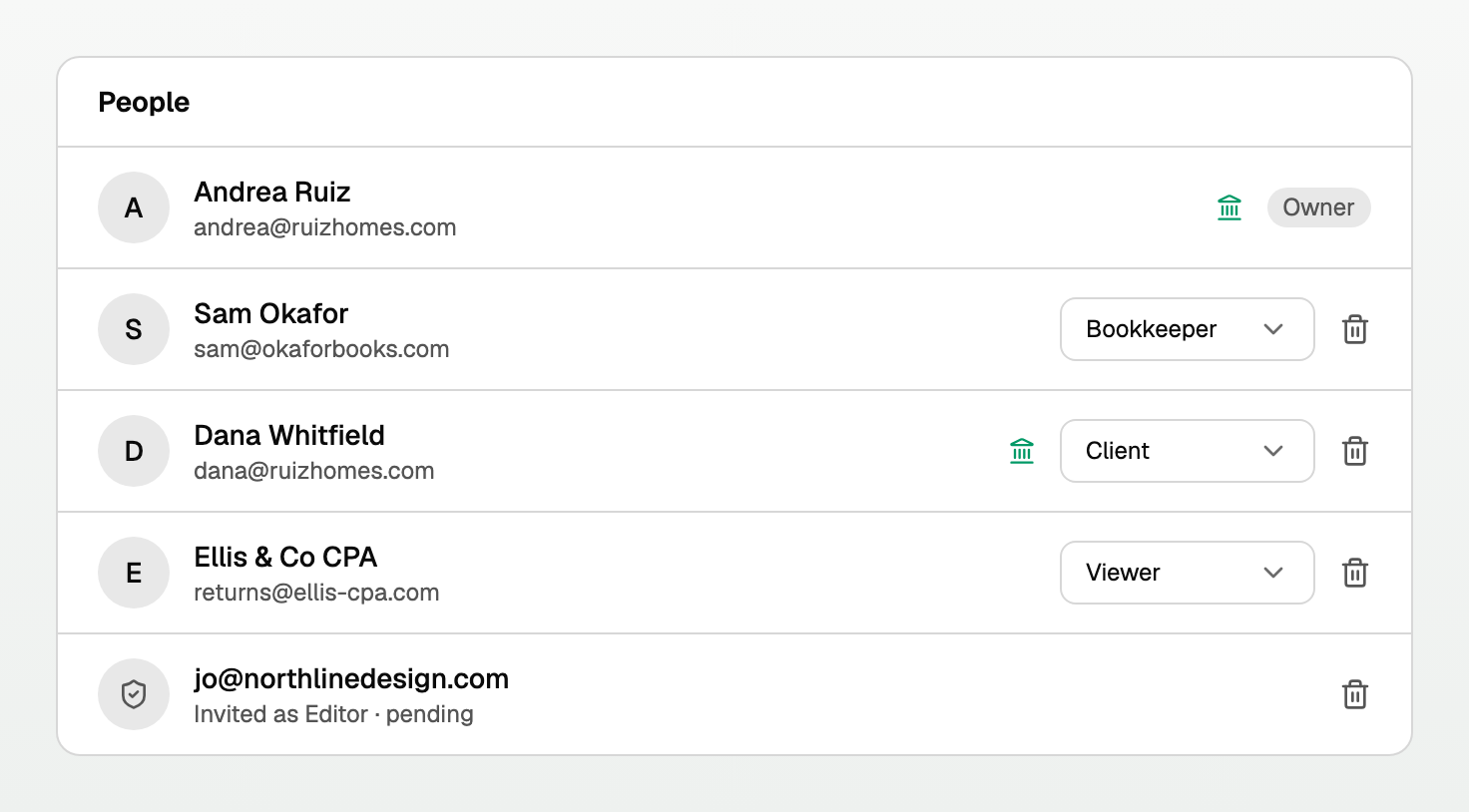
- Client: connects the bank, views and edits their books. No admin.
- Bookkeeper: full admin and books access, but no bank control.
- Editor: edits the books. No admin, no bank.
- Viewer: read-only. Right for an accountant who only needs to look.
Why bank control is its own thing
Being an admin and controlling the bank are deliberately separate.
- Only the owner and the client can connect, reconnect, or disconnect a bank.
- A bookkeeper runs the whole set of books and cannot touch the bank connection.
That is the normal arrangement: the client owns the bank login, the bookkeeper owns the books.
Can my clients see each other's books?
No. Access is granted one workspace at a time.
- Someone invited to Client A's workspace sees Client A only.
- They cannot see any other workspace you own, and cannot see that the others exist.
- You see all of them, because you are the owner of each.
Same the other way round: invite your accountant to one business and they get that one business.
Changing or removing someone
- Change a role with the picker next to their name. It takes effect immediately.
- Remove someone with the bin icon. They lose access at once.
- A pending invite shows as pending and can be revoked the same way.
- The owner's role cannot be changed and the owner cannot be removed.
Personal workspaces
A personal workspace has its own Members page.
- A household member gets full access.
- A financial professional or CPA gets read-only access that expires after 365 days.
- Only the workspace owner can invite or revoke there.
Updated on: 04/08/2026
Thank you!