
Integrations: connect QuickBooks Online
An integration links BooksGPT to a service you already use. Most people come here for QuickBooks Online: BooksGPT copies your chart of accounts and transaction history out of QuickBooks and rebuilds the same books here, so nothing is typed twice.
Then it checks its own work. It compares every account balance with QuickBooks' trial balance, the list of what each account holds on a date. When the two lists agree, your books came across whole. The connection is read-only, so nothing is ever written back to QuickBooks.
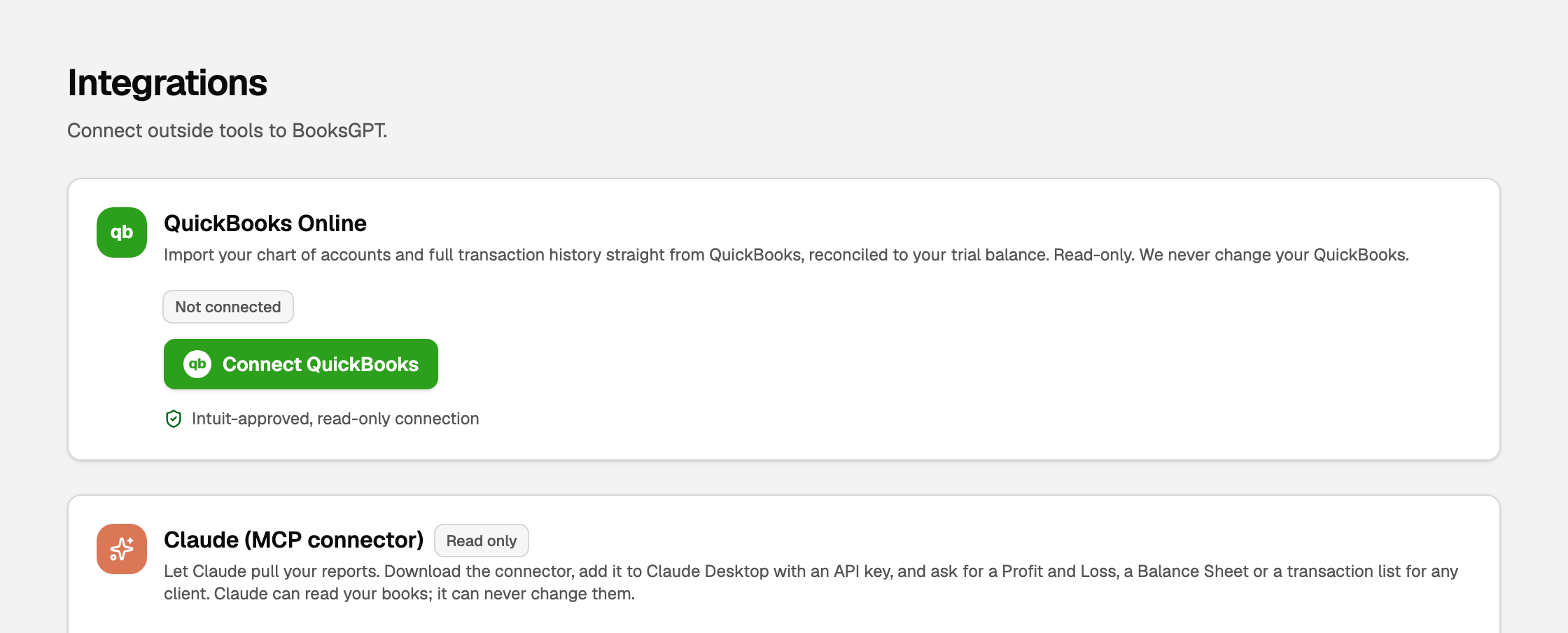
Open All pages in the left sidebar, then click Setup and Integrations.
Connect QuickBooks Online
- On the QuickBooks Online card, click Connect QuickBooks. Copilot offers the same button if you ask it.
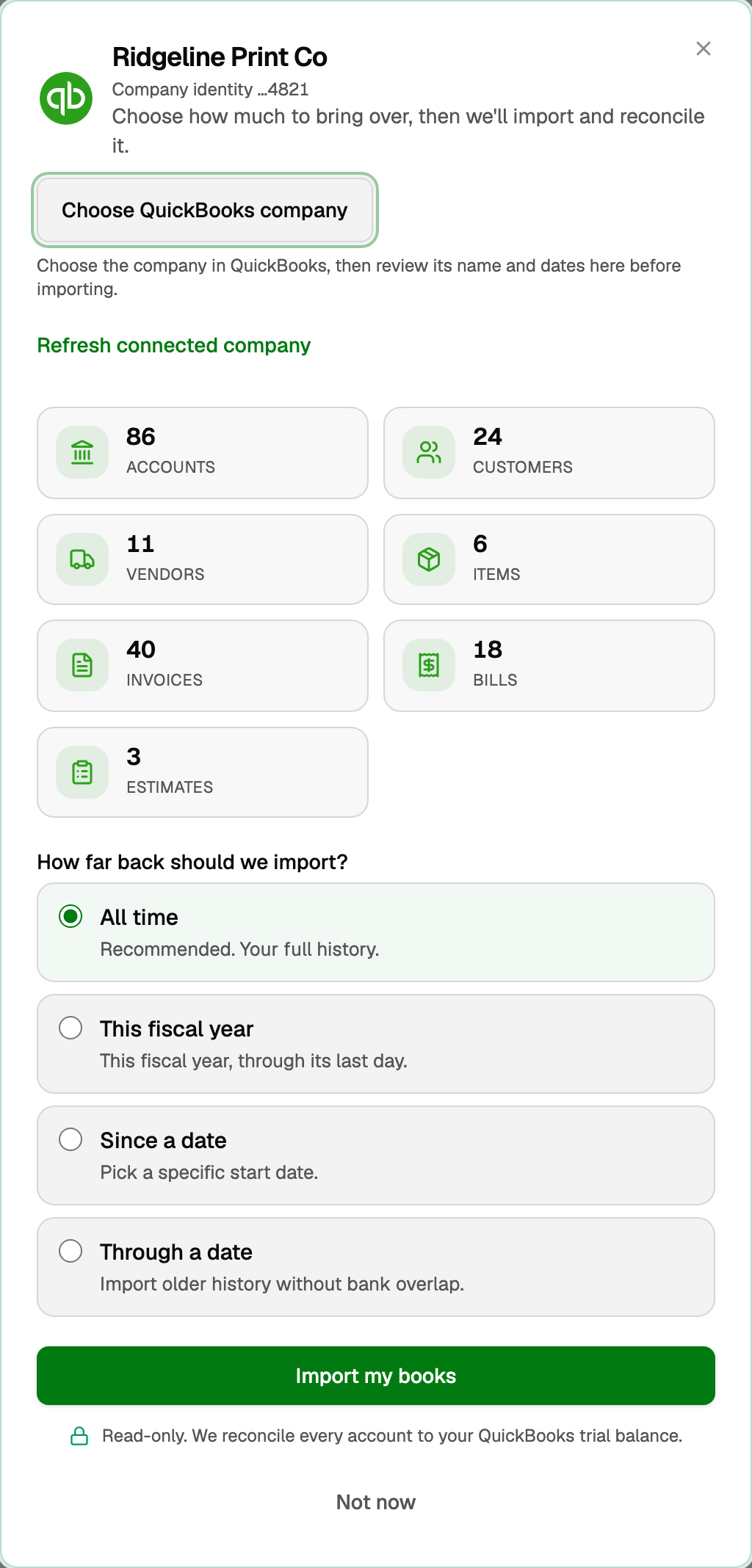
- The window lists what comes over. Click Connect to QuickBooks.
- Sign in to Intuit and pick the company whose books belong in this workspace. If the sign-in window does not appear, look behind the BooksGPT window.
- Back in BooksGPT, check the company name at the top. Company identity shows the last four digits of its QuickBooks ID, to tell similar names apart. Wrong company? Click Choose QuickBooks company.
On QuickBooks Desktop? There is no connection for Desktop; you import a file instead. See Import from QuickBooks Desktop.
Choose how far back to import
The window counts what it found in QuickBooks, then asks How far back should we import?
- All time is recommended. With your full history, every balance starts from the right number.
- This fiscal year brings this year only.
- Since a date starts on a date you pick.
- Through a date ends on a date you pick. Use it when a bank connection already covers recent months.
Money should be counted once. If you already approved bank transactions in BooksGPT, importing the same dates from QuickBooks would record that money twice, so BooksGPT turns off any range that would and writes the reason under it. Through a date usually stays open for your older history. See Redo or undo an import when a bank and QuickBooks are both connected.
Bank transactions you have not reviewed yet block nothing. Those inside the imported dates wait On hold in Review inbox as possible duplicates, for you to keep or exclude.
Click Import my books to start.
While it runs
A large history can take several minutes. Click Keep working and the import carries on. To check on it, click Import now (or Re-import) on Integrations: a run already going opens again, never a second copy.
What your books now say
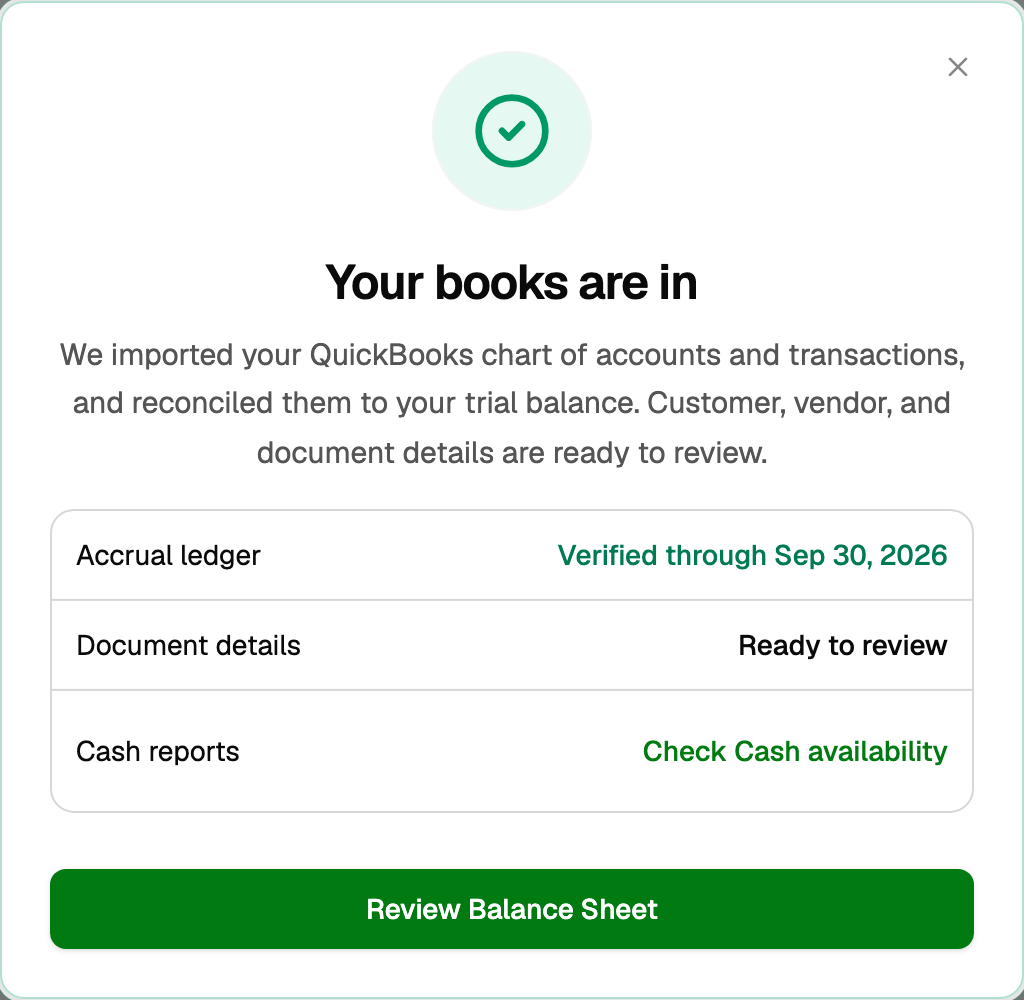
When every balance agrees, the window says Your books are in.
- Accrual ledger shows Verified through the import's last date. Your Balance Sheet and Profit & loss on the accrual basis now show the same figures QuickBooks does for those dates.
- Document details (customers, vendors, invoices and bills) can finish a few minutes later.
- Cash reports: click Check Cash availability to see whether Cash basis reports work for these dates. The import alone does not turn them on.
Click Review Balance Sheet and compare it with QuickBooks on the same date.
The import also brings over:
- Your chart of accounts, with QuickBooks' account numbers as codes where they fit. An Account numbers notice lists any it could not use.
- Customers, vendors, items, invoices, bills and payments.
- Classes and Locations, as dimensions. See Track properties, projects, and programs with dimensions.
- Recurring bill and expense templates, set to Paused so the same bill is not entered in both places. Turn the schedule off in QuickBooks, then click Resume in BooksGPT. Recurring invoice templates are not imported.
Once you are connected
The card shows Connected to your company and the date of the last import.
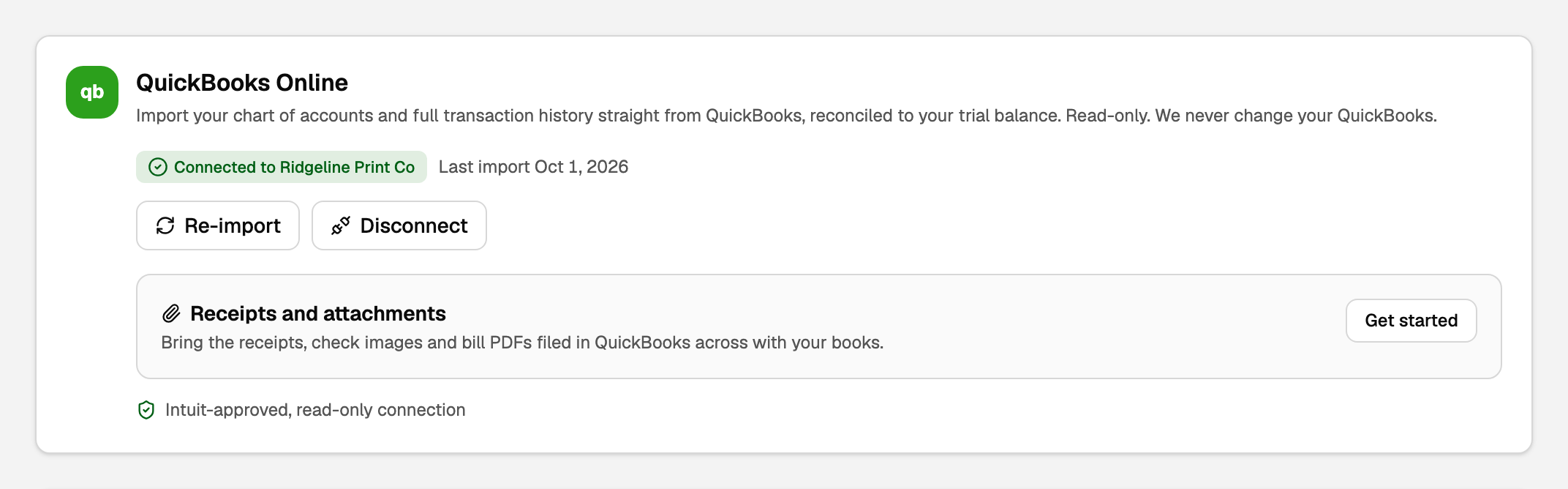
- Re-import brings a fresh copy that replaces the earlier QuickBooks import, never a second copy. See Redo or undo an import.
- Receipts and attachments: click Get started to bring QuickBooks' attached files across. See Bring your QuickBooks receipts and attachments across.
- To bring invoices over one by one, see Pick invoices to import from QuickBooks.
- Disconnect ends the link to Intuit. The books already in BooksGPT stay.
If the connection expired
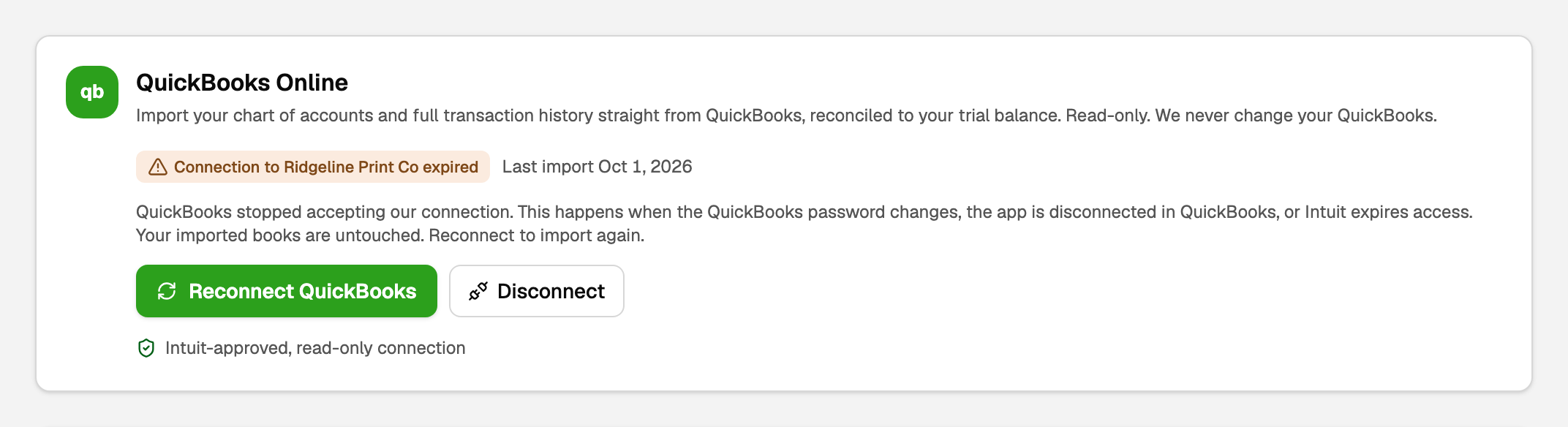
Intuit drops the link after a QuickBooks password change, when the app is disconnected inside QuickBooks, or when access runs out. Your imported books are untouched.
- On the QuickBooks Online card, click Reconnect QuickBooks.
- Sign in to Intuit and pick the same company.
- Import again whenever you want a fresh copy.
If something goes wrong
- The balances don't match, or could not be checked. Don't rely on the numbers yet. Click Contact support on that screen.
- No history came back. Usually the wrong company is connected, such as a second company under the same Intuit sign-in. Click Choose the company with my books, or Choose different dates.
- The import won't start, or stops. The window says why. Most often the range reaches bank transactions you already approved, so pick the range it suggests.
Other integrations on this page
- Claude (MCP connector) lets Claude read your reports. It can never change your books. See Connect Claude to BooksGPT.
- Keys that can read this workspace lists API keys your members made.
- More integrations lists tools that are coming soon. Tell us what you need at support@booksgpt.ai.
- Payroll lives elsewhere: open All pages, then click Payroll and Run payroll with Gusto.
Updated on: 16/10/2026
Thank you!