
Connect Claude to BooksGPT
You can let Claude, the AI assistant, read your BooksGPT books. Claude Desktop connects to other tools through small add-ons called connectors. With the BooksGPT connector and an API key, you can ask Claude for a client's Profit and Loss or Balance Sheet, and it pulls the real figures straight from your workspace instead of guessing.
You need Claude Desktop on your computer, and Node 18 or newer.
What Claude can read
- Profit and Loss (including month by month), Balance Sheet, Trial Balance, and Cash Flow
- Accounts receivable and accounts payable aging
- Account balances, the General Ledger, and the sales tax report
- Income by customer and purchases by vendor
- Your transaction list
- Receipt images and documents, only on a key made with Allow receipt files
One key covers every workspace on your account, so a firm with fifteen clients sets this up once.
Step 1: create your API key
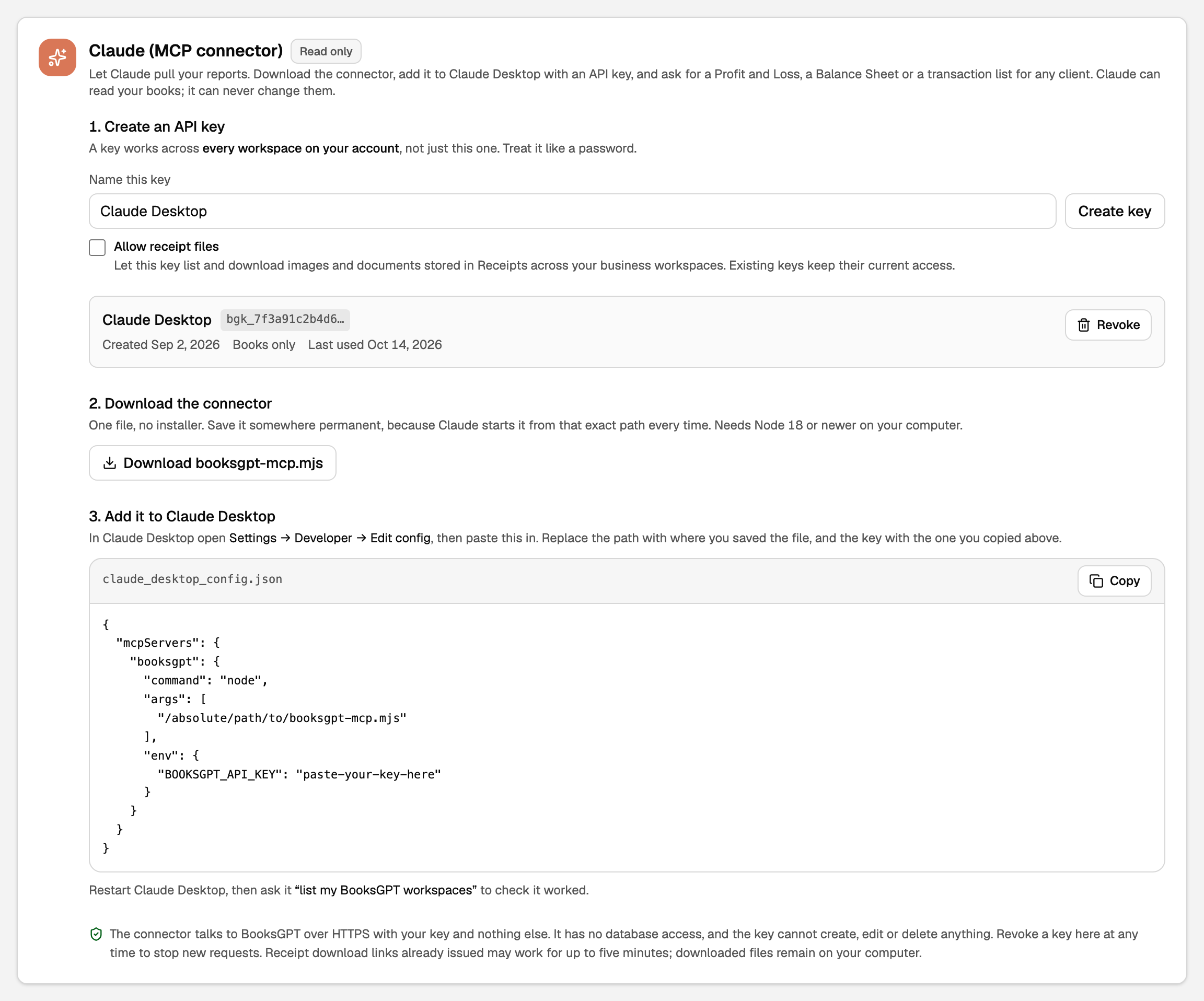
- Open All pages in the left sidebar, then click Setup and Integrations.
- Find the Claude (MCP connector) card.
- Under Name this key, keep Claude Desktop or type another name.
- Tick Allow receipt files only if Claude should also read your receipt files. It starts unticked.
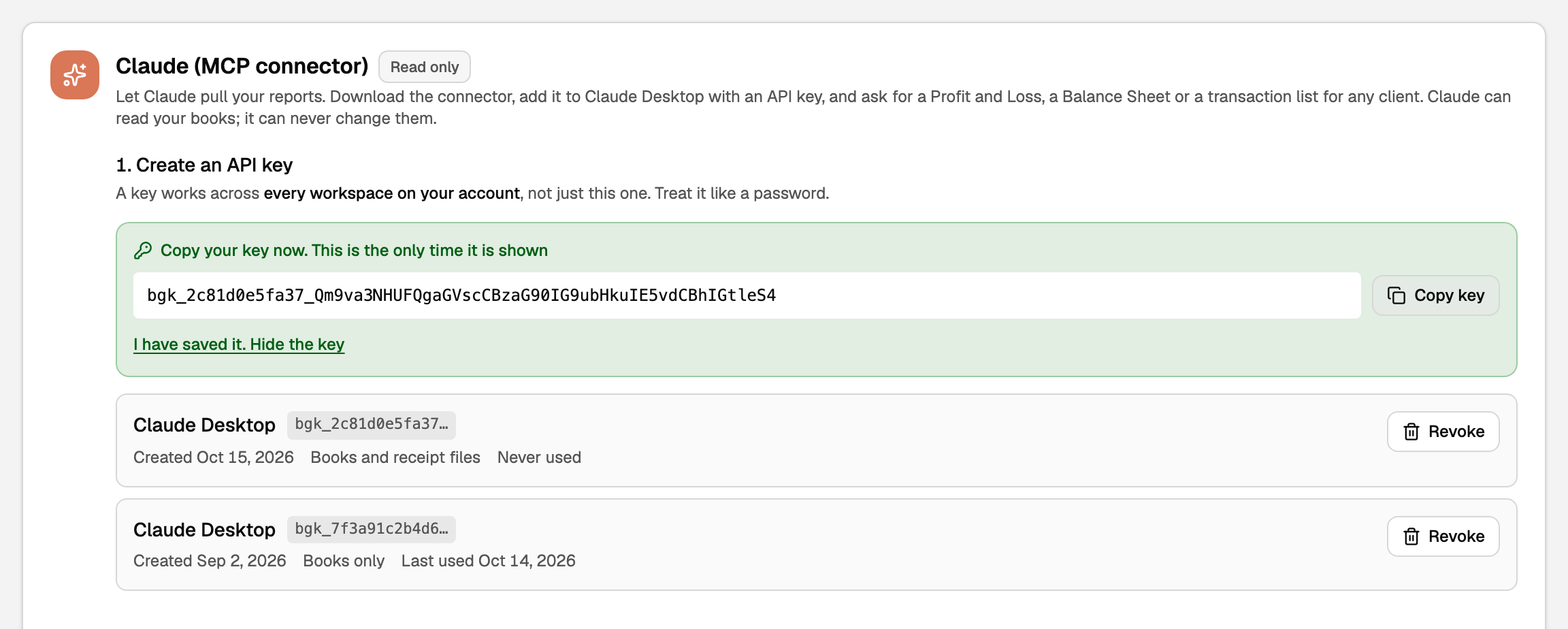
- Click Create key, then Copy key.
The key is shown once. Save it somewhere safe before you click I have saved it. Hide the key.
If you last signed in more than 12 hours ago, BooksGPT asks you to sign out and back in before it creates a key. Do that and try again.
Step 2: download the connector
On the same card, click Download booksgpt-mcp.mjs. Save the file somewhere permanent, such as your Documents folder. Claude starts it from that exact place every time, so if you move it, update the path in step 3.
Step 3: add it to Claude Desktop
- In Claude Desktop, open Settings, then Developer, then Edit config.
- On the BooksGPT card, click Copy beside the config block, and paste it into that file. If the file already lists other connectors under
mcpServers, add only thebooksgptentry inside that section, so there is onemcpServers. - Replace
/absolute/path/to/booksgpt-mcp.mjswith where you saved the file. - Replace
paste-your-key-herewith the key you copied. - Save the file and restart Claude Desktop.
Step 4: check it worked
In Claude, ask:
list my BooksGPT workspaces
You should get back your list of workspaces. Then try something real:
Run a Profit and Loss for Acme Bakery for July 2026
Receipt files
With a key made with Allow receipt files, ask Claude to list a client's receipts, then ask for the one you want. Claude gets a download link that works for 5 minutes. The connector does not save the file for you, so download it before the link expires, or ask again for a new one.
A key you already have never gains receipt files. To add them:
- Create a new key with Allow receipt files ticked, and copy it.
- Download booksgpt-mcp.mjs again and replace your saved file. Keep the same folder and file name if you can.
- Put the new key in the Claude config and restart Claude Desktop.
- Revoke the old key.
Revoke a key
On the Claude (MCP connector) card, click Revoke beside the key, then Revoke for good. New requests stop at once. A receipt link already given out can keep working for up to 5 minutes, and files you downloaded stay on your computer.
Each key shows when it was last used, or Never used. Revoke any key you cannot account for, or when you replace a laptop. Changing your BooksGPT password does not switch off a key; revoking it does.
If something goes wrong
- Claude does not show BooksGPT at all. Check that the path in the config is exactly where the file is saved, then restart Claude Desktop.
- Claude says the API key is invalid. It was revoked or pasted wrong. Make a new key and paste it into the config.
- Claude cannot read receipt files. That key says Books only. Follow the steps under Receipt files above.
- A report comes back too large. Ask for a shorter date range. The General Ledger in particular can run to tens of thousands of lines.
- A personal workspace does not report. Personal workspaces track net worth and spending, not a set of books, so the business reports and receipts do not apply to them.
- You made too many keys. You can create five keys an hour and keep ten at once. Wait, or revoke one you no longer use.
This connection does not send reports to your clients or run on a schedule; Claude reads your books only when you ask. To email a client their reports every month, see Send monthly reports to a client automatically.
Still stuck? Email support@booksgpt.ai.
Updated on: 16/10/2026
Thank you!