
Send monthly reports to a client automatically
Most bookkeepers send each client the same reports every month: a Profit and Loss, a Balance Sheet, and who owes what. A report pack bundles those reports into one PDF, in the order you choose. Build it once, check it, and BooksGPT emails it to your client each month with that month's numbers.
A pack is different from a saved report: it can hold several reports, including ones you saved. To save a single report view, see Compare periods and save a report. Report packs are for business workspaces.
Create the pack
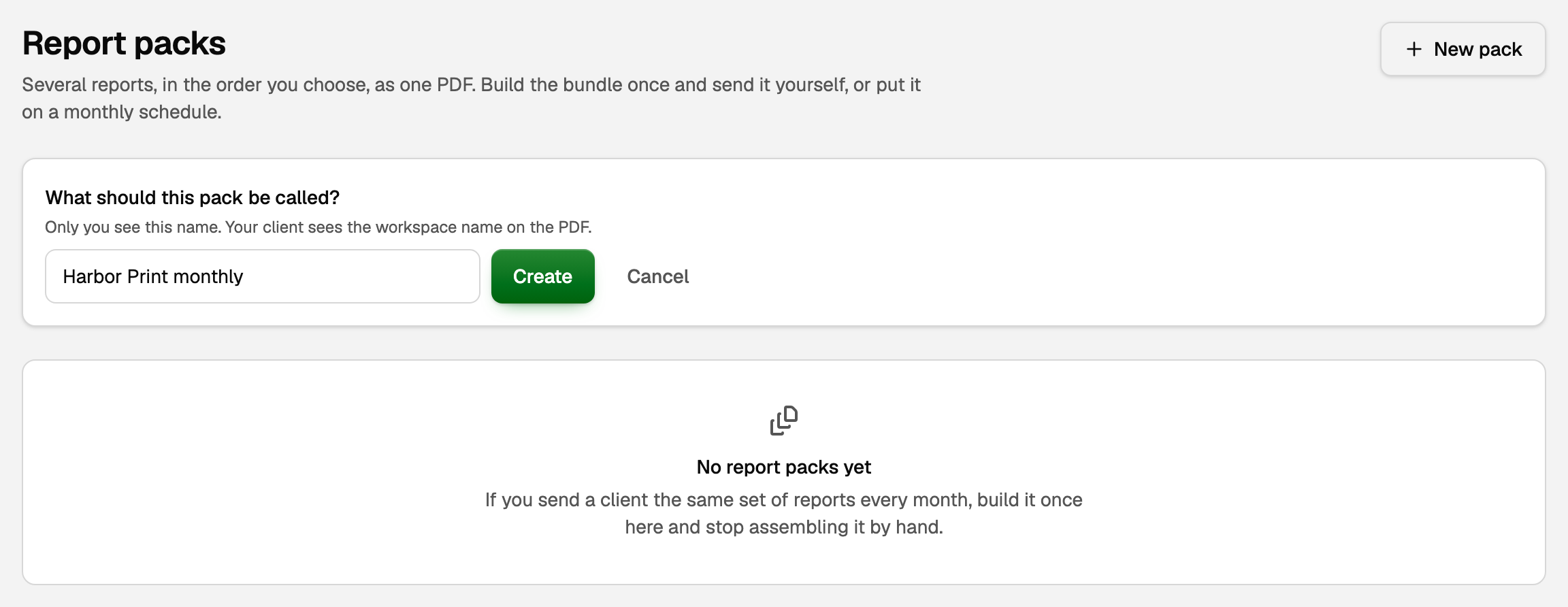
- Open All pages in the left sidebar, then click Reports and Report packs.
- Click New pack.
- Give it a name. Only you see the name; your client sees the workspace name on the PDF.
- Click Create.
Choose the reports
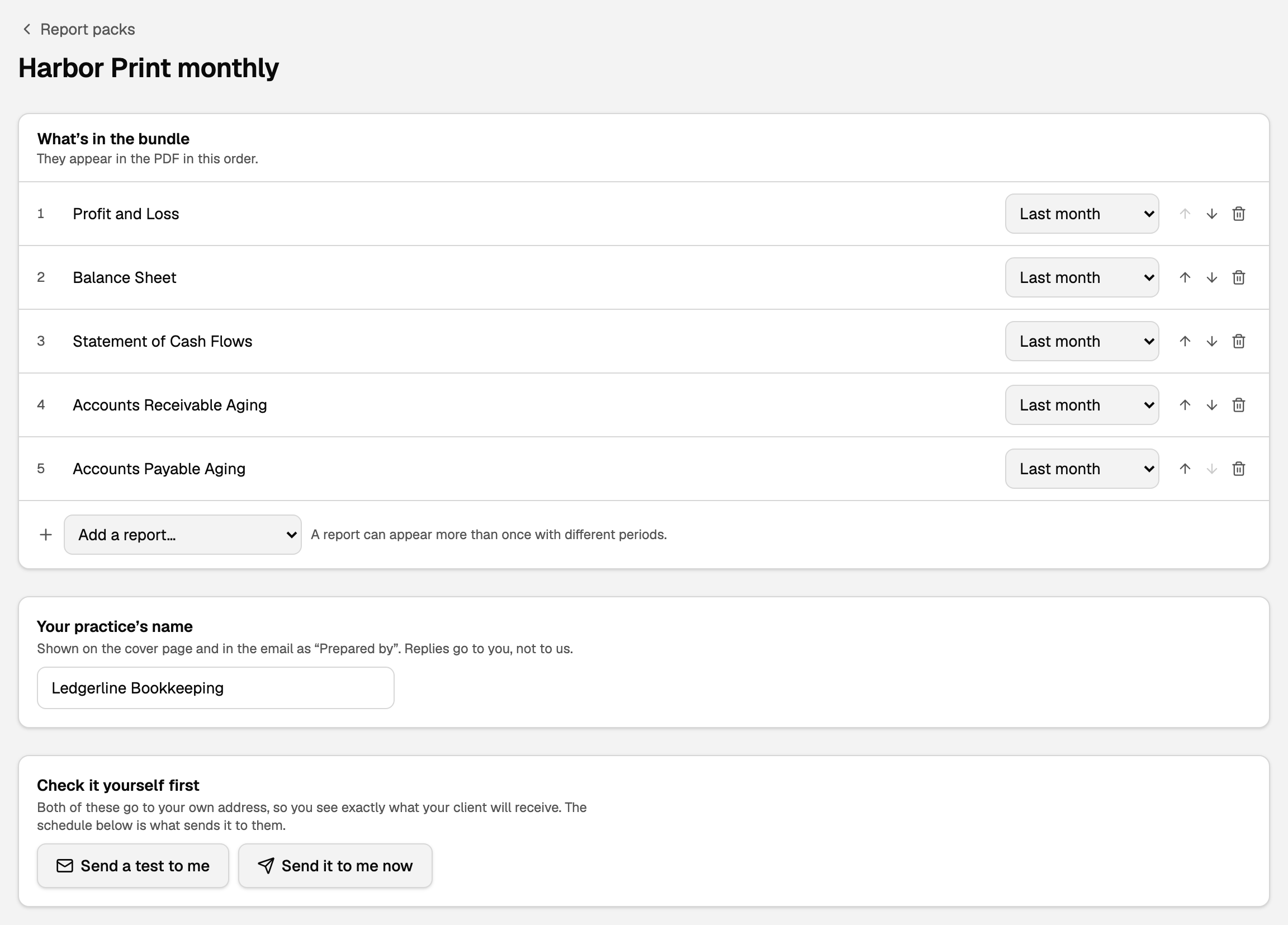
A new pack starts with the reports a month-end pack usually holds. Open it, and under What's in the bundle:
- Click the bin beside a report you do not need.
- Use the arrows to change the order. The PDF follows it.
- Set each report's period. Last month means every send covers the month that just ended.
- Click Add a report… to add another. The same report can appear twice with different periods, such as Last month and Year to date.
- Your saved reports are in the same list, under From a saved report. One saved with fixed dates is greyed out, because it cannot move forward each month.
Under Your practice's name, type your firm's name. It shows on the cover page and in the email as "Prepared by", and replies come to you.
Click Save changes above the reports, or Save name beside the name. Either one saves the reports and the name together.
Send it to yourself first
Under Check it yourself first, click Send a test to me or Send it to me now. Both go to your own email, so you see exactly what your client will get. Only the workspace owner can send a pack.
Add your client
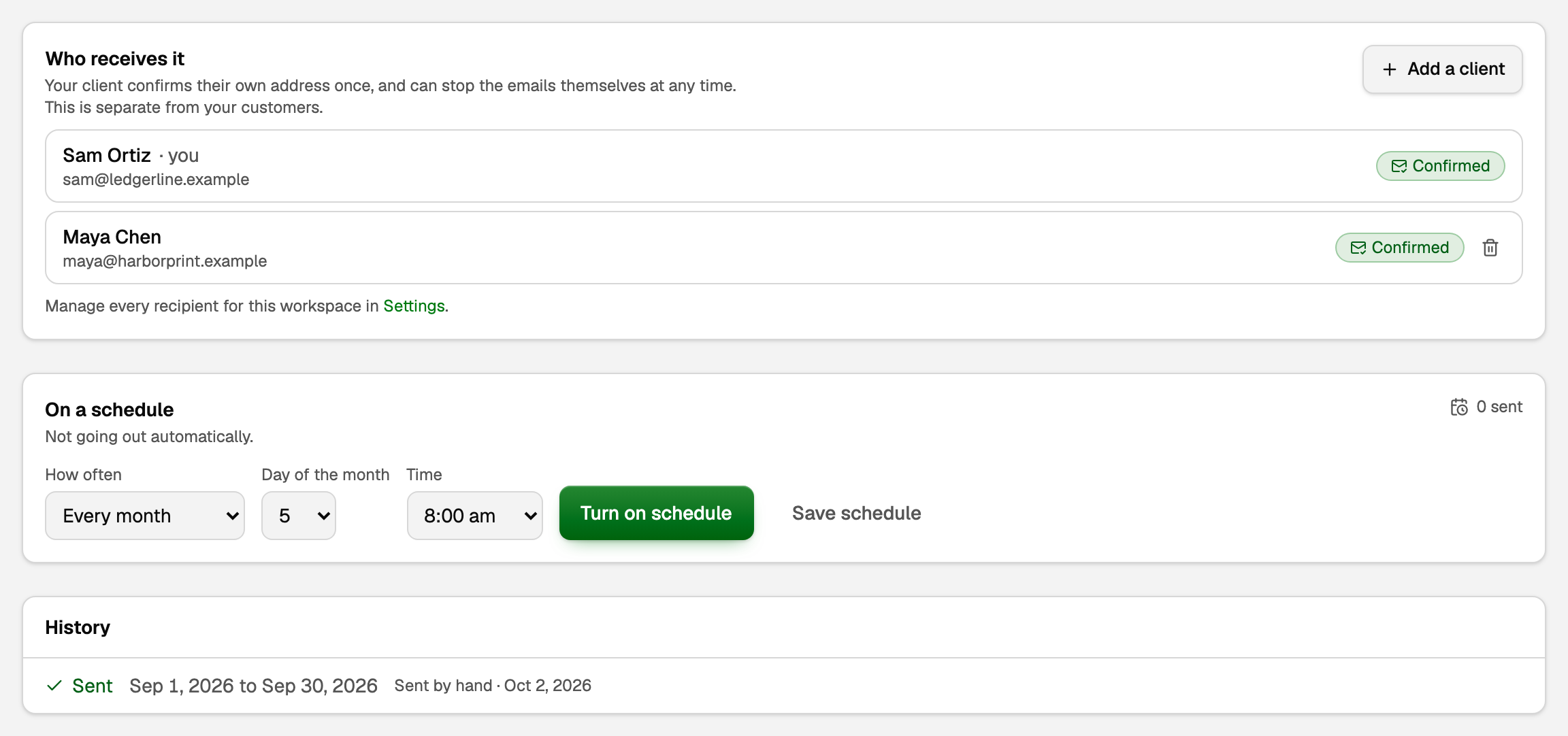
Under Who receives it, click Add a client.
- Someone already set up: pick them and click Add to pack.
- Or somebody new: type their name and email, then click Send them a confirmation.
Your client gets one email asking them to confirm. Nothing is sent to them until they do. They show as Confirmed once they have, and they can stop the emails themselves at any time. These people are separate from your customers.
Put it on a schedule
Under On a schedule:
- Pick How often (Every month, Every quarter, Every six months, or Every year), the Day of the month (1 to 28), and the Time.
- Click Turn on schedule.
What your client receives
On the day you chose, your client gets an email with one PDF: a cover page listing the reports, then each report for the period. The cover and the email say it was prepared by your practice. Each report says which basis it uses. Reports you add here use accrual basis; a saved report keeps the basis it was saved with.
History at the bottom of the pack lists the 20 most recent sends. To stop sending, click Pause schedule.
If something goes wrong
- Someone missed a send. In History, click Try again for who missed it. They get the same PDF everyone else got, for the same month.
- Your client shows Cannot receive yet. The line under their name says why. Usually they have not confirmed yet: ask them to look for the confirmation email, including in spam.
- The schedule stopped after the workspace was archived. Archiving a workspace stops its packs, and reactivating it does not restart them. Add your client again and turn the schedule back on.
Updated on: 16/10/2026
Thank you!