
How sub-accounts show on Profit & loss and the Balance sheet
A sub-account is an account filed under a parent, like Fuel and Parking & Tolls under Automobile Expense. It lets you keep the detail without losing the big picture: the report lists each sub-account under its parent, then a Total line adds the group up.
Open All pages in the left sidebar, then click Reports and Profit & loss or Balance sheet.
What the rows mean
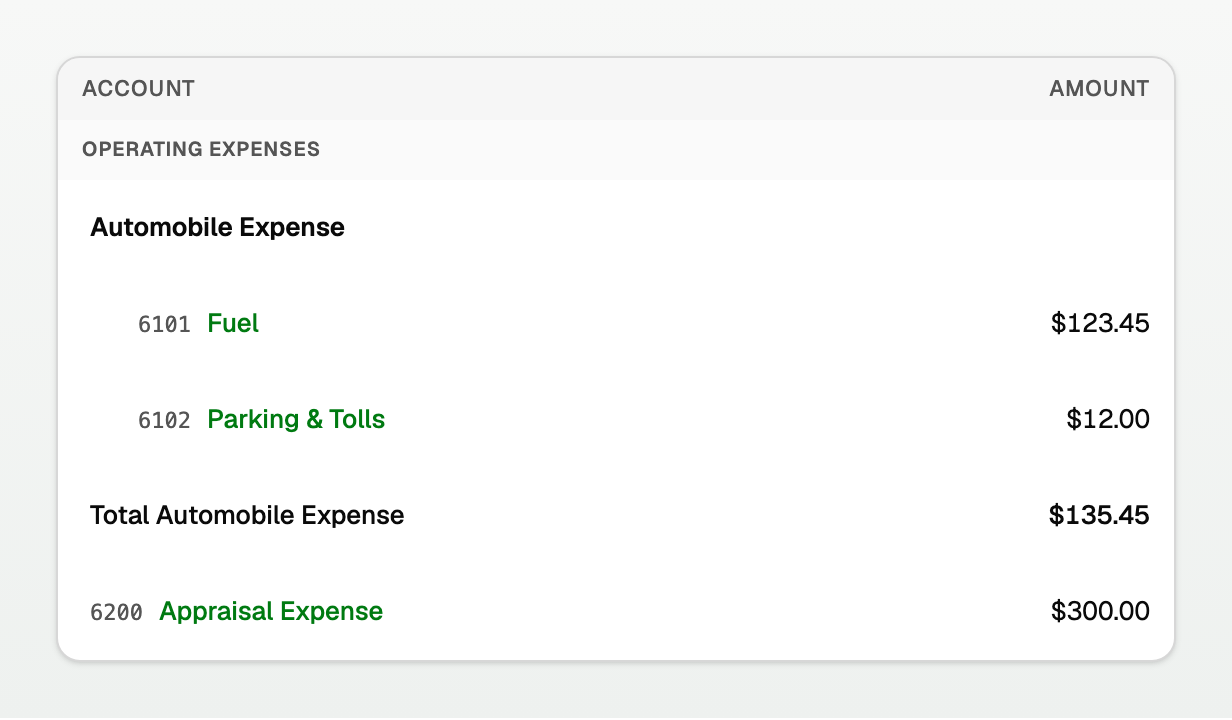
- Each sub-account sits indented under its parent, with its own coloured name and amount.
- Total Automobile Expense is the parent plus every sub-account. It is the only line that adds them up.
- A parent that exists only as a name has a blank amount, not $0.00. This happens with an imported name such as
Automobile Expense:Fuel. Its Total line still adds the sub-accounts.
A real parent on your chart, like Insurance, shows its own postings, then the sub-accounts, then the Total:
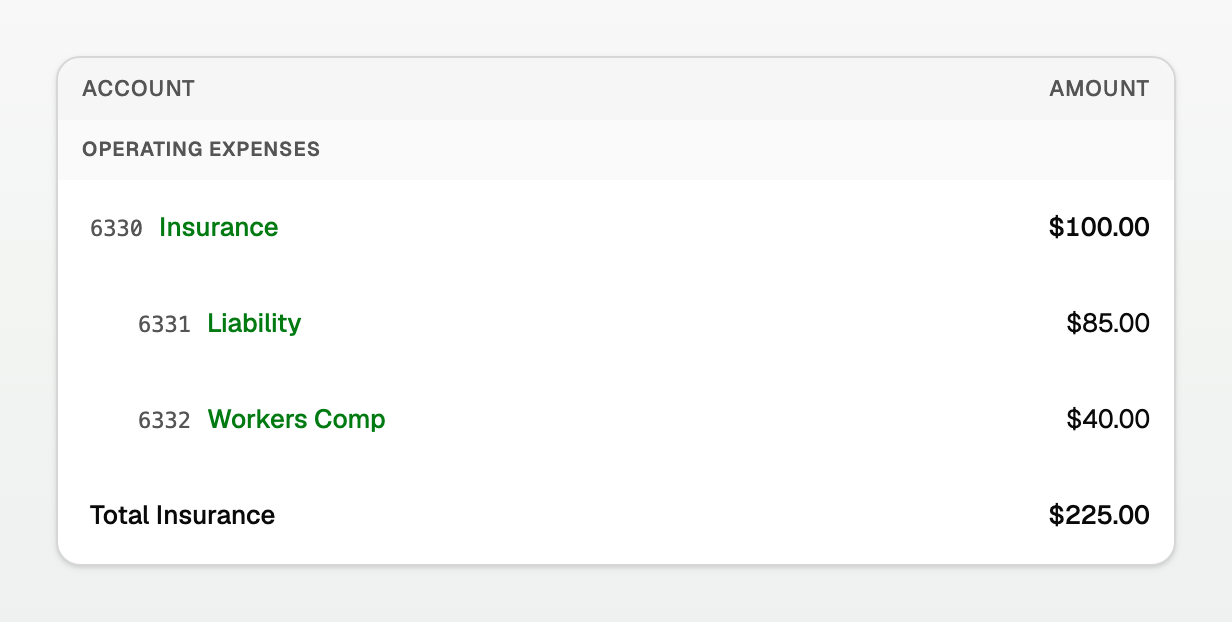
BooksGPT builds the tree two ways:
- On Chart of accounts, tick Make this a sub-account and pick a Parent account, or use Create sub-account in a row's menu. See "Build and edit your chart of accounts".
- An account name that already holds a colon, like
Automobile Expense:Fuel, or the › that QuickBooks Online uses. Imported charts often arrive this way.
Open an account's lines
On Profit & loss, click a coloured account name. A window lists the lines behind that figure for the period: journal entries, invoices, bills and bank transactions.
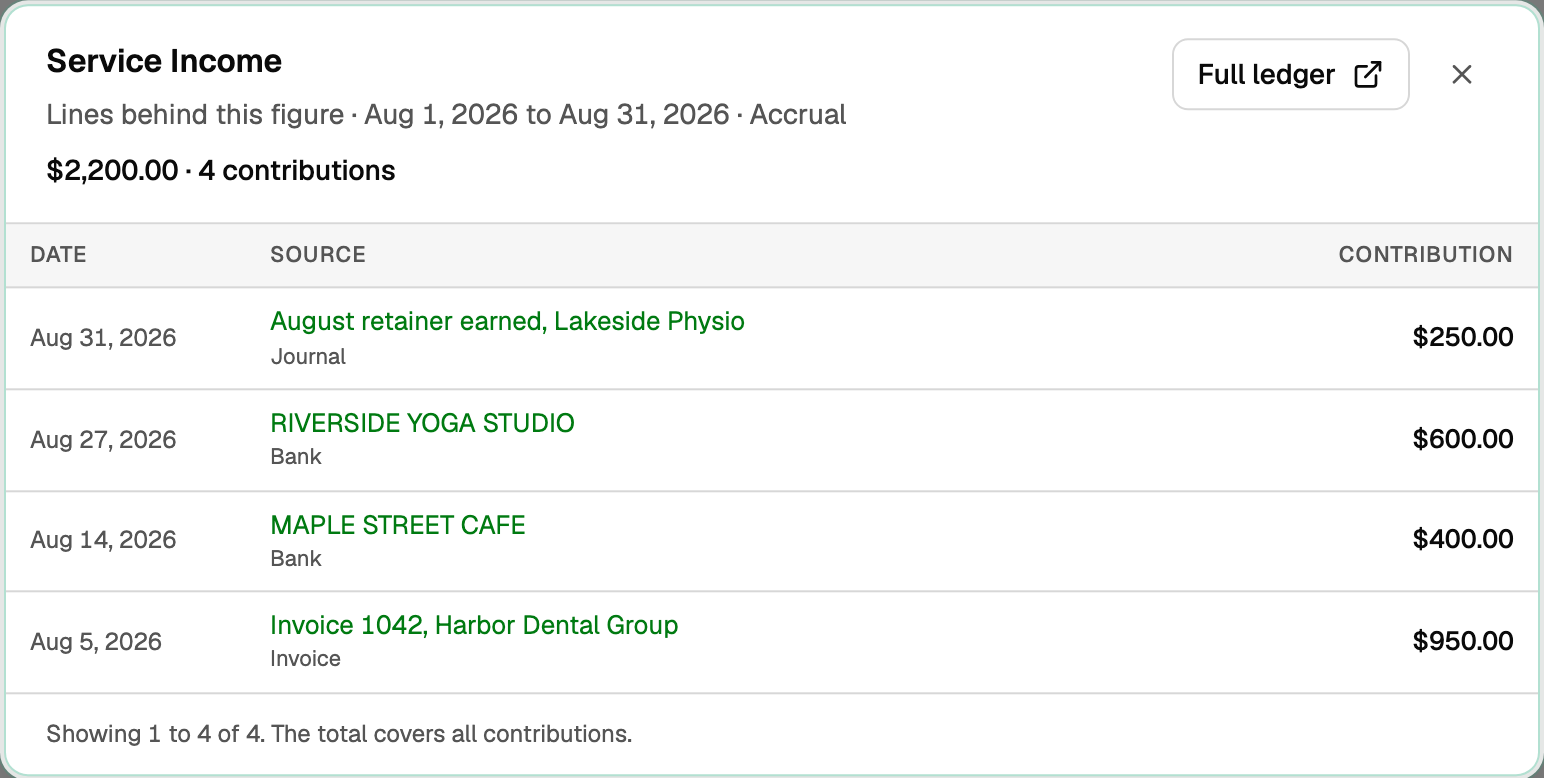
- The total at the top matches the figure you clicked.
- Click a bank row to change its category beside the list. An invoice, bill or journal entry opens in a new tab.
- A transaction split across accounts shows only the part that lands on this account.
- Full ledger opens the account's register. On a parent, With sub-accounts opens the whole group as its own report.
On the Balance sheet, the same click lists the account's transactions through the report date.
By month, By year, and By dimension
Above the report, pick Total, By month or By year. If you track classes or locations, there is also By that dimension, for example By Class (on the Balance sheet, By dimension). Sub-accounts nest the same way in every view.
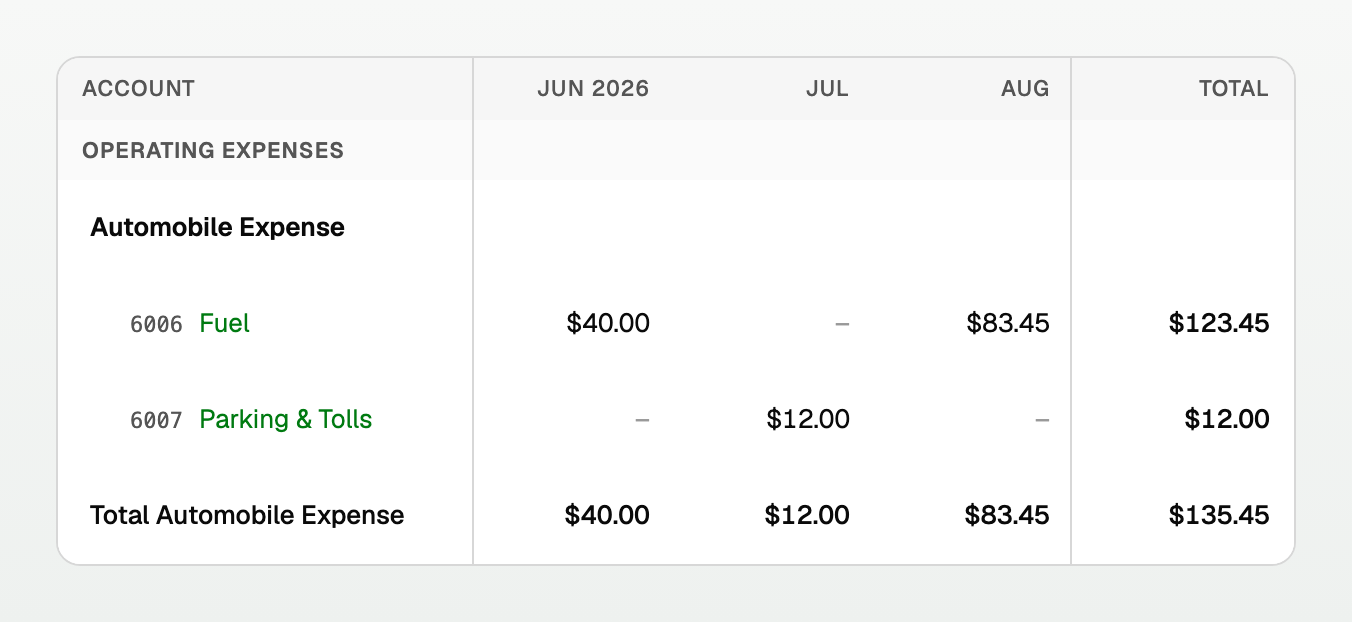
- Total Automobile Expense closes the group in each column.
- A month figure opens the same window for that month. An empty month shows a dash.
- On the Balance sheet, By month and By year have no Total column: each column is the balance on that date.
- The headings and the Account column stay in view while you scroll.
Export, print, and email
Click the Export icon (the download arrow at the top of the report), then pick Excel (.xlsx) or CSV (.csv).
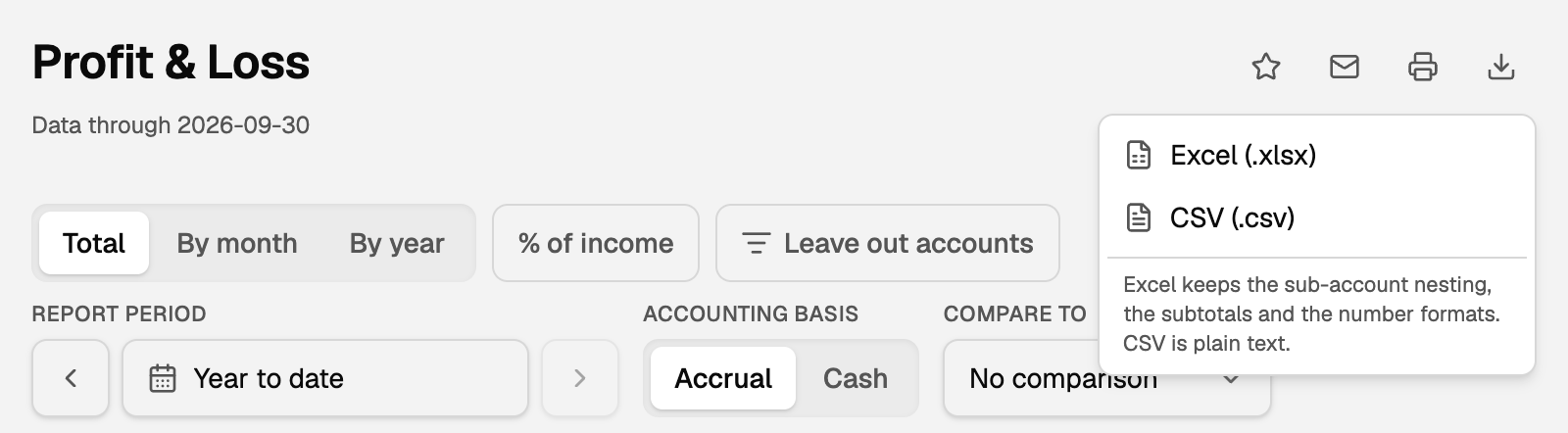
- Section, Code, Account and Amount come first, so summing Amount still ties. Level, Row type, Parent and Rollup are added at the end.
- A sub-account's Total row, such as Total Automobile Expense, leaves Amount empty and puts its figure in Rollup, so each section's account rows still add up to its total.
- Excel indents each sub-account and bolds the Total lines. CSV is plain text with the same figures.
- The Account column keeps the stored name, such as
Automobile Expense:Fuel, even when the screen shows Fuel.
Print, email and Report packs nest the same way.
See one account group as its own report
The Account group report shows one account and every sub-account under it, with the transactions behind them. It answers questions like how much went on Office this year.
- On Profit & loss, click the name on a Total line, such as Total Automobile Expense. It keeps the report's period and basis. (Balance sheet Total lines are not links.)
- Or open All pages, click Reports and Account group, then click Choose an account.
The report lists each account's total, then its transactions by Date, Type, Name, Description and Amount. Save, print, email and export it like any report.
Leave accounts out of a Profit & loss
Use this to show a P&L without, say, one project's costs or a one-off expense.
- On Profit & loss, click Leave out accounts, in the row with Total, By month and By year.
- Tick each account to leave out. Ticking a parent leaves out its whole group.
- Click Apply.
Every total recalculates without them, including Net Income. A note above the report names what it leaves out, and it prints and exports with the report so nobody mistakes it for your whole books. Show every account puts them back. A saved report keeps the choice.
If something goes wrong
- A parent shows a blank amount. It exists only as a name, so it has no postings of its own. Its Total line is the figure to read.
- By month says the period is too long. It shows up to 60 months. Narrow the period, or switch to By year.
- A parent or its Total line disappeared. Hide zero rows (under Rows) hides a group whose accounts are all zero, and also a group that adds up to zero: its parent row and Total line go, while any sub-account with a figure stays.
Nesting never changes Total Income, Gross Profit or Net Income. Only leaving accounts out does. To put last period beside this one, see "Compare periods and save a report".
Updated on: 17/10/2026
Thank you!