
Sales tax: set it up, charge it, and see what you owe
Sales tax in BooksGPT is two screens: one to set the rate up, one to see what you owe.
1. Add your rate
- Open All pages in the left sidebar, then under Setup click Sales taxes.
- Click Add rate.
- In Add sales tax rate, fill in Name, Abbreviation, and Rate (%), for example State Sales Tax, ST, 8.875.
- Add your Tax number if you have a registration number to show customers.
- Click Add rate to save.
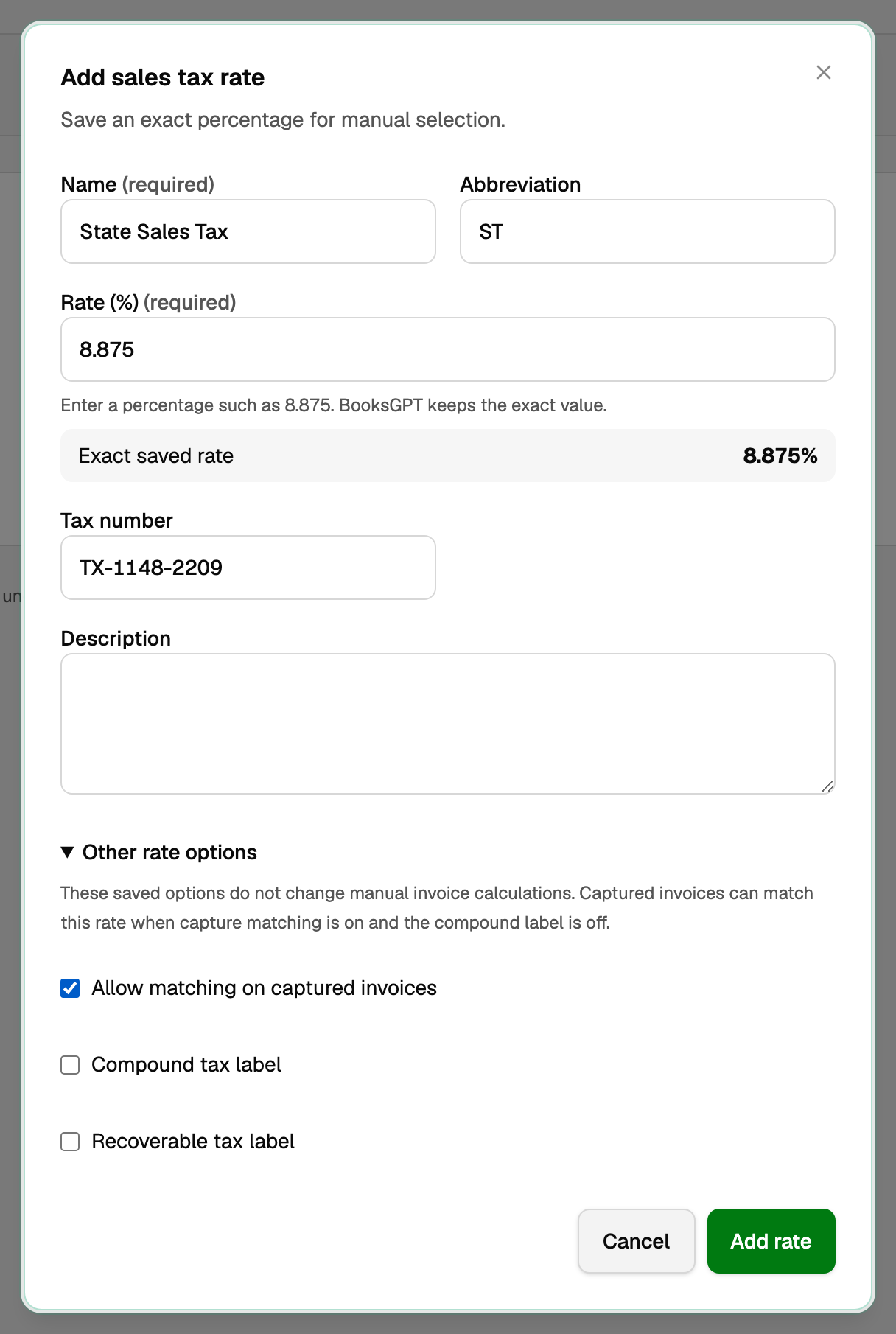
- Rate (%) keeps up to four decimal places exactly. 8.875% stays 8.875%, never 8.88%. A rate with more decimals is refused.
- To change or remove a rate later, open its More actions menu (the "..." on the row), then Edit rate or Delete rate. Deleting asks first. A rate used on a saved document cannot be deleted.
2. Charge it on an invoice
On an invoice or estimate, each line has a Tax column. It starts on No tax.
- Pick your rate on the lines that are taxable, and leave the rest.
- Tax is a straight percentage of that line, and it is shown as its own Tax total.
3. See what you owe
Open All pages, then under Reports click Sales tax report.
- Set Report period to your filing window.
- Under Accounting basis, pick Accrual or Cash, then let the report refresh.
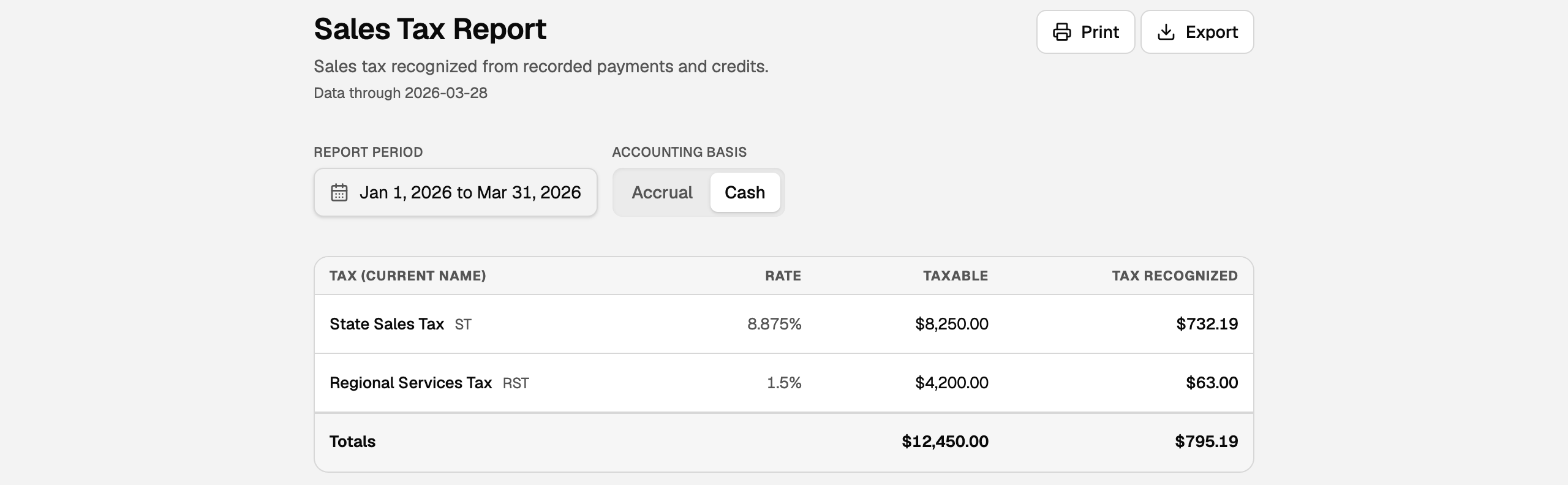
- The first column is Tax (current name). Rate is the rate those invoices were charged at. When one name has several rates in the period, it shows Varies.
- Taxable is the revenue that carried that rate in the period, on the basis you picked.
- Tax charged (Accrual) or Tax recognized (Cash) is the tax on that taxable amount, which is what you remit.
- Tax with no verifiable rate appears under Legacy / unallocated. Its taxable sales say Unknown.
- Export (Excel or CSV) gives you the figures to type into your state filing.
How it adds up
- The report counts sales tax on invoices you have issued. Drafts are left out. On Accrual, a voided invoice or credit memo counts in the period it was issued and comes off in the period it was voided, so one issued and voided in the same period adds nothing.
- A voided invoice or credit memo whose void date the books cannot show is also left out. The report names it in a note above the table for the period of its issue date.
- Accrual counts by issue date, not by the date the customer paid.
- Cash counts by the date you collected payment, in proportion to each collection.
- In your books, tax you collect is credited to Sales Tax Payable. It is money you are holding for the state, not revenue, so it never appears as income.
- Your workspace needs a Sales Tax Payable account before a taxed invoice can be sent. The standard chart of accounts already has one.
What BooksGPT does not do
- It does not look up your rate for you. You enter the rate you are registered to collect.
- It does not track what you have already remitted. Record each payment to your state as a normal expense against Sales Tax Payable.
- It does not file or pay for you.
Updated on: 16/10/2026
Thank you!