
Compare periods and save a report
A report on its own says what happened. Put it beside last month or last year and it says whether things are getting better or worse: did sales grow, did fuel costs jump. That is how a business spots a trend early. Once a report is set up the way you like it, save the view so next month it is one click.
To open a report and read it line by line, see Run your financial reports.
Compare two periods
- Open All pages in the left sidebar, then click Reports and Profit & loss or Balance sheet.
- Set Report period. Pick a preset such as Year to date, a year under Fiscal year, or type a Start date and End date as MM/DD/YYYY and press Enter. When the period is one fiscal year, the arrows beside it step a year back or forward.
- In Compare to, pick Previous period, Previous year, or Custom period. For a custom period, set its dates under Comparison period.
- On Profit & loss, click % of income if you also want each line as a share of income.
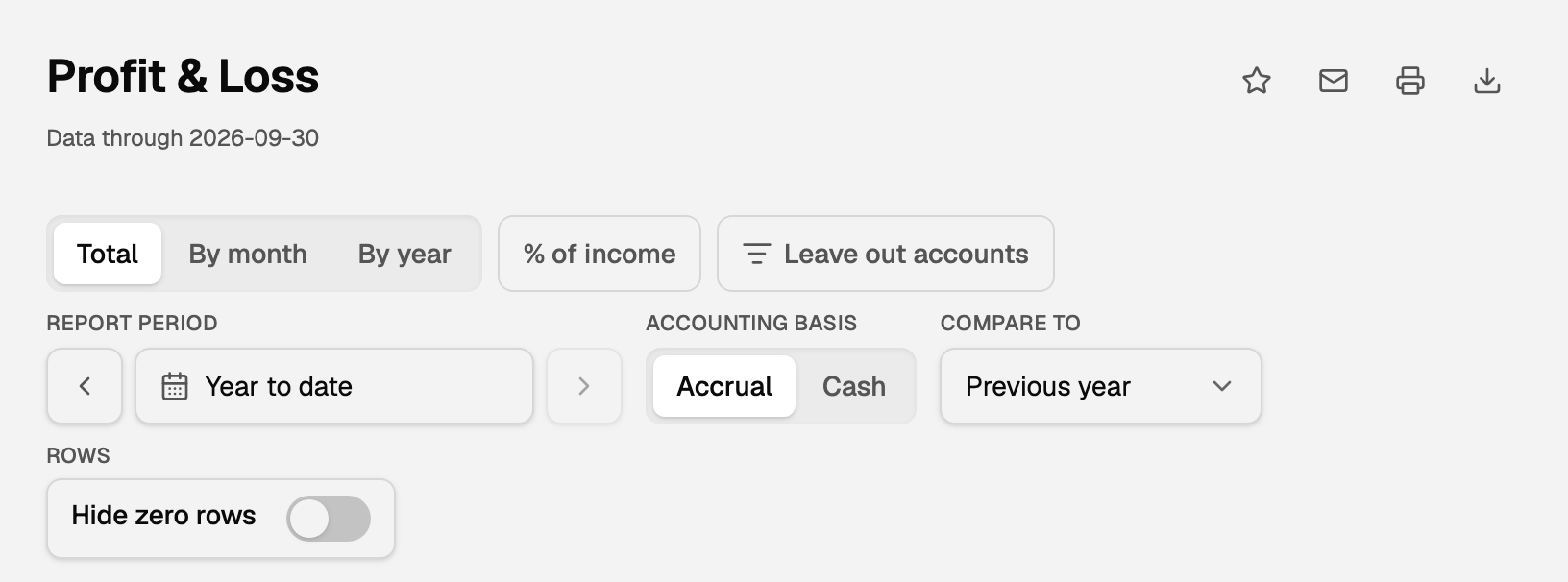
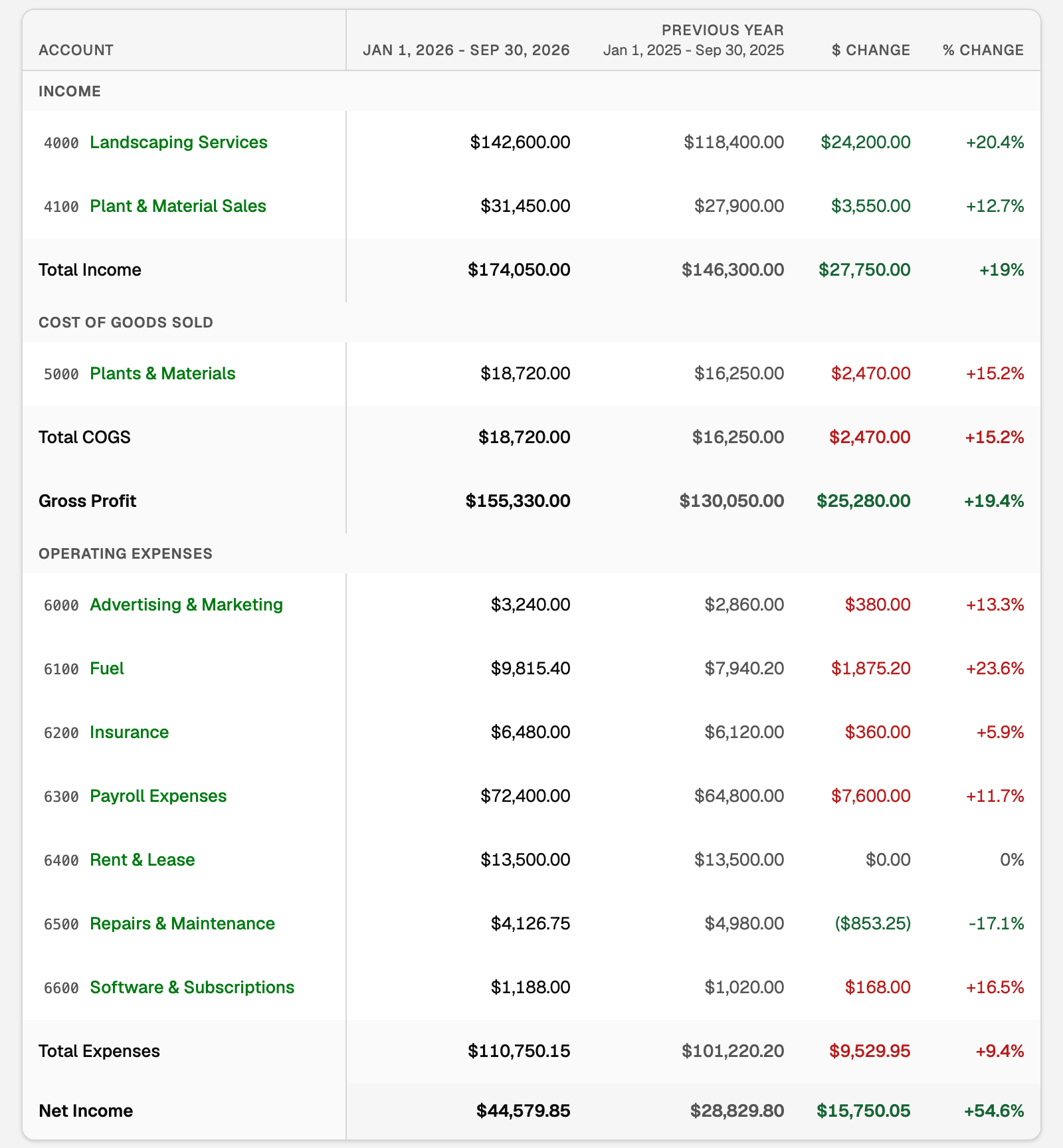
Each line now shows the earlier figure beside this one, then $ Change and % Change. Income that went up shows in green and an expense that went up shows in red, so the lines worth a closer look stand out.
- Previous period is the stretch just before yours. A whole month steps back one calendar month, so February compares with January, and a quarter with the quarter before.
- Previous year is the same dates one year earlier.
- Custom period is a date range on Profit & loss. On the Balance sheet and Trial balance it is a single date, and the column is labelled Custom date.
- Compare to works on the Total view and on a view by class or location. It is not offered on By month or By year, because those columns already are the comparison.
- The column headings stay at the top as you scroll. A comparison too wide for your screen scrolls sideways in its own box, with the account names held on the left.
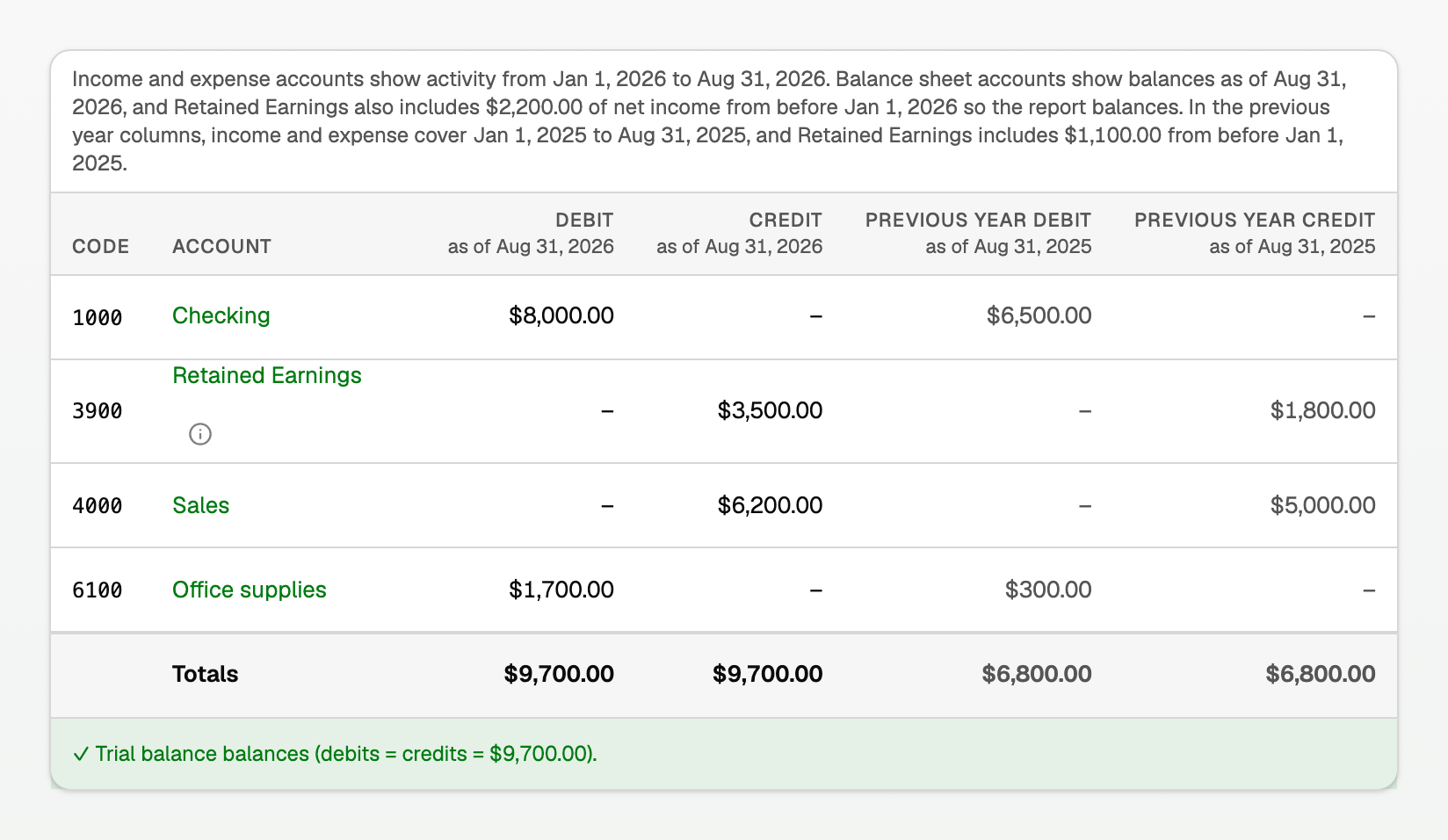
Trial balance has Compare to too. It shows a debit and a credit column for each period instead of the change columns, and the line above the table says which dates income and expenses cover.
Save a view you run often
- On Profit & loss or the Balance sheet, set it up the way you want it.
- Click the star at the right end of the title row. Its name is Saved reports.
- Click Save current view…, give it a name, and click Save report.
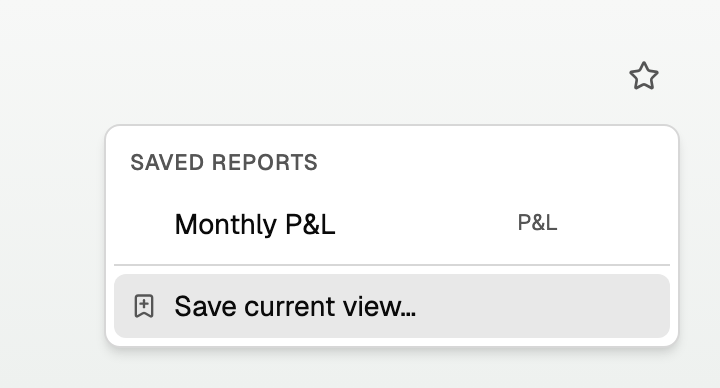
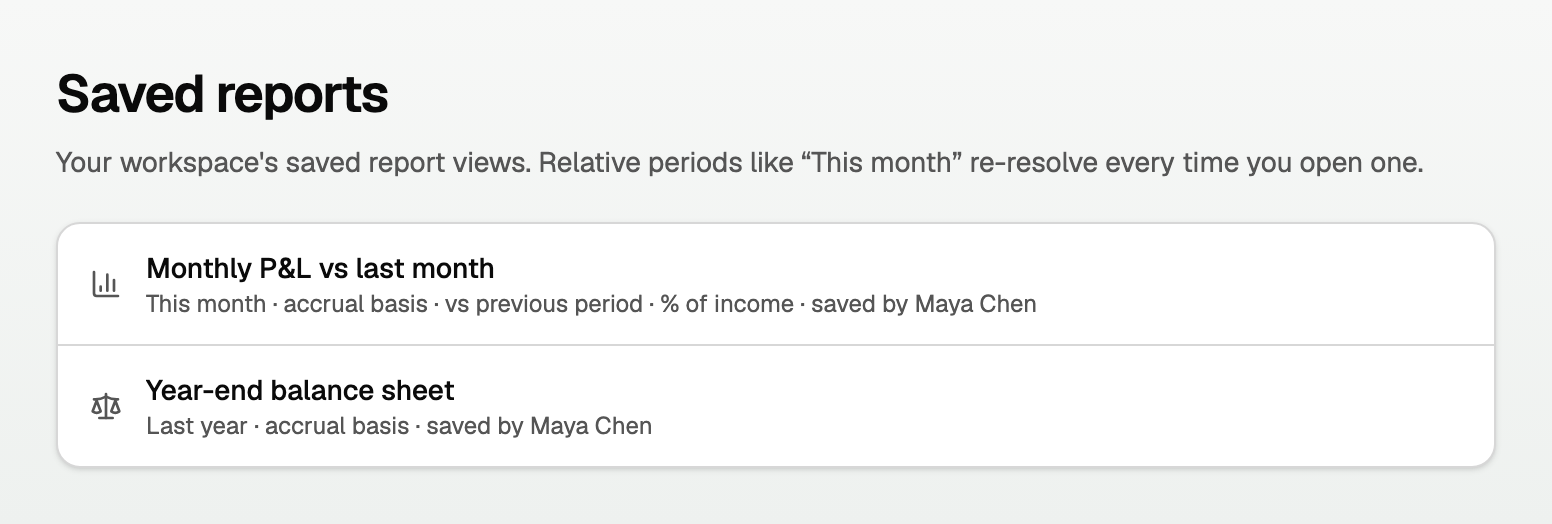
The view keeps the period, basis, comparison, % of income, the columns and the rows you chose. Saving needs a role that can edit the books.
To change a saved view, open it, make your change, then click the star and choose the Update line with the view's name.
To see every saved view, open All pages in the left sidebar, then click Reports and Saved reports. Everyone in the workspace shares the list.
Email, print, or export a report
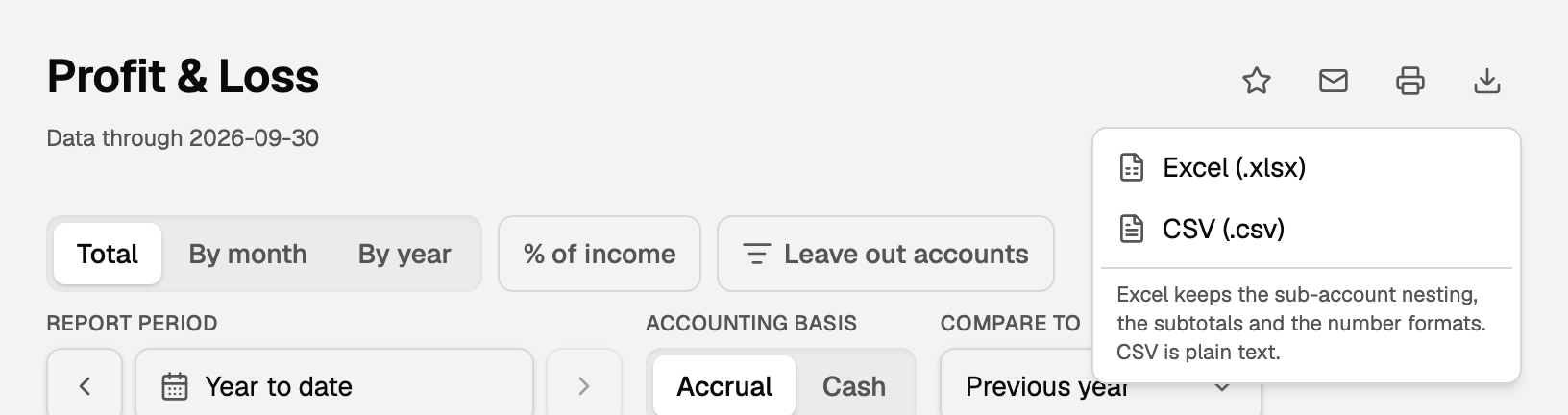
Four icons sit at the right end of the title row. Point at one to see its name.
- Saved reports (the star): your saved views, as above.
- Email this report (the envelope): sends the report as a PDF to a client contact who has confirmed their email address. If you have none yet, the window links you to Settings to add one. Only the workspace owner and a bookkeeper see it.
- Print or save as PDF (the printer): opens your browser's print window. If the printout carries a web address, a date or page numbers, turn off Headers and footers in the print window. Emailing the report gives a clean PDF without them.
- Export this report (the download arrow): pick Excel (.xlsx) or CSV (.csv). Choose Excel to keep the sub-account indents, the subtotals and the number formats.
To send a set of reports to someone every month without doing it by hand, see Send monthly reports to a client automatically.
If something goes wrong
- Compare to is missing. The report is on By month or By year. Click Total, then pick the comparison again.
- The star menu has no way to save. Your role can only read the books. Ask the workspace owner to save it, or to change your role.
- There is no envelope icon. Only the workspace owner and a bookkeeper can email a report. Use Print or save as PDF or Export this report instead.
Updated on: 16/10/2026
Thank you!