
Account balances, income by customer, and purchases by vendor
Three list reports answer "where does this stand" without opening a full statement. All three live under Reports, and all three export to CSV or Excel.
Account balances
Every account with its balance on one date.
- Open All pages in the left sidebar, then under Reports click Account balances.
- Pick the date.
- Read Code, Account, Type, and Balance.
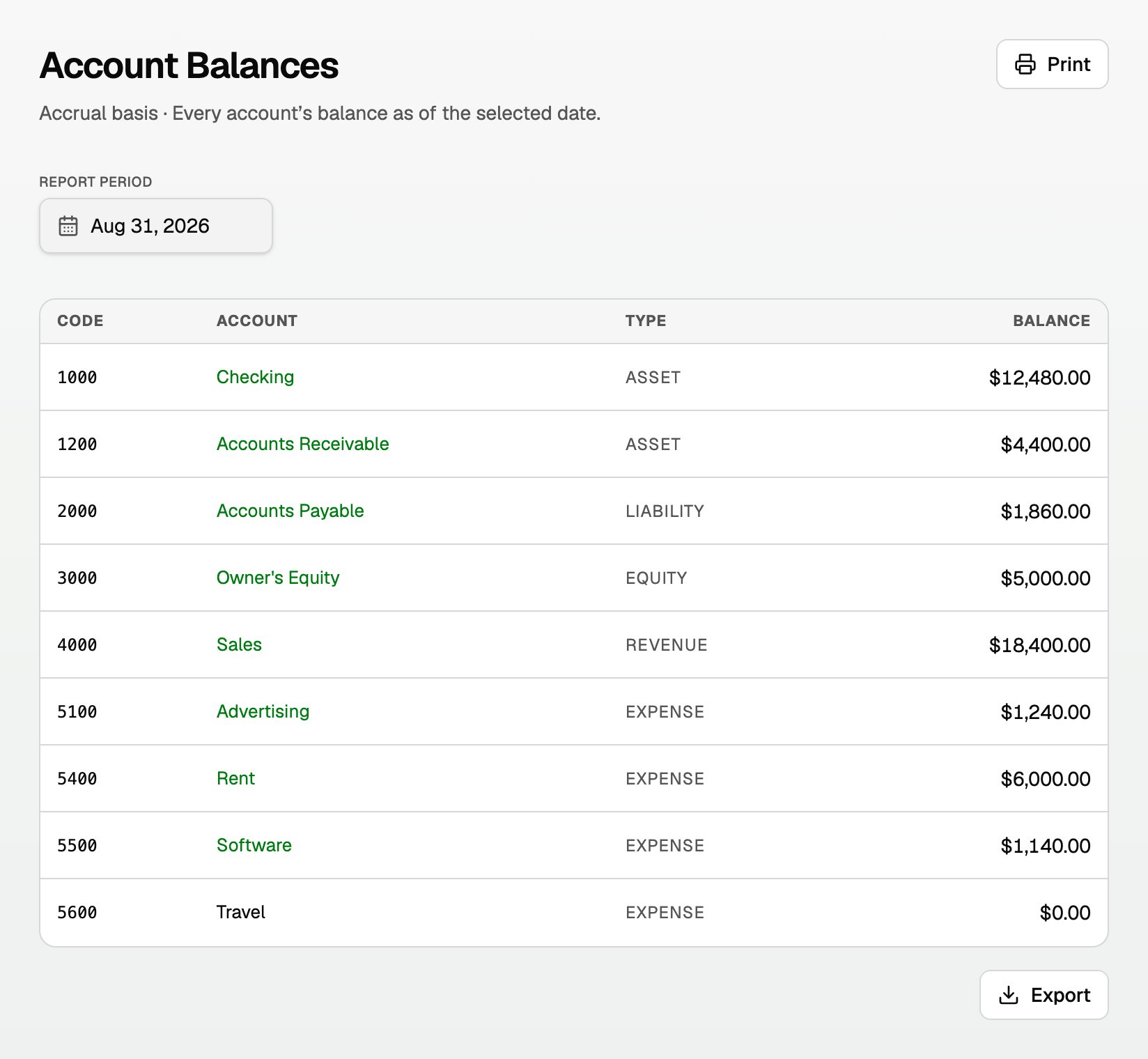
- The balance is accrual as of that date.
- An account with activity links to its General Ledger. Click its name.
- A negative balance shows red, and an account you inactivated is faded.
Income by customer
What each customer brought in for a period, from invoices and from deposits, and what they still owe.
- Open All pages in the left sidebar, then under Reports click Income by customer.
- Set the range.
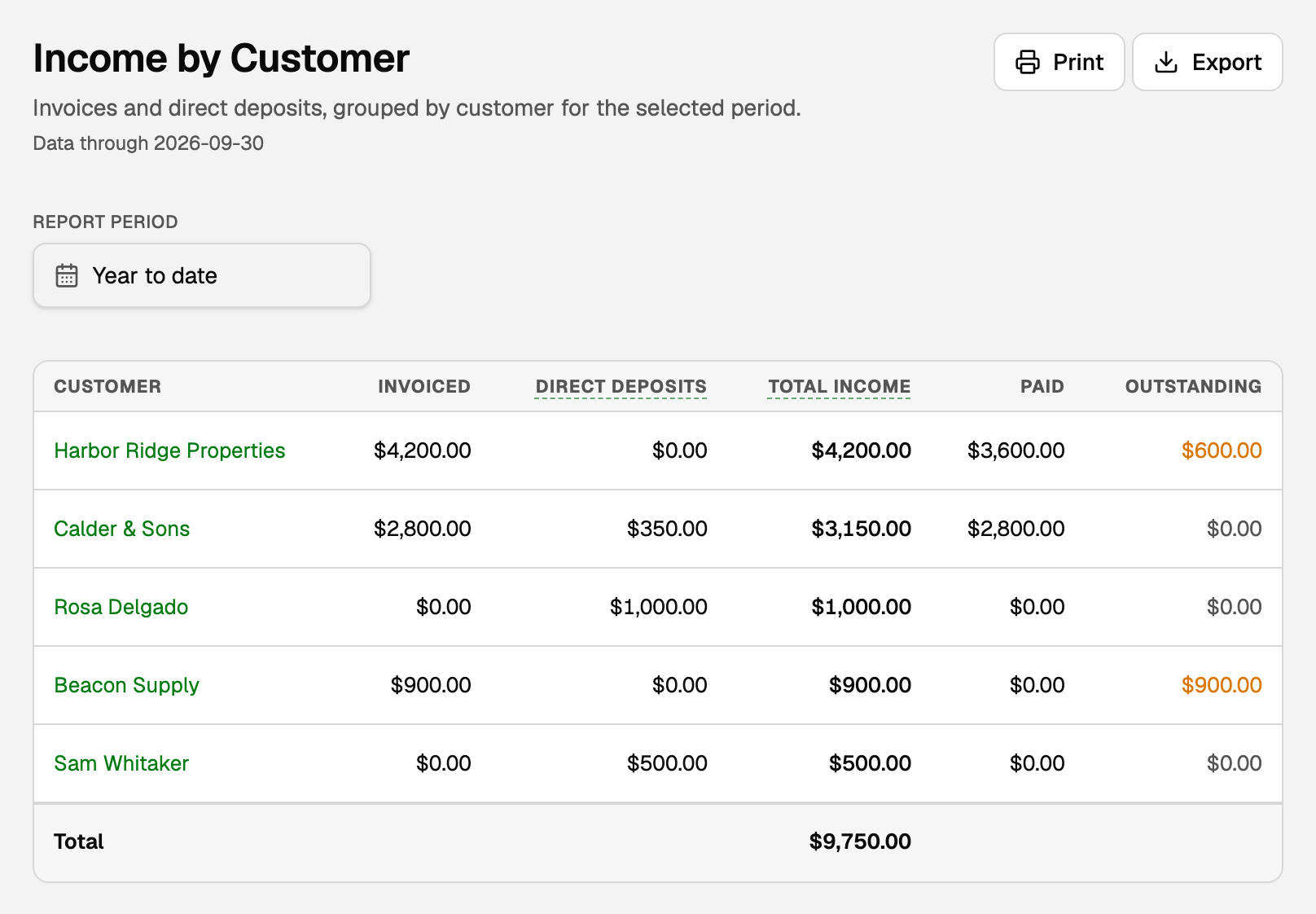
- Invoiced is what your invoices in the period came to, sales tax included.
- Direct deposits is income from a bank deposit you filed to an income account with the customer set, like a card payout with no invoice. A split deposit counts each line under its own customer.
- Total income adds the two.
- Paid is what has arrived on invoices.
- Outstanding is still owed on invoices, and it is amber while there is any.
- The Total line totals Total income.
- Click a customer's name to see their transactions, with a link to their page.
Purchases by vendor
What each vendor was billed, and what you spent directly.
- Open All pages in the left sidebar, then under Reports click Purchases by vendor.
- Set the range.
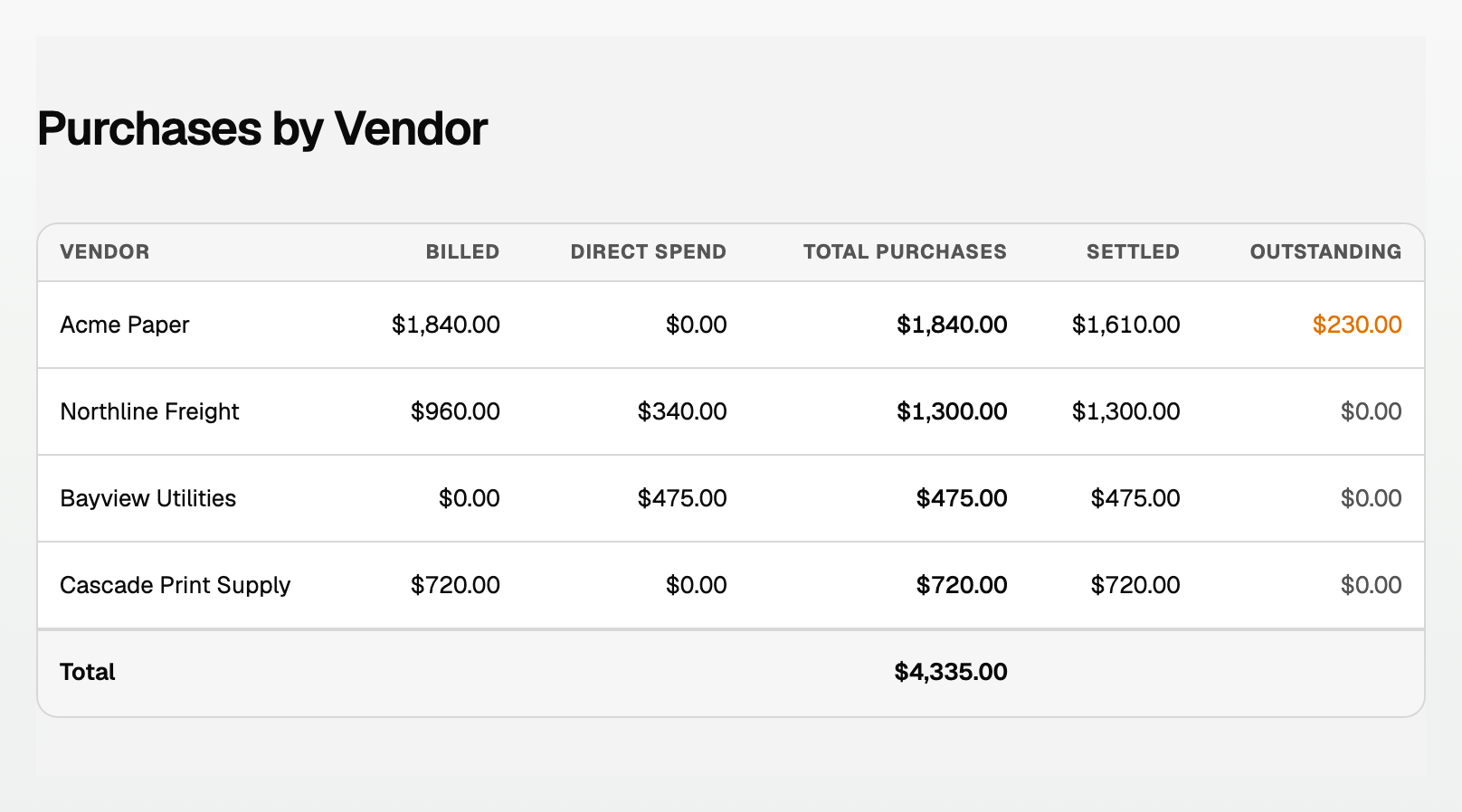
- Billed is what Bills came to.
- Direct spend is bank or card money spent with no Bill, like a card swipe.
- Total purchases adds the two.
- Settled is what is paid, credited, or covered by a prepayment.
- Outstanding is amber while anything is left.
- The Total line totals Total purchases.
Good to know
- Every one of these exports as CSV or Excel, and prints.
- The column headings stay at the top while you scroll a long list. On Income by customer and Purchases by vendor, a table wider than your screen scrolls sideways and the name stays on the left.
- For who owes you and how late, see "Read the A/R and A/P aging reports".
- For one customer's or vendor's history, click their name in any row.
Updated on: 18/10/2026
Thank you!