
Turn on Cash reports for books imported from QuickBooks Desktop
Imported your books from a QuickBooks Desktop General Ledger?
If your QuickBooks file has no invoices, bills, payments against them or credits, and everything is deposits, checks, card charges, transfers and journal entries, Cash reports are already on. You do not need this export. QuickBooks reports those books the same on both bases. The page says Your Cash report is ready.
For books that use invoices or bills, Cash reports need one more file from QuickBooks: the same General Ledger, exported on the Cash basis. If the page says Add the matching Desktop Cash ledger, follow the steps below.
Why one more export
- Your General Ledger shows when each invoice and bill was dated, not when it was paid.
- A Cash report counts income and expenses in the month the money moved. For books that use invoices or bills, it would have to guess without payment dates.
- QuickBooks Desktop already knows when money moved. Its Cash-basis General Ledger is the proof, and BooksGPT checks it against your books.
Where you see it
Open All pages in the left sidebar, then click Reports and Profit & loss. Set Accounting basis to Cash.
The page says Add the matching Desktop Cash ledger. It lists Required report as General Ledger, Cash basis, and Cash reports as Not yet verified.
If a Desktop workbook is missing its Cash Basis or Accrual Basis report header, BooksGPT asks whether it was run on Accrual or Cash. Choose Cash for this export. Nothing changes in your books, and you do not need Start Over.
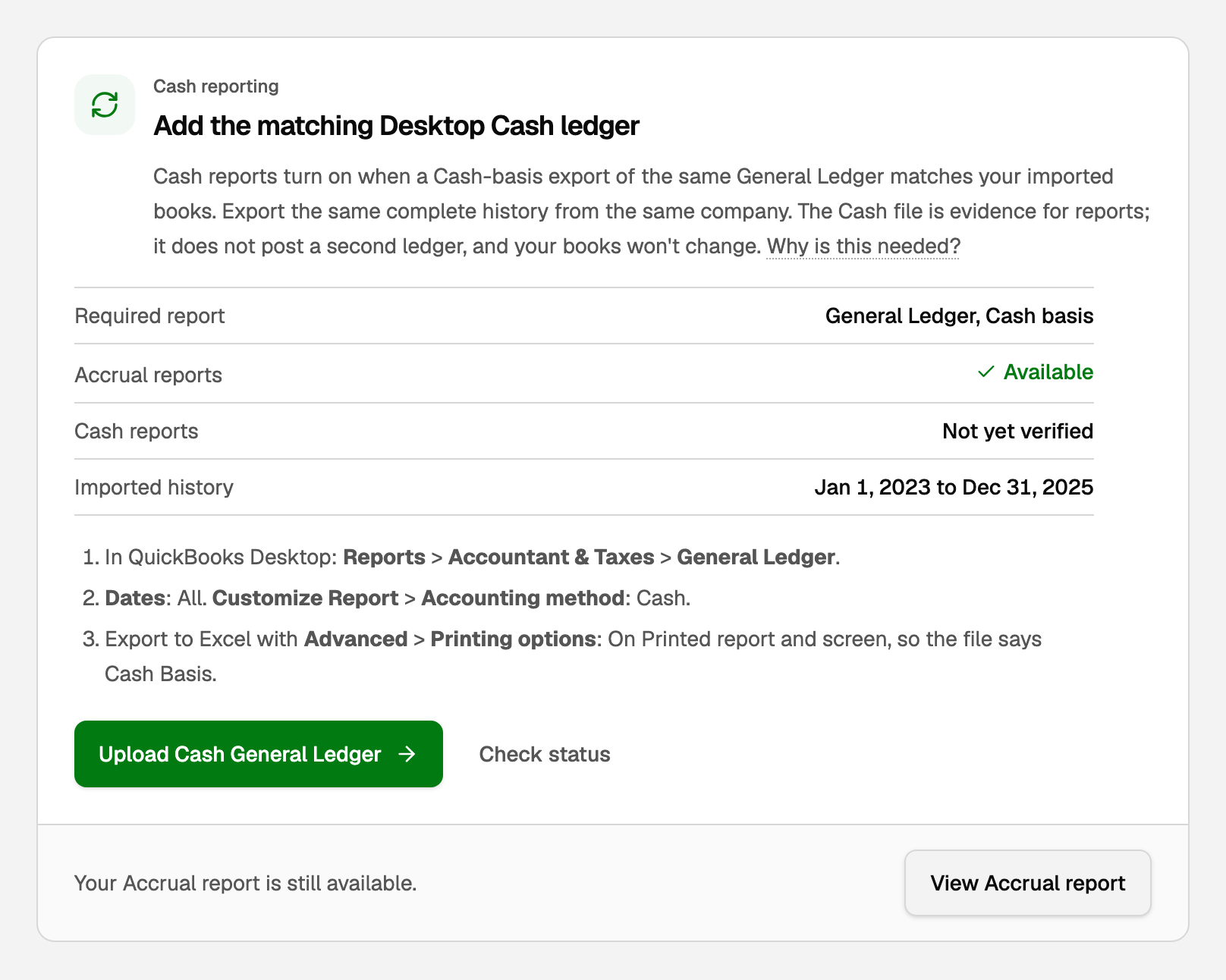
View Accrual report takes you back to Accrual at any time.
Export it from QuickBooks Desktop
Open the same company you imported, then:
- Go to Reports > Accountant & Taxes > General Ledger.
- Set Dates to All, the same as your first export.
- Click Customize Report and set Accounting method to Cash. If your books use Classes, also tick Class under Columns.
- Click Excel > Create New Worksheet.
- Click Advanced and set Printing options to On Printed report and screen. That puts Cash Basis at the top of the file.
- Export, and save the workbook.
Export one file. Yearly files selected together work for your books, but not for this one.
Import it
Only the workspace owner or a bookkeeper can do this.
- On the report, click Upload Cash General Ledger. Or open All pages in the left sidebar, then click Setup and Import.
- Drop the file on Drop your books export here, or click Choose file.
- If BooksGPT asks Was this report run on Accrual or Cash?, choose Cash.
- Check the title on the card. It must say QuickBooks Desktop General Ledger (Cash basis).
- Click Import into this workspace.
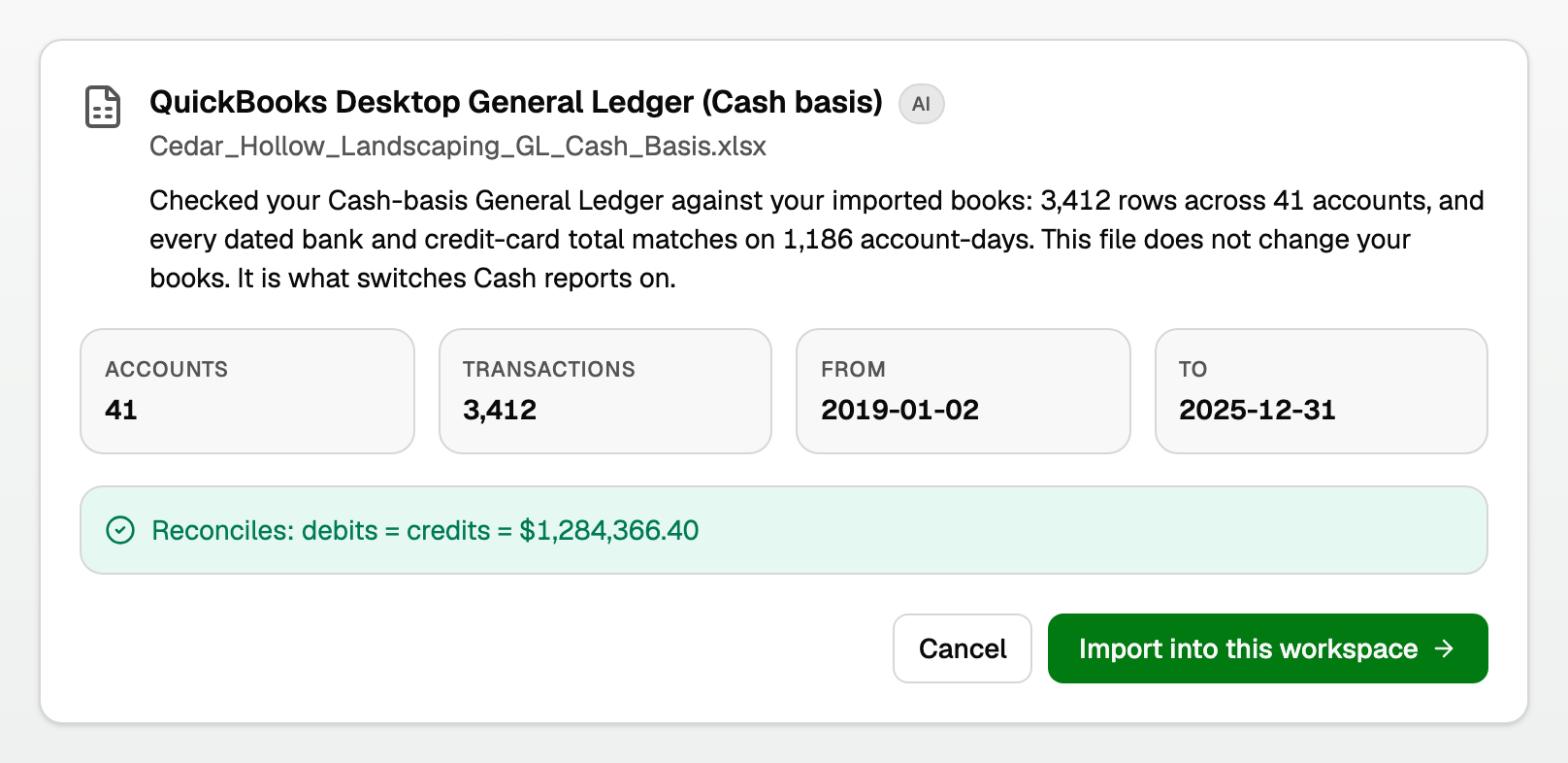
Now choose Cash on Profit & loss again.
What the check proves
- Money moves the same way on both bases. Every bank and credit-card account must show the same totals, day by day, as the books you imported.
- If the file has no basis line, it must contain either a QuickBooks Unapplied Cash account or a stable invoice, bill, or payment that proves QuickBooks changed the timing for Cash. Your answer alone is not enough.
- A file from another company, another period, or an edited file does not match. The card says why before you confirm.
- Classes come across too. QuickBooks prints the Class on every row of its Cash report, so your Cash reports by Class show the same Classes as Accrual.
- Nothing is posted, moved, or re-dated. Your Accrual reports stay exactly as they are.
- If QuickBooks' report uses its Unapplied Cash accounts, BooksGPT adds them to your chart of accounts. They only carry amounts on Cash reports.
If the card cannot use the file
- Uses an account your imported books do not have. Export from the same company you imported. Renaming, archiving, or moving accounts in BooksGPT does not stop the check.
- Does not match your books. Both files must come from the same company and cover the same dates.
- Covers dates outside your imported books. Set Dates to All, like your first export.
- Does not add up to its own account totals. Export again, and do not edit the file.
- Still looks like Accrual after you answer Cash. Run the General Ledger with Accounting method set to Cash and upload it without editing. If QuickBooks cannot print the basis and the file is still refused, contact support.
- Has no Class column, and your books use Classes. In QuickBooks Desktop, open the same Cash-basis General Ledger, choose Customize Report, tick Class under Columns, and export it again.
- Uses a Class your imported books do not have. The card names the Class. If you renamed or added a Class in QuickBooks since importing, import your Accrual General Ledger again first. Otherwise export from the same company, with Dates set to All.
- Imported invoices, bills or payments carry tags this report does not carry. Remove those tags from them, then upload the report again.
If Cash pauses later
Cash stays on while you keep working. These all show up in your Cash reports straight away:
- splitting, recategorizing, or deleting imported transactions that are not invoices, bills or payments
- renaming, archiving, moving, or merging accounts
- new bank transactions and anything you enter in BooksGPT
Cash pauses if you:
- change, reverse, or delete an imported invoice, bill, or customer or vendor payment
- change the type of an account that Cash figures post to
- import your books again
The report then says Cash reports are paused and why. When an invoice, bill or payment changed, undo that change to switch Cash back on. If you no longer use QuickBooks Desktop, click Prepare a support draft. You read the message first, and nothing is sent until you click Send to support. For anything else, export a fresh Cash-basis General Ledger and import it.
Books imported from QuickBooks Online, Wave, or another General Ledger cannot use this. See "Run your financial reports".
Updated on: 15/10/2026
Thank you!