
Add a workspace and switch between them
One login holds every workspace. A bookkeeper keeps one per client, a business owner keeps one per company, and a personal workspace holds net worth, budgets, and goals. This is how to add one and move between them.
Switch workspaces
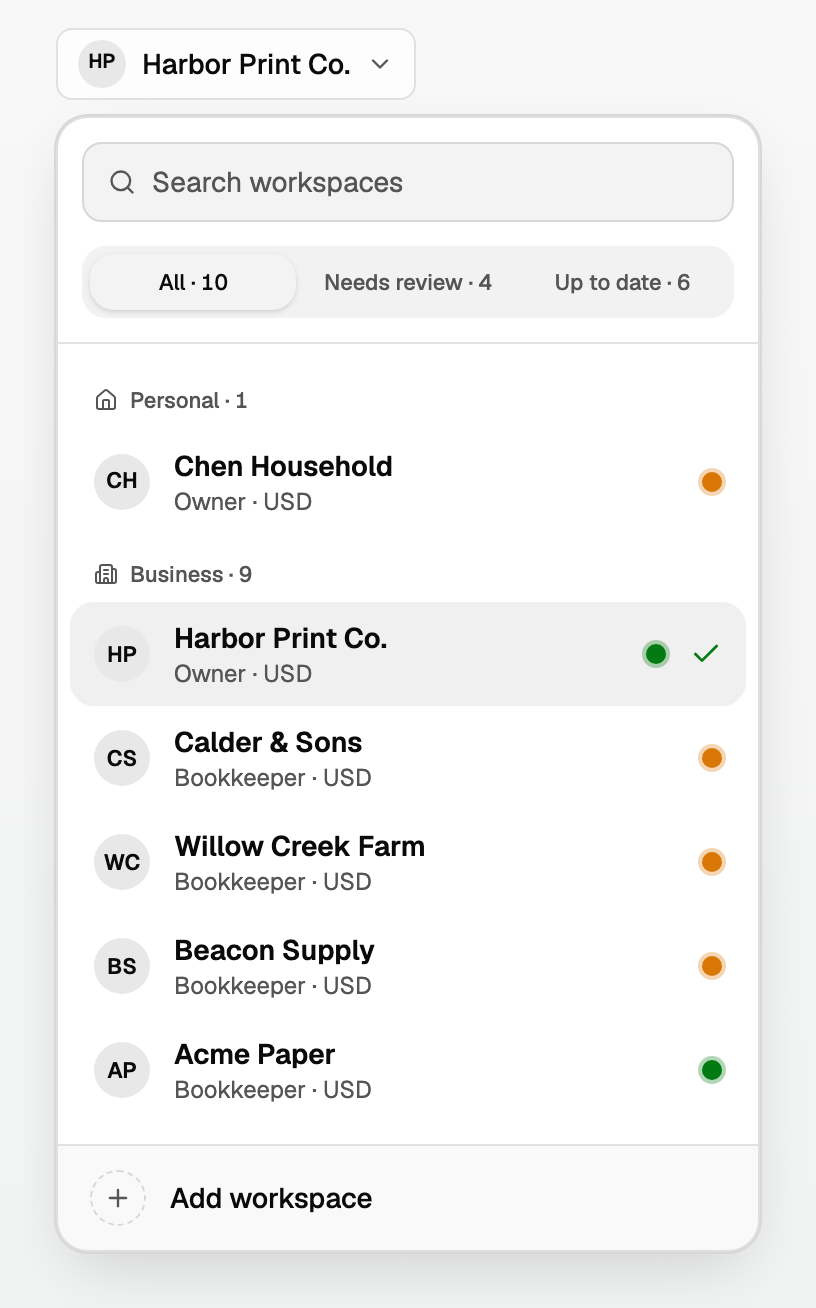
- Click the workspace button in the top bar. It shows the name of the workspace you are in.
- Pick a workspace from the list. Business and Personal are grouped, and each row shows your role and the workspace currency.
- An amber dot on a row means that workspace has transactions waiting for review. A green dot means it is up to date. Hover a dot to read it.
- With more than eight workspaces that are not archived, the list adds Search workspaces and the All, Needs review, and Up to date filters.
Add a workspace
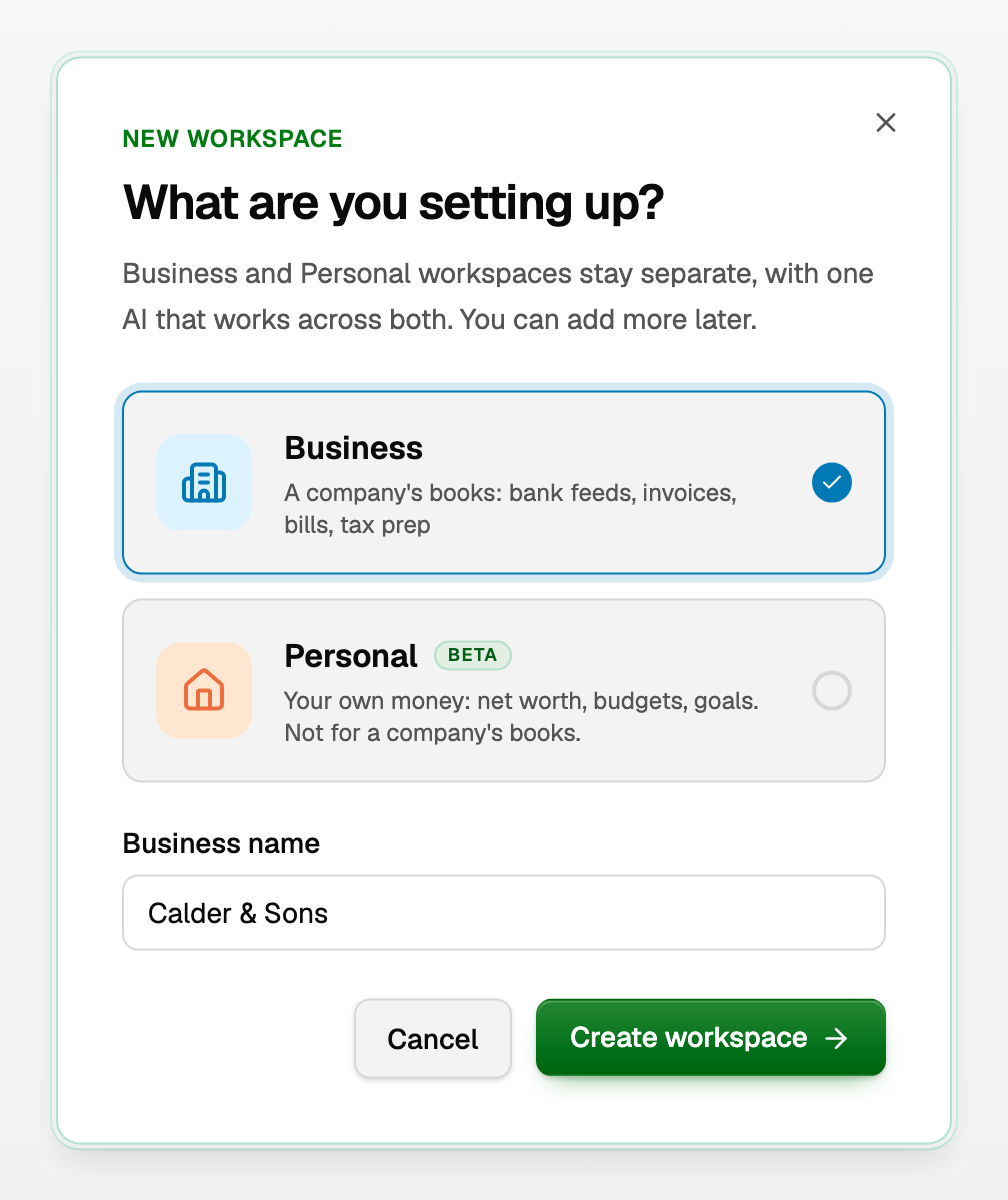
- Open the workspace button and click Add workspace at the bottom.
- Choose Business for another company's books, or Personal for net worth, budgets, and goals.
- Enter the Business name or Workspace name.
- Click Create workspace.
How many you get
Adding more than your plan includes
- The app offers an extra workspace, and shows the price before you buy: $5 per month for an extra business workspace on a lifetime plan, $10 per month on a monthly plan, and $15 per month for an extra personal workspace.
- Manage the count later under Settings > Plan & billing, in Extra client workspaces. A cancelled extra workspace says when it ends and offers Resume add-on.
- Every workspace keeps its own books, bank feeds, Drive, and members. Nothing is shared between them.
Good to know
- Inviting teammates and clients is free on every plan. The caps above are workspaces, never people.
- To invite someone to the workspace you are in, see "Invite someone to your workspace, and what each role can see".
Updated on: 16/10/2026
Thank you!