
Bring your QuickBooks receipts and attachments across
The books import brings your chart of accounts and history. Receipts, check images, and bill PDFs are a separate step on the same card.
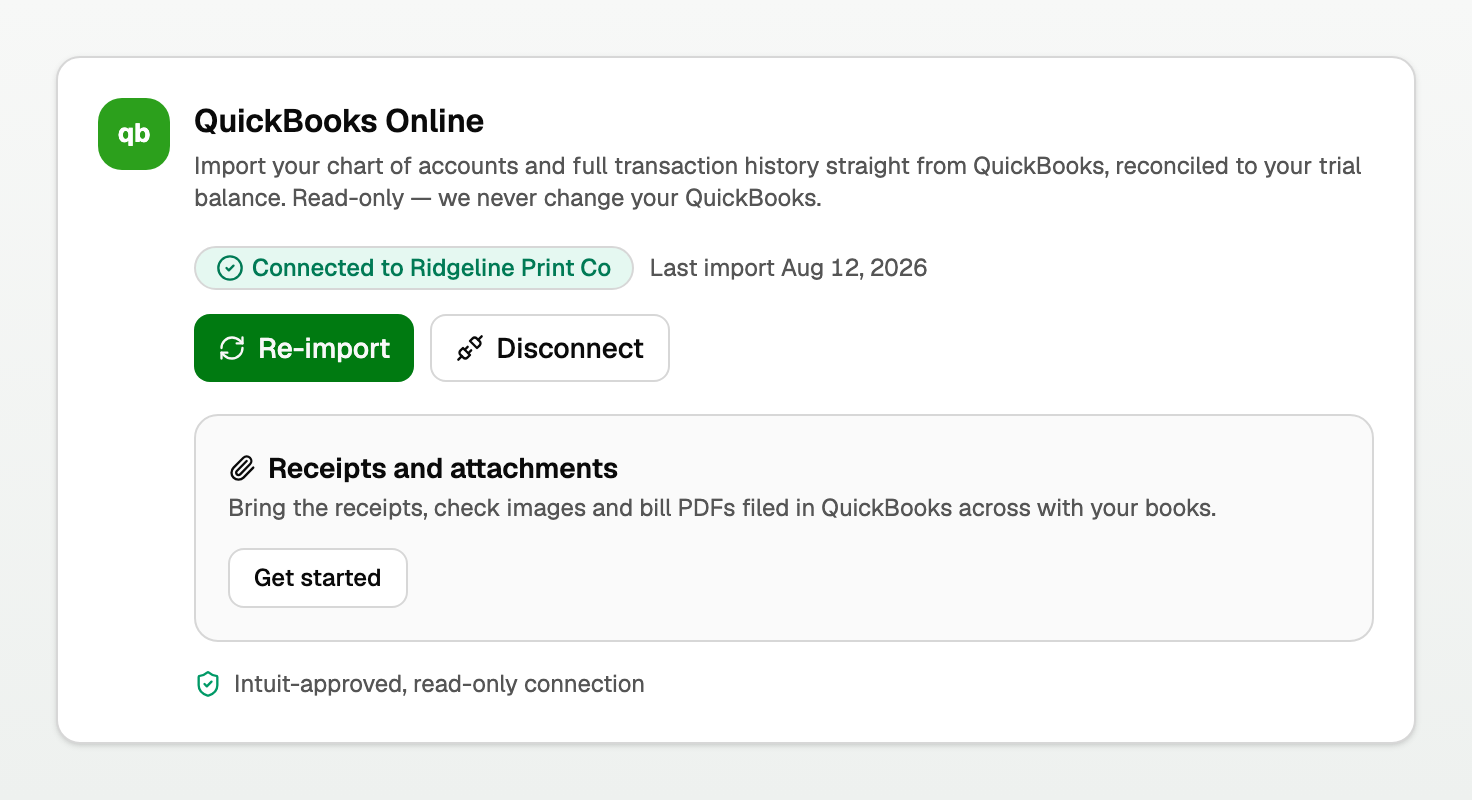
Open All pages in the left sidebar, then under Setup click Integrations. You must already be connected to QuickBooks Online. Receipts and attachments only shows on a live connection.
Get a preview first
- Click Get started.
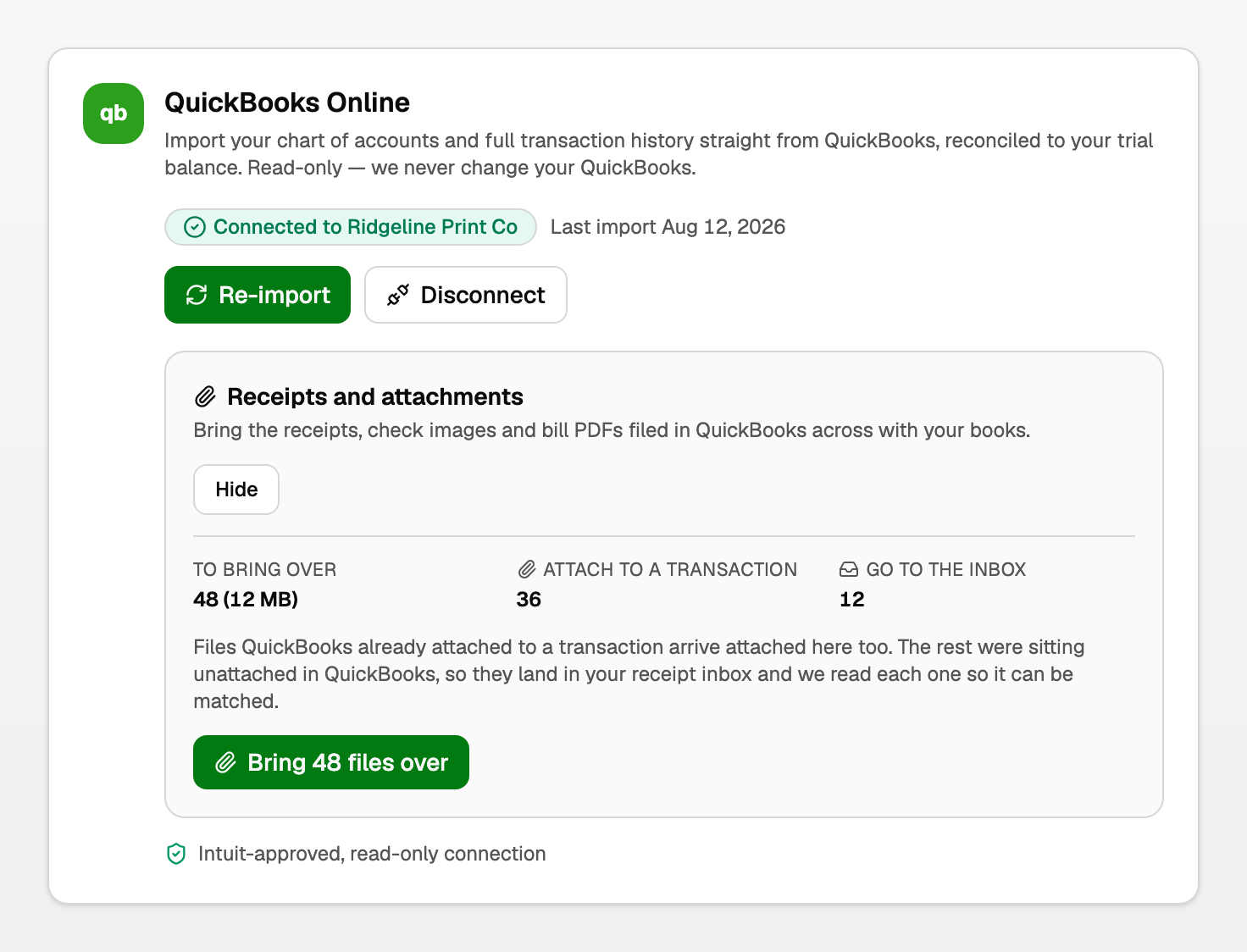
- Wait until the three counts appear: To bring over, Attach to a transaction, and Go to the inbox.
- Click Bring N files over.
If it stopped part-way, nothing was lost. Click Resume the import.
Two places they land
- Files QuickBooks already attached to a transaction arrive attached here too.
- Files that were sitting unattached in QuickBooks land in your receipt inbox. BooksGPT reads each one so it can be matched.
If a file is not on a transaction, open All pages, then under Purchases click Receipts.
After it finishes
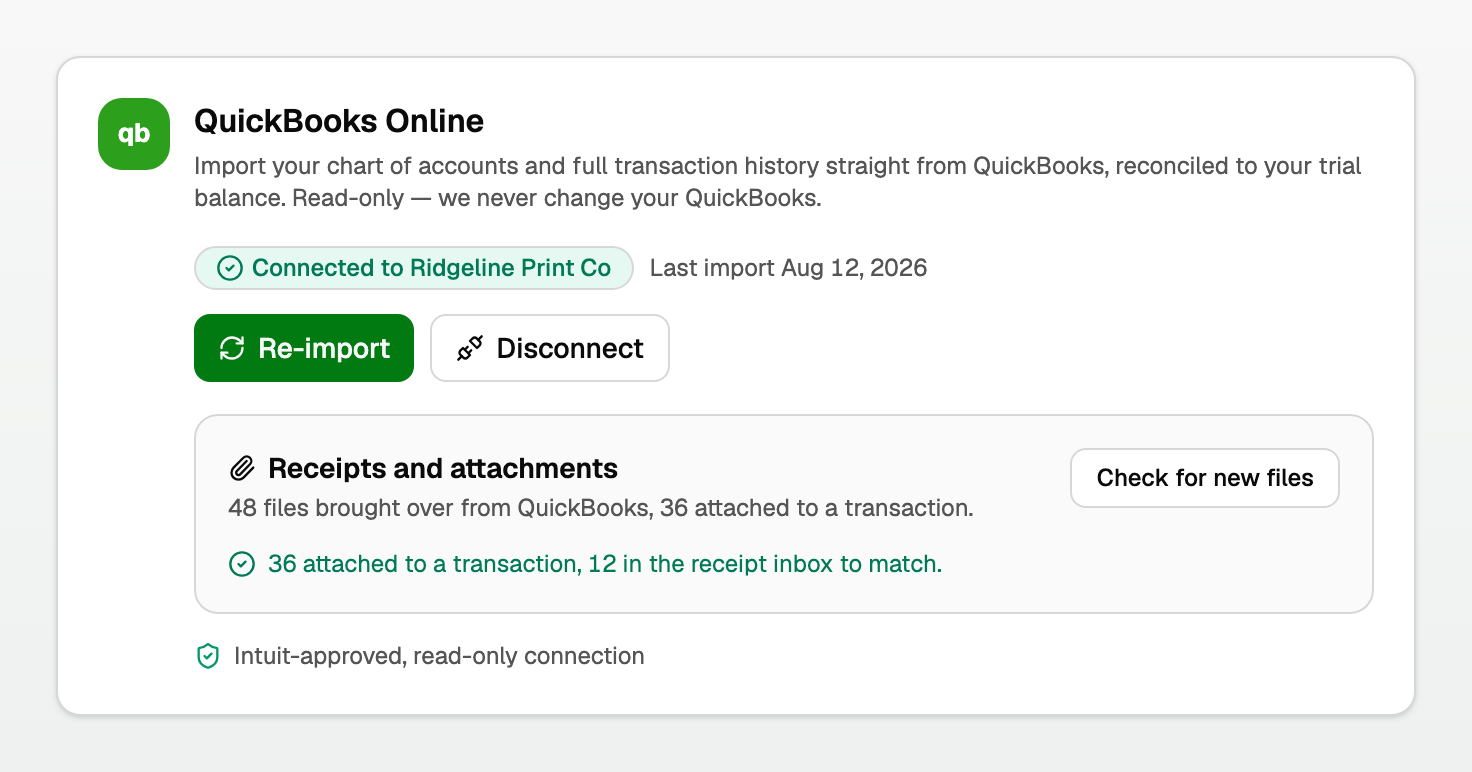
The panel says how many attached and how many are in the inbox to match.
- Click Check for new files later if you filed more in QuickBooks.
- Re-importing your books later keeps the files.
- After a reimport that rebuilds the books, some receipt links need a fresh review. Open Receipts, choose Needs linking, then Attach existing transaction. Pick the row, choose Purchase, Refund, or Not sure, confirm it belongs, and click Attach receipt.
- Attaching a file does not change the transaction's amount or category. Receipt matching does not auto-match refunds.
If reading did not finish
On Receipts, a saved QuickBooks attachment may offer Retry reading when the first read failed, is still waiting, or timed out.
- Click Retry reading.
- BooksGPT reads the same saved file again. You do not bring the attachment over a second time, and this does not change your imported books.
Settlement statements that stay for review
If a saved file looks like a settlement statement but its statement was not created, the card says so in plain words and keeps the file for review.
- Click Open original file when it is offered, save a copy, then click Open statement importer to review it there.
- That path does not invent a statement on its own and does not change your imported books.
What does not come over
- Files larger than 25 MB.
- Anything that is not an image or a PDF.
- Anything you already deleted in BooksGPT. A deleted import stays deleted. Running the import again does not bring it back, and the panel tells you how many files it is honouring that way.
The rest stay in QuickBooks. The panel names them if any were skipped.
Not everything is a receipt
Some attachments are really contracts, bank statements or other paperwork. Each imported file is tagged with what it is, and anything that is not a receipt is filed under Documents in your Drive instead of the Receipts pile. A lease agreement will not sit in your receipt inbox pretending to be a purchase.
Storage
Receipts share one storage limit with Drive files. The default is 1 GB per workspace.
Matching files in the inbox: see "Receipts: upload, match, and your storage limit". Connecting QuickBooks: see "Integrations: connect QuickBooks Online".
Updated on: 03/10/2026
Thank you!