
Drive: share documents with your bookkeeper
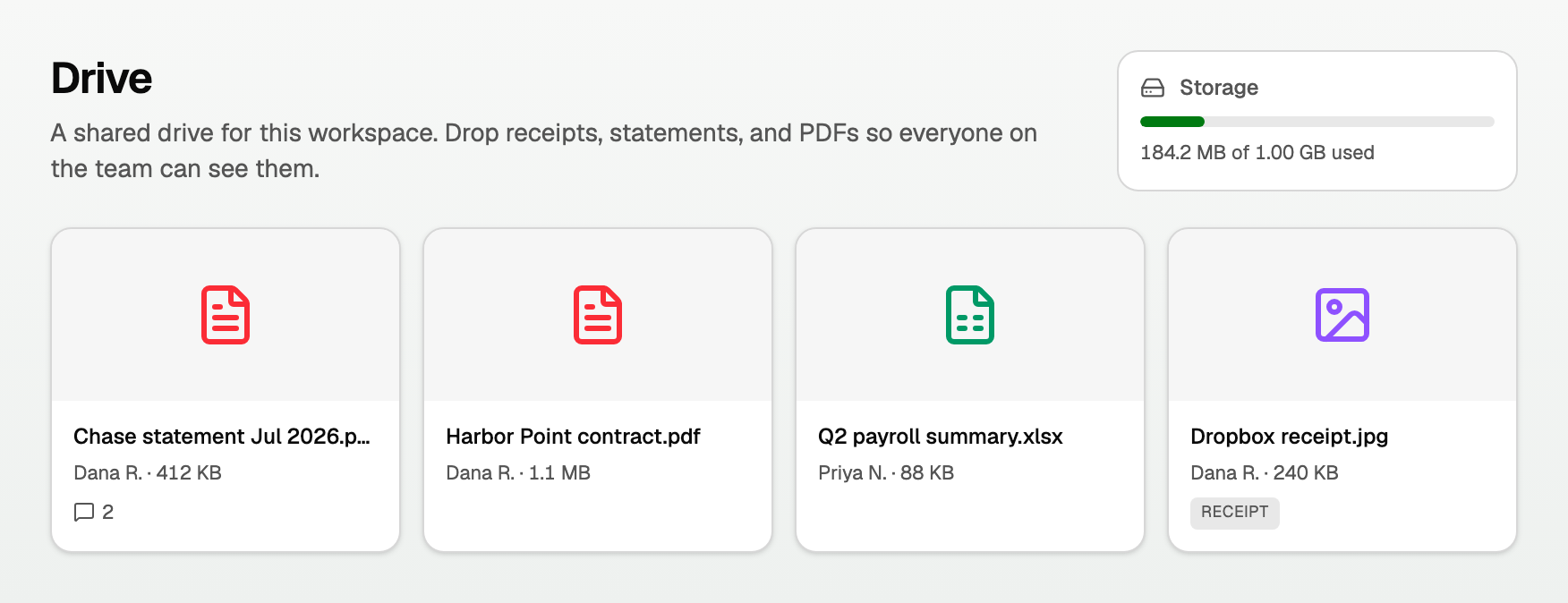
Drive is a shared folder for the workspace. Your client drops statements and PDFs in, you work from them, and nobody emails an attachment back and forth.
Open All pages in the left sidebar, then under Daily work click Drive.
Add and organise files
- Drag files onto the drop zone, or click it to browse. Images, PDFs and Office files are accepted, up to 50 MB each.
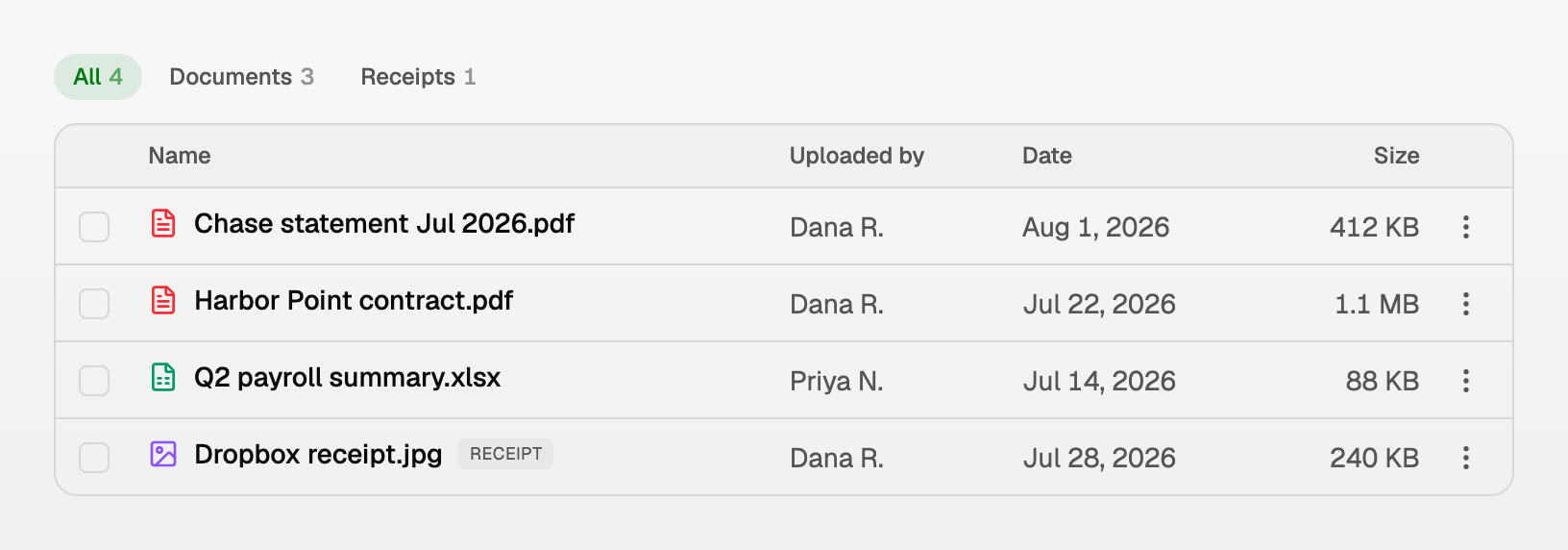
- Switch between Grid and List with the control on the right.
- Click a file to preview it. Images and PDFs open in the app; anything else offers a download.
- Right-click a file, or use its ... button, for rename, download, comments and delete.
Comment on a file
Open Comments on any file to start a thread on that document. It is the place to ask "what was this $4,000 for?" so the question sits with the file instead of in an inbox.
- Everyone with edit access can reply.
- The comment count shows on the file, so nothing gets missed.
Attach a Drive file to an invoice
On an invoice, open Attachments, then Choose from Receipts or Drive. The invoice keeps its own copy. The original stays in Drive.
Drive then shows a line on the file: A copy is attached to invoice 1058. Two invoices read Copies are attached to invoices 1058 and 1061. Three or more read Copies are attached to 3 invoices: 1058, 1061 and 1064.
Deleting the Drive file does not touch the invoice's copy. The confirmation says Invoice 1058 keeps its own copy. (or Invoices 1058 and 1061 keep their own copies.). For several files it may say Invoices keep their own copies of 2 of these files. or Invoice 1058 keeps its own copy of one of these files.
Receipts show up here too
Receipts you upload, email in, or bring across from QuickBooks appear in Drive automatically, each tagged Receipt, or Contract, Statement or Document when the file is something else. A lease from a QuickBooks import is filed under Documents, not Receipts.
Use the All, Documents and Receipts chips to filter. Anyone with edit access can delete a receipt BooksGPT can delete: tick its checkbox and use the bar at the bottom, or right-click it, or open File actions, and click Delete.
If that receipt cannot be deleted, Delete is still in the menu. The click does not ask you to confirm. Drive names the file and the reason, until you click Dismiss. While the file is still being read, the reason is This file is still being read. Try again in a minute. On the Receipts page, that receipt has a lock where its trash icon would be, and a tap shows the same reason.
Storage
Each workspace gets 1 GB, shared between Drive files, receipts, and the copies attached to invoices. The meter in the top right shows what you have used.
Good to know:
- Uploads unlock once the workspace owner is on a paid plan or has verified a mobile number. That keeps the shared Drive from being used as free file hosting.
- Viewers can read and download. Uploading and commenting needs edit access.
- A Drive file can be deleted by whoever uploaded it or by a workspace admin. A receipt can be deleted by anyone with edit access, when BooksGPT can delete it. Select several, receipts and documents together. The bar at the bottom says how many are selected, then Delete and Clear. One Delete takes at most 200 files. More than that is refused with At most 200 files per request. If a file cannot be deleted, it stays, and Drive names it. One file is titled Delete "filename"?. Several files are titled Delete N files?.
Updated on: 13/10/2026
Thank you!