
Customize your sidebar shortcuts
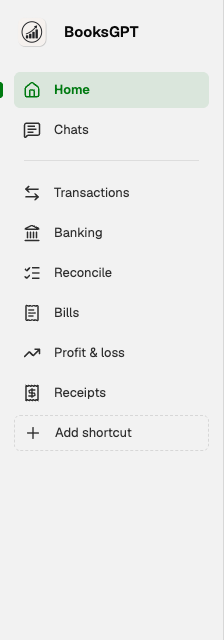
The left rail holds up to 7 shortcuts. Home, Chats, All pages, and Settings stay put. Home starts a fresh chat, and Chats keeps your earlier chats. The icons between them are yours.
Each workspace can have its own set. Until you save this workspace on purpose, a pin, a reorder, or a hidden page follows your account.
Open the editor
- Click Add shortcut on the left rail. It is the dashed plus under your current shortcuts.
- If all 7 slots are full, the same control becomes Customize shortcuts with a sliders icon.
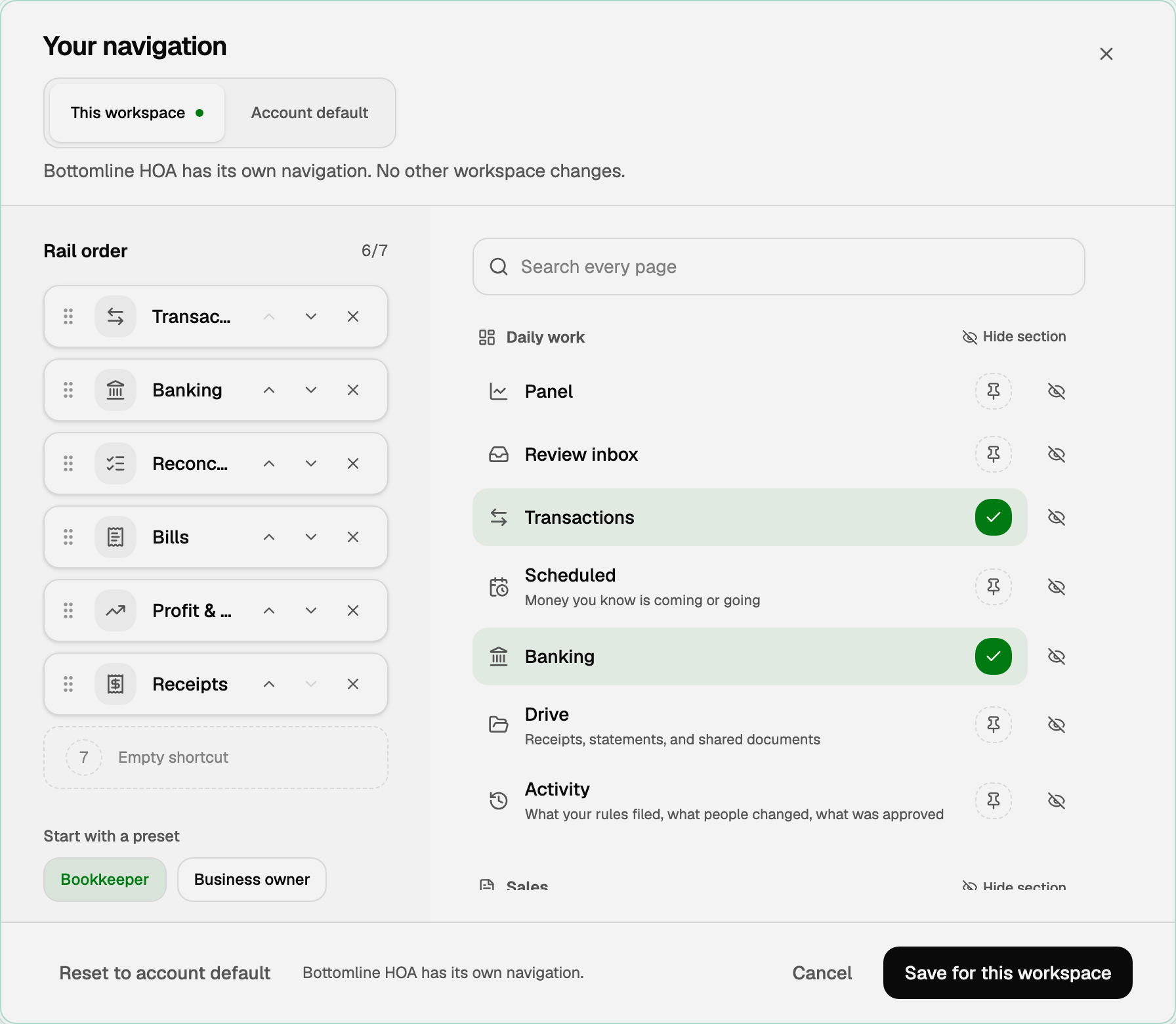
The heading is Your navigation.
This workspace or every workspace
Two tabs sit under the heading:
- This workspace changes only the company you are in. Save says Save for this workspace.
- Account default is what every other workspace uses until it has its own set. Save says Save account default.
If this workspace already has its own set, This workspace shows a small dot, and the sentence under the tabs names the workspace: it has its own navigation, and no other workspace changes.
Pin, reorder, or start from a preset
- Click a page on the right to pin or unpin it. Search with Search every page.
- Drag a row on the left, or use the arrows, to change the order. The counter reads like 6/7.
- Bookkeeper and Business owner are starting points. Picking one replaces the list. On a personal workspace the starting point is Personal finance.
Hide pages you don't use
A page you never open can leave All pages. Hiding is not a permission. A pin, a direct link, and Go to… in the top bar still open it.
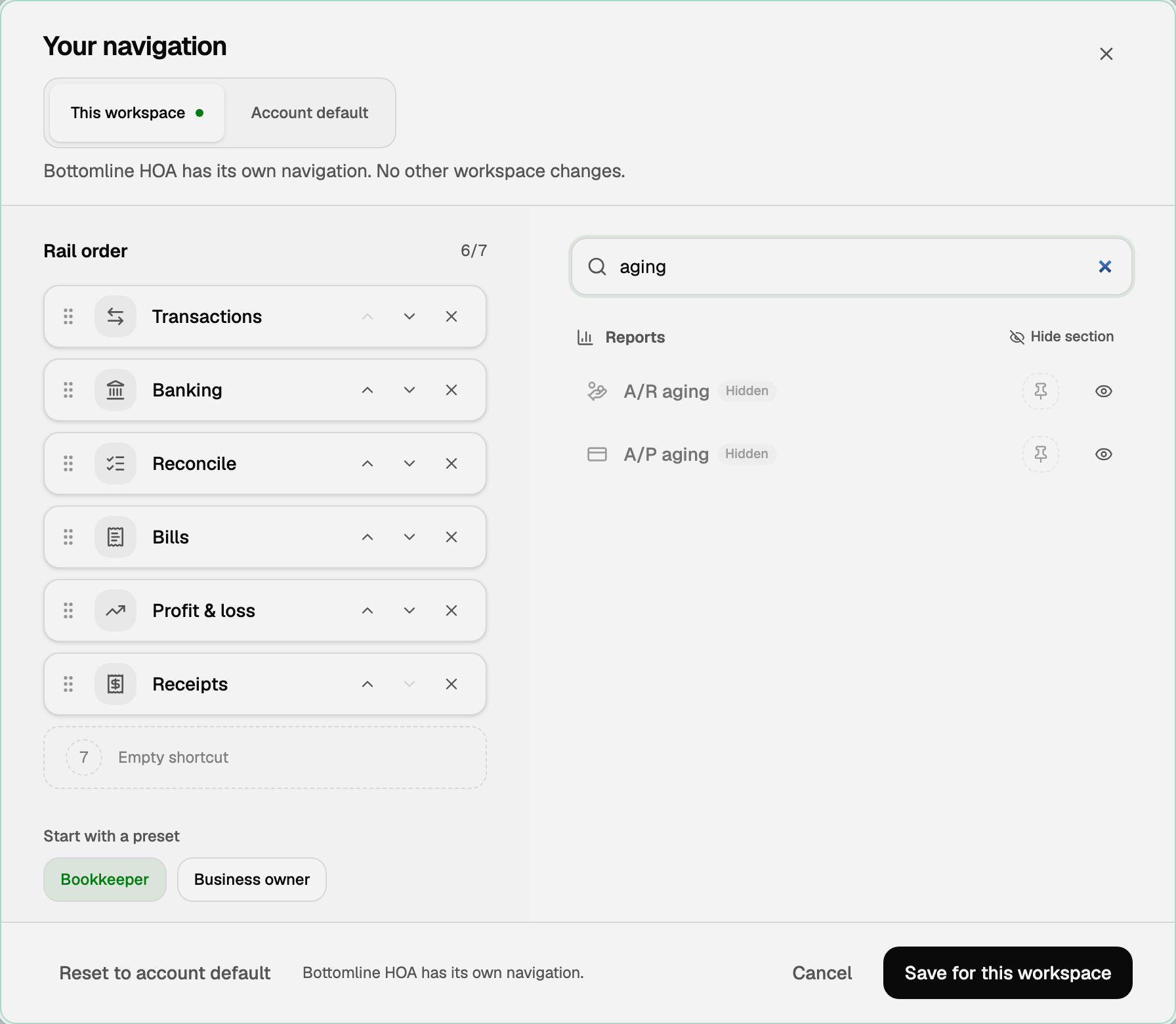
- In Your navigation, each page has an eye. Click it to hide that page from All pages. Click it again to show it.
- Each group has Hide section or Show section.
- Search still finds a hidden page. The row wears a Hidden chip.
- A bookkeeper who never files sales tax or 1099s can hide A/R aging, A/P aging, Sales tax report, Contractors, and 1099s.
- Save on the same tab you use for shortcuts: This workspace or Account default.
Put this workspace back
On This workspace, click Reset to account default. The workspace follows your account again, including which pages are hidden.
If it already follows the account, Reset is disabled and says the workspace already uses your account default.
Good to know
- Shortcuts and hidden pages belong to you, not the company. A teammate in the same workspace keeps their own rail and their own list.
- A personal workspace has its own account default, separate from your business ones. Save there says Save for this personal workspace.
- Empty slots show Empty shortcut. A page that is not available in this workspace right now stays in place and says so, until you remove it.
Updated on: 12/10/2026
Thank you!