
Import from QuickBooks Desktop
Moving from QuickBooks Desktop means bringing your chart of accounts and your transaction history across, so every account starts in BooksGPT at the balance it had in QuickBooks. You do it with one report: the General Ledger, which lists every transaction in every account.
BooksGPT reads that report, checks that its debits and credits balance, and shows you how each account will be typed before anything posts. A report in a layout BooksGPT does not know skips that preview: BooksGPT checks every account against the report's own totals, then imports it. The company file itself (.QBW, .QBB or .QBM) cannot be uploaded: only QuickBooks can open it.
Import your full history
Export the General Ledger from QuickBooks Desktop
- In QuickBooks Desktop, open Reports > Accountant & Taxes > General Ledger.
- Set Dates to All.
- Track Classes or Locations? Click Customize Report and add the Class (and Location) column.
- Click Excel > Create New Worksheet. Before you export, open Advanced and set Printing options to On Printed report and screen.
- Save it as a workbook (.xlsx).
Step 4 puts the report header, with its Accrual Basis line, at the top of the file, so BooksGPT can tell which basis it was run on.
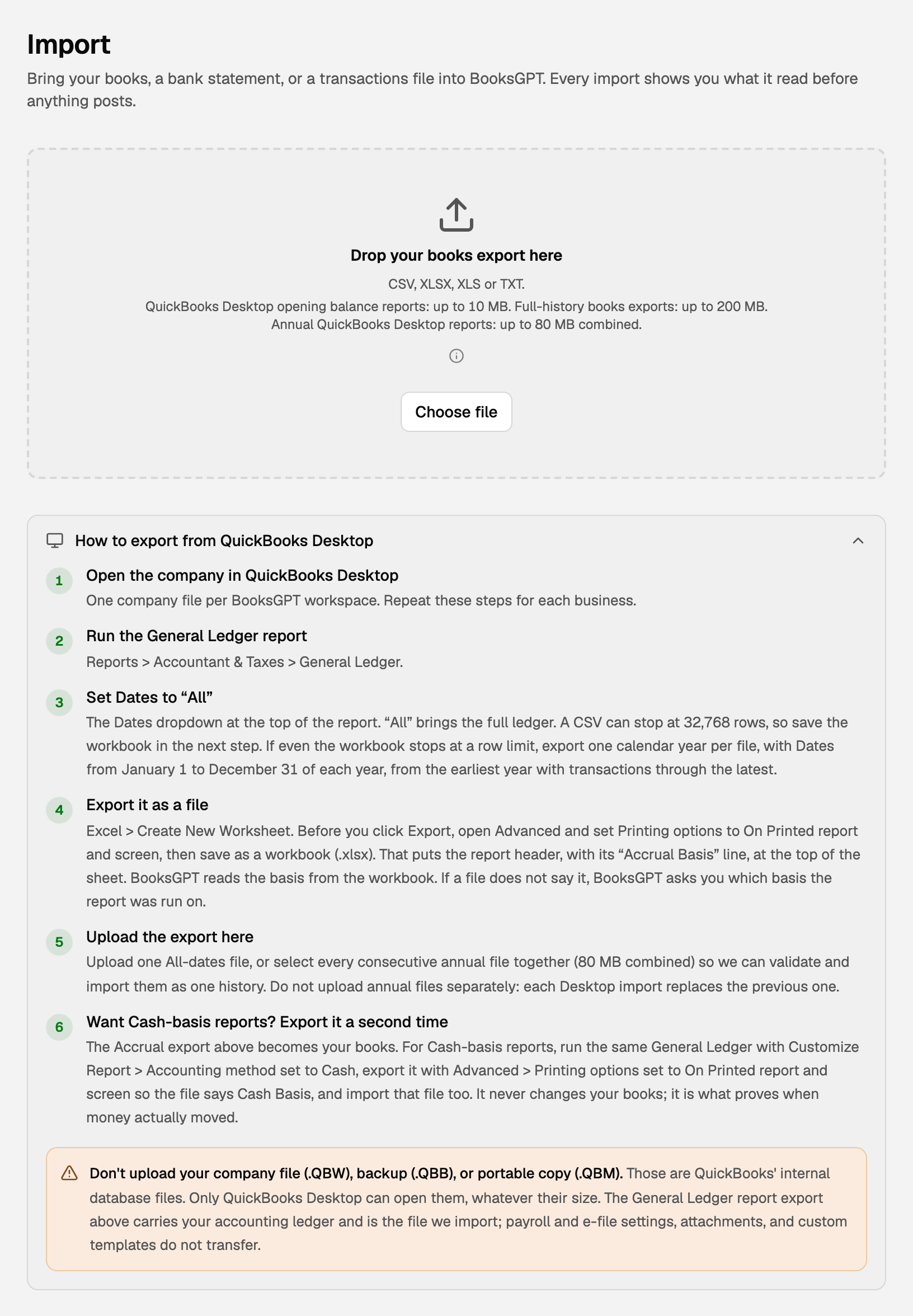
The same steps are on the Import page under How to export from QuickBooks Desktop.
Bring it into BooksGPT
- Open All pages in the left sidebar, then click Setup and Import. You can also drop the workbook into Copilot.
- Drop the workbook on Drop your books export here, or click Choose file.
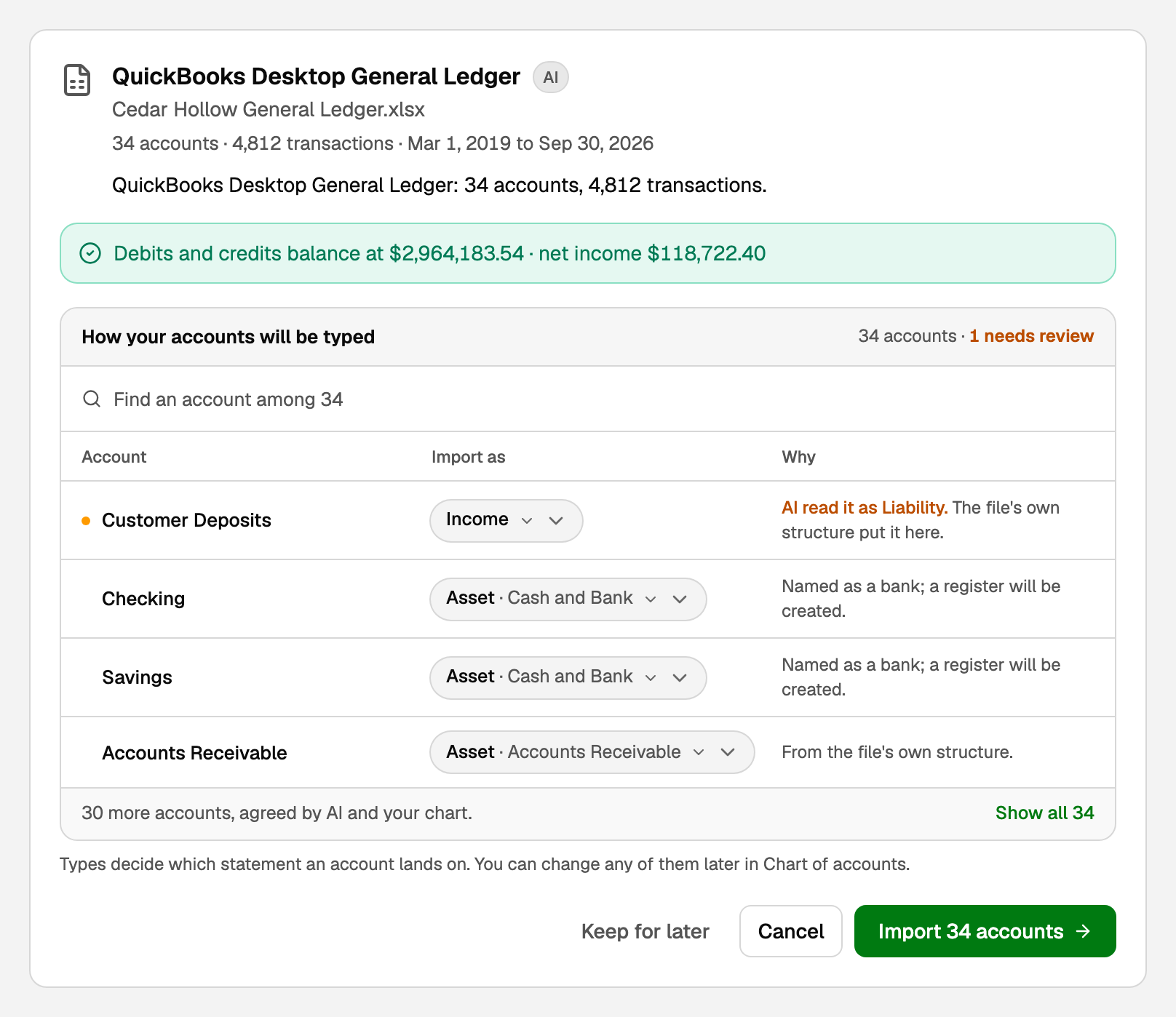
- Read the preview. The green bar means debits and credits balance. Under How your accounts will be typed, check any account marked as needing review and change its type if it is wrong.
- Click Import N accounts (the button counts your accounts).
If BooksGPT asks Accrual or Cash
Accrual books record an invoice when you send it and a bill when you get it. Cash books record only payments. Your BooksGPT books come from an Accrual report.
When a file leaves out the basis line, BooksGPT asks which basis the report was run on. Answer the setting QuickBooks used, not the one you want. Not sure? In QuickBooks Desktop, read the line under the report title, or check Customize Report > Accounting method.
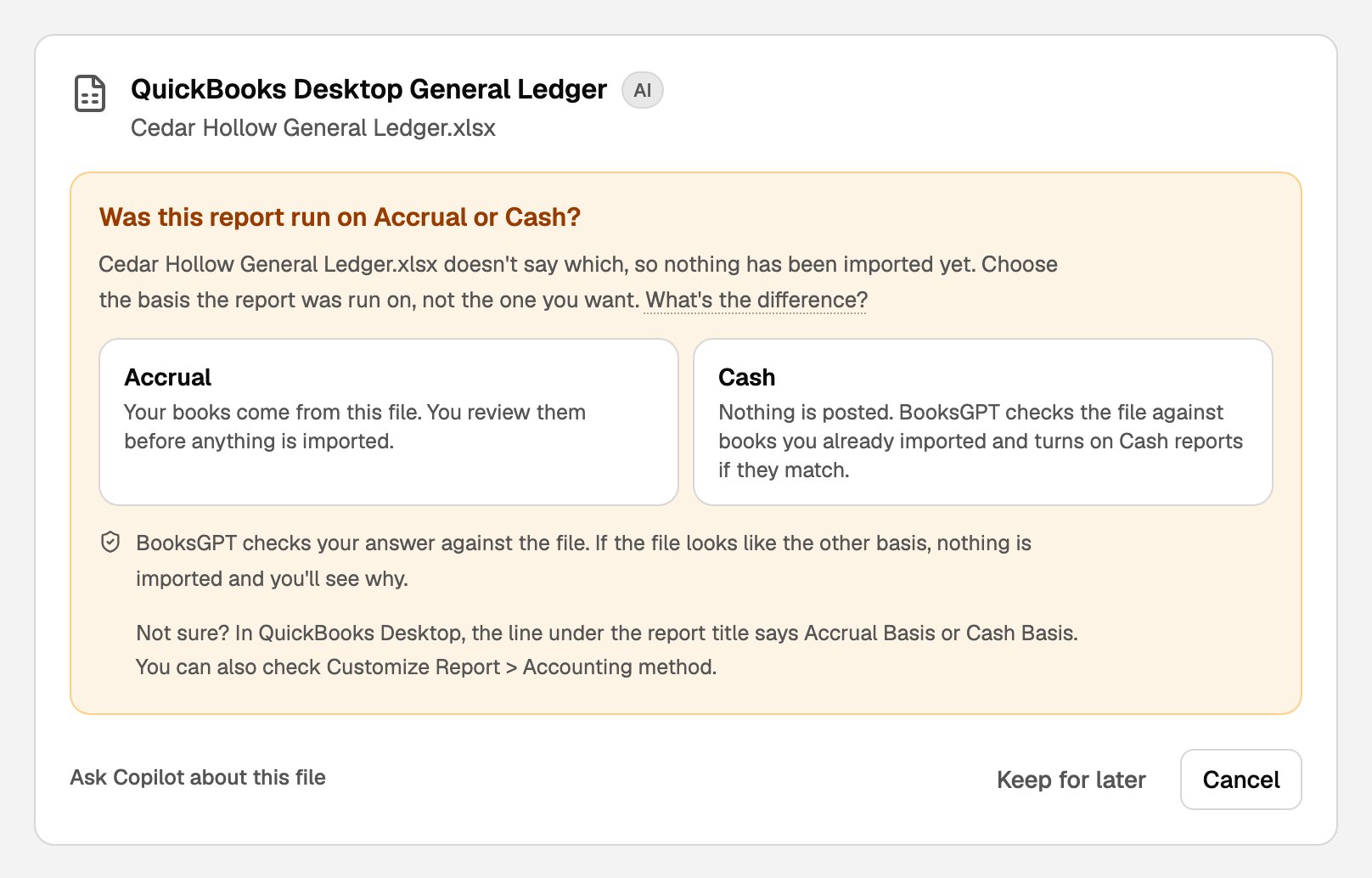
- Accrual: the report becomes your books. You review the preview before anything is imported.
- Cash: nothing is posted. BooksGPT checks the file against books you already imported and turns on Cash reports if they match.
Want Cash-basis reports too? See Turn on Cash reports for books imported from QuickBooks Desktop.
Or import opening balances only
Use this when you want to start fresh on a date and leave the history in QuickBooks. You need a different report: a General Ledger that lists each account's balance As of one date, with no transaction lines.
- In QuickBooks Desktop, open Reports > Accountant & Taxes > General Ledger, run on Accrual, and set the dates to a single day: the last day before your BooksGPT books start. The header then reads As of that date. Do not add a Class column.
- Export it the same way as the full history (Excel > Create New Worksheet, Advanced > Printing options = On Printed report and screen) and save the workbook.
- Drop the workbook on the Import page or into Copilot. The card is titled QuickBooks Desktop opening balances.
- Check each account's type and detail type.
- If the report lists an Other balance under a parent account, choose whether it belongs to the parent or stays a separate subaccount.
- Changed anything? Click Update preview.
- Tick the currency box and the review box, then click Import N accounts.
A report that says Cash is refused, so export it again on Accrual.
What your books now say
After a full-history import, your Balance Sheet and Profit & loss show the same figures QuickBooks shows for every date in the file, unless the preview said QuickBooks closed earlier years: then follow what it says to match those years' Profit & loss. After an opening-balance import, each account starts at its balance on that date. Either way, compare the Balance Sheet with QuickBooks on the same date.
Each line keeps QuickBooks' own memo, so you can still see which item a bill line was for.
If something goes wrong
- You uploaded the company file. Export the General Ledger instead, as above.
- Your bank feed already has transactions on those dates. Unreviewed bank transactions wait in Review inbox under On hold, so nothing is counted twice. After the import, click Exclude on each one your imported books already have. Use Post anyway only for a transaction the books are missing: posting one they already have counts it twice.
- The import stops because of bank transactions you already reviewed. It says which dates. On Transactions, put those back in review (untick Mark as reviewed, or undo the match), then import the same file again. If one is split, paired as a transfer, reconciled or in a closed period, contact support.
- BooksGPT says the file looks like a Cash report. Nothing was imported. Run the General Ledger again with Accounting method set to Accrual, and upload that file.
Use one workspace per company file. Coming from QuickBooks Online instead? See Import from QuickBooks Online.
Updated on: 18/10/2026
Thank you!