
Import from QuickBooks Online
Moving from QuickBooks Online means bringing two things across: your chart of accounts (the list of accounts your money is sorted into) and your transaction history. With both, every account starts in BooksGPT at the balance it had in QuickBooks, and your reports carry on where QuickBooks left off.
When you connect QuickBooks, BooksGPT checks its own work: it compares every account balance with QuickBooks' trial balance, so you can see the books came across whole. Nothing is ever written back to QuickBooks.
There are two ways in. Most people connect QuickBooks directly. If you already have a General Ledger export, you can upload that instead.
Connect QuickBooks (recommended)
- Open All pages in the left sidebar, then click Setup and Integrations.
- On the QuickBooks Online card, click Connect QuickBooks.
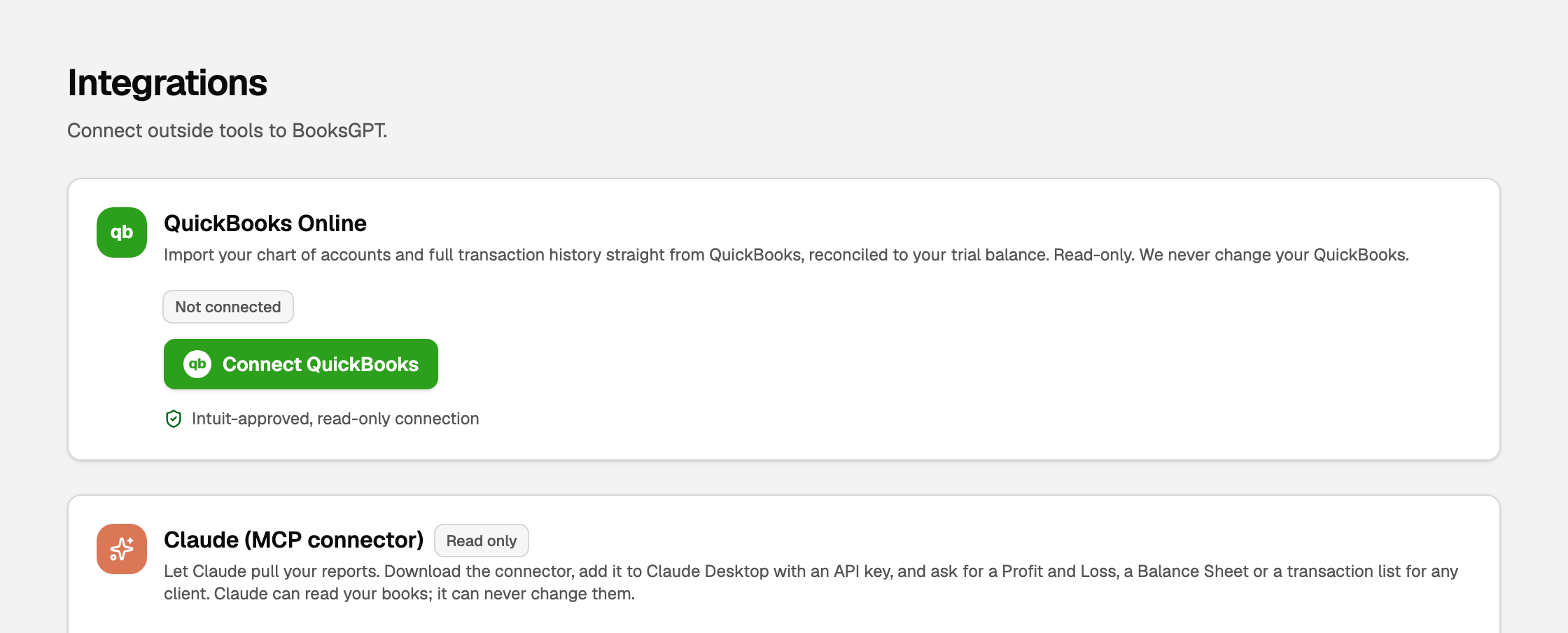
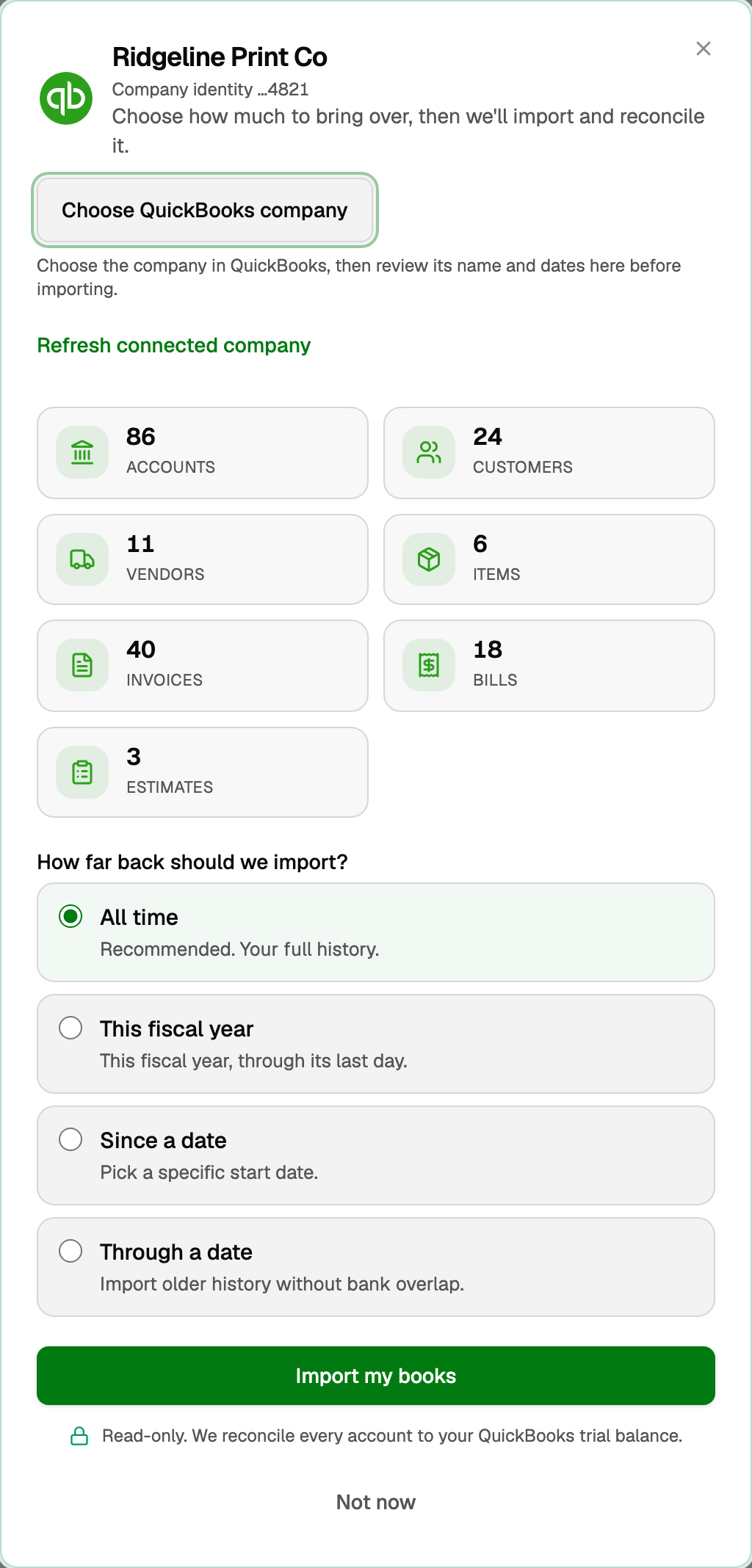
- The window lists what comes over. Click Connect to QuickBooks.
- Sign in to Intuit and pick the company whose books belong in this workspace.
- Back in BooksGPT, check the company name at the top of the window.
- Under How far back should we import?, keep All time unless you have a reason not to. Full history means every balance starts from the right number.
- Click Import my books.
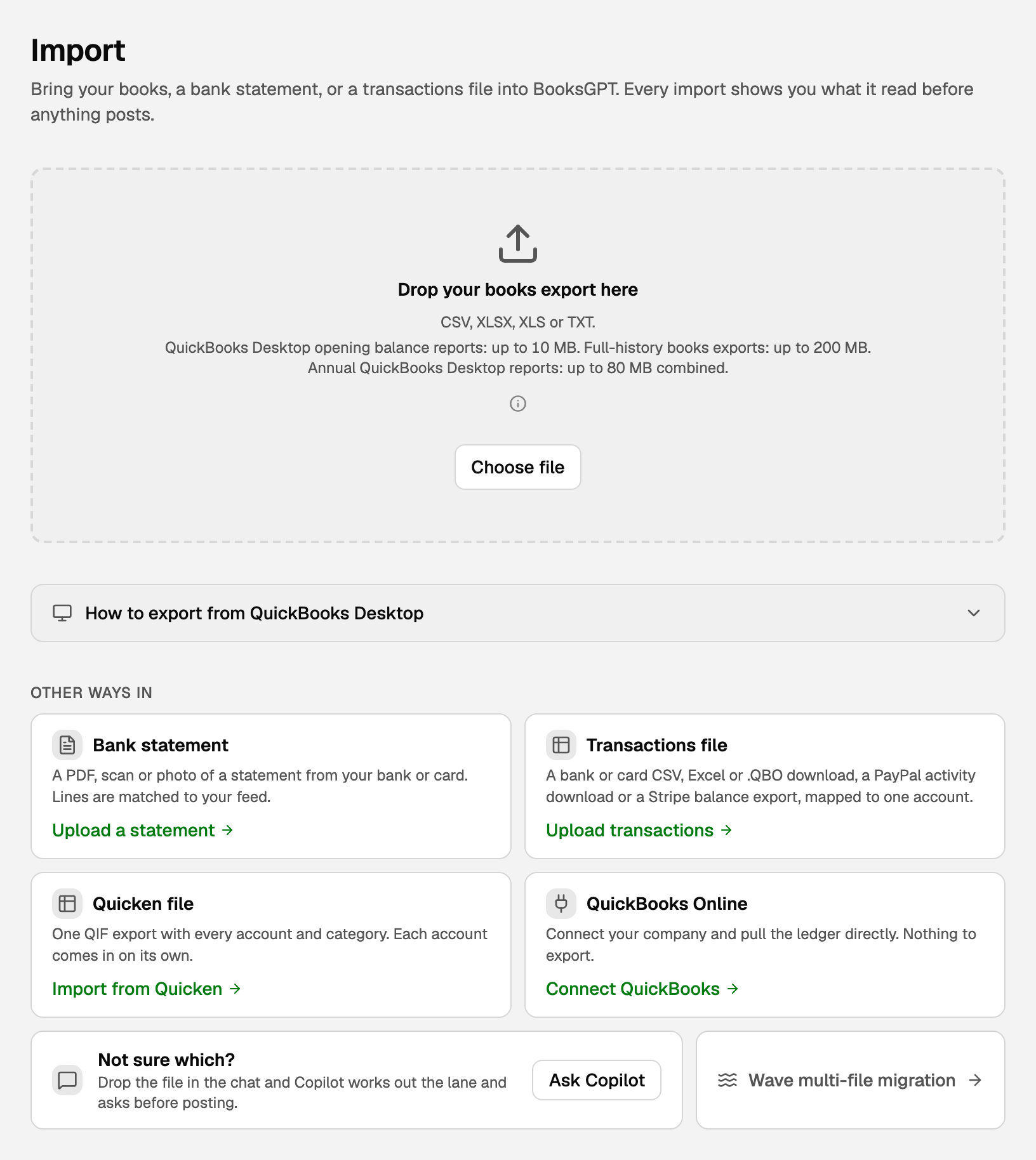
The same Connect QuickBooks link sits on the Import page under Other ways in, and Copilot offers it if you ask.
For what each range means, what to do while a large history imports, and how to reconnect later, see Integrations: connect QuickBooks Online.
Or upload a General Ledger file
Use this when you already have a QuickBooks Online export, for example one your accountant sent.
- In QuickBooks Online, run the General Ledger report for all dates.
- Track Classes or Locations? Customize the report and turn on the Class and Location columns. BooksGPT brings them across as dimensions.
- Export it to Excel or CSV.
- In BooksGPT, open All pages, then click Setup and Import.
- Drop the file on Drop your books export here, or click Choose file.
- Read the preview. It shows how each account will be typed and whether the file's debits and credits balance.
- Click Import N accounts (the button counts your accounts).
For reading the preview and choosing account types, see Import your books from a file.
What your books now say
Your Balance Sheet and Profit & loss now show the same figures QuickBooks shows for the imported dates. To be sure, open the Balance Sheet and compare it with QuickBooks on the same date.
Two things you can bring across next:
- Open invoices: Pick invoices to import from QuickBooks.
- Receipts and attached files: Bring your QuickBooks receipts and attachments across.
If something goes wrong
- You uploaded a Trial Balance. A Trial Balance brings in opening balances only, with no history. For your history, upload the General Ledger instead.
- You have a .QBO file. That is a bank download, not your books. On the Import page, use Upload transactions under Other ways in.
- Classes are missing after a file import. The export did not have the column. Turn on the Class or Location column in QuickBooks' General Ledger report, export it again, and upload the new file.
On QuickBooks Desktop instead? See Import from QuickBooks Desktop.
Updated on: 16/10/2026
Thank you!