
Import a CSV from any bank or app
Most banks, card companies and payment apps let you download your transactions as a file. Importing that file adds each transaction to one account in your books, just as a bank connection would. Use it for the months before your connection started, or for an account whose bank will not connect.
Each row needs a date and an amount, and ideally a description of who you paid or who paid you. BooksGPT finds those columns on its own and shows you the rows before anything is imported.
It reads CSV, Excel, the .QBO or .QFX file your bank offers for QuickBooks and Quicken, one account's Quicken QIF file, a PayPal activity download, and a Stripe balance export.
Import a file
- Download the transactions from your bank for the dates you need.
- Open All pages in the left sidebar, then click Setup and Import.
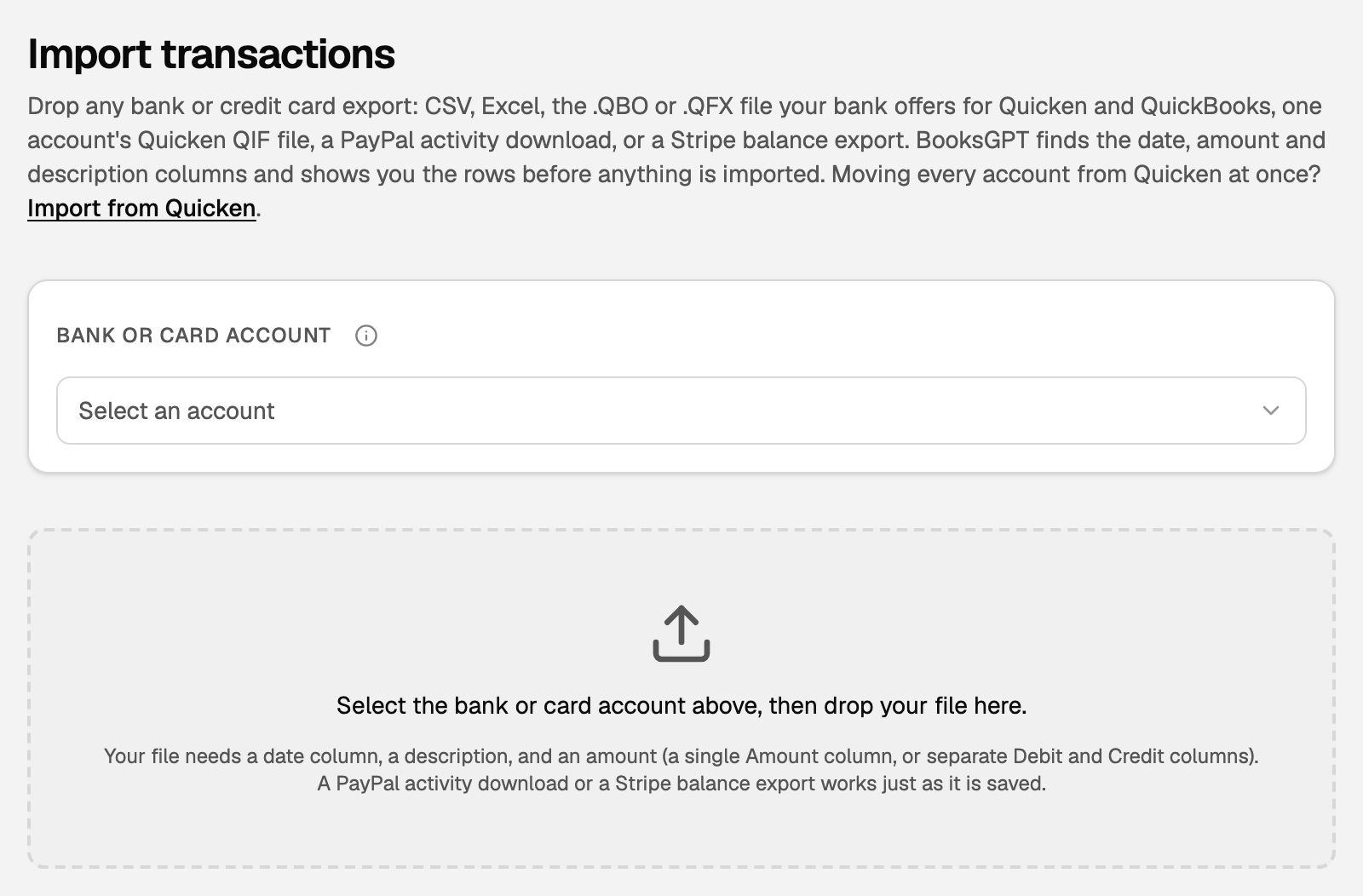
- Under Other ways in, click Upload transactions. The page is titled Import transactions.
- Under Bank or card account, pick the account the file belongs to.
- Drop the file on the box, or click the box to choose it.
Check the directions, then import
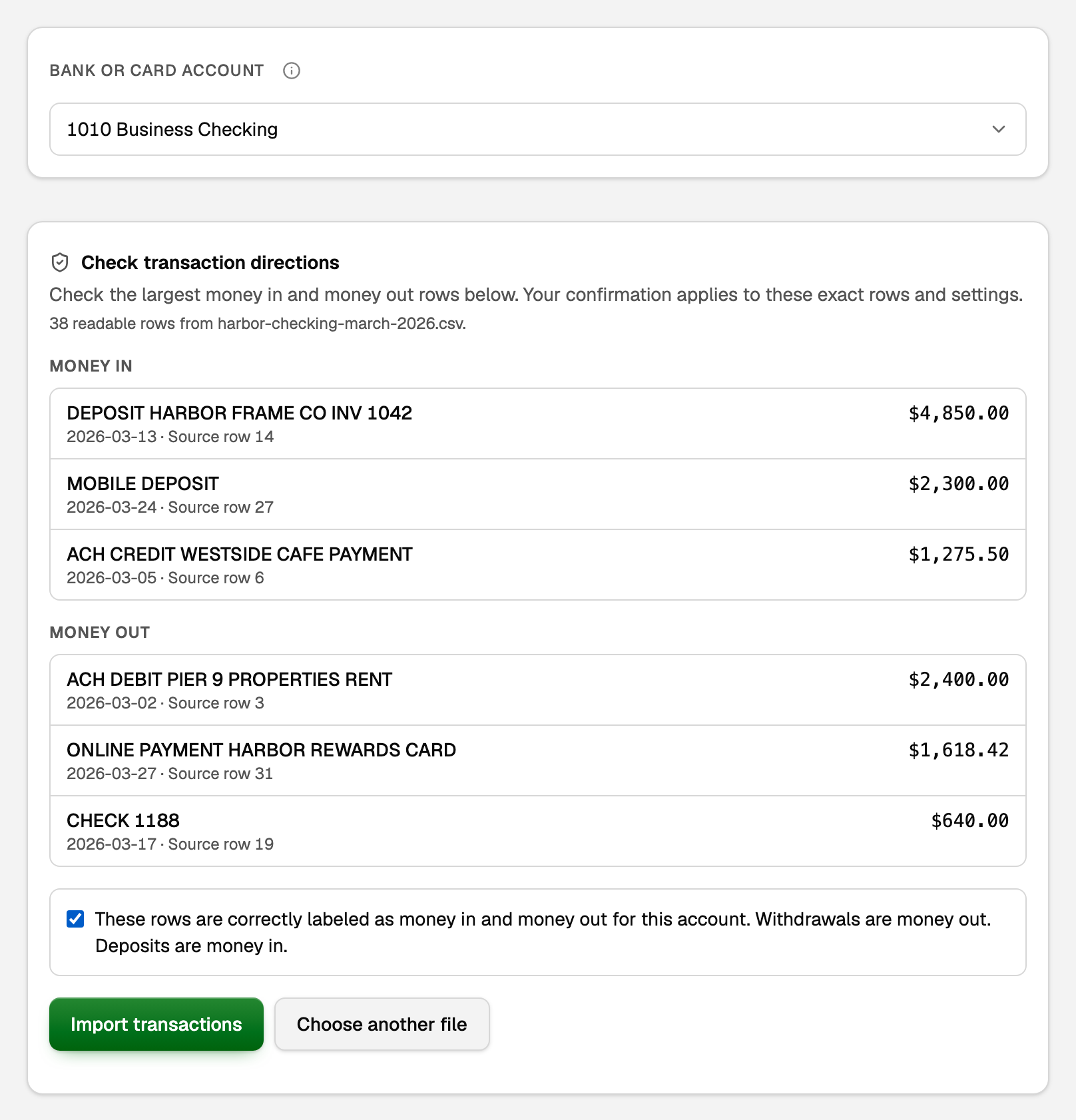
Before importing, BooksGPT makes sure it knows which rows are money in and which are money out. Getting this wrong would turn a deposit into a payment.
- When the file proves it on its own (for example a .QBO file, or a running balance printed on every row), the card says Directions verified.
- Otherwise it shows the largest rows under Money in and Money out. If they are right, tick the box under them.
Then click Import transactions.
What your books say now
Each transaction is now in that account, on its own date. A deposit raises the account's balance in your books and a payment lowers it. On a credit card, a charge raises what you owe, and a payment to the card lowers it once you file it as a transfer.
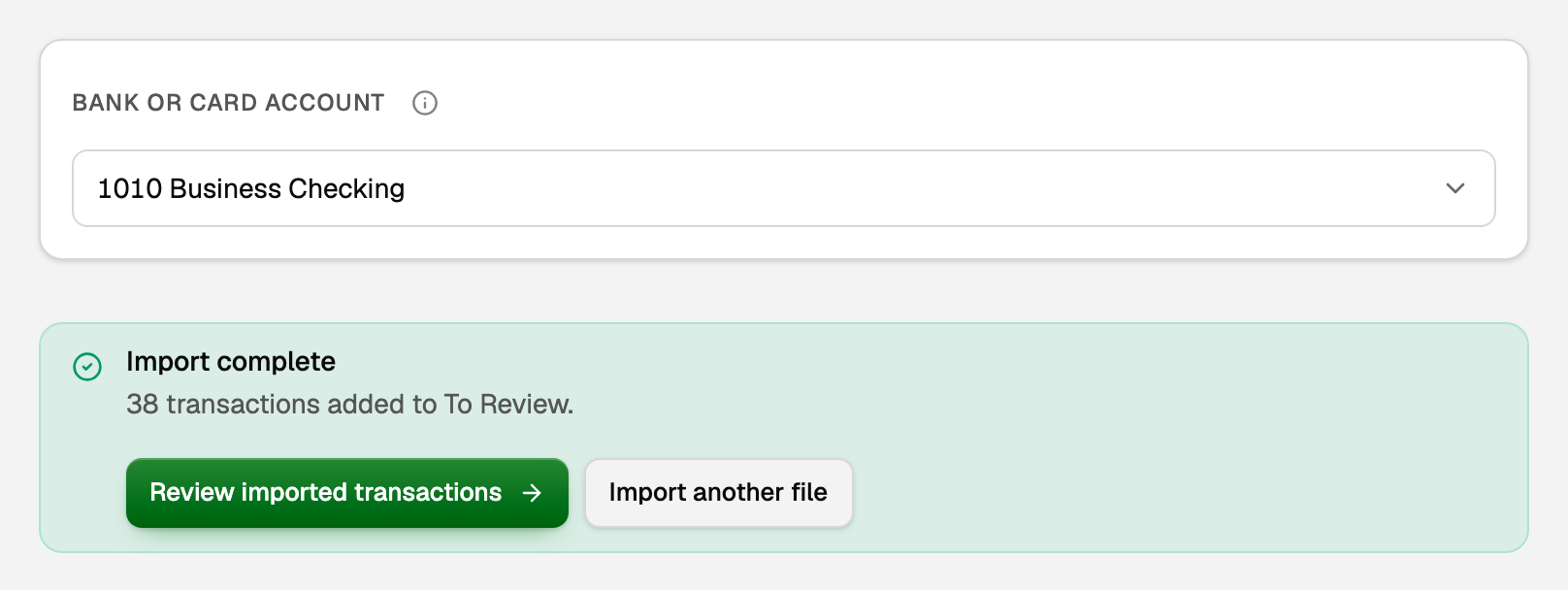
Each row still needs a category: the account that says what the money was for, such as Rent or Sales. BooksGPT suggests one, and until you approve it, the row sits in Uncategorized Income or Uncategorized Expense. Click Review imported transactions to approve them.
Rows already in the account, from your bank connection or an earlier file, are matched and skipped. Uploading the same file twice adds nothing the second time.
What your file needs
- A date column, such as Date, Posted Date or Transaction Date. Dates like 2026-01-31, 01/31/2026 or Jan 31, 2026 all work. Slash dates are read month first, so 05/01/2026 is May 1. If your bank writes the day first, change the column to the 2026-01-31 form before you import.
- An amount: one Amount column, Debit and Credit columns (Withdrawal and Deposit work too), or an Amount column beside one that says which way each row went, such as Transaction Type or CR DR.
- A description, such as Description, Memo or Payee. Optional, but it is what BooksGPT uses to suggest a category.
On a bank account, deposits are positive and withdrawals negative. A file where every amount is positive needs Debit and Credit columns instead.
Card companies write charges both ways: some as positive numbers, some as negative. BooksGPT works it out from the card payment rows in the file. If it could not tell, the result says so.
PayPal and Stripe downloads
A PayPal or Stripe balance is money your business holds, like a bank account. Give it its own bank account in your books and import into that. To add one, open All pages, then click Accounting and Chart of accounts, then Add account.
- PayPal: download your activity as a CSV and upload it as PayPal saved it.
- Stripe: in Stripe, open Balances and export your balance history as a CSV. Upload it as Stripe saved it.
- Each sale comes in at its full amount, with the fee as its own row, so your books show both the sale and what the fee cost you.
- A copy saved as an Excel file is refused, because a spreadsheet can change dates without showing it. Upload the CSV as you downloaded it.
A payout from PayPal or Stripe to your bank is not income: it is your own money moving between two of your accounts. Categorize it as a transfer to your bank account. A row where PayPal or Stripe draws money from your bank is a transfer too, and a repayment of a loan from either goes against that loan, not to an expense. See Transfers, credit-card payments, and owner draws.
Files that go somewhere else
This page imports one account at a time. When a file belongs elsewhere, nothing is imported, and the message usually has a button to the right page:
- A PDF or a bank statement: Upload as a bank statement.
- A General Ledger or another report that lists several accounts: Import your books. See Import your books from a file.
- A Quicken file with several accounts: Import every Quicken account. See Import from Quicken.
- A list of invoices: Upload invoices.
- A bank download that covers several accounts: download one account at a time.
If something goes wrong
- The import failed and lists your columns. BooksGPT could not find a date or an amount column. Rename that heading in your spreadsheet, for example to Date or Amount, and upload the file again.
- Some rows were skipped, or the dates look wrong. A two-digit year like 1/31/26 cannot be read. If the file writes the day first, the rows that did import were read with day and month swapped (05/01/2026 became May 1). On Transactions, delete the rows this import added, change the whole date column to the 2026-01-31 form, then import again.
- A credit card's purchases came in as money in. Under If your purchases came in positive, delete the rows that import added, click Set up for charges positive, then import the same file again.
Updated on: 16/10/2026
Thank you!