
Redo or undo an import
An import copies your old books into BooksGPT. When one comes in wrong, you do not have to fix it line by line: import a corrected copy over it, or clear the books and import again. A corrected General Ledger replaces the earlier import from the same software, so nothing is counted twice.
Pick the right fix
- A few rows are wrong. Delete those transactions.
- The whole file was wrong, and you have a corrected export from the same software. Import the corrected file.
- You imported through the QuickBooks Online connection. Re-import from QuickBooks Online.
- The wrong books went in, or you want a clean slate. Start the workspace over.
Delete a few transactions
- Open All pages in the left sidebar, then click Daily work and Transactions.
- Use the search box and Filter to narrow the list to the rows you want gone.
- Tick the rows. In the bar above the list, click the red trash icon (Delete), then confirm.
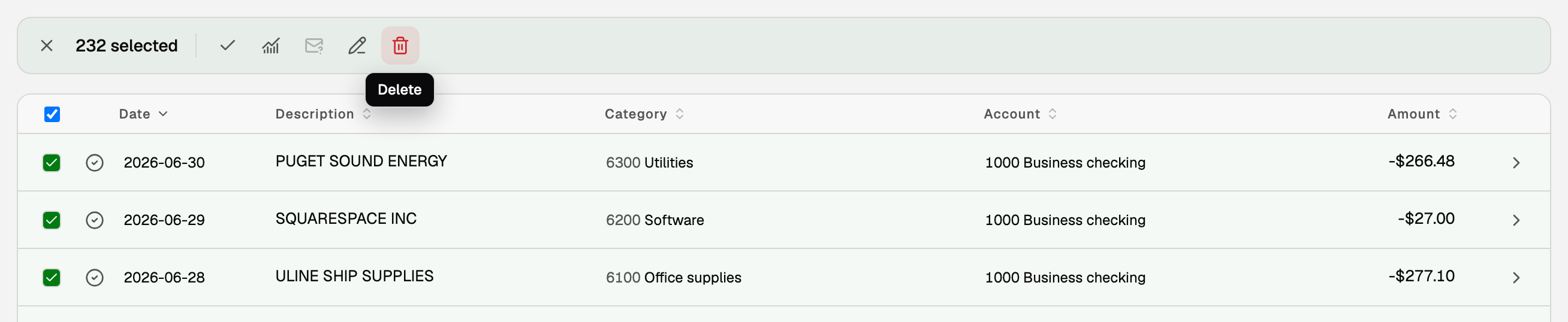
Deleting a transaction removes its entry from your books, so your reports correct themselves. Some rows stay, and the confirmation says which: rows in a closed period, reconciled rows, rows matched to a bill or invoice, one line of a multi-line imported entry, and imported rows your Cash basis reports rely on. For those, a corrected file or Start over is the cleaner fix.
Import a corrected file
- Export the corrected General Ledger from your old software. If classes or locations were missing, add a Class or Location column before you export.
- Open All pages, then click Setup and Import.
- Drop the new file and check the preview.
A corrected QuickBooks, Wave or other General Ledger file replaces the earlier import from the same software, as long as it covers at least the same dates. A few things stop a replace on purpose, and the card says which:
- A closed period. Reopen it first: open All pages, then click Accounting and Period close.
- Reconciled rows inside the file's dates. Contact support first.
- Books from different software. A Wave ledger cannot replace QuickBooks books, for example. Start over, or use a new workspace.
A Xero ledger, or a ledger BooksGPT read for you (its import showed how many accounts match your file), never replaces books. To bring in a corrected copy, the workspace owner starts over, keeps the chart of accounts, then imports the file. Quicken and bank transaction files do not replace earlier rows either: delete the wrong rows, then import again.
Re-import from QuickBooks Online
Use this if you connected QuickBooks Online on Integrations. The re-import replaces the earlier QuickBooks import. Category changes you made to imported QuickBooks transactions carry over where they can, and the import summary says which did not.
- Open All pages, then click Setup and Integrations.
- On the QuickBooks Online card, click Re-import.
- Under How far back should we import?, choose a range. All time is recommended.
- Click Import my books.
If bank transactions you already approved fall inside the range, choose Through a date to end the import before them. See Integrations: connect QuickBooks Online for each choice.
A workspace holds books from one source. If its books came from a QuickBooks file, the connection will not import on top of them: contact support to switch.
Start the workspace over
Start over clears the books and keeps the workspace, the people on it and your plan. Only the workspace owner can do it, and there is no undo.
- Click Settings at the bottom of the sidebar, then Workspace.
- Select Data, beside Details.
- Under Workspace lifecycle, click Start over.
- Choose Keep my chart of accounts or Erase everything and start fresh. The dialog shows the real counts for both.
- Type the workspace name to confirm, then click the button.
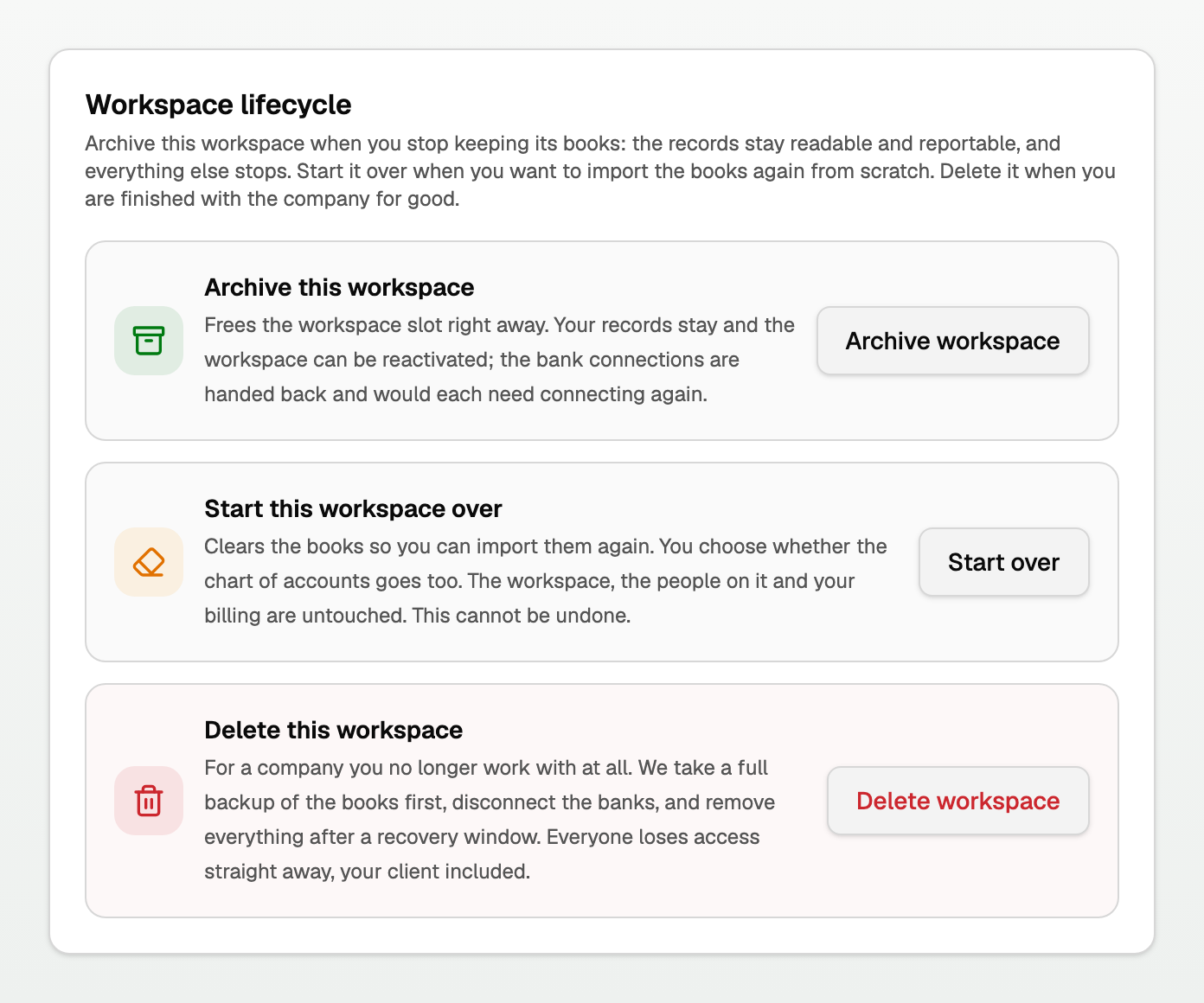
The two choices:
- Keep my chart of accounts clears transactions, journal entries, reconciliations, the payments recorded on invoices and bills, bank connections, imports and receipts. Your accounts, customers, vendors, invoices, bills and documents stay. Pick this to import again into a chart you have already set up.
- Erase everything and start fresh also removes the chart of accounts, contacts, invoices, bills, documents, rules and saved reports. The workspace looks the way it did on the day you created it.
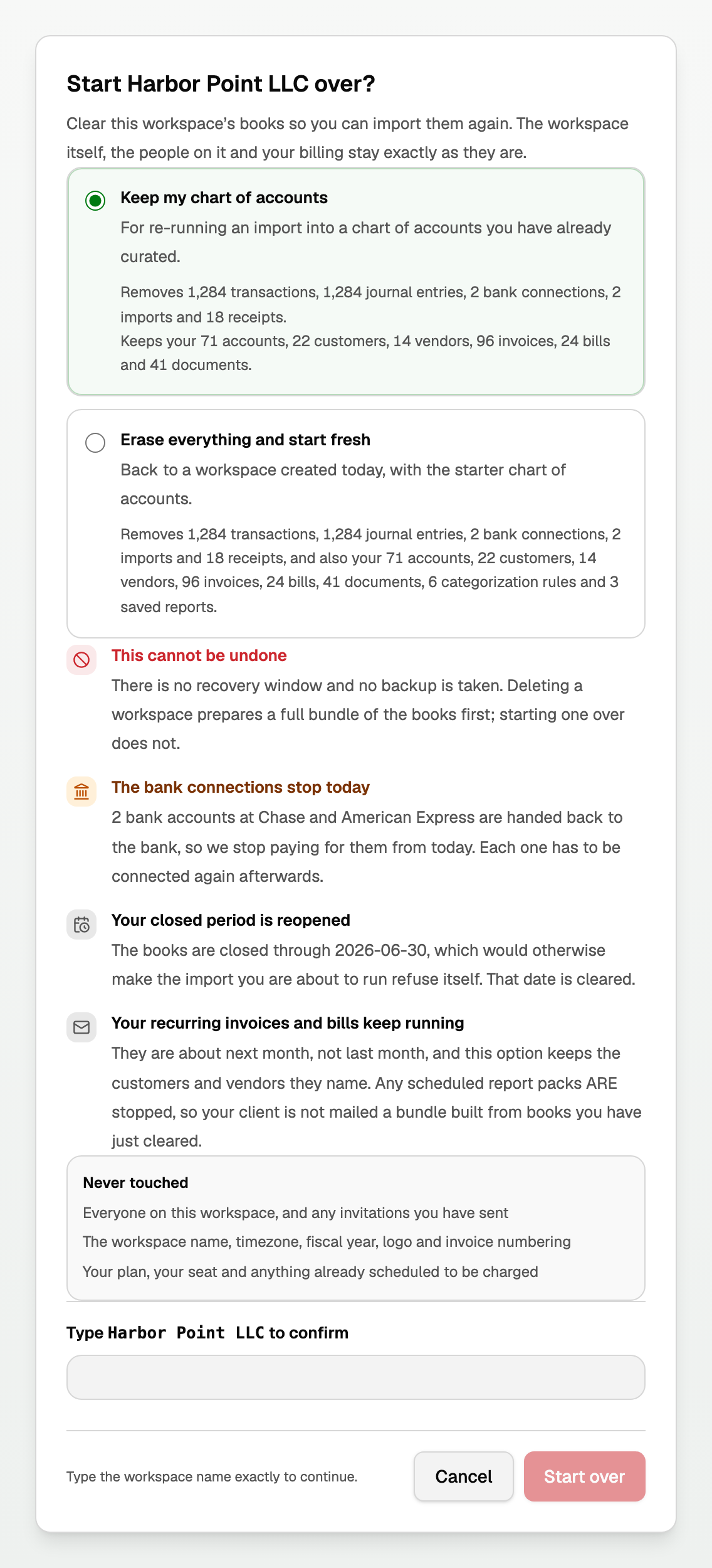
When it finishes, import your books again. Bank connections stop and need connecting again. A closed period is reopened, so the next import is not refused. To compare Start over with Archive and Delete, see Archive, start over, or delete a workspace.
If something goes wrong
- Your bank feed and the imported books show the same payments. Bank transactions waiting for review inside the imported dates go to the On hold tab of the Review inbox as possible copies. Click Exclude on each true copy.
- An older import left duplicates on reconciled rows. Do not bulk-delete them or undo a finished reconciliation yourself. Write to support@booksgpt.ai and we will find the exact copies.
- A balance sits in QuickBooks Import Suspense or BooksGPT Import Suspense. It holds entries the import could not place on a real account. Open All pages, then click Reports and General ledger to see them. Fix small ones with a journal entry. For a large balance, a cleaner export and a re-import usually fixes it.
- Support recovered your open QuickBooks Desktop bills for you. Contact support before you replace or reset those books.
Updated on: 18/10/2026
Thank you!