
Import from Wave
Wave books come in through Wave multi-file migration or through Import with accounting.csv or year-by-year Account Transactions reports.
Preview, account typing, and the reconcile check work the same as any other file on Import. See The import wizard: drop a file and check it reconciles.
What you need from Wave
- Your Wave login.
- A General Ledger: Settings → Data Export → accounting.csv, or Reports → Account Transactions (Accrual Paid & Unpaid).
- Optional: a Trial Balance for opening balances only (no transaction history).
- Optional: Aged Receivables and Aged Payables if you have open invoices or bills.
Wave multi-file migration
For several reports at once:
- Open All pages, then under Setup click Import.
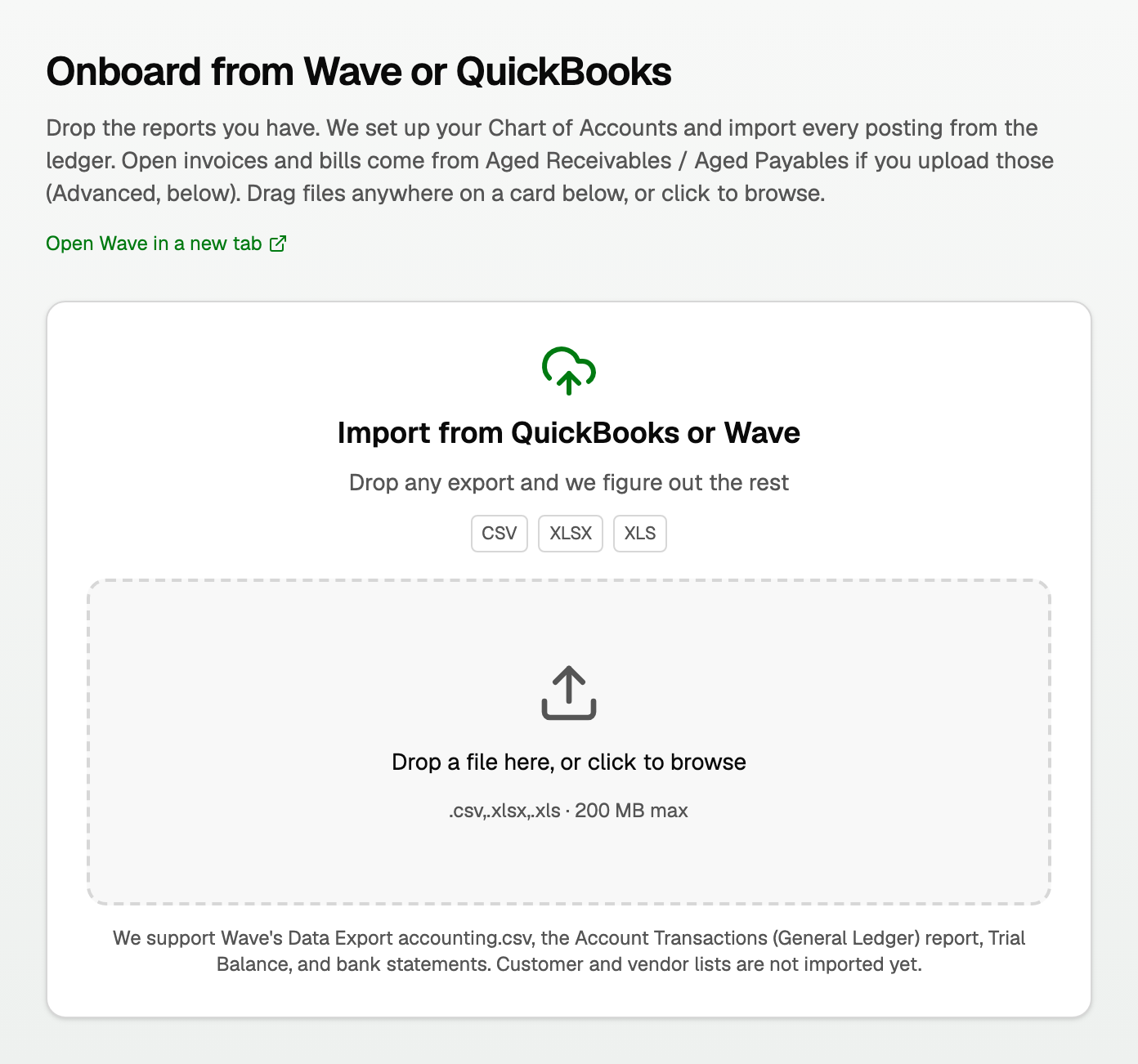
- Under Other ways in, click Wave multi-file migration. The page title is Onboard from Wave or QuickBooks.
- Click Open Wave in a new tab and export your reports.
Export the reports
- Settings → Data Export, then drop accounting.csv. That file is the books, not a bank statement.
- or Reports → Account Transactions → Export → CSV, with Report Type set to Accrual (Paid & Unpaid) and every account included.
- Trial Balance, and Aged Receivables or Aged Payables if you need them
Drop the files
- Drag your General Ledger onto the main card, or click Drop a file here, or click to browse.
- CSV, XLSX, and XLS are accepted, up to 200 MB.
- The banner turns green and says Starting point ready once a General Ledger or Trial Balance is in.
- For the other reports, open Advanced: upload specific reports (Trial Balance, Aged Receivables/Payables).
Files process in the background. When a card finishes it turns green and shows what came across. Open invoices or bills only appear if you uploaded Aged Receivables or Aged Payables.
Bring Wave in one year at a time
Use Wave's Account Transactions report on the main Import drop zone, one year per file:
- In Wave, open Reports → Account Transactions, choose Accrual (Paid & Unpaid), pick one year, and keep every account in the report.
- Export it as CSV and drop it on Drop your books export here. The preview names the dates it covers.
- Import it, check it, and reconcile it if you like.
- Repeat for the next year.
Each file replaces only the Wave transactions already imported for its own dates. Earlier years stay as you left them.
Use Account Transactions for every year. A workspace holding Wave's accounting.csv refuses an Account Transactions file, and the other way round.
Once Account Transactions imports are in place, the legacy multi-file transaction importer cannot replace them.
Export the whole ledger, not one account
A report filtered to one bank account is not your books. For one account's bank activity alone, upload your bank's CSV or statement instead.
If the import stops
Nothing is imported, and the message says what to do:
- The account already has transactions for those dates from elsewhere. Delete them first, undoing any reconciliation that includes them, then import again. See Redo or undo an import.
- A transfer crosses the edge of the file's dates. Export again with a range that includes the date the message names, or Un-match transfer, import, then match again.
- The dates fall in a closed period. Reopen books on Period close, import, then close again.
For Wave Account Transactions, export on Accrual (Paid & Unpaid). A Cash report cannot replace your books.
Books imported from accounting.csv can show Cash reports. See Run your financial reports.
Good to know
- Uploading accounting.csv again replaces the earlier Wave import for those books.
- A Wave Trial Balance on its own posts opening balances only. See the import wizard section on Trial Balance.
Updated on: 16/10/2026
Thank you!