
Import your books from a file
A General Ledger lists every transaction your old software recorded, on every account. Importing it rebuilds that history in BooksGPT, so your Balance Sheet and Profit & loss match the old ones for every period the file covers.
Nothing posts until BooksGPT has checked that the file adds up. For the export from your old software, see How to import your data from Wave or QuickBooks.
Drop the file
- Open All pages in the left sidebar, then click Setup and Import.
- Drag the file onto Drop your books export here, or click Choose file. You can also drop it in the Copilot chat.
- Wait while BooksGPT reads it. Most files open a preview card.
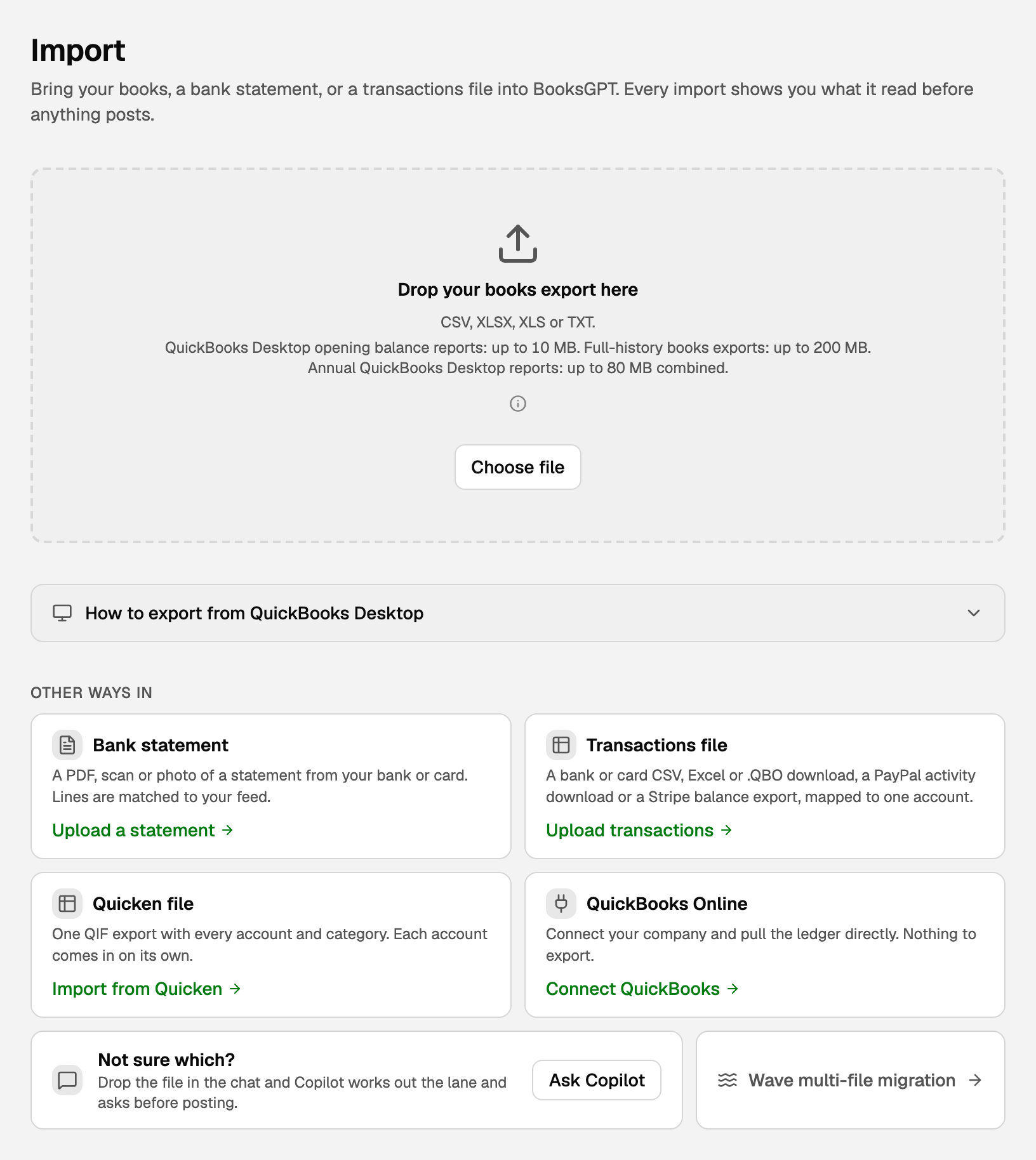
It takes CSV, XLSX, XLS or TXT. Statements, Quicken and QuickBooks Online have their own cards under Other ways in.
Check the preview
Nothing is in your books yet. Check two things:
- The green bar. It says Debits and credits balance at the file's total, a sound start. A note under it may say some dates are missing or some amounts go to an Import Suspense account. A red bar means nothing will import.
- How your accounts will be typed. An account's type decides which report it lands on: a bank account on the Balance Sheet, a sales account on the Profit & loss. Check the accounts with an amber dot. To change one, click its Import as pill.
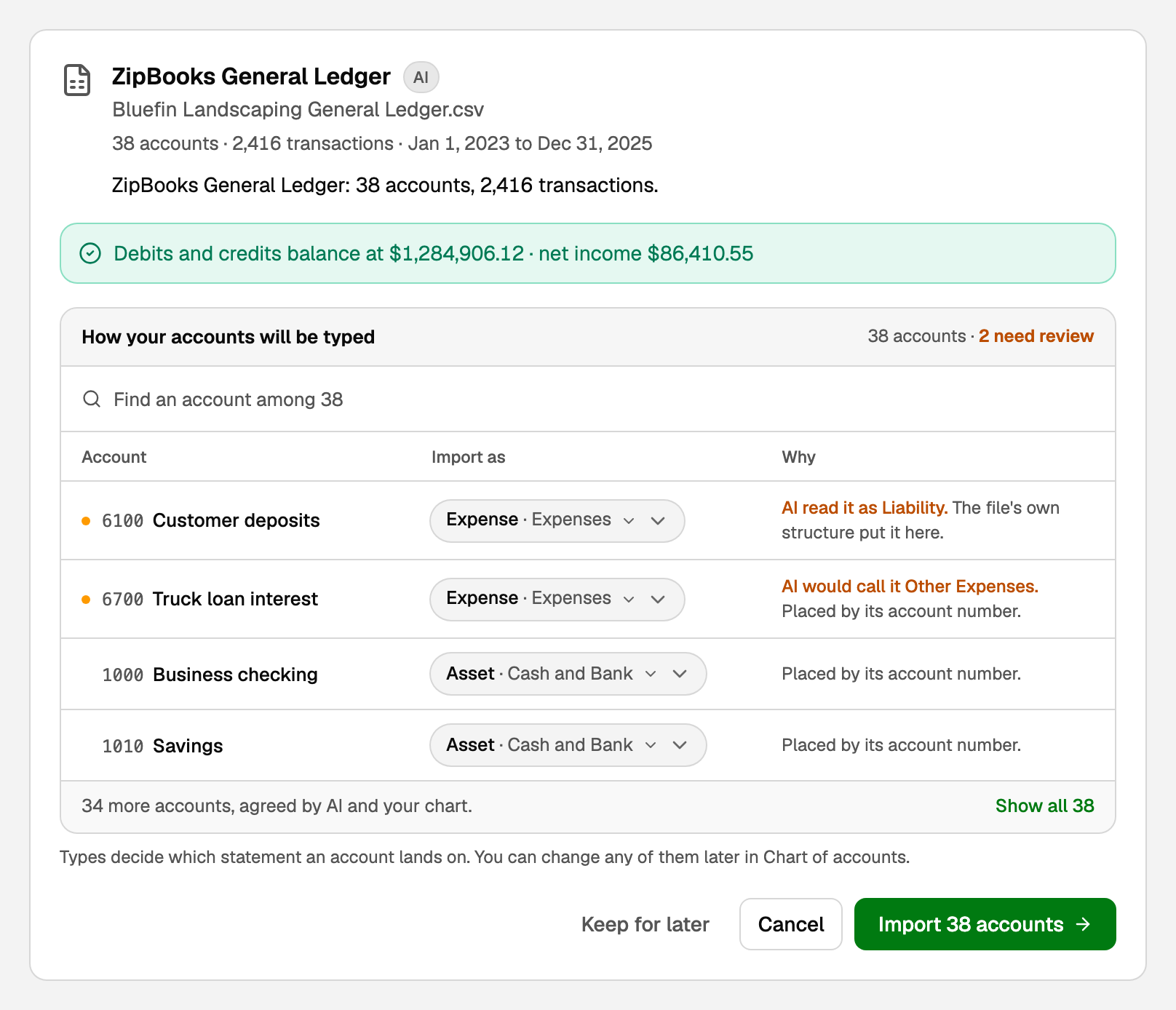
Then click Import N accounts. You can change types later in Chart of accounts.
If BooksGPT asks Accrual or Cash, give the report's own setting, not the one you want.
If your bank feed already covers some of these dates
Your bank feed and your old books hold the same payments. To count each once, the old books own every day up to a cutover date, and the feed every day after.
- Under Import through, keep the date BooksGPT fills in, the day before the feed starts. An earlier date leaves out more.
- Click Import through that date.
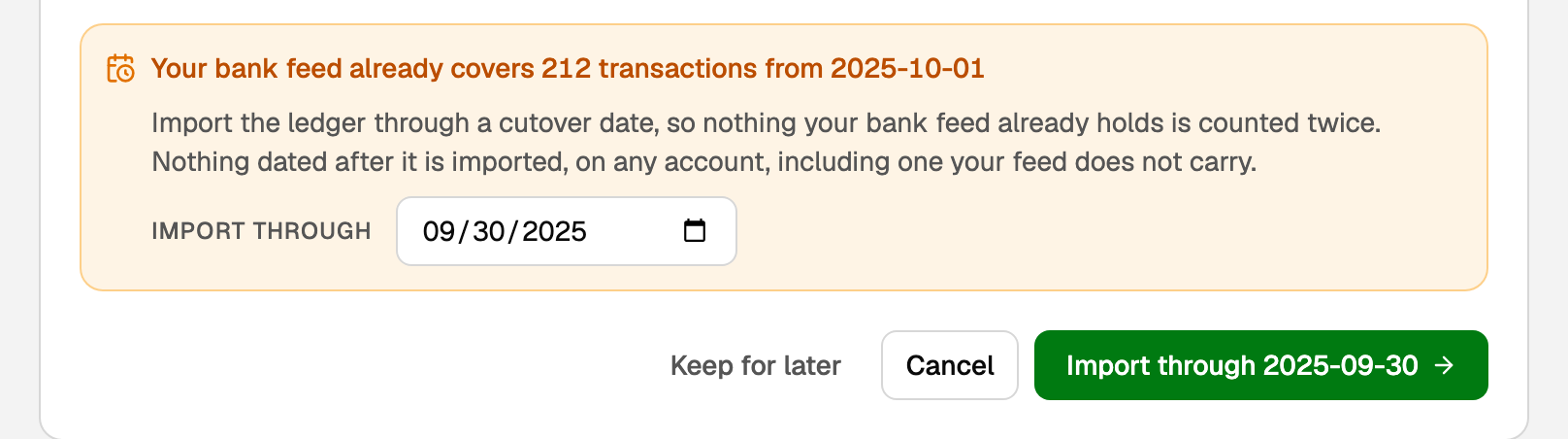
Nothing dated after the cutover imports, on any account: record later invoices, bills and journal entries in BooksGPT.
A QuickBooks Online file has no date to pick: export it to end before your feed starts. A QuickBooks Desktop file imports whole: bank transactions waiting for review on its dates go On hold in the Review inbox, and approved ones must go back to review first.
Opening balances instead of history
An opening balance is what an account held on the day your BooksGPT books begin. Two reports bring them in with no transactions: a QuickBooks Desktop General Ledger run As of one date, and a Wave Trial Balance. Adding the history later means starting over.
- The Desktop report opens QuickBooks Desktop opening balances: check the account types, tick the confirmation boxes, and click Import N accounts.
- A Wave Trial Balance previews the opening balances. Click Import into this workspace.
- Balance sheet accounts start at the report's balances. The year's income and expenses so far go to Opening Balance Equity as one amount.
- Any other Trial Balance, QuickBooks included, is not imported: send the General Ledger, or set each account's opening balance by hand.
If the file is not a General Ledger
BooksGPT works out what the file is, and the card says where it belongs:
- A bank statement saved as a spreadsheet, or one account's bank or card download: click Import as bank statement or Import as transactions.
- A chart of accounts list: open Chart of accounts and click Import accounts.
- A Balance Sheet, Profit and Loss or customer list: export the General Ledger instead.
Not sure? Click Ask Copilot about this file on the card.
If BooksGPT has a question
A ledger from an app BooksGPT does not know, or one it cannot read the usual way, gets no preview. BooksGPT reads it itself, checks every account against your file, and imports it once they all match. This needs a workspace with no books yet, apart from bank feed transactions.
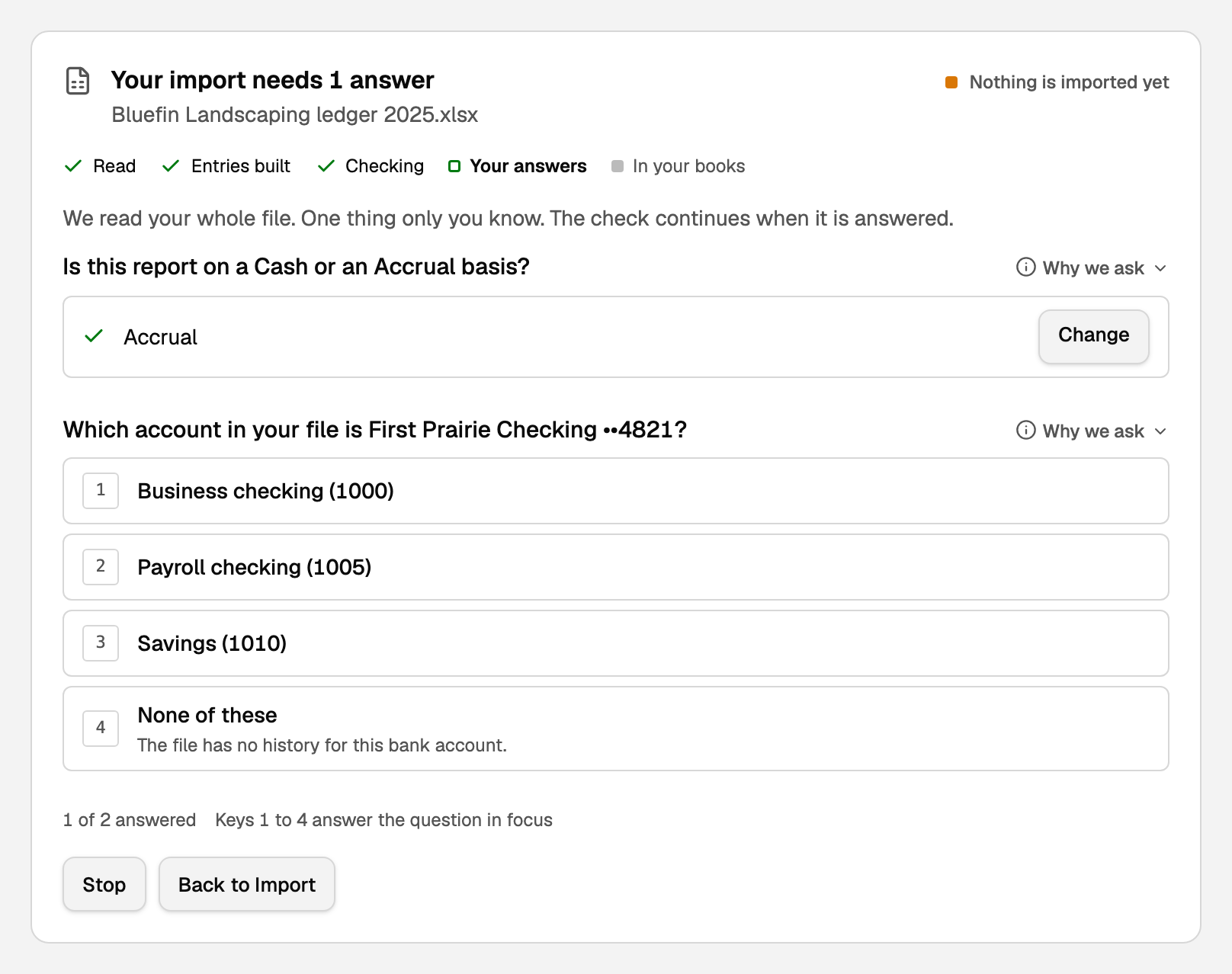
The card may ask what only you know, for example:
- Cash or Accrual
- the opening balances
- where your books stop, if you approved bank transactions on those days
- which account in the file is your connected bank account
Each answer is a full-width row: click the one that fits. Nothing imports until every question is answered. When it finishes, the card says Your books are in.
If it says Waiting for our team, a person on our team will look at your file, and nothing is in your books until then.
After the import
The card says Import complete, the date your books run through, and what it loaded.
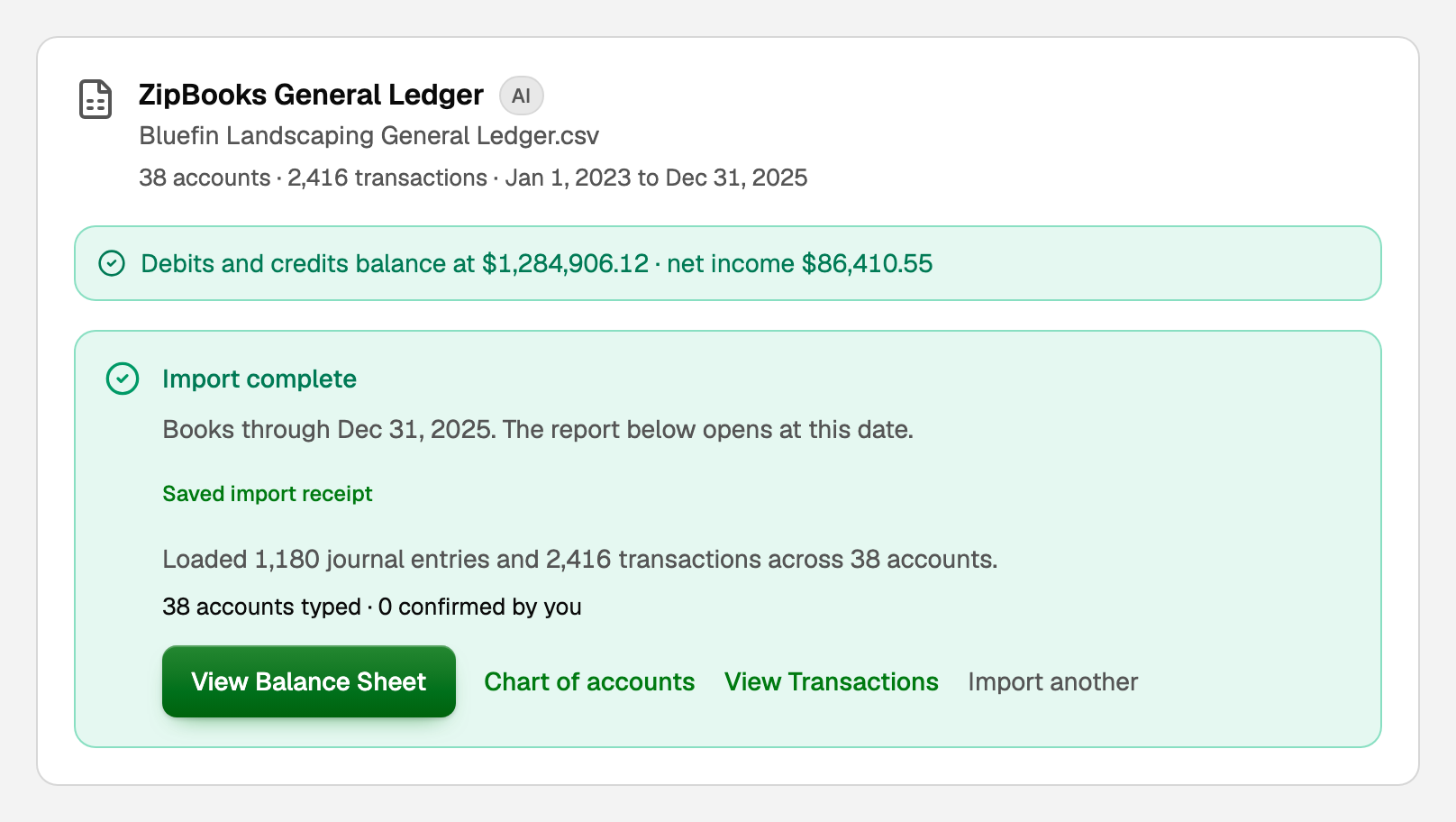
- Click View Balance Sheet. It opens on the file's last day.
- Compare it, and your Trial balance, with your old software's reports on the same date. When they match, your history is in.
- If the first button is Review account types, check the accounts the AI read differently.
A file with a Class column also offers Open P&L by Class, a column per class.
Come back to an import later
- Your saved import work lists your books imports. Click View receipt on a finished one, or Open import on one in progress.
- Files you uploaded but never imported: Open shows a fresh preview, and Discard removes the upload, not your books.
If something goes wrong
- The bar is red, or there is no import button. The card says why. Most often, export again for all dates and every account.
- The numbers came out wrong after the import. A corrected file from the same software usually replaces the earlier one. See Redo or undo an import.
Updated on: 18/10/2026
Thank you!