
Import your books from Xero
Moving from Xero means bringing three things across: your chart of accounts, each account's balance on the day you start, and the transactions behind those balances. With all three in BooksGPT, your reports carry on exactly where Xero's left off.
BooksGPT does all of it from one Xero report, General Ledger Detail, which lists every transaction in every account. You see a preview first, and nothing changes in your books until you click Import.
Before you start: check the currency
Xero's report doesn't print its currency, so BooksGPT records every amount in the workspace's own currency. If your Xero organization uses a different one, change it before you upload anything: open Settings, click Accounting, then Books & tax, and set Base currency. Once the workspace holds books, a bank connection or even one uploaded file, its currency can't change.
Export General Ledger Detail from Xero
- In Xero, open Reporting and find General Ledger Detail. In older Xero menus it's under Accounting, then Reports.
- Include every account and choose Accrual.
- Start the dates on the first day of a financial year, and end them on the last day you want in BooksGPT. Xero shows your financial year end under Settings, then Financial settings; the year starts the day after.
- Use the report's Columns option to add Account Type, so BooksGPT types each account the way Xero does and asks you about the few it can't.
- Export it to Excel, and don't edit the file.
Why these settings matter:
- Accrual is how Xero keeps your books: an approved invoice is income on its date and waits in Accounts Receivable until it's paid. BooksGPT imports Xero books on Accrual only.
- The first day of a financial year is when income and expense accounts are back at zero, so only balance-sheet accounts carry opening balances. Start an earlier year if you want last year to compare against.
Upload it to BooksGPT
- Open All pages in the left sidebar, then click Setup and Import.
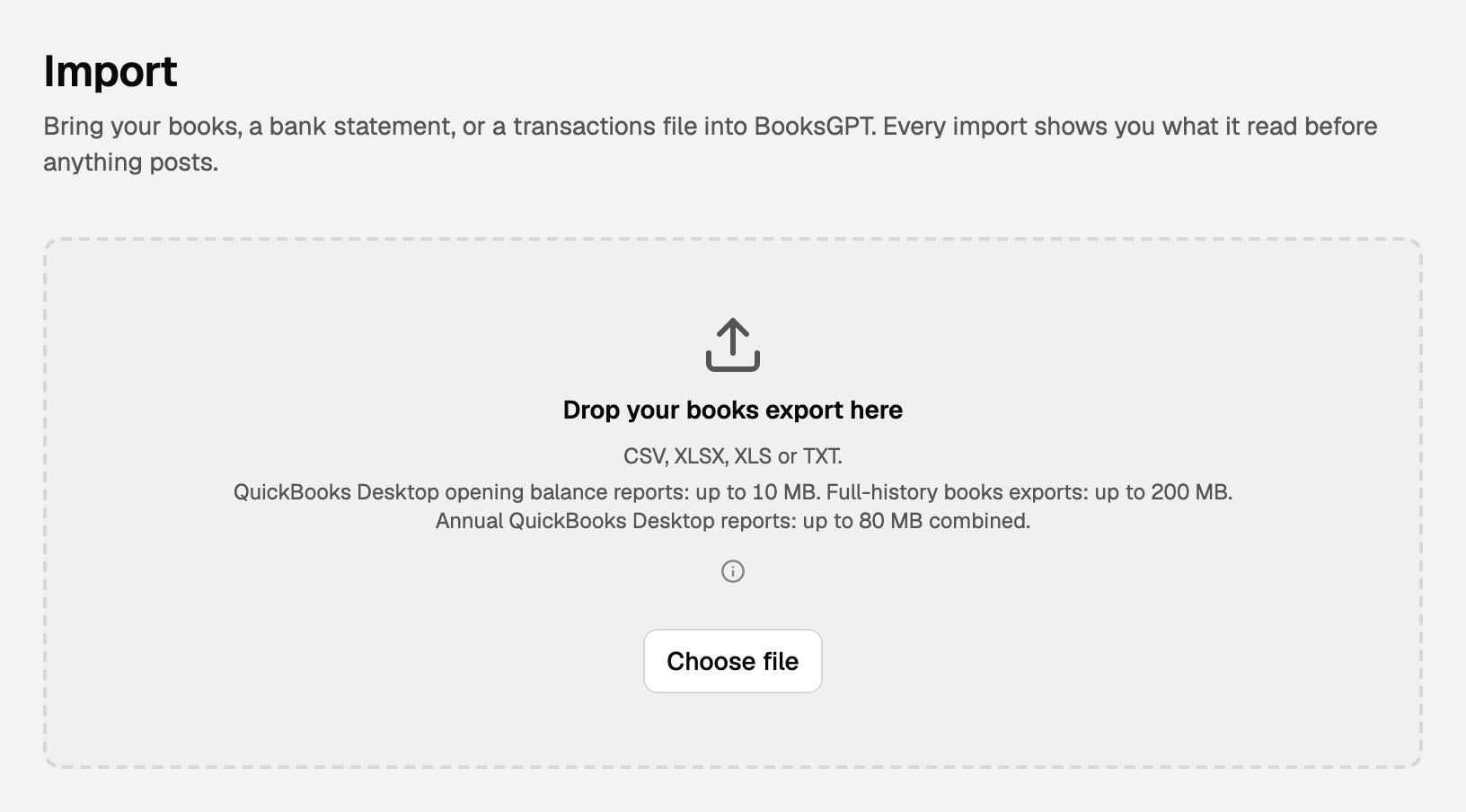
- Drop the file on Drop your books export here, or click Choose file. You can also drop it in the chat.
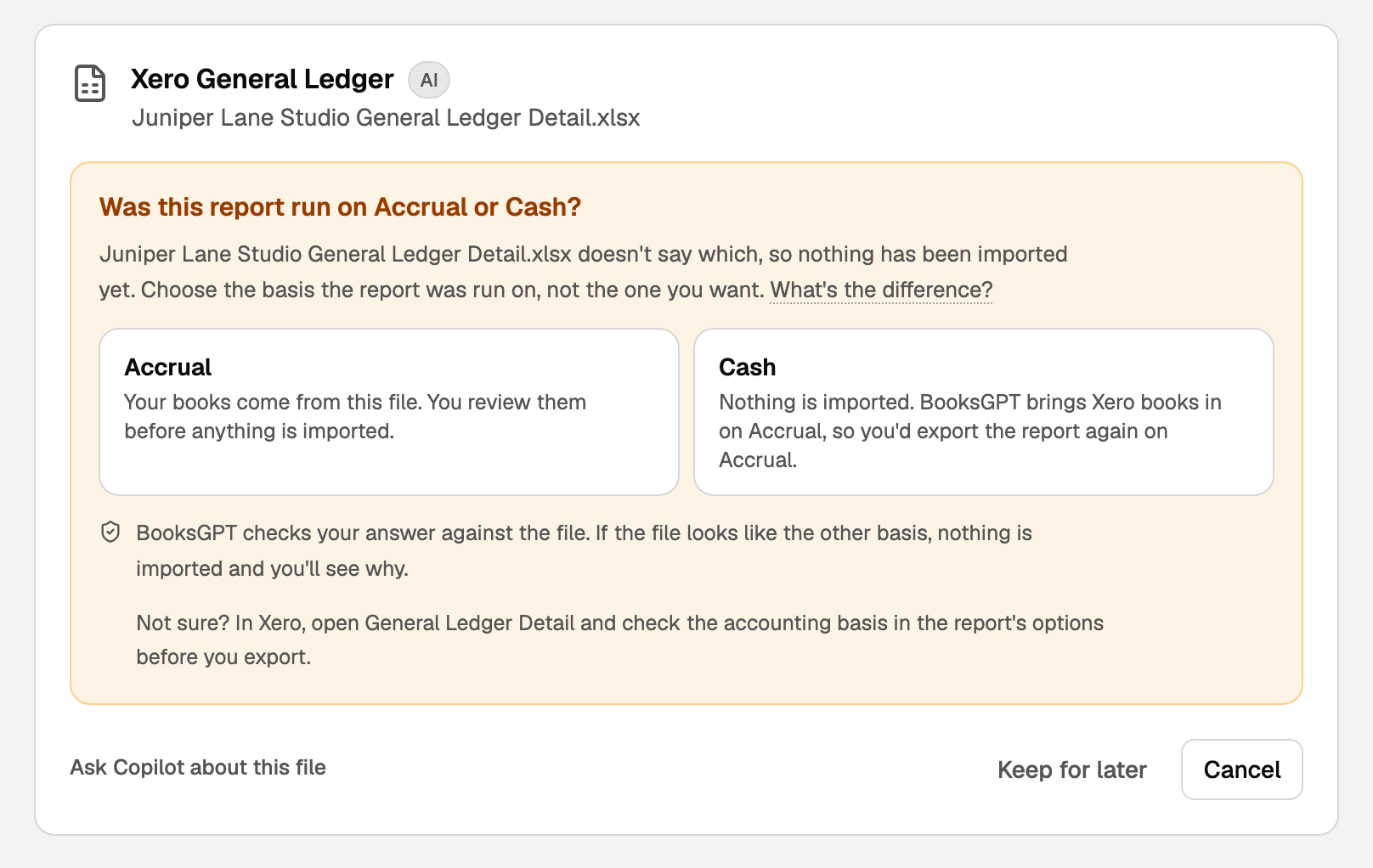
If the file doesn't say which basis it was run on, BooksGPT asks: choose the one you picked in Xero. A Cash report can't be imported, so export it again on Accrual.
Check the preview and import
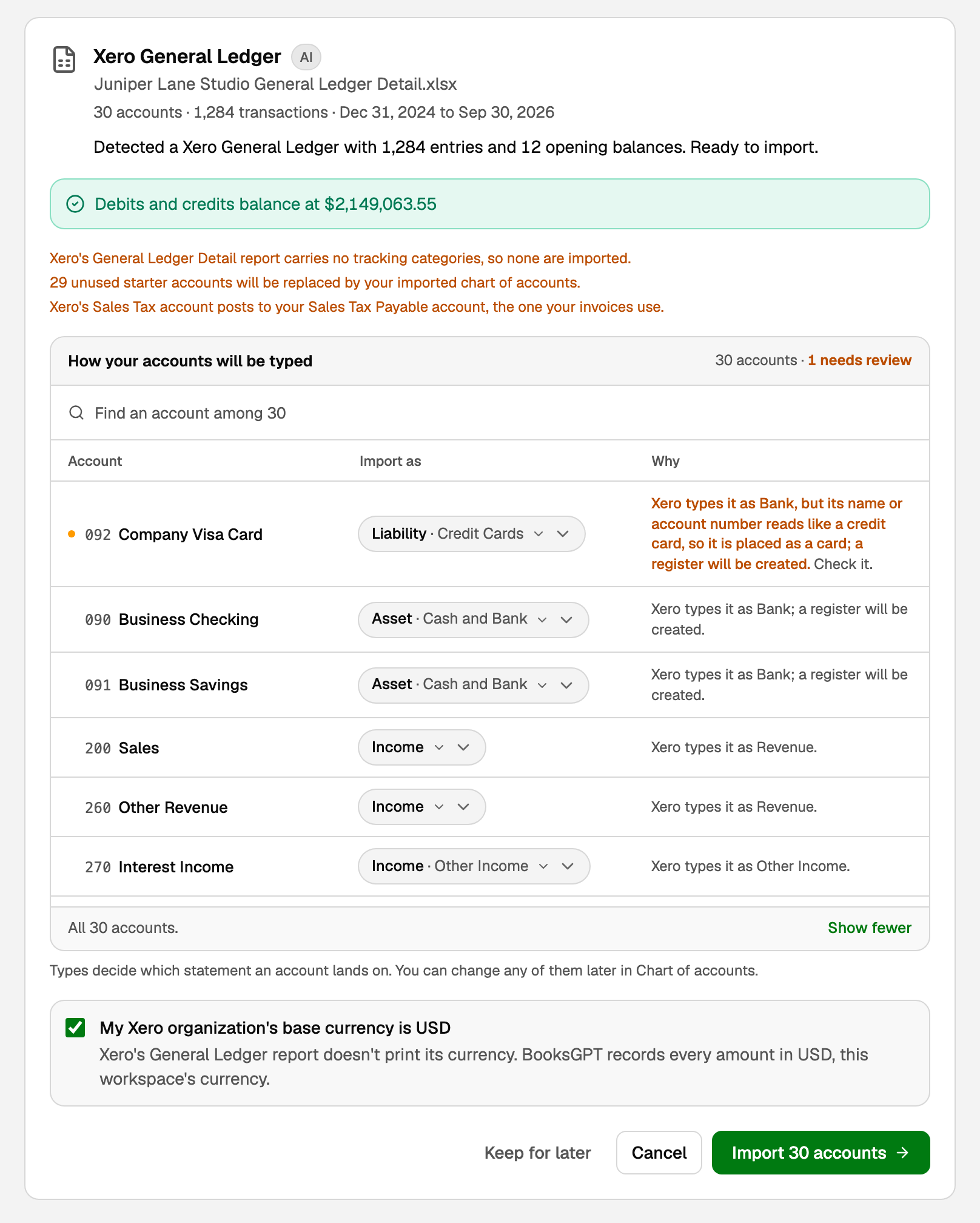
The card shows what BooksGPT found. A green bar means the file's debits and credits balance.
- Under How your accounts will be typed, check every account marked as needing review. An account's type decides whether it lands on the Balance Sheet or the Profit & loss. Why says how it was chosen, and Import as changes it.
- Tick My Xero organization's base currency is only if it names your Xero organization's currency. If it doesn't, import into a new workspace set to your Xero currency instead: this one's currency can no longer change.
- Click Import N accounts (the button counts your accounts).
If your bank is already connected
Each date in your books should come from one place, so nothing is counted twice. If your bank feed or uploaded statements already hold transactions inside the report's dates, the preview asks for an Import through date, suggests the day before those transactions start, and the button then names that date.
Xero fills in everything up to that date. After it, your bank transactions stay, and Xero's entries (invoices, bills and journals too) are left out.
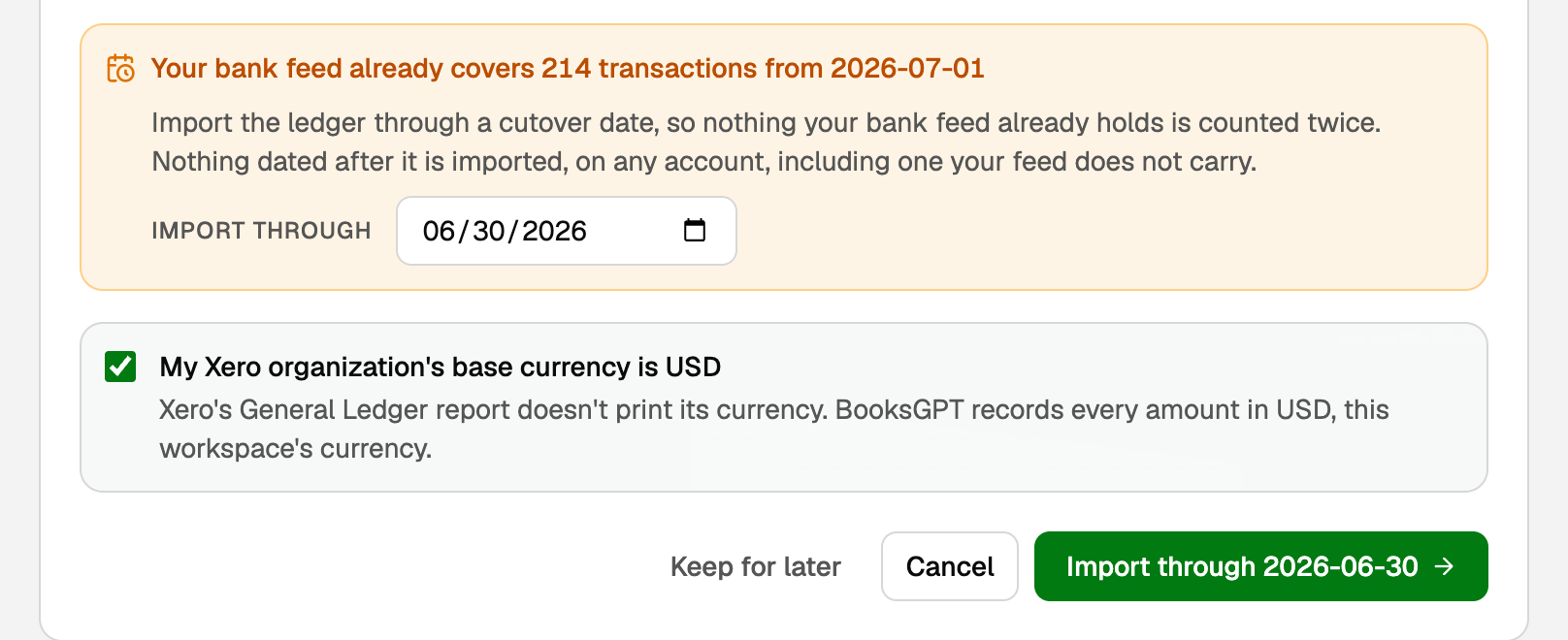
If those transactions start on or before the report's first day, there's no date to offer and nothing is imported. Either way, you can instead exclude every bank transaction dated on or before the report's last day (any dated before its first day is already in Xero's opening balances) and import the whole file, keeping all of Xero's history.
What your books now say
- Your Xero accounts are now your Chart of accounts, typed as the preview showed.
- Each balance-sheet account opens at its Xero balance on the day before the report starts, against Opening Balance Equity. Xero's opening balances balance each other, so that account nets to zero.
- Every transaction in the report (up to your Import through date, if you set one) is in your books on its Xero date, so your Profit & loss for those dates matches Xero's.
- Bank and card accounts appear on Banking, each with its own register.
- Tracking categories don't come across, even if you add them to the report as columns.
Check the import against Xero
BooksGPT already checked every account's closing balance against the report. Check it yourself:
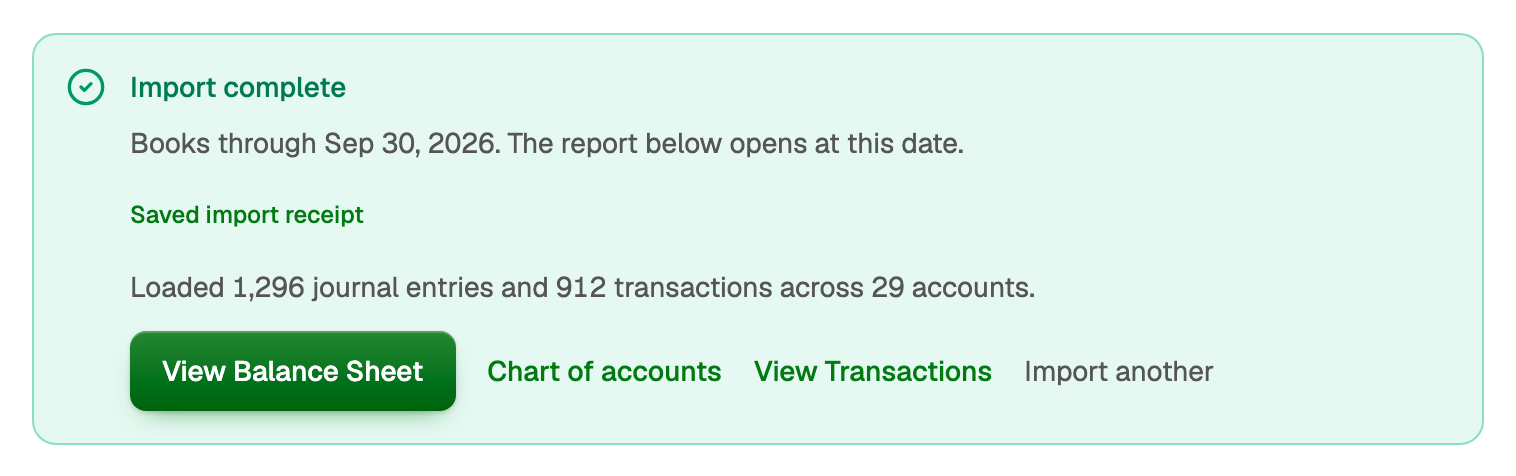
- When the import finishes, click View Balance Sheet. It opens on the last day the import covers.
- Make sure Accounting basis is set to Accrual.
- In Xero, run the Balance Sheet for that same date, also on Accrual.
- Compare total assets, total liabilities and total equity. They should match to the cent.
Xero calls this year's profit Current Year Earnings; BooksGPT calls it Net Income.
Next: your invoices and your bank
- Invoices. Export them from Xero (Sales, then Invoices), then in BooksGPT open Invoices under Sales and click Upload invoices. Paid and awaiting-payment invoices dated inside your Xero file join the entries Xero already recorded, so nothing is posted twice; drafts come in as drafts. Invoices dated before the report starts stay out, because what they still owe is already in your opening Accounts Receivable. See Upload a spreadsheet of invoices.
- Your bank. When you connect it, choose Custom date and start on the day after the last day your import covers, so the feed picks up where Xero stops. A check or deposit Xero already recorded that clears after that day still arrives from the feed: match or exclude it. If BooksGPT asks whether the account is already in your books, choose the bank account your Xero file created.
If something goes wrong
- BooksGPT says it's a Cash report, or the wrong report. Run General Ledger Detail again on Accrual. Xero's Account Transactions report is a different report and can't be imported.
- It says the report starts partway through a year. An income or expense account has an opening balance, which only happens mid-year. Run the report again from the first day of your financial year. If it does start on the first day, export it again with the Account Type column.
- You need to import a corrected or longer file. A workspace holds one Xero import, so the workspace owner must start the books over first, then import the new file. Starting over can't be undone and also removes your bank connections and everything entered since, so take a copy first with Download everything.
- An account already has an opening balance you typed. The Xero file brings its own, so remove yours first, then import again.
- Bank transactions from your Xero dates came in anyway. Those inside your Xero dates wait in Review inbox under On hold, because they may already be in your books. Click Exclude on each one your Xero books have, and use Post anyway for the ones they don't. A bank transaction dated before your report's first day is already in your opening balances, so exclude it even if it isn't on hold.
Updated on: 17/10/2026
Thank you!