
Upload a spreadsheet of invoices
An invoice records a sale: it adds to your income and to what the customer owes you (your accounts receivable) until they pay. If your invoices live in a spreadsheet or another system, you can bring them in all at once instead of typing each one. Every row comes in as a draft, so nothing reaches your books or your customers until you check it.
Have a PDF or photo of one invoice instead? See "Create an invoice draft from a PDF or photo".
Upload the spreadsheet
- Open All pages in the left sidebar, then click Sales and Invoices.
- Click More invoice actions, the button with three dots beside New invoice, then Upload invoices.
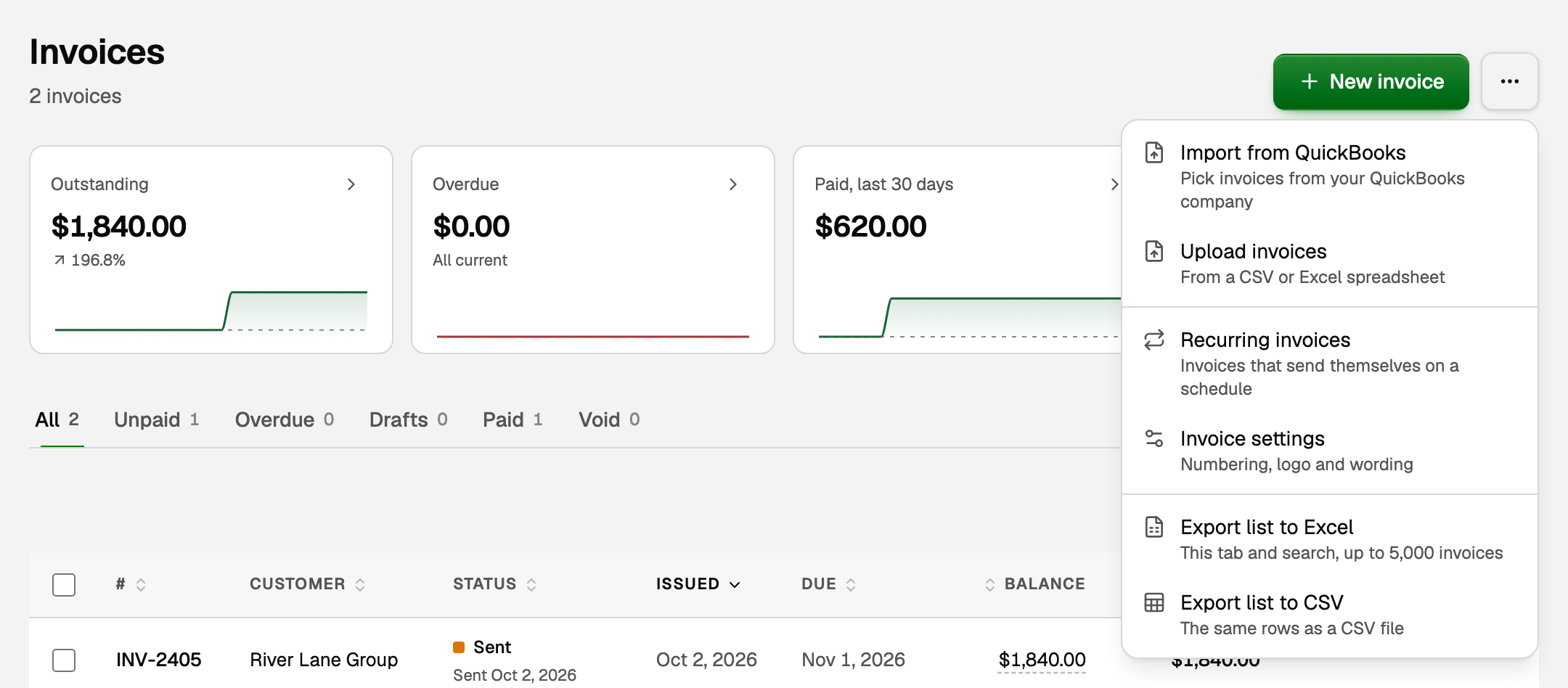
- On Import invoices, drop a CSV, XLSX, or XLS file. The limit is 200 MB and 1,000 invoices. If the workbook has more than one sheet, pick the Sheet, then click Use this sheet.
- On Match your columns, tell BooksGPT which column holds each field (see below), then click Preview invoices.
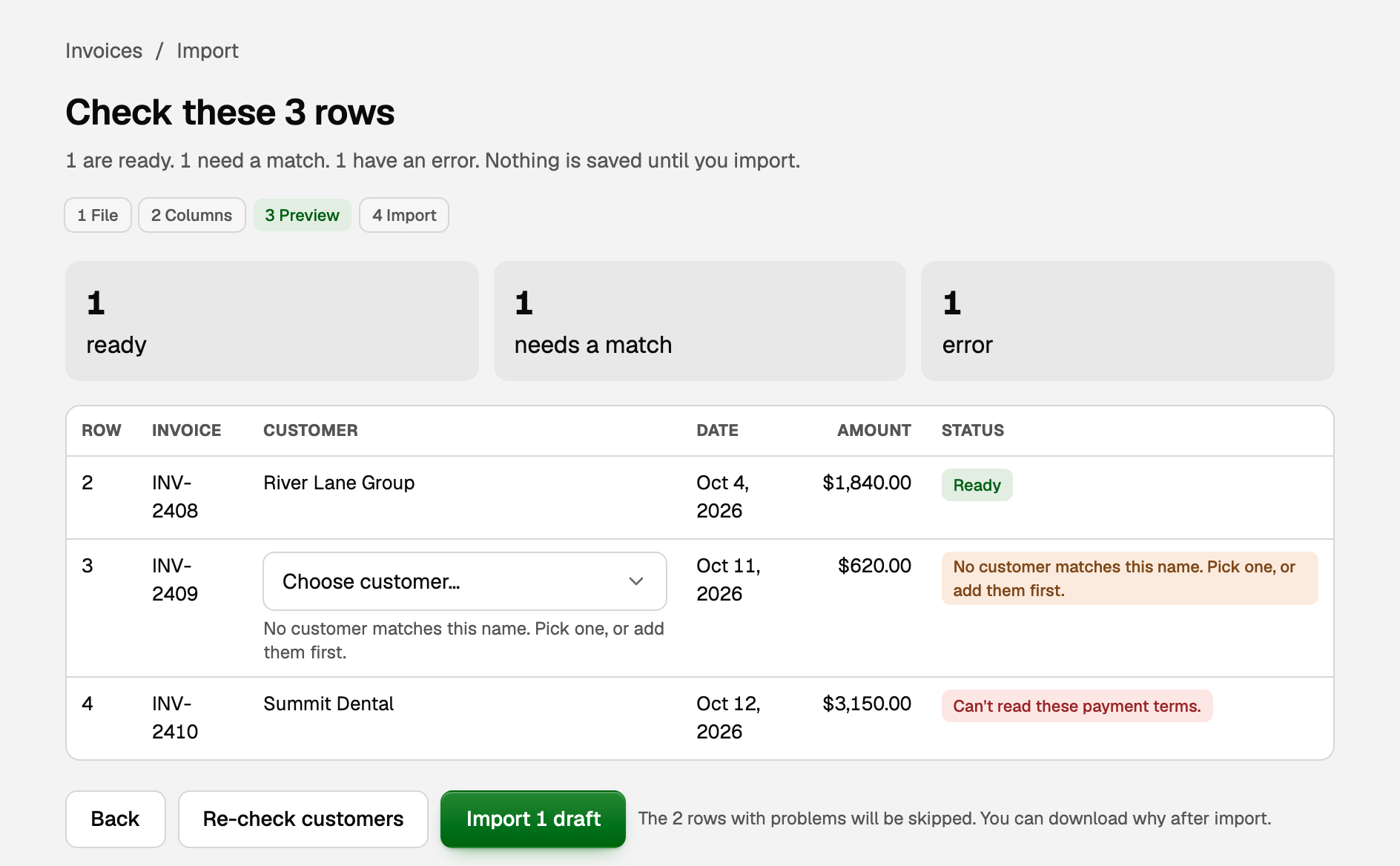
- In the preview, pick a customer for any row that needs one, then click Re-check customers.
- Click Import N drafts, where N is the number of rows that are ready. Rows with a problem are skipped.
Each row becomes its own invoice, and rows are never combined. Two rows that share an invoice number are both skipped.
In the same menu, the owner and bookkeepers also see Import from QuickBooks. See "Pick invoices to import from QuickBooks".
Match your columns
BooksGPT guesses from your headers. Check these, which every invoice needs:
- Invoice number
- Invoice date
- Customer or Customer email
- Amount (or Rate with a Quantity; a rate alone counts as quantity 1)
The rest are optional: due date, terms, product or service, description, line details, sales tax, income account, PO number, memo, and currency. A column you don't need can stay Not used.
Check the rows, then import
The preview lists every row with its status. No invoices exist until you import.
- Ready means the draft can be created. A product name that matches none of your products comes in as plain text, with no stock change and your default income account, so check the product on each draft before Save as final.
- A customer name that doesn't match anyone shows Choose customer…. A spreadsheet never creates customers, so pick one from the list, or add the customer first in another tab. See "Customers, vendors, and products & services".
- If a product name matches two products, set Product / service to Not used and map the name to Description, or rename one product, then preview again.
- A row with an error says what is wrong. Fix it in the file and upload again, or let that row be skipped.
After you import
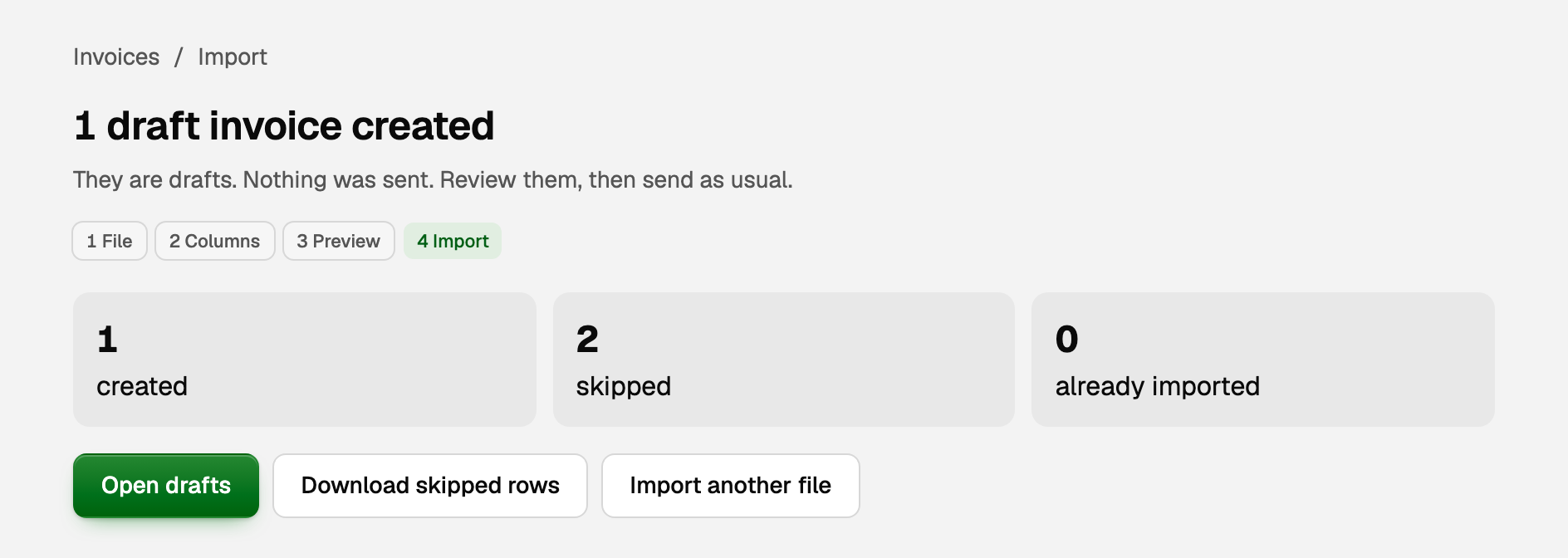
Open drafts takes you to the Drafts tab. Open each draft, check it, and click Save as final.
Once a draft is saved as final, its total shows as money owed to you on your A/R aging, and its amount before sales tax shows as income on your profit and loss (on Cash-basis reports, once it is paid). To send it and get paid, see "Create, send, and get paid on an invoice".
A Xero invoice export
In Xero, open Sales, then Invoices, then Export, and drop that file on Import invoices. BooksGPT reads it as whole invoices, so there is no column step. The preview says what happens to each one:
- Joins your books: a paid or awaiting-payment invoice that is already in the Xero books you imported. Nothing new is posted.
- Draft: a Xero draft, or one awaiting approval.
- Not imported: the row says why. Without your Xero books here, paid and awaiting-payment invoices stay out, because adding a paid one would count that income a second time.
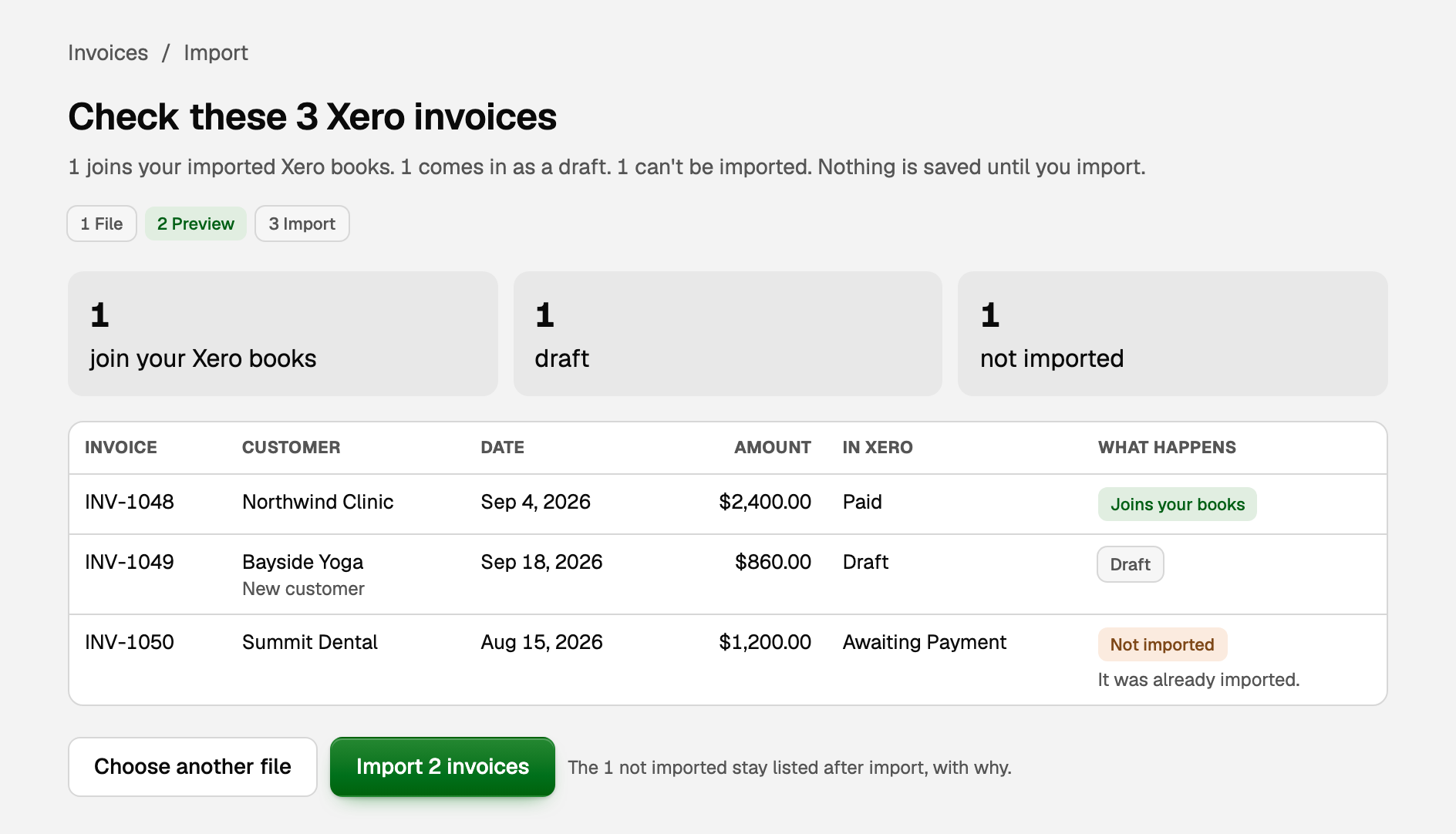
A Xero contact that is not yet a customer is added, and the row says New customer. If the dates could be read either way, pick Month first or Day first before you import.
If something goes wrong
- You left before importing. The file waits under Files you uploaded but never imported on Import invoices. Click Open to pick up where you left off (you choose the columns again), or Discard to remove it. Nothing there is on your books.
- Rows were skipped. Click Download skipped rows for a file that says why each row didn't come in, fix those rows, and upload just them. An invoice number you already have is skipped and that invoice is left as it is.
- A stock product needs a lot or catch weight. You can't pick those here. Create that invoice on the invoice page instead. See "Sell inventory and post cost of goods sold".
- You don't see Upload invoices. Viewers can't import invoices. Ask the workspace owner for a role that can.
Updated on: 16/10/2026
Thank you!