
Email receipts into BooksGPT
Most receipts arrive by email: the hardware store, a software subscription, an online order. Each one is the proof behind an expense, so it belongs with your books, not lost in an inbox.
Every BooksGPT workspace has its own receipt email address. Forward a receipt there, or have your email forward vendor receipts on their own, and it lands on the Receipts page, read and ready to match to its bank transaction.
Find your workspace's receipt address
Open All pages in the left sidebar, then click Purchases and Receipts.
The Forward receipts by email card shows the address. Click Copy.
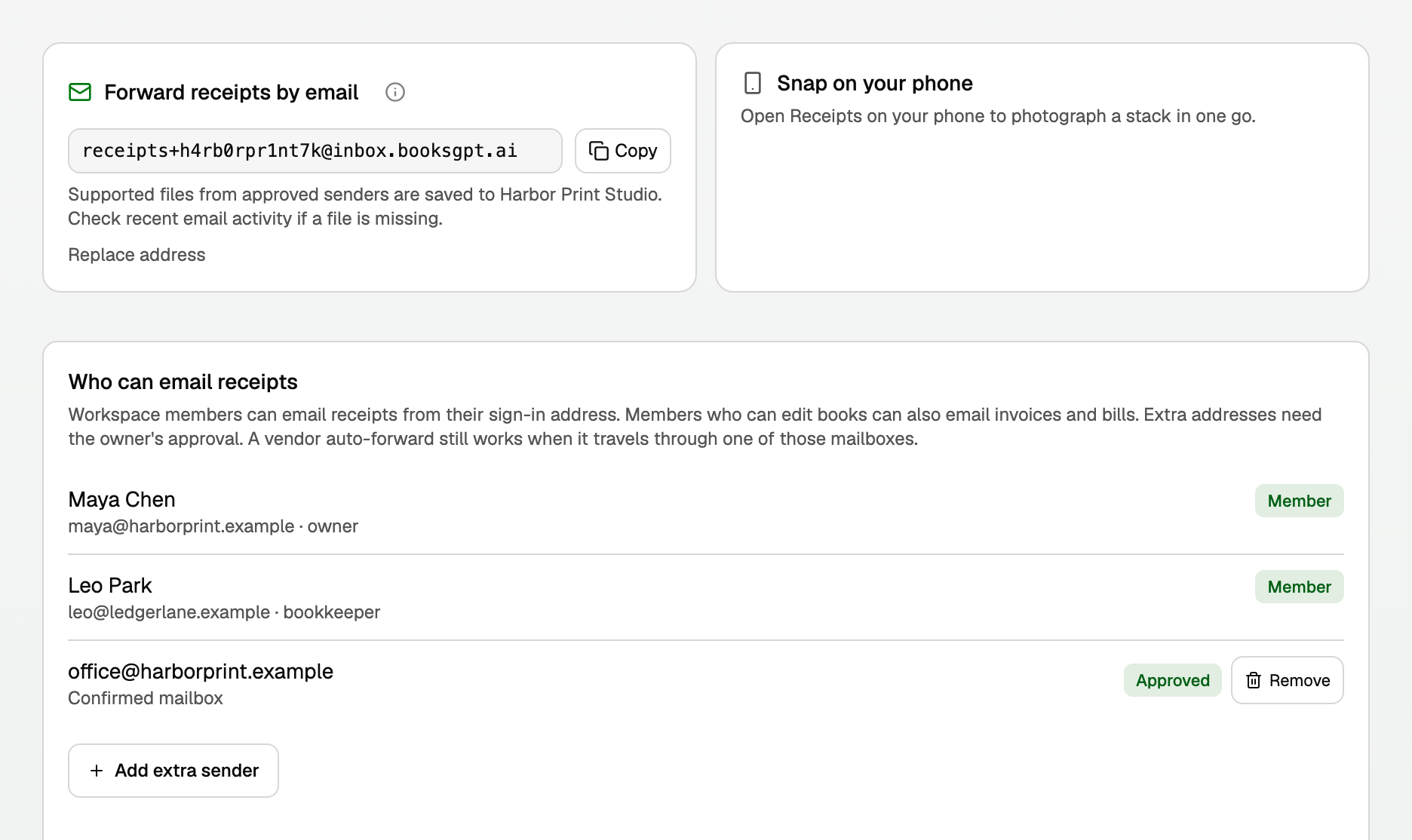
Each workspace has its own address. A receipt sent to one workspace's address is saved only in that workspace.
Forward a receipt
- Send the receipt from the email address you sign in to BooksGPT with. Forward the email with its photo or PDF attached, or forward it as it is when the receipt is the email itself, such as an order confirmation.
- Open Receipts. The receipt has an Emailed badge.
- Link it to its transaction, the same as an uploaded receipt. See Receipts: upload, match, and your storage limit.
Each file can be up to 25 MB. Emailing a receipt changes nothing in your books. It saves the file, and linking it attaches it to a transaction as evidence.
Forward receipts automatically
Forwarding a receipt by hand from your own address always works. A rule in your email program that forwards vendor mail automatically may need extra steps: Gmail, for example, first sends a confirmation code to the new forwarding address, and some work mailboxes block forwarding outside the company. If automatic forwards do not arrive, check Recent email activity below, forward those receipts by hand, or contact support.
A receipt in the email text
When the receipt is the email itself, BooksGPT keeps the original email and reads a copy of its text. The card has an Email text section with Download original email.
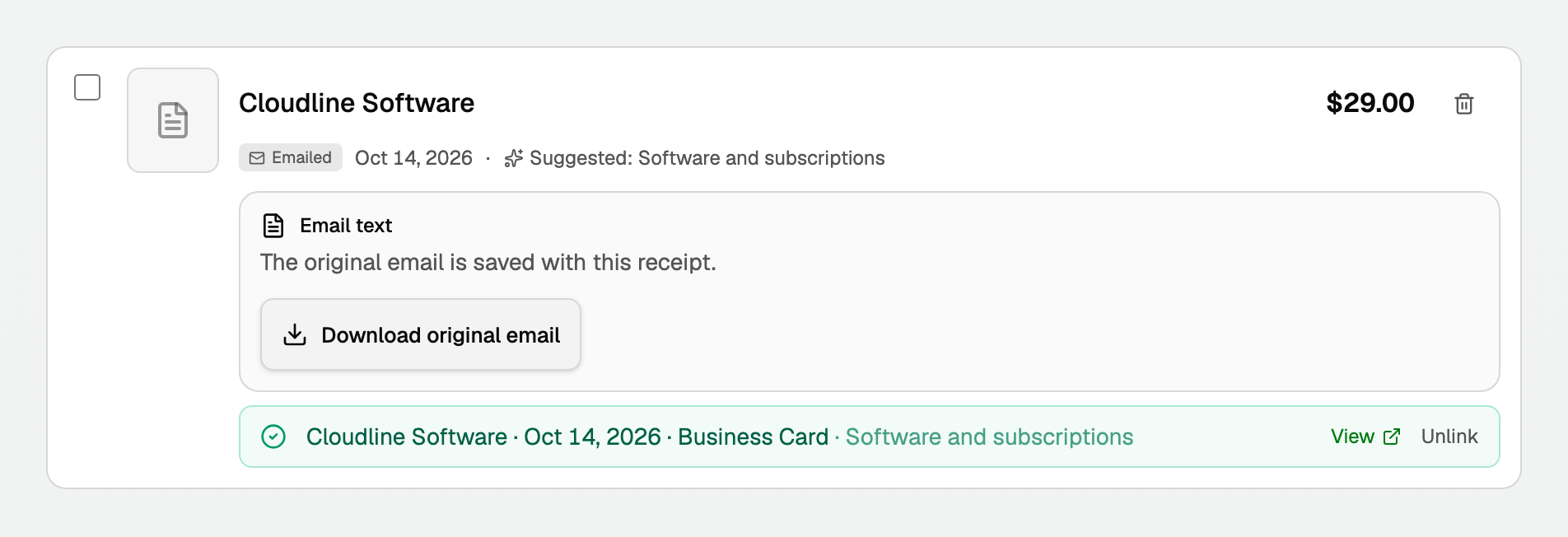
If BooksGPT cannot read the text, the card offers a way through: Enter manually to type the details yourself, or Upload receipt file to add a PDF or screenshot of the email.
Who can send receipts
- Every workspace member, from the address they sign in with.
- Any other address, once the workspace owner approves it: a shared office inbox, an assistant, or a vendor that sends receipts straight to this address.
Mail from anyone else is not saved. It shows under Recent email activity instead.
Approve an extra sender
Only the workspace owner can do this.
- Under Who can email receipts, click Add extra sender.
- Type the address in Extra sender.
- For a person's inbox, keep A mailbox someone will confirm. BooksGPT emails them a link first.
- For a vendor or card issuer that emails receipts straight to this address, choose A vendor or card issuer that sends directly instead. It is approved at once, with no confirmation email.
- Click Add sender.
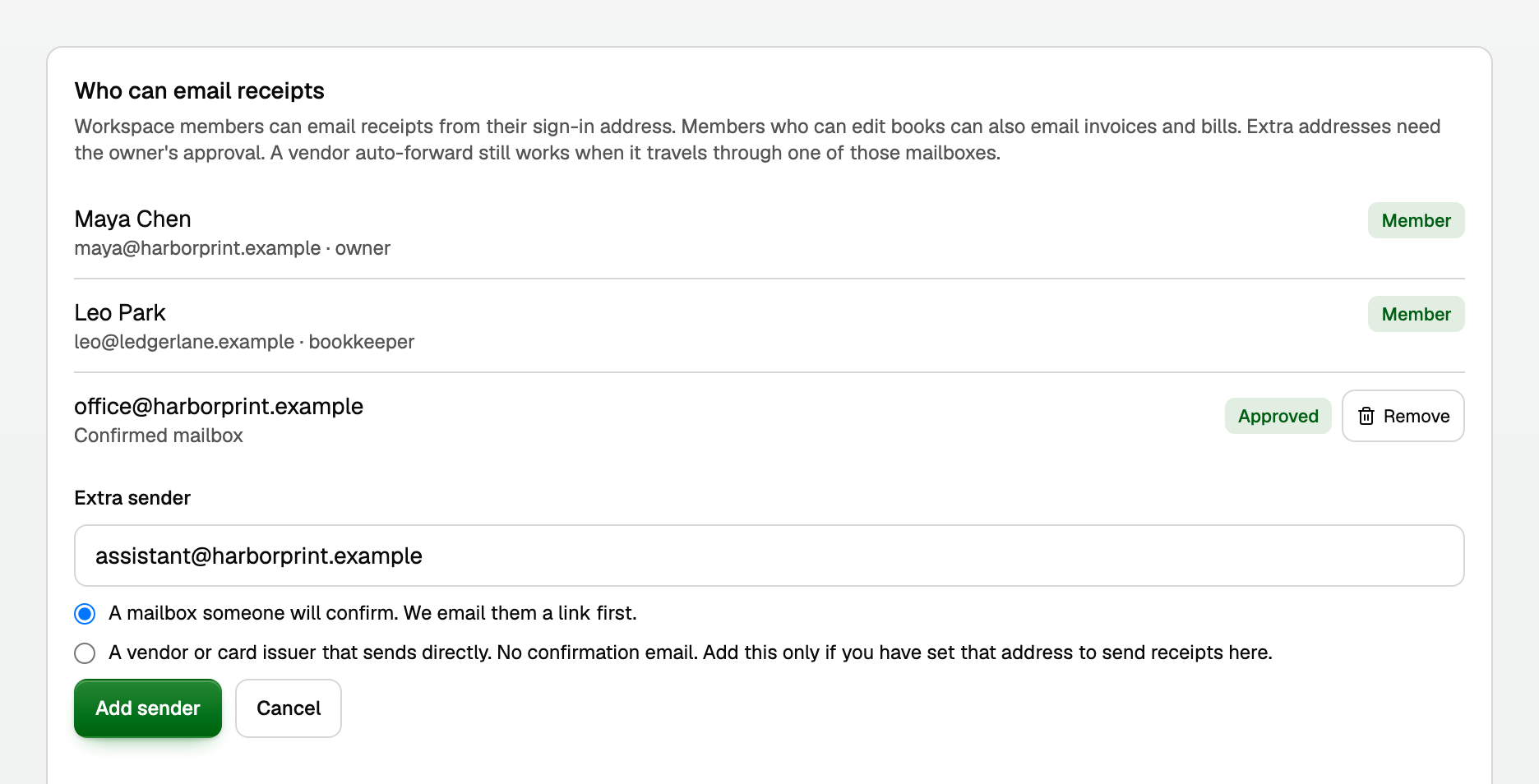
A mailbox shows Waiting until its owner opens the email, clicks Confirm this mailbox, then Yes, this is my mailbox. It then shows Approved. The link lasts 72 hours. If the email did not arrive, click Resend. Remove takes an address off the list.
An approved address can also email bills and invoices to their own inboxes in this workspace.
If an emailed receipt is missing
Look under Recent email activity, below Who can email receipts. It lists emails that were not saved, each with what happened and what to do.
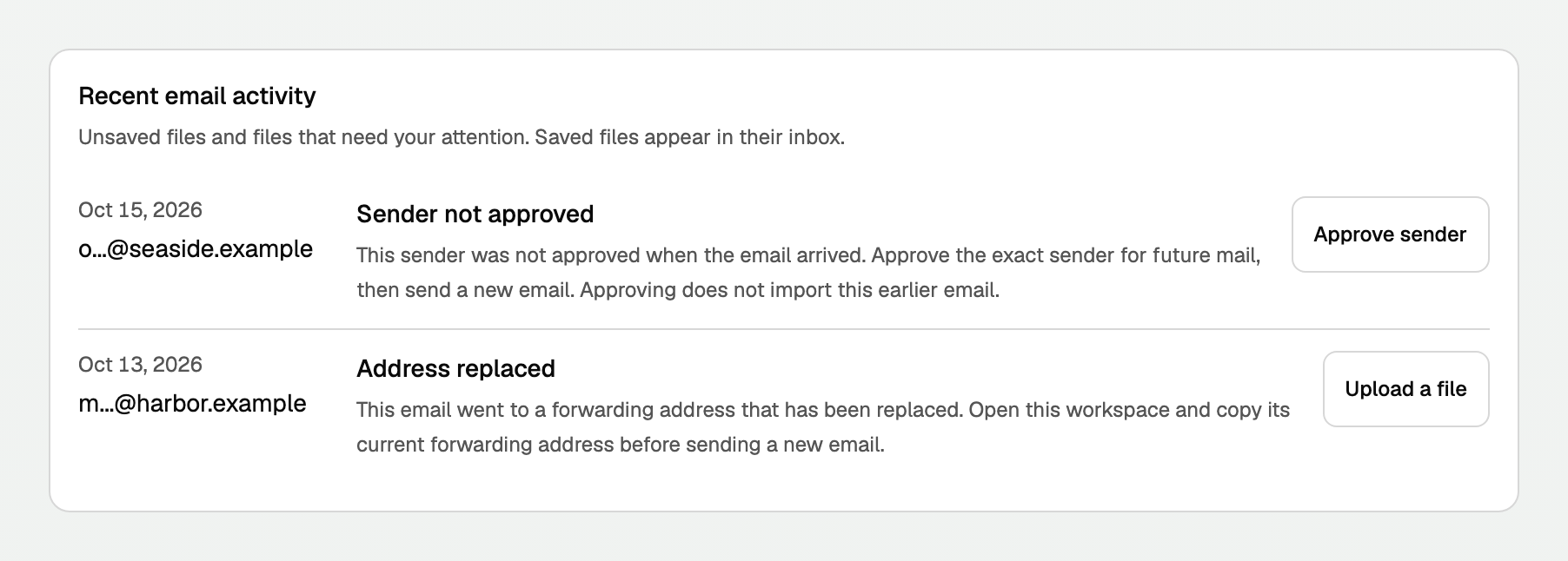
- Sender not approved: the email came from an address that is not a member or an approved sender. For a person's mailbox, the owner can click Approve sender on that row. BooksGPT emails that address to confirm, and approval covers future mail. To bring in the refused email too, tick Also import earlier emails and choose it, or forward it again once the sender is approved.
- For a vendor or card issuer that emails receipts here directly, use Add extra sender with A vendor or card issuer that sends directly instead. A no-reply address never confirms, so Approve sender would not let its receipts in.
- Address replaced: the email went to an old address. Copy the current one from Forward receipts by email and update your forwarding rules.
- No file attached or File could not be read: send the receipt again as a clear photo or PDF.
- Storage full: the workspace has used its storage. See Receipts: upload, match, and your storage limit for what to do.
Nothing at all under Recent email activity? Check that you sent it to this workspace's address, from the address you sign in with.
Replace the address
If the address leaks and unwanted mail arrives, the owner can click Replace address on the Forward receipts by email card, then Replace address again to confirm.
- The old address stops working at once.
- Approved extra senders stay approved.
- Update every forwarding rule to the new address.
Related
- A vendor bill you still have to pay belongs in the Bill Inbox, which has its own address. See Vendor Bill Inbox and matching bank payments to Bills.
- A customer invoice made outside BooksGPT has an address of its own too. See Email invoices into BooksGPT.
- A distributor settlement statement PDF sent here is recorded as one journal entry, not a receipt. See Record a distributor settlement statement.
Updated on: 16/10/2026
Thank you!