
Estimates: quote it, then turn it into an invoice
An estimate is a quote.
Write one
- Open All pages in the left sidebar, then click Sales and Estimates.
- Click New estimate.
- Pick the Customer, set Issue date and Valid until, and enter Description, Qty, Unit price, and Tax. Add line adds a row. Add details is the note under the name.
- Click Save estimate. Leave before that and BooksGPT asks You have unsaved changes.
A typed description is not a saved product.
Send it
- Click Send. On a saved draft it is the filled button when your role can send. Changes you have not saved are saved first.
- To comes from the customer's email. You can change it.
- Check Subject, for example Estimate 12 from Northshore Builders: $4,200.00, then click Send estimate.
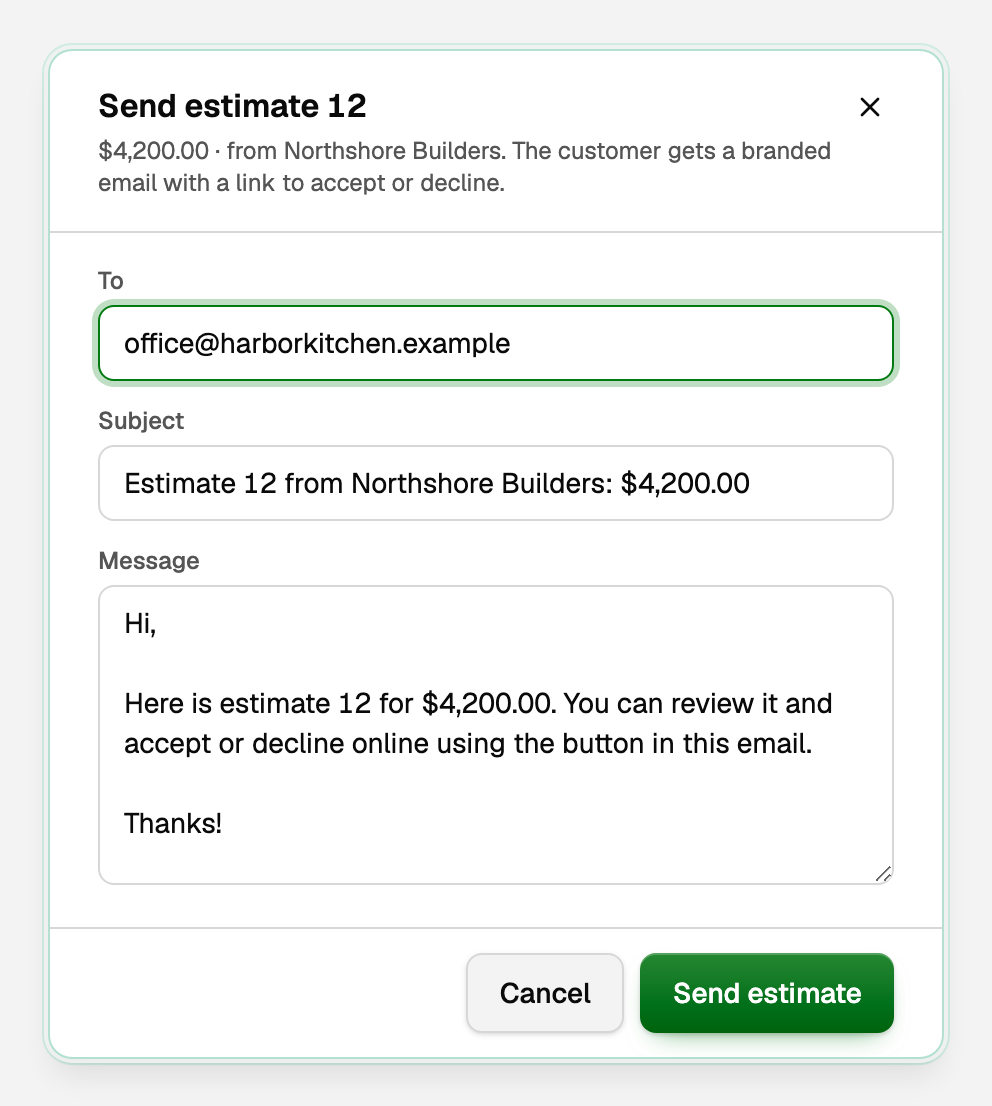
From the email they can Accept estimate or Decline. You can click Accept or Decline yourself.
Turn it into an invoice
Click Convert to invoice when you want to bill, even before they accept. Once the estimate is sent, viewed or accepted, it is the filled button when you can edit. While you have unsaved changes, Save estimate is the filled button instead. Unsaved changes ask first.

- Lines copy onto a new draft invoice. Nothing posts, and stock does not move.
- If a product on the quote cannot be used, conversion stops. Create the invoice directly, or pick an active item. See Customers, vendors, and products & services.
- Click Save as final or Save & send. See Create, send, and get paid on an invoice.
- With costing on, BooksGPT may refuse a date that would sell stock before it arrived. The message offers a date that works, or says to contact support. See Sell inventory and post cost of goods sold.
- The estimate stays Converted. You cannot edit it or accept it again. Its button is then Open invoice.
Track where each quote stands
Use the status chips.
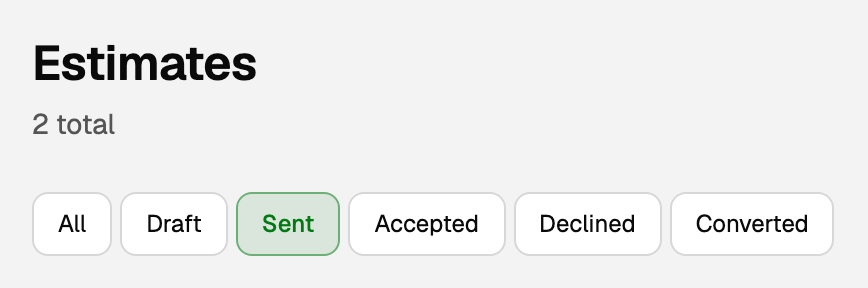
- Draft: not sent yet.
- Sent: with the customer.
- Accepted or Declined: their answer, or yours from Accept or Decline.
- Converted: now an invoice.
Good to know
- On a phone, a bar at the bottom of the screen keeps the estimate total and the filled button, when there is one, in reach.
- Send shows only when your role can email estimates.
- An estimate does not collect payment. See Get paid by bank on your invoices.
Updated on: 15/10/2026
Thank you!