
Create, send, and get paid on an invoice
An invoice is a bill you send a customer for work you have done or goods you have sold. When you finalize it, BooksGPT records the sale as income and the amount as money the customer owes you, called accounts receivable. When the customer pays, you record the payment: what they owe goes down and your bank balance goes up.
Create and send an invoice
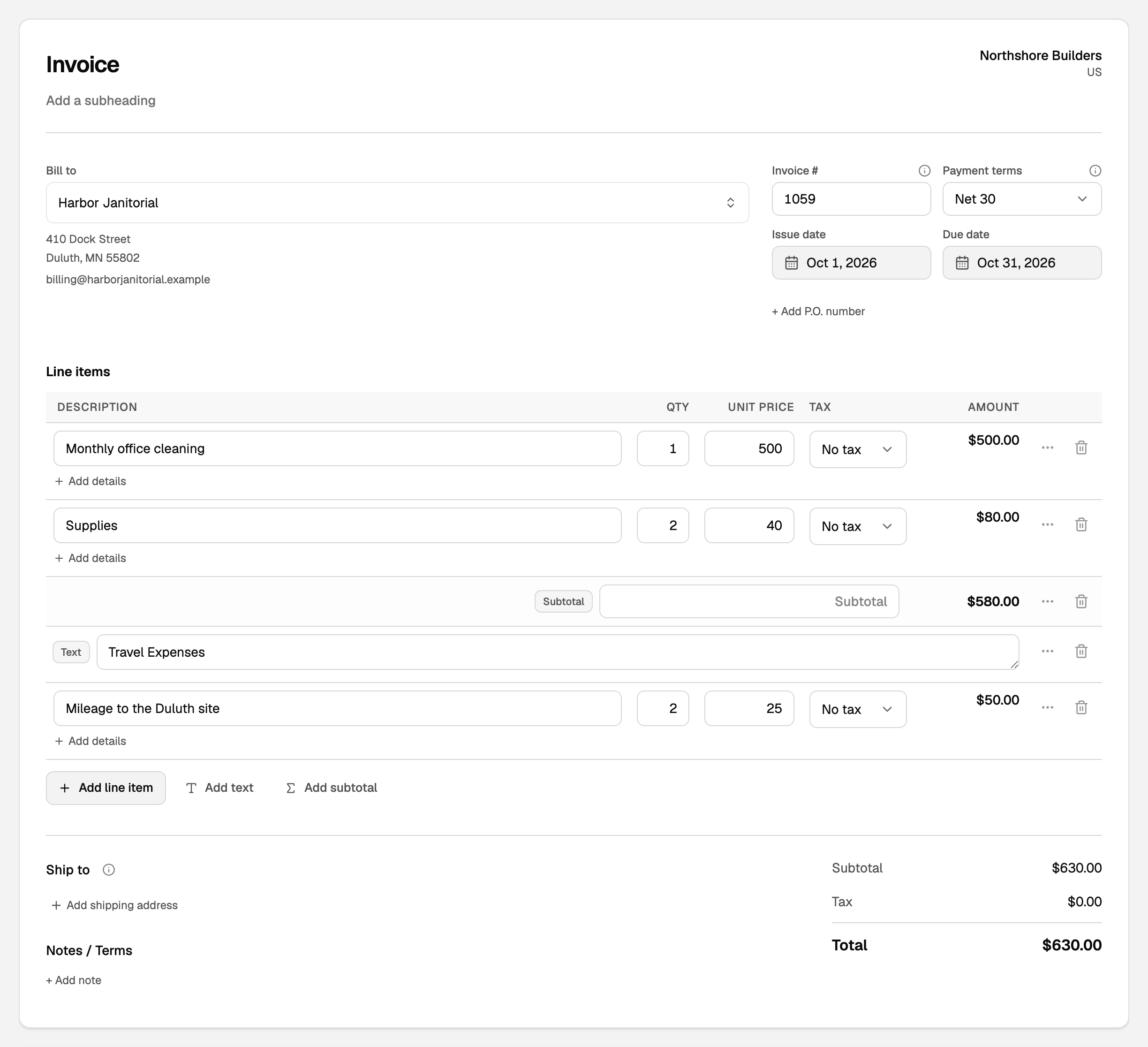
- Open All pages in the left sidebar, then click Sales and Invoices, then New invoice.
- Pick the customer in Bill to. Start typing to search. To add someone, search first, then choose New customer.
- Set the Issue date. The Due date fills from Payment terms. Change the terms, or pick Choose due date… and set the date yourself.
- Add the lines: a description, Qty, Unit price, and Tax. Totals update as you type. Add line item adds a row.
- Click Save & send. Check To, Subject, and Body, look at the preview, then click Send invoice.
Your customer gets a branded email with a link to view and download the invoice. The subject names your business, the amount still owed, and the due date. You can edit it before you send.
Save draft, Save as final, or Save & send
- Save draft keeps the invoice to finish later. Nothing goes into your books yet.
- Save as final records the sale without emailing anyone. Use it when you deliver the invoice another way. Click Send invoice on it later if you change your mind.
- Save & send records the sale and emails it.
On the same form
- Focus a description to pick a saved item from Products & services. It fills the name, details, and price. Type something new and choose to use it once or save it as a new product or service.
- Add details puts a note under a line. + Add P.O. number sits beside the dates. + Add note under Notes / Terms prints at the bottom.
- Leave Invoice # blank and the next number is used when you save. To change the prefix or starting number, see Invoice settings: numbering, logo, and wording.
- A product that tracks stock comes off On hand when you finalize or send the invoice, not when you save a draft. See Sell inventory and post cost of goods sold.
To add a bank payment link to your invoices, see Get paid by bank on your invoices.
Record a payment
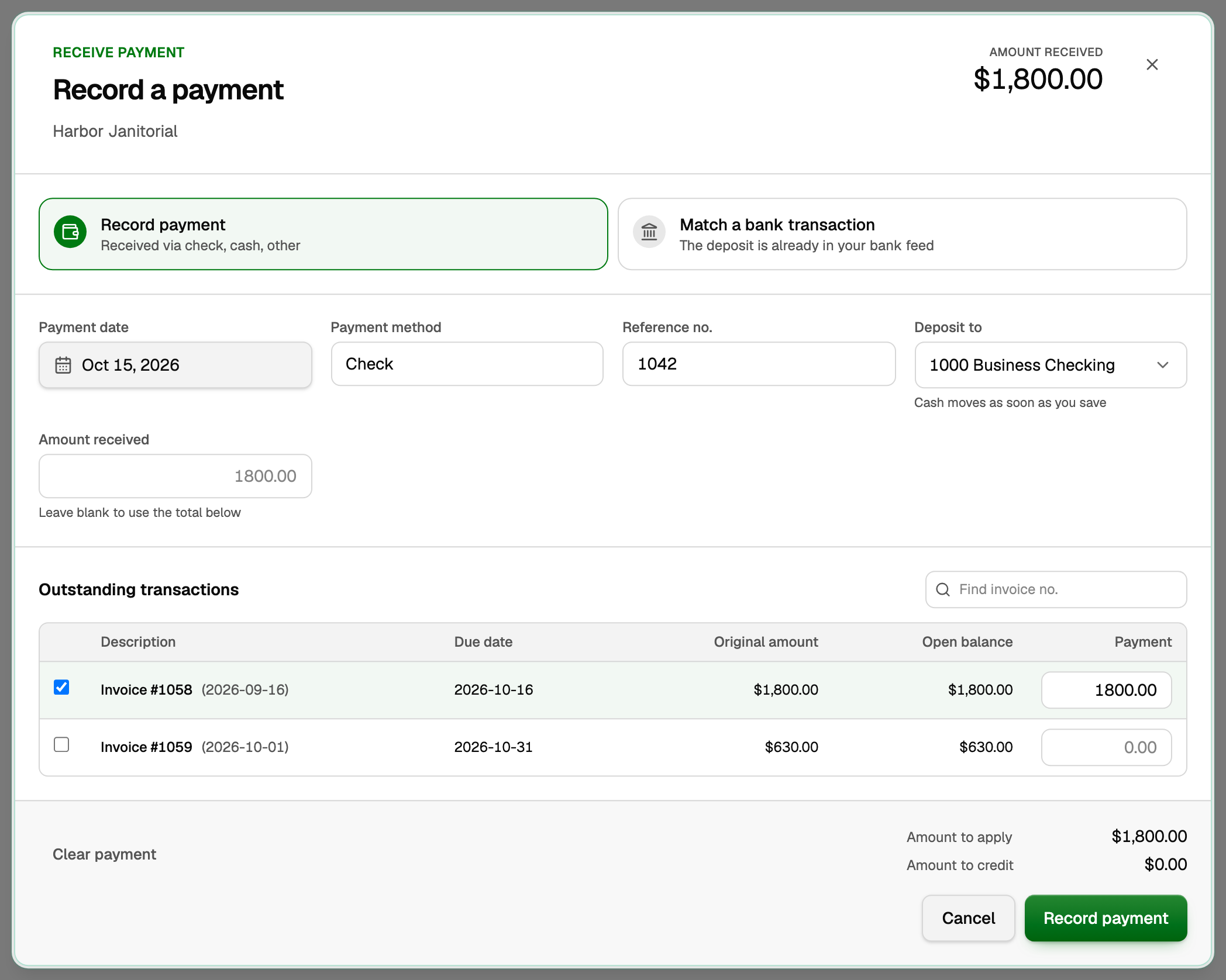
- Open the invoice and click Record payment.
- Choose how the money came in:
- Record payment for a check, cash, or anything not yet in your bank feed.
- Match a bank transaction when the deposit is already in your bank feed. Pick it from the list, so the money is counted once, and go to step 5.
- Set Payment date, Payment method, and Reference no. if you have one (a check number, for example).
- Choose Deposit to. It starts on your first bank account.
- Under Outstanding transactions, the invoice you opened is already ticked with its balance. Tick other open invoices if one payment covers several, or type a smaller amount for a partial payment.
- Click Record payment, or Match and record when you matched a bank transaction.
Bank account or Undeposited Funds?
Pick the bank account when the money went straight in. Pick Undeposited Funds when you will take several checks to the bank together: the payments wait there until you record one bank deposit that matches the single line on your bank statement. See Group payments into one bank deposit.
If the customer paid more than they owe, type the full amount in Amount received. The extra becomes a credit for that customer. See Customer credits: what customers have overpaid.
What your books now say
- Finalizing invoice 1058 for $1,800: income goes up $1,800, and accounts receivable (what customers owe you) goes up $1,800. If the invoice charges sales tax, accounts receivable takes the full total, income takes the amount before tax, and the tax is set aside as owed to the tax agency.
- Recording the payment to Business Checking: accounts receivable goes down $1,800, and Business Checking goes up $1,800. The invoice shows Paid.
- A partial payment leaves the rest owed, and the invoice shows Partial until it is paid.
- On Cash basis reports, the income counts when the payment arrives, not when you finalize the invoice.
An invoice counts as overdue from the day after its due date while anything is still owed.
Shortcuts on the invoice list
On the Invoices list, point at a row to see its shortcuts beside Total: Send invoice, Record payment, Copy payment link, Download PDF, and View activity. A shortcut only appears when it applies, so a paid invoice has no Record payment.

If something goes wrong
- Send invoice will not send. The customer has no email address. Type it in To, or add it to the customer.
- The payment shows twice. It was recorded by hand and the deposit also came in from the bank feed. Open Transactions, click the deposit, choose Match to existing entry, and pick the payment you recorded. The deposit then confirms that payment instead of counting the money again.
- You are moving over from QuickBooks. Record each payment in one system only, where it happened. A payment entered in both is counted in both.
More on invoices
- Attach receipts and files to an invoice
- Add headings, subtotals, and a shipping address to an invoice
- See whether an invoice was delivered or opened
- Change, void, or delete an invoice
- Payment terms: set them once per customer or vendor
- Recurring invoices and payment reminders
- Upload a spreadsheet of invoices, create a draft from a PDF or photo, or email invoices into BooksGPT
- Create or send an invoice from chat
Updated on: 16/10/2026
Thank you!