
Bills: track what you owe and match bank payments
A bill is a vendor asking to be paid: money you owe. Entering it puts the cost in the month of the bill's date, and adds the amount to what you owe your vendors (accounts payable). When you pay, the money leaves your bank and what you owe goes down by the same amount, so the expense is counted once.
To upload or forward a vendor PDF instead of typing, see "Vendor Bill Inbox and matching bank payments to Bills".
Create a bill
- Open All pages in the left sidebar, then click Purchases and Bills, then New bill.
- Pick the vendor, or type a new name to create one.
- Set the issue date. The due date fills in from the vendor's payment terms. You can pick a different date.
- Add a line for each charge, with a category on each line. The category is usually an expense account, such as Advertising or Rent.
- Click Save & post to put it on your books, or Save draft to finish later.
Once posted, the expense shows on your profit and loss on the bill's date (Cash-basis reports show it when you pay), and the total shows as owed on your balance sheet until you pay it.
Classes and other dimensions
If you track classes, properties, or projects, set them for the whole bill under Bill dimensions. A line can use a different one under Line dimension overrides.
A line's class is the first of these that has one: a class you pick on the line, then the bill's own class, then the category's default class. A default says so under the line, such as Advertising's default class.
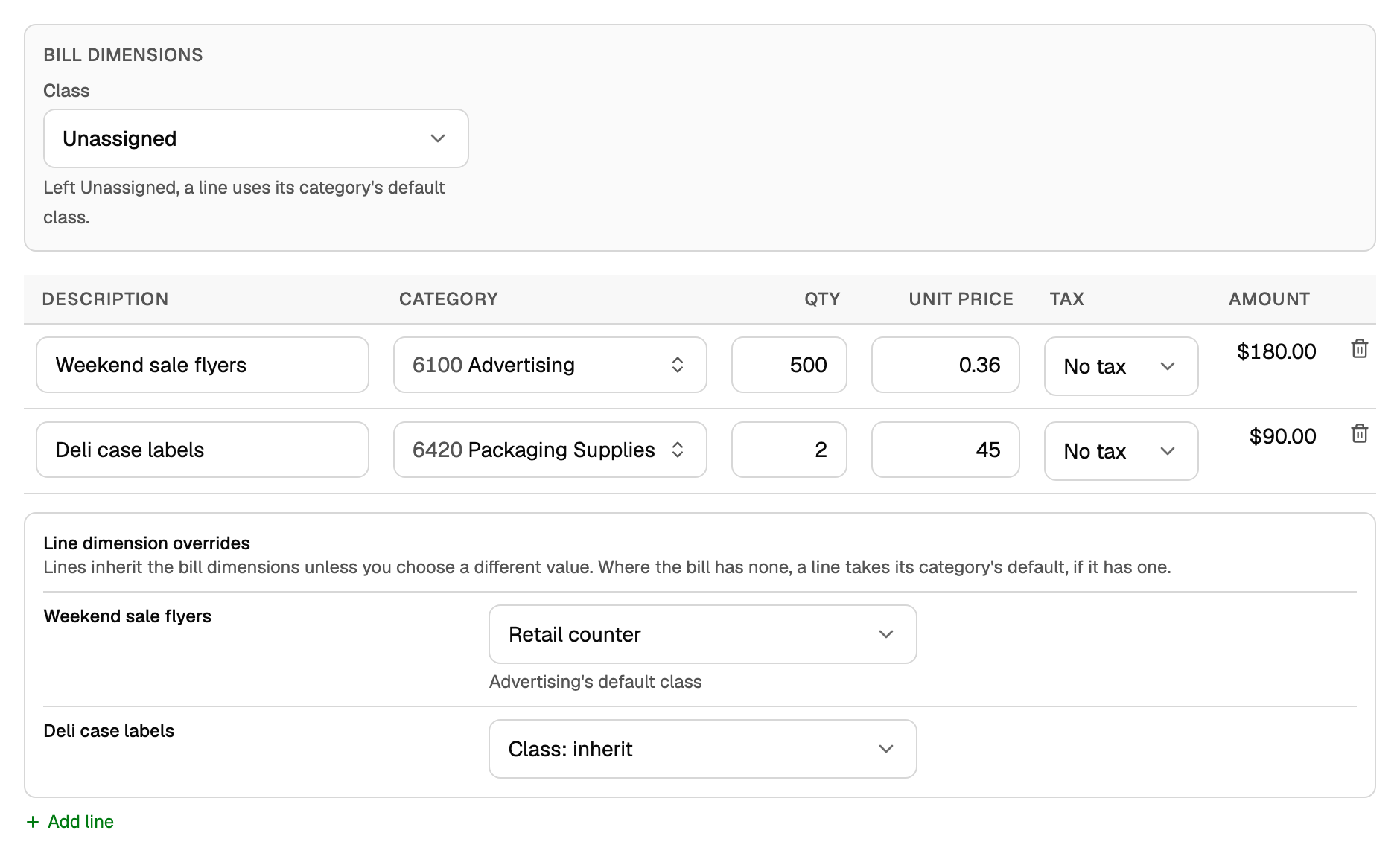
Set a category's default under Edit account on Chart of accounts. See "Build and edit your chart of accounts".
When the bill is for stock
A product with Track stock for this product on adds its Qty to On hand when you Save & post. A draft does not. With inventory costing on, the cost goes to inventory and becomes cost of goods sold when you sell. See "Receive inventory on Bills".
See what you owe
The tiles on Bills show To pay, Overdue, Paid, last 30 days, and Due in 7 days.
- The tabs sort bills by status. Unpaid is every posted bill that still has a balance, overdue ones included.
- A bill is Overdue once its due date has passed, even if it is partly paid. Due today is not overdue.
- Partial means some of it is paid.
- Search bills finds a bill by number, vendor, amount, line, or memo.
For who you owe and how late, open All pages in the left sidebar, then click Reports and A/P aging. See "Read the A/R and A/P aging reports".
Pay a bill
How you record a payment depends on whether your bank account is connected.
The payment is in your bank feed: match it
- On the bill, click Record payment, then Already paid from a connected account?. Pick the bank transaction and click Match. Only payments still waiting for review are listed. If you already filed the payment under a category, open it on Transactions, untick Mark as reviewed and click Save, then match it.
- Or start from the bank side. On Transactions (filter To review) or in Review inbox, open the category list on the payment and pick Match to Bill. One payment can pay several bills from the same vendor. Anything left over is kept as a prepayment to that vendor.
The rest of the matching steps are in "Vendor Bill Inbox and matching bank payments to Bills".
You paid some other way: record it
Use this for a payment that will never show up in a connected feed, such as cash or a check from an account you have not connected. It books a payment you already made. It does not send money.
- Open the bill and click Record payment.
- Check Amount, Date, and Paid from. The amount starts at what is still due, and the date at today.
- Click Record payment.
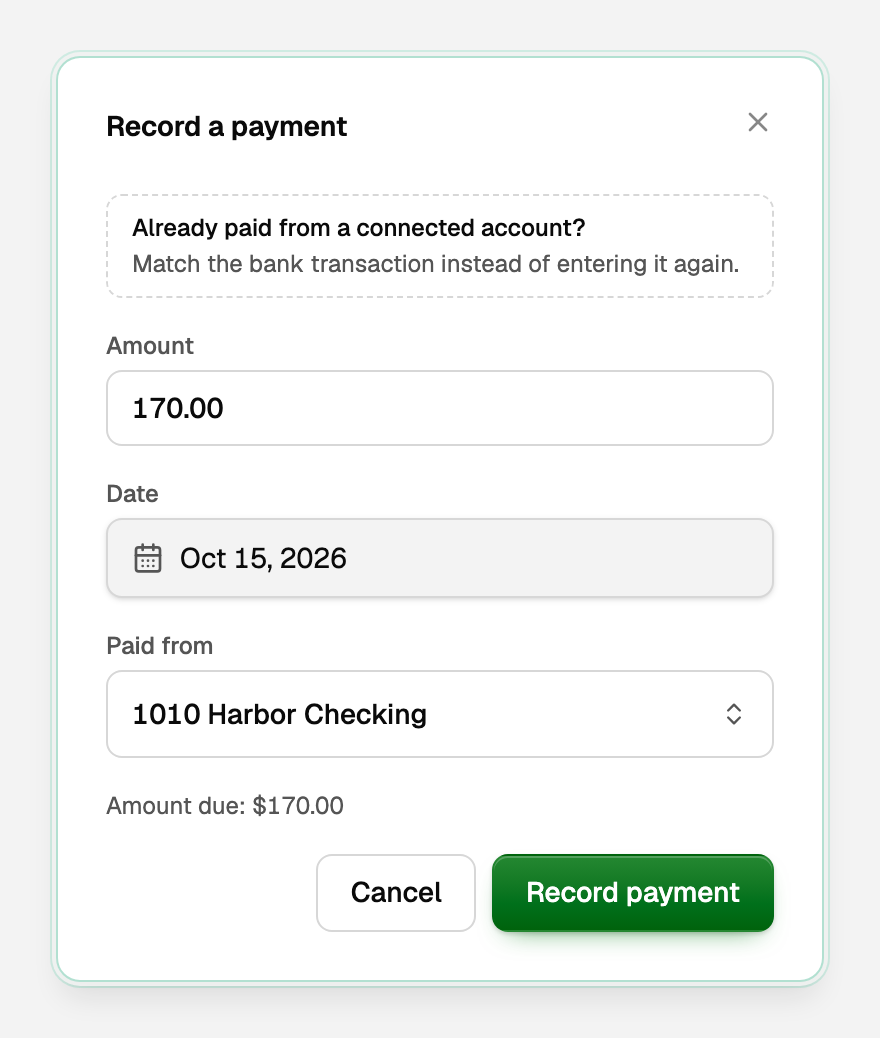
A partial payment is fine. The bill keeps Amount due current.
Only an owner or a bookkeeper can record or match a bill payment.
What a paid bill looks like
Your bank goes down by the payment, and what you owe goes down by the same amount.
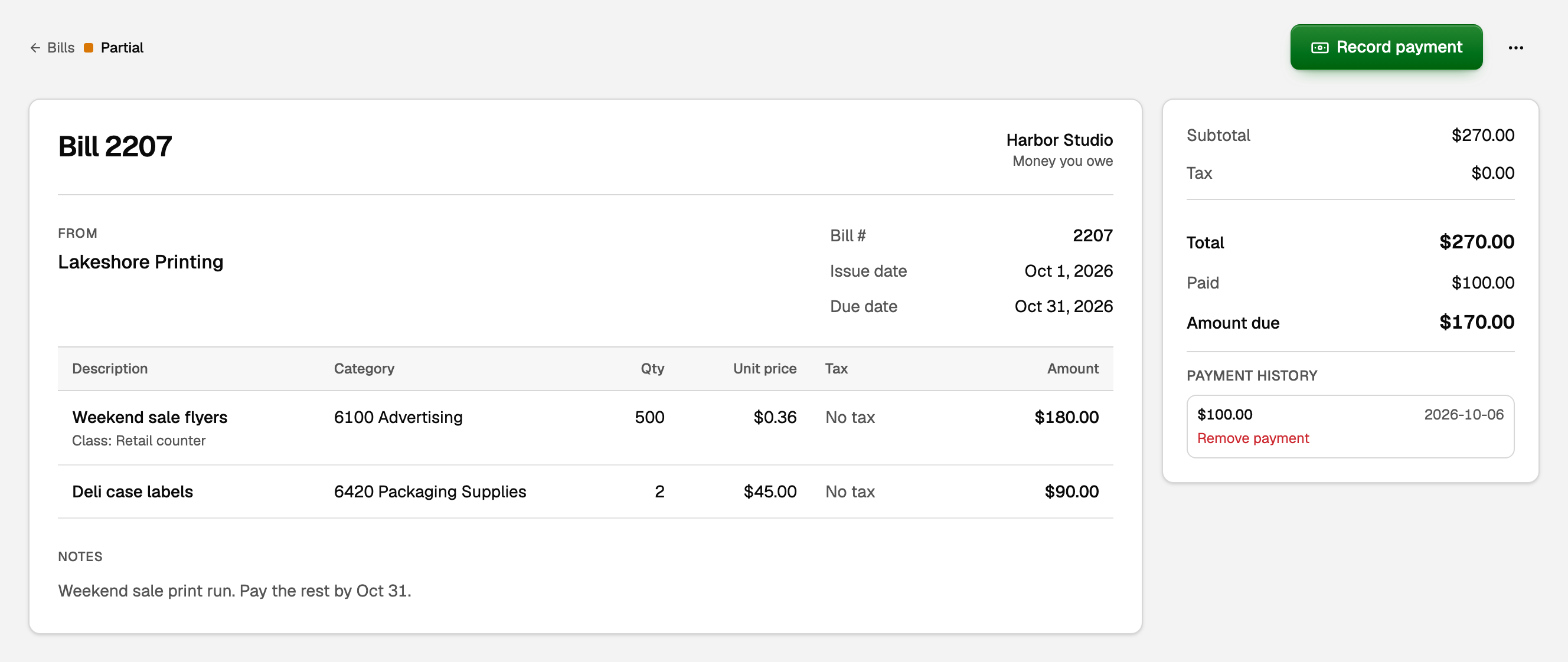
Once a payment or a vendor credit is on a bill, it opens as the bill itself rather than a form. The panel beside it shows Total, Paid, and Amount due, and Payment history lists each payment.
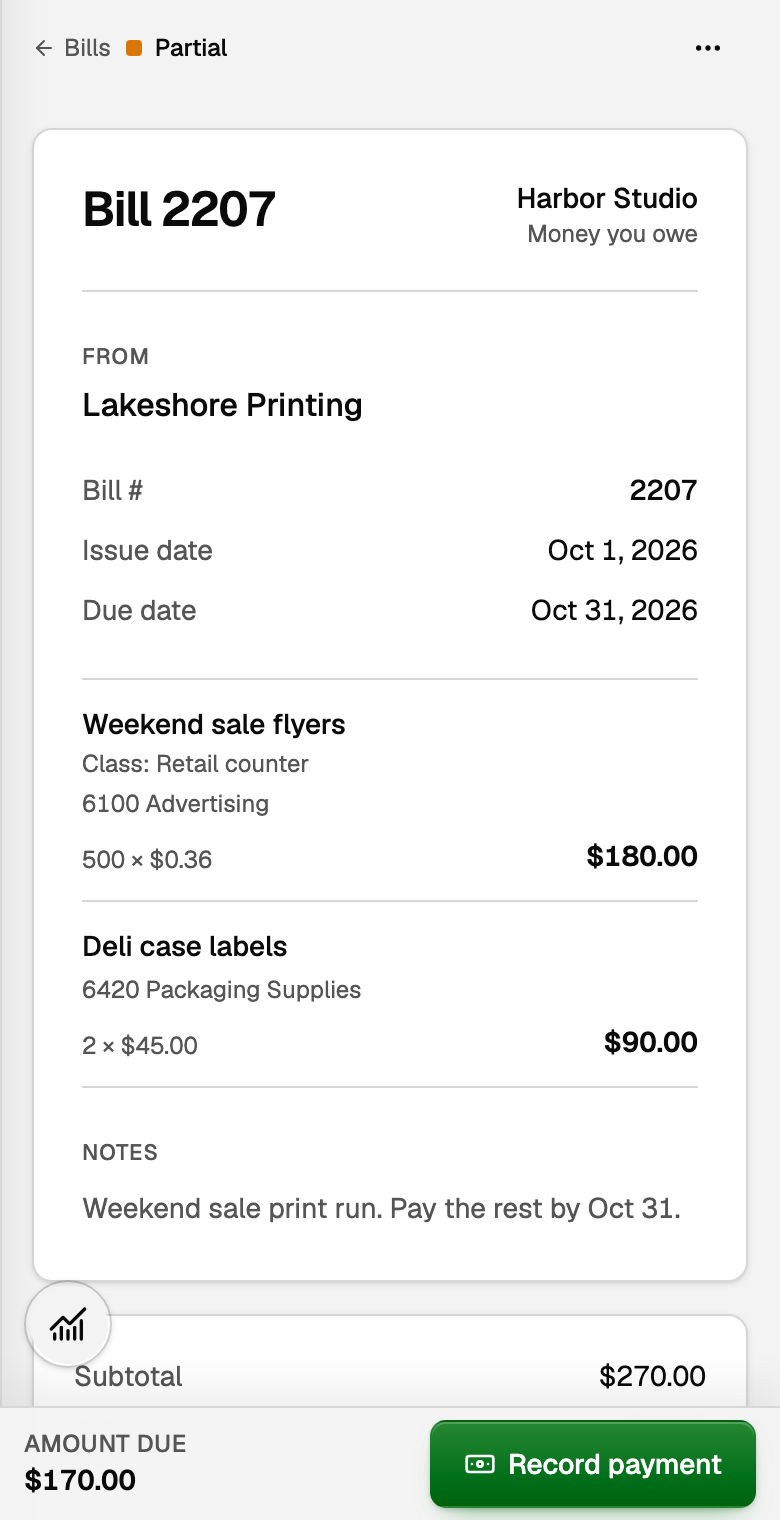
On a phone, the amount due and the next step stay in a bar at the bottom of the screen.
If something goes wrong
- You can't edit or delete a bill. A bill with a payment, vendor credit, or prepayment on it is locked. In Payment history, click Unmatch payment or Remove payment (a payment you matched from the bank side reopens every bill it paid). Reverse a credit or prepayment on Vendor credits. After your edit, match or record the payment again. A bill imported as past due or partly paid can't be edited here, and a bill dated in a closed period stays locked until that period is reopened.
- Delete says it will void the bill. A bill from your imported books is voided instead of deleted: BooksGPT posts a reversing entry on the bill's own date and keeps it listed as void. Click Keep it if that is not what you want. A delete or void can't be undone.
- A stock bill change is refused. With inventory costing on, BooksGPT won't remove stock that later sales already used. See "Sell inventory and post cost of goods sold".
Updated on: 17/10/2026
Thank you!