
Recurring invoices and payment reminders
Recurring invoices create the same invoice on a schedule. Payment reminders email customers about invoices that are still unpaid.
Make an invoice recurring
- Open Invoices and open the invoice you want to repeat.
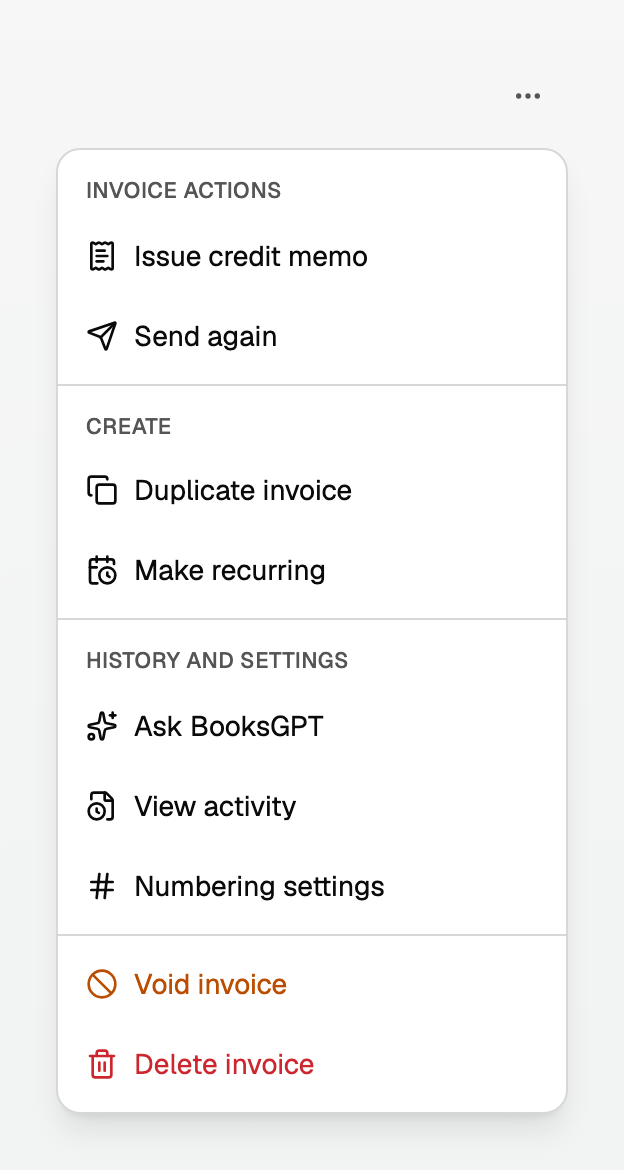
- Open More invoice actions, then choose Make recurring.
- Pick how often it repeats: Weekly, 2 weeks, Monthly, Quarterly, Yearly, or Custom.
- Set First invoice on.
- Pick when it ends: Never, On a date, or After N.
- Pick what happens each time: Save as draft, or Email it automatically with a PDF attached.
- Click Create schedule.
With costing on, BooksGPT may refuse a date that would sell stock before it arrived. The message offers a date that works, or says to contact support. See Sell inventory and post cost of goods sold. Email it automatically leaves the schedule Active. The invoice stays a draft, and nothing is emailed.
- Line names and details notes copy onto every invoice the schedule creates.
- Attachments stay on the invoice you make the schedule from. Each new invoice in the schedule starts without them. When that invoice has files, the Make recurring dialog says Attachments stay on this invoice. Each new invoice in this schedule starts without them.
Manage your schedules
Open All pages in the left sidebar, then click Sales and Recurring invoices. The heading is Recurring Invoices.
- Edit changes future invoices only. Invoices already created stay as they are.
- The row menu has Pause schedule, Resume schedule, and Delete schedule.
- Delete schedule keeps invoices already created, and leaves the original invoice unchanged.
- Create recurring invoice starts a new one. After you save it, schedule setup opens.
When a schedule reaches its end
A schedule set to end On a date or After N still creates its last invoice, then shows Finished. Delete schedule is the only action left.
If a schedule needs you
The schedule shows Needs attention. A banner says 1 schedule stopped and needs you, then Review each issue before resuming its schedule. Nothing was sent.
What stops a schedule:
- The books are closed through the invoice date.
- The customer is archived.
- The schedule has no line items.
- Your plan's invoices for the month are used up.
- Several dates were missed while the schedule was stopped.
- Something else went wrong, and the row says what.
To start it again:
- Read the reason on the row.
- Fix the cause.
- Open the row menu and choose Resume schedule. It picks up from the next date.
For missed dates, create any invoices you still want to send, then choose Resume schedule. BooksGPT will not choose which missed dates to send.
Turn on payment reminders
- Open All pages in the left sidebar, then click Settings and Invoicing & email.
- Find Payment reminders and switch them on.
- Pick Before the due date, On the due date, and After the due date.
Reminders are sent by BooksGPT, with your business name on them. Replies go to Email under Business profile. Open All pages in the left sidebar, then click Settings and Workspace. That page opens on Details. If Email is blank, replies go to the workspace owner.
What the customer sees
- Before the due date: Reminder: invoice 1058 from Northshore Builders, $1,800.00 due Sep 30, 2026
- On the due date: Due today: invoice 1058 from Northshore Builders, $1,800.00
- After the due date: Overdue: invoice 1058 from Northshore Builders, $1,800.00 was due Sep 30, 2026
Those subjects are not editable. Reminders stop when the invoice is paid or voided. Payment reminders never carry attachments.
Good to know
- Reminders are off until you turn them on.
- Each reminder includes Turn off payment reminders. The customer still receives invoices and receipts.
- Neither feature charges a card. Record the payment on the invoice.
Updated on: 13/10/2026
Thank you!