
Get paid by bank on your invoices
Your customers can pay an invoice straight from their bank account, with a Pay by bank button on the invoice they open. This is an ACH bank payment. It costs you 1% of each successful payment, taken from your payout, far less than a card usually costs. Your customer pays the invoice total with nothing added. Failed payments, disputes, bank verification and faster payouts have separate fees.
The bigger win is the bookkeeping. When the bank confirms a payment, BooksGPT records it against the invoice, with your 1% fee, so what the customer owes you (accounts receivable) goes down without anyone typing it in. When the payout reaches your bank, the deposit is recorded too.
Turn it on
An owner or a bookkeeper sets this up once. You do not need a Stripe account first: Stripe creates one for you during setup.
- Click Settings at the bottom of the left sidebar, then Invoicing & email.
- Under Invoice bank payments, click Start setup.
- Verify business: answer Stripe's questions about your business, its owner and the bank it pays into. You can click Finish later and come back with Continue setup.
- Payout bank: under Payout bank account, pick the bank account in your books that the money lands in, then click Save and continue. Choose the same account your bank feed comes into.
- Turn on: click Turn on bank payments.
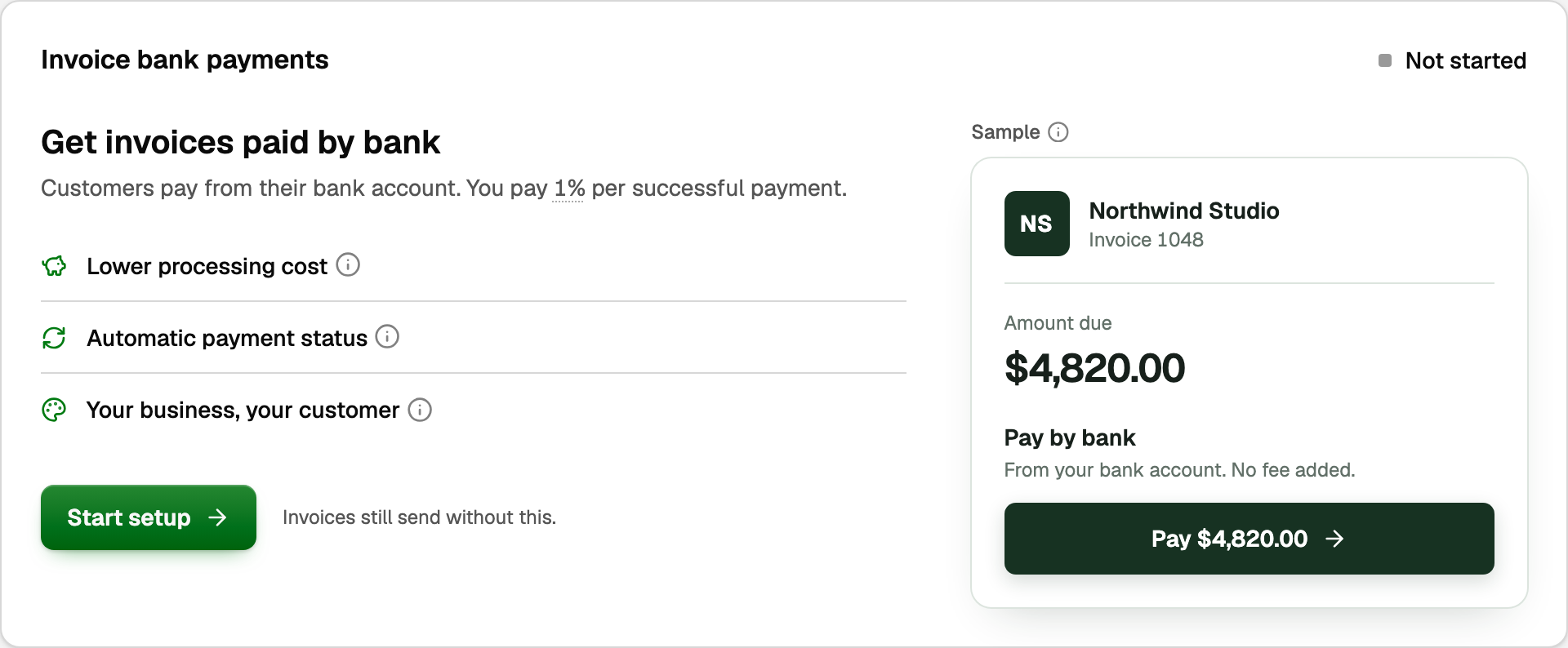
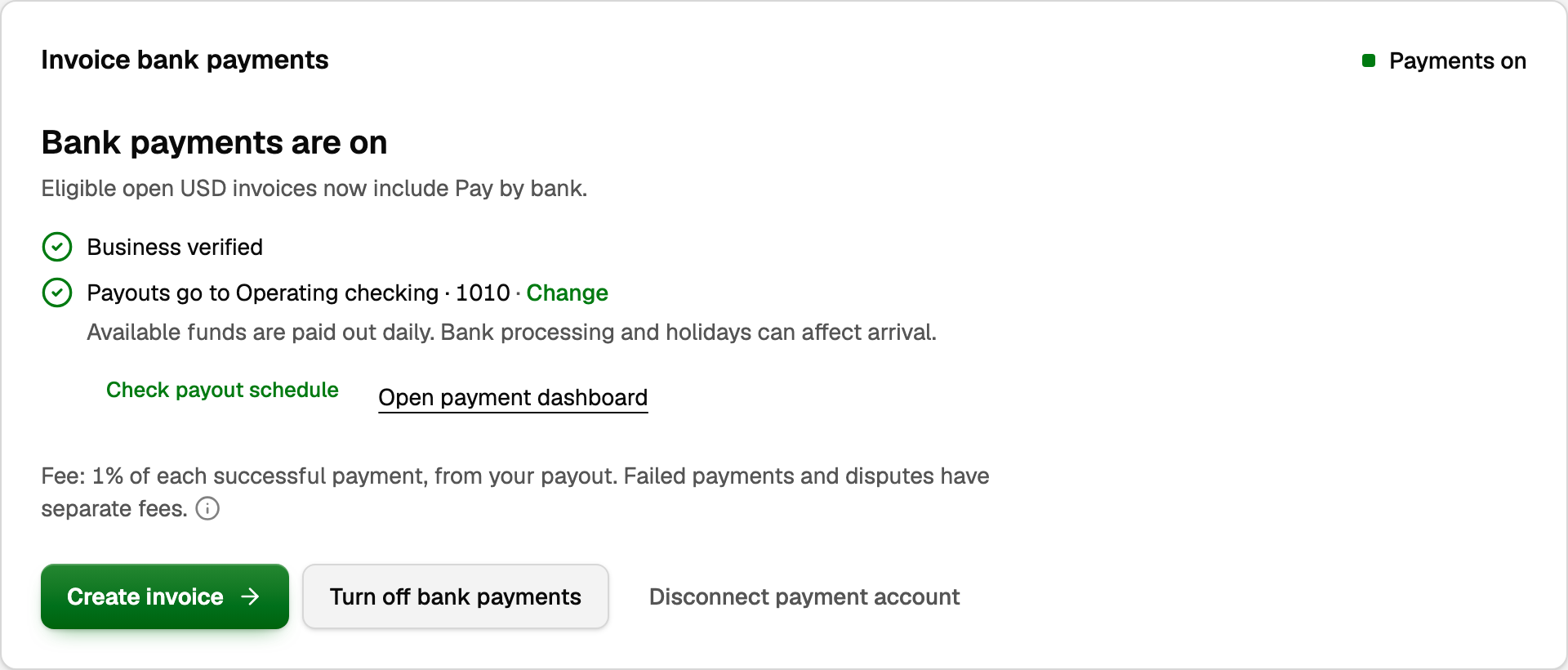
The status now says Payments on. Payouts go to names your payout account, and the line under it shows your payout schedule. To see or change it, click Open payment dashboard.
- Keep payouts daily, weekly or monthly. BooksGPT matches those to your payments on its own.
- A payout you ask for, or a manual schedule, can't be matched. It waits in Payment activity to review until our support team sorts it out.
- If you change your payout bank there, click Change beside Payouts go to in BooksGPT to match.
Send an invoice with Pay by bank
Open the invoice and click Send invoice, or Save & send on a draft. The Payment method row at the top of the send window says Bank payment included when the customer will see Pay by bank.
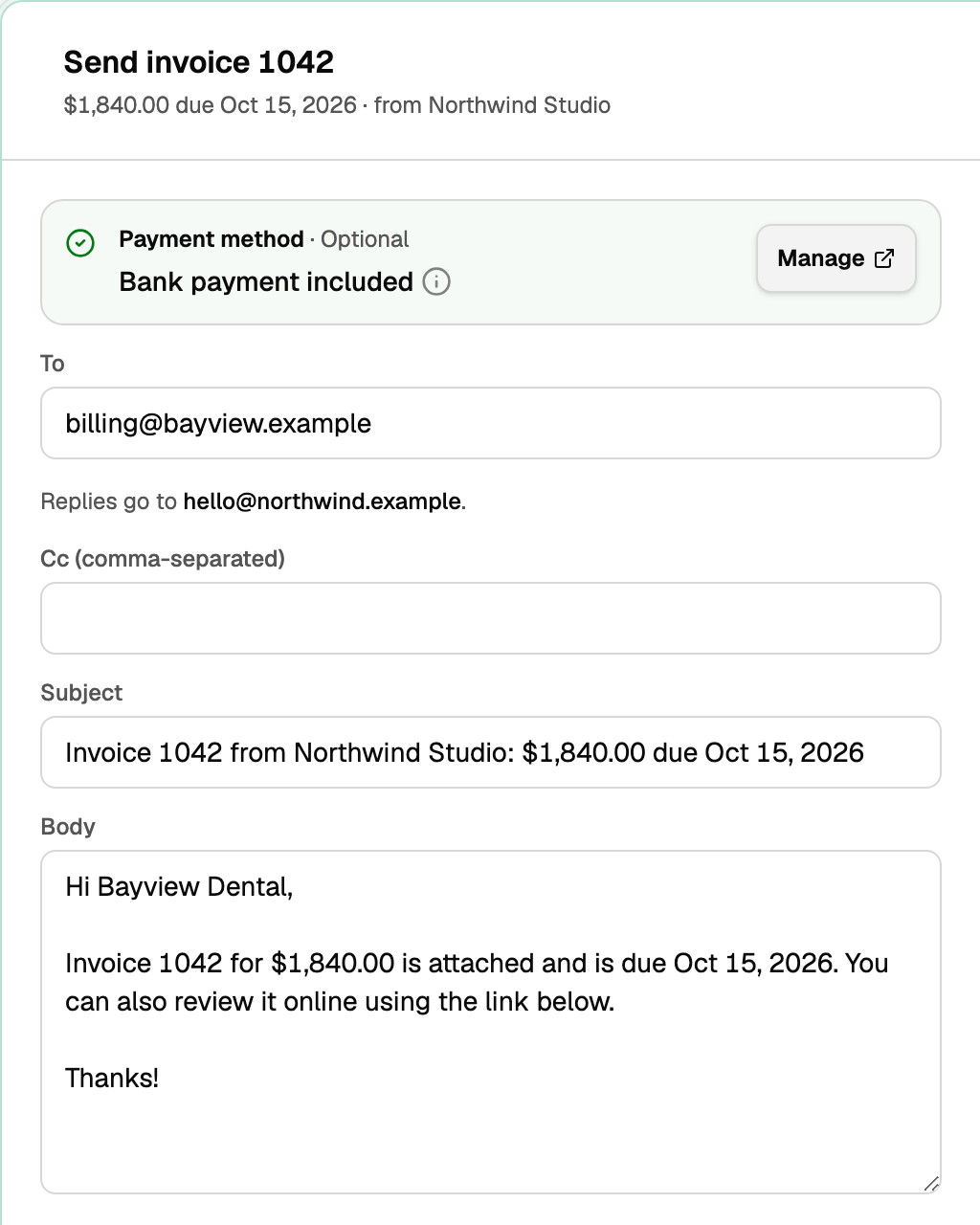
If the row says Bank payment not included, it says why underneath. Click Set up or Turn on to finish in Settings, or send the invoice anyway without the button.
To share the link another way, hover the invoice in the Invoices list and click Copy payment link.
More on sending: Create, send, and get paid on an invoice.
What your customer sees
Your customer opens the invoice from your email and sees Pay by bank beside the amount due.
- They click the Pay button, which shows the amount due.
- In Stripe's secure checkout, they sign in to their bank, or type their routing and account numbers.
- They approve the payment.
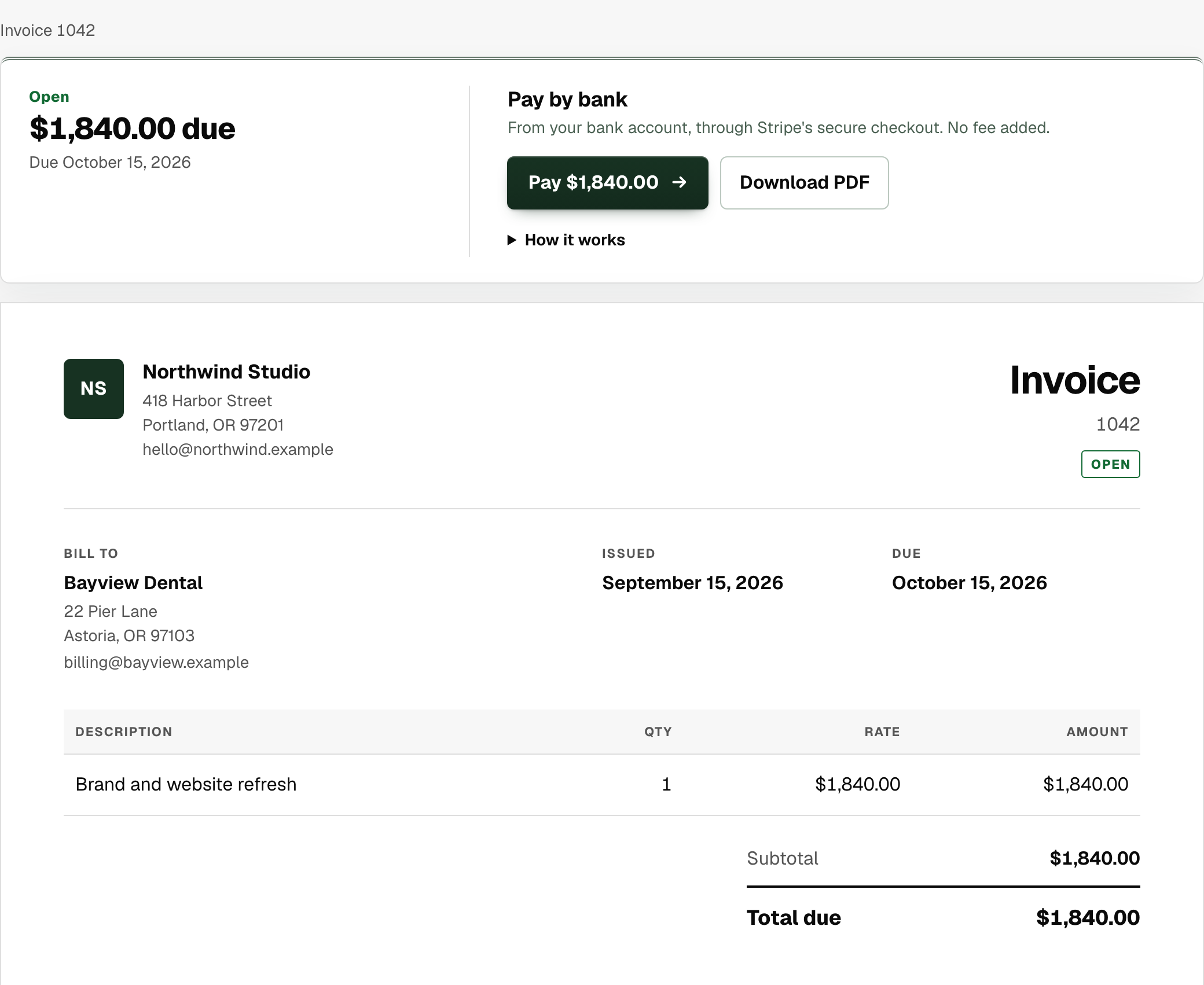
Bank payments take several business days to clear. Until then, the invoice page shows the payment as processing.
What your books record
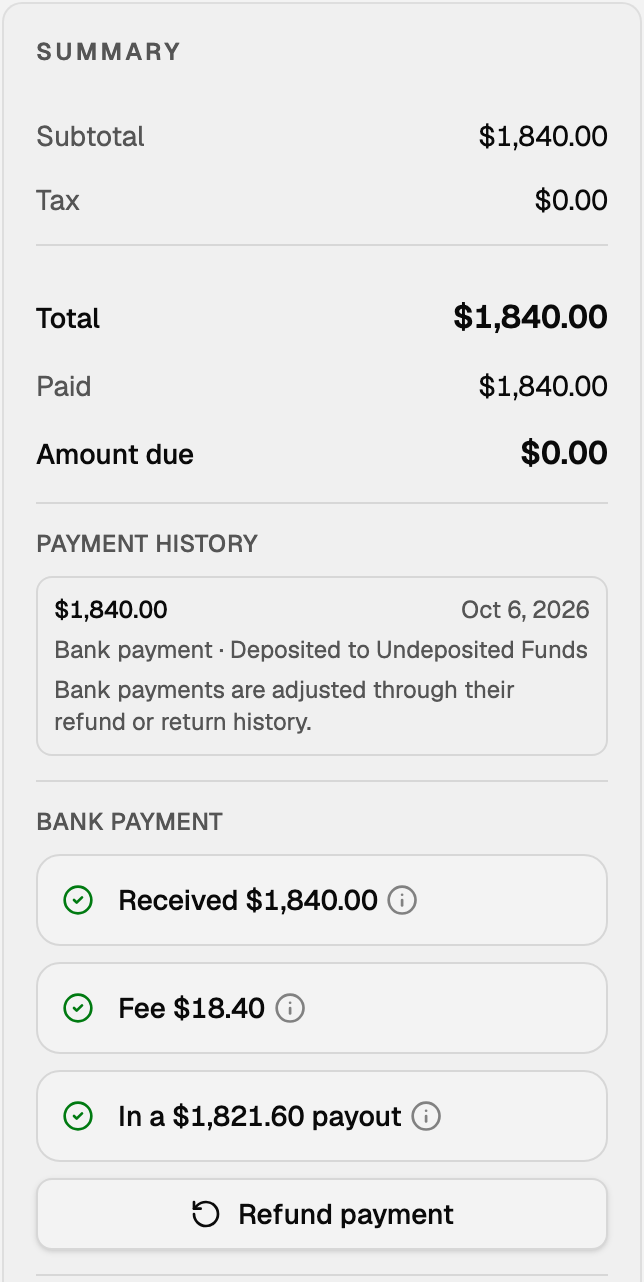
Say Bayview Dental pays invoice 1042 for $1,840.00 by bank. With automatic payouts, three things happen and you type none of them:
- The bank confirms the payment. The invoice is marked paid and accounts receivable goes down $1,840.00. The money waits in Undeposited Funds, because it has not reached your bank yet.
- Minutes later, the fee is recorded. 1% of $1,840.00 is $18.40, on an expense account called Bank payment fees, so it shows on your profit and loss as a cost of getting paid.
- The payout lands. The payment, less the $18.40 fee, reaches your payout bank account, and BooksGPT records the deposit, taking the money out of Undeposited Funds.
Open the invoice to follow along. The Bank payment section, under Payment history, shows the payment, the fee and the payout.
When several customers pay in the same few days, one payout carries all their payments, like one deposit slip with several checks, and BooksGPT records it as one deposit. Bank payments never appear on the Bank deposits page, which is for checks and cash you deposit yourself (see Group payments into one bank deposit).
Refund a bank payment
- Open the invoice. Once a payment is received, an owner or a bookkeeper sees Refund payment in the Bank payment section.
- Enter the Refund amount, up to what has not been refunded already.
- Click the red Refund button, which names the amount.
The money goes back to the customer's bank. When the refund completes, the invoice shows that amount as owed again. BooksGPT gives back its share of the 1% fee on the refunded amount; the bank processing cost inside the 1% is not returned.
If the customer no longer owes it, clear it right away so no payment reminder goes out: see Change, void, or delete an invoice.
Turn it off
In the same place in Settings, click Turn off bank payments and confirm. Open invoices, even ones already sent, stop showing Pay by bank at once. Payments already started still finish.
If something goes wrong
- The customer's bank declines the payment. Nothing is recorded against the invoice, and it stays open. If the decline carries a fee, BooksGPT records it under Bank payment fees when it comes out of a payout. The customer can try again from the same invoice.
- The bank sends a payment back after it cleared. This is called a return. BooksGPT takes the payment back off the invoice, so it is owed again, and the invoice page offers the customer Pay again. The 1% fee on the original payment is not given back, and a return or dispute can carry its own fee.
- The money is in your bank, but the invoice still says unpaid. Occasionally a payout arrives before the bank confirms the payment. BooksGPT holds that deposit in Bank payments awaiting confirmation and marks the invoice paid once the bank confirms. There is nothing to do.
- The Bank payment section shows Contact support. Click it: a disputed payment or an unmatched payout needs our help.
Updated on: 17/10/2026
Thank you!