
Change, void, or delete an invoice
Once an invoice is final, it is in your books: your customer owes you the money (accounts receivable), and on accrual reports the sale counts as income. So BooksGPT never rewrites a final invoice behind your back. Every change leaves a record, the way a careful bookkeeper works: a new version when only the wording changes, and a reversing entry when the money changes.
A draft is different. It is not in your books yet, so you can edit it or delete it freely.
Which one do you need?
- It is still a draft. Change anything and click Save draft, or delete it.
- The wording is wrong on a final invoice (notes, P.O. number, due date, a line's details). Use Revise details. Your books do not change.
- An amount, quantity, price or date is wrong, and nothing has been paid. Use Correct amounts & dates. BooksGPT reverses the old entry and posts the corrected one.
- The sale is off, and the customer has seen the invoice. Void it. It stays on your list marked Void, so you and the customer can see what happened.
- The invoice should never have existed, such as a duplicate. Delete it.
- The customer paid, or you want to reduce what they owe. Issue a credit memo instead. See Issue a credit memo.
To open an invoice, open All pages in the left sidebar, then click Sales and Invoices, and click the invoice.
Change a final invoice
Both ways to change a final invoice are under Edit invoice, at the top of the invoice.
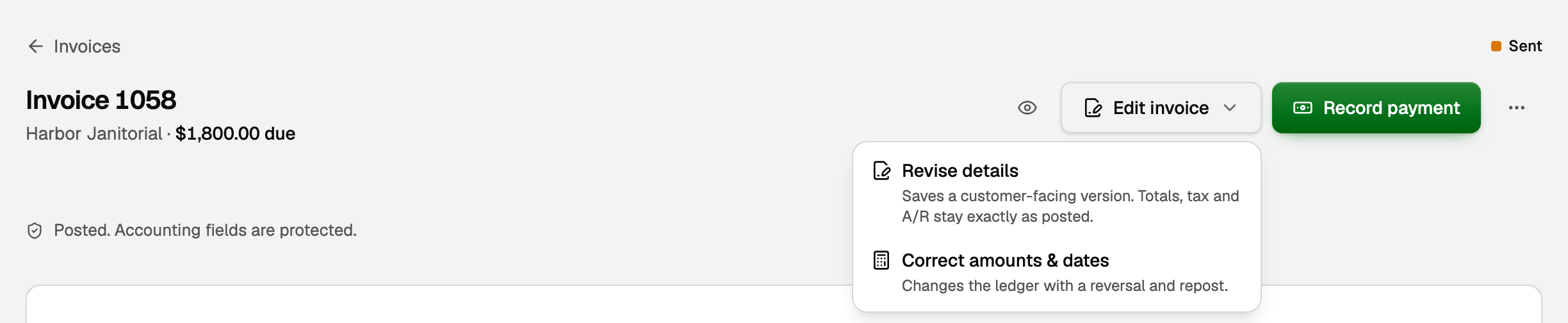
Revise details: the words, not the money
- Click Edit invoice, then Revise details.
- Change what the customer reads: Ship to, Invoice number, Invoice title, Due date, Notes and terms, or the details under each line. More fields opens P.O. number and Subheading.
- Type a Reason for revision.
- Choose Review and resend to email the new version, or Save without notifying.
- Click Review changes, then Save revision. If you chose to resend, the email opens for you to check before anything is sent.
Totals, tax and accounts receivable stay exactly as posted. The due date can no longer change once a payment has been applied.
Correct amounts & dates: the money
Use this for the Issue date, the Due date, or a line's description, quantity or unit price. You can also add a line you left off.
- Click Edit invoice, then Correct amounts & dates.
- Change the dates or the lines. To add a line, click Add line.
- Type a Reason for correction.
- Click Review accounting impact and check the corrected total.
- Click Save correction.
A correction cannot remove a line, or change the item or tax on an existing line. For that, void the invoice and use Duplicate invoice to start a new one.
Void or delete a final invoice
Both actions cancel the invoice in your books the same way: BooksGPT keeps the original entry and posts an equal and opposite one, so the sale and the amount owed both net to zero. The difference is what stays on your list:
- Void keeps the invoice visible, marked Void. The customer's invoice link says it is no longer payable.
- Delete hides it from your ordinary lists. It stays on the Deleted tab and cannot be restored.
Neither can be undone. If the invoice has a payment, remove it first under Payment history on the invoice: Remove payment, Unmatch payment for one matched to a bank transaction, or Un-apply credit for a customer credit. A payment already in a bank deposit needs that deposit undone first. A payment made online, or recorded in QuickBooks, has no remove button; use a credit memo instead.
- Click the More invoice actions button (the three dots), then Void invoice or Delete invoice.
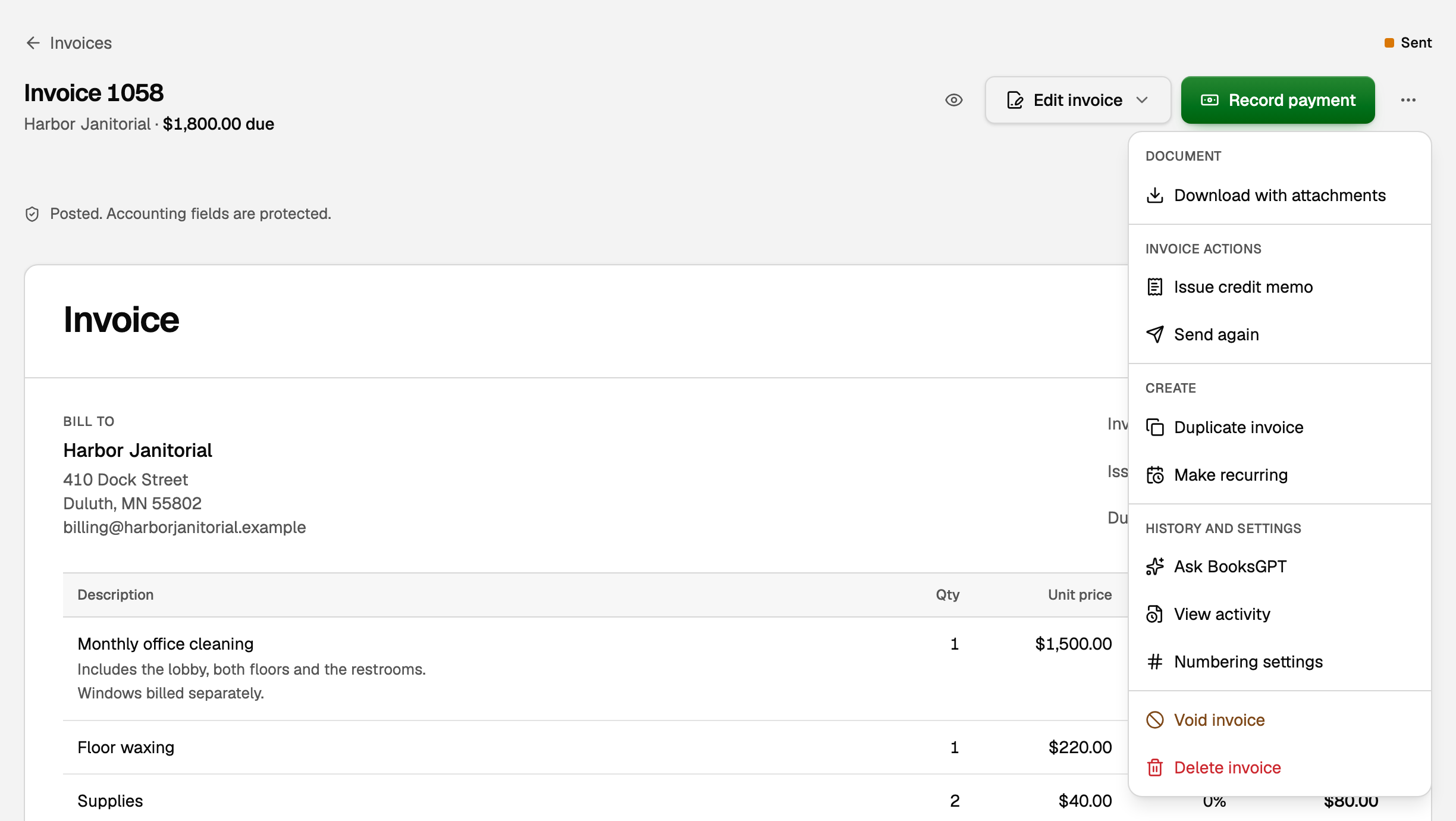
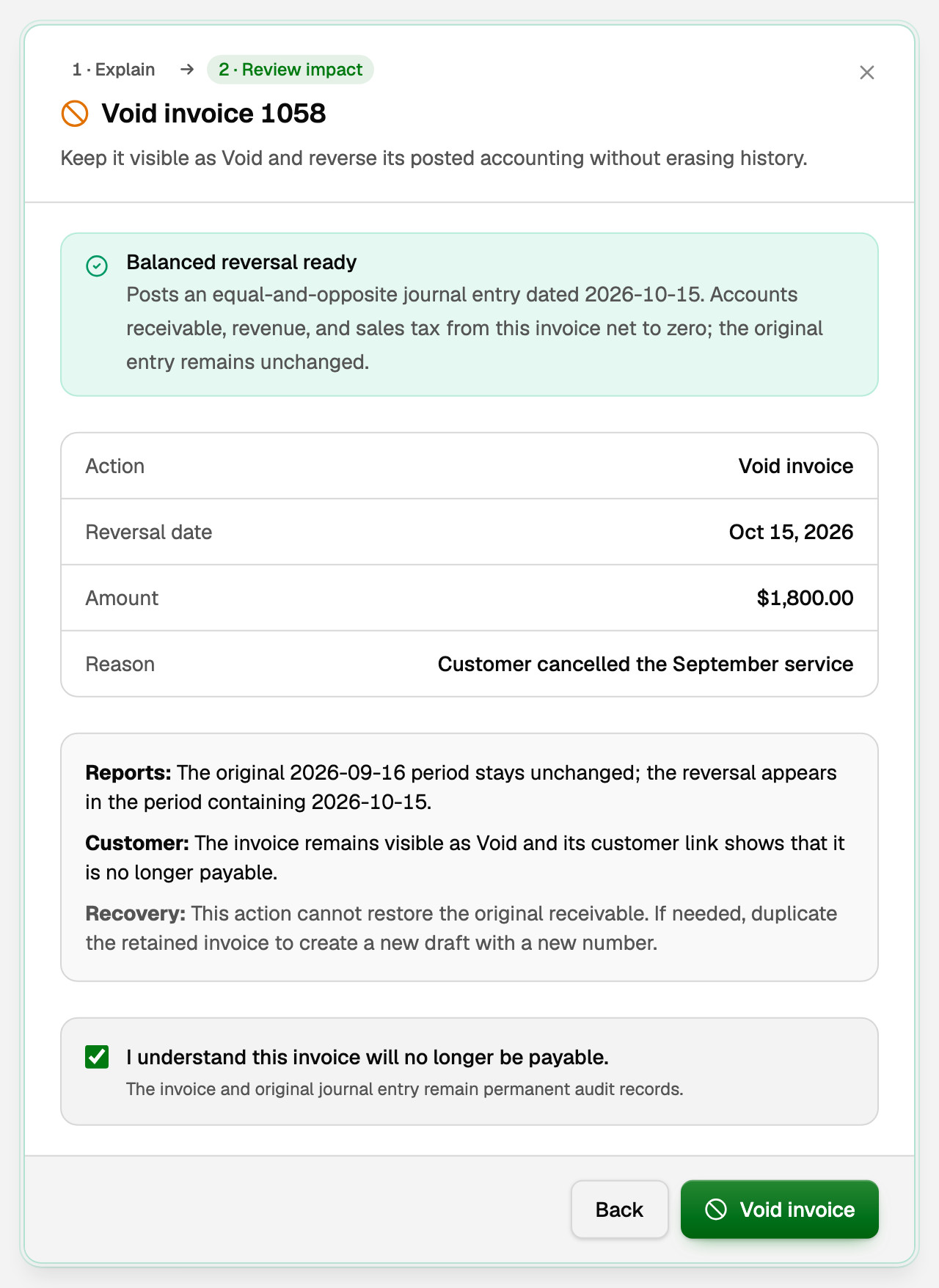
- Keep the Reversal date as today, or pick a date in an open period. The reversal lands in the month of this date. If that is later than the invoice's month, the invoice's month stays as it was.
- Type the reason.
- Click Review accounting impact and read what will change.
- For a void, tick the box that says you understand the invoice will no longer be payable. For a delete, type the invoice number.
- Click Void invoice or Delete invoice.
Need the invoice back? Open it and choose Duplicate invoice under More invoice actions. On a deleted invoice, click Create replacement. Either way you get a new draft with a new number.
Delete a draft
- Open the draft, click More invoice actions, then Delete draft.
- Confirm with Delete draft.
A draft made no entry in your books, so nothing is reversed. It waits on the Deleted tab for 30 days. To bring it back, open it there and click Restore draft.
What your books say now
Using invoice 1058 for $1,800.00:
- Correct amounts & dates: if you corrected the total to $1,600.00, accounts receivable and income both go down by $200.00.
- Void or delete: accounts receivable and income both go down by $1,800.00, in the month of the reversal date. Sales tax on the invoice reverses too.
- These income changes show on accrual reports. On cash-basis reports an unpaid invoice was never income, so nothing there moves.
- If the invoice sold stock, voiding or deleting puts that quantity back on hand. See Sell inventory and post cost of goods sold.
If something goes wrong
- Void, Delete or Correct amounts & dates is missing. The invoice has a payment or a credit memo against it, or it is not in US dollars (these three are for US dollar invoices only). Remove the payment first. If a credit memo was issued against this invoice, un-apply its credit wherever it was applied (Un-apply credit under Payment history), then void the memo. If the credit came from a memo on another invoice, click Un-apply credit on this invoice and leave that memo alone. Correct amounts & dates is also missing when the invoice's month is closed.
- The date is refused. Your books are closed through that date. Pick a reversal or issue date after the close.
Related
- Create, send, and get paid on an invoice
- Add headings, subtotals, and a shipping address to an invoice
Updated on: 16/10/2026
Thank you!