
Invoice settings: numbering, logo, and wording
Invoice settings control how every invoice you send looks and what number it gets.
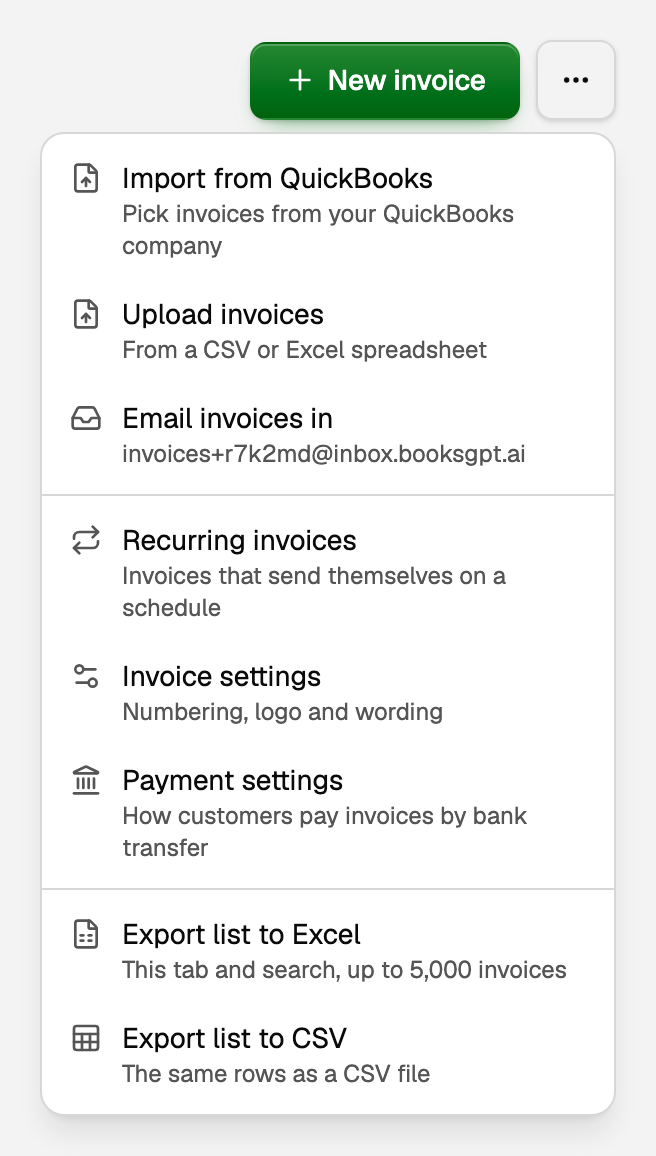
Open All pages in the left sidebar, then under Sales click Invoices. Beside New invoice, open More invoice actions (the three dots), then click Invoice settings. You can also open All pages, then under Setup click Invoice settings.
Everything on this page except the logo is a draft until you click Save changes in the bar pinned to the bottom. Saving keeps you on the page and briefly shows Invoice settings saved. Discard appears when you have unsaved changes and puts every field back the way it was. The logo is the exception: it saves as soon as it finishes uploading.
Save changes is all-or-nothing. If someone else changed these settings after you opened the page, BooksGPT saves none of your draft and asks you to refresh instead of overwriting their changes.
Continue your existing numbering
This is what to set first if you are moving from another system and want your series to carry on.
- In Numbering, set a Prefix if you use one, like HM-.
- Set Start at to your next number.
- Set Digits for zero padding, so 42 prints as 0042.
- Choose Separate to keep invoice and estimate sequences independent, or Shared to use one namespace across both document types.
- Choose Strict to block a number already used by the other document type, or Warn to preserve a legacy/imported convention while showing the conflict.
- Click Save changes at the bottom of the page, then check the saved Next value on the right.
Only a workspace admin can change the numbering series. Editors and clients see an explanation instead of the fields. They can still edit the branding and wording below.
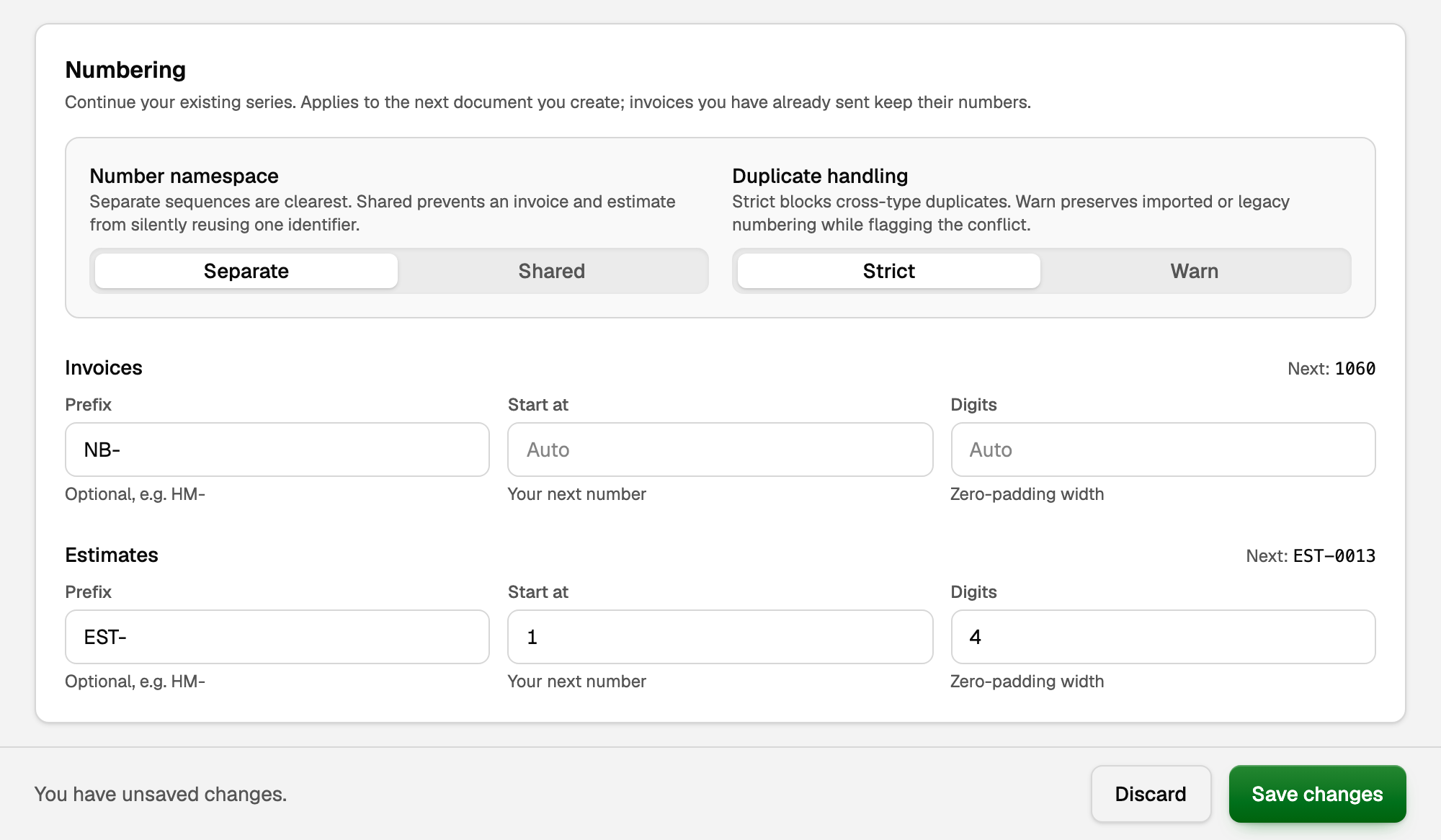
In Separate mode, estimates have their own series on the same panel. In Shared mode, invoices and estimates draw from one namespace.
Branding
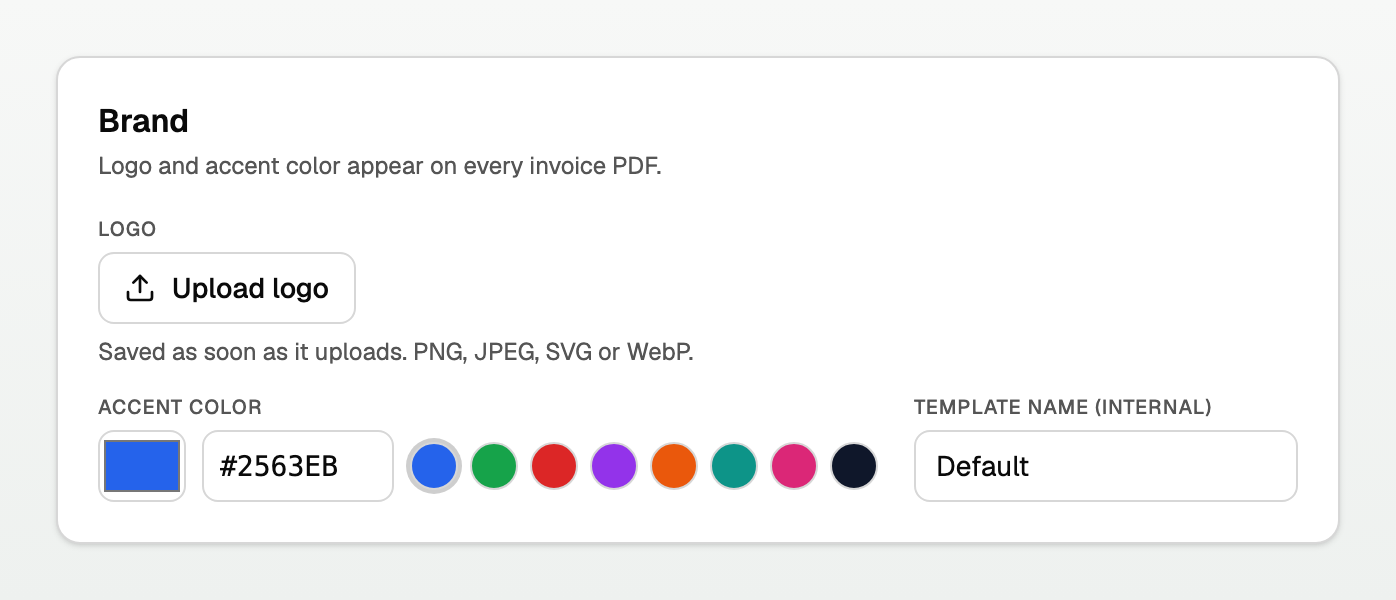
Upload a Logo and pick an Accent color. Both appear on every invoice PDF.
The logo saves as soon as it uploads. The accent color, like everything else here, is saved by Save changes.
The preview is rendered from your saved settings. While you have unsaved changes it shows a Save to update chip.
An invoice PDF keeps the branding of its invoice version. Changing your logo applies to invoice versions created afterward, including a QuickBooks invoice when you send it from BooksGPT. It does not rewrite a version or attachment that was already emailed or downloaded.
Default wording
Under Invoice text, set the Title, Subheading, Footer and Notes & terms that every new invoice starts with. You can still override any of them on a single invoice.
Notes & terms is printed text. It is what appears at the bottom of the invoice, for example your late-fee wording or your bank details.
It does not set the due date. The due date is worked out from the customer's payment terms, or Net 30 if that customer has none. To change when an invoice is due, set the terms on the customer, not here. See the article "Payment terms: set them once per customer or vendor".
If your Notes & terms or Subheading names one term, such as "Net 30" or "Payment due within 30 days", each new invoice prints its own term there instead: Net 45 for a customer on Net 45. A term counted from the end of the month, or two different terms in one note, print exactly as you typed them.
Columns
Under Line table columns you can:
- Rename the Description, Quantity and Unit price columns. Charging by the hour? Rename Qty to Hours.
- Hide the quantity or unit price column entirely, for flat-fee work.
- Hide the small "Made with BooksGPT" line at the bottom of the PDF.
Updated on: 17/10/2026
Thank you!