
Receipts: upload, match, and your storage limit
A receipt is the proof behind an expense. Your bank feed shows that $84.12 went to Harbor Hardware, but not what you bought. The receipt does, and it backs up the deduction at tax time or in an audit.
In BooksGPT each receipt is linked to the bank transaction it proves, as evidence. The transaction's amount and your books stay the same.
Open All pages in the left sidebar, then click Purchases and Receipts.
Add a receipt
- Upload: drag photos or PDFs onto the upload box, or click it to choose files. Each file can be up to 25 MB.
- Phone: open Receipts on your phone. Under Snap on your phone, tap Take photos, then Take another for each receipt in the stack, then the upload button, such as Upload 3 receipts.
- Email: forward receipts to your workspace's own address. See Email receipts into BooksGPT.
- Copilot: drop the file into a chat, or tap +, then Add files, then Receipt.
- QuickBooks: see Bring your QuickBooks receipts and attachments across.
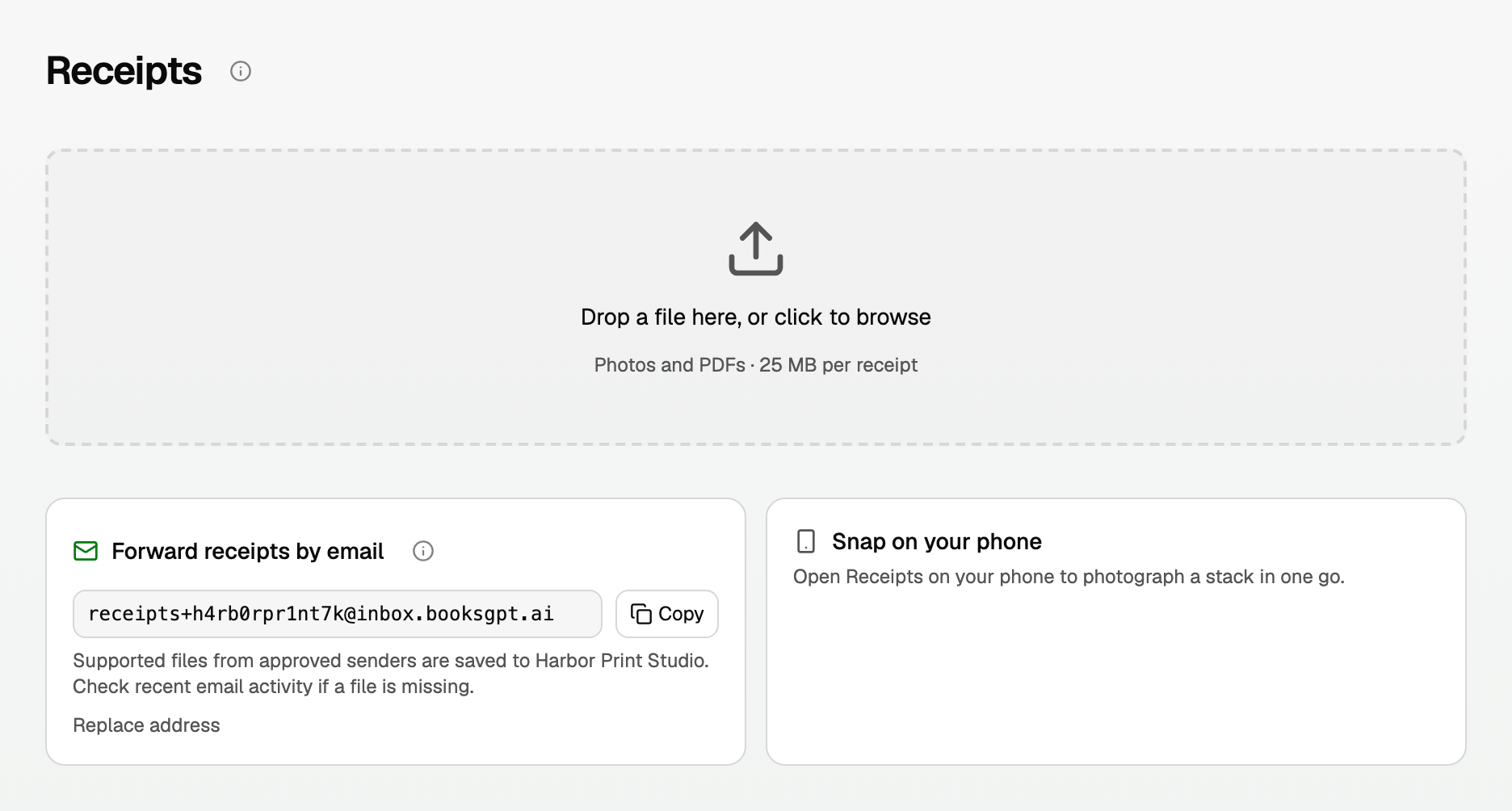
Each receipt becomes a card. BooksGPT reads its store, date and total, then looks for its transaction.
Match a receipt to its transaction
BooksGPT compares each receipt with your bank transactions around the date printed on it. An old receipt finds an old charge, imported history included.
When one transaction fits
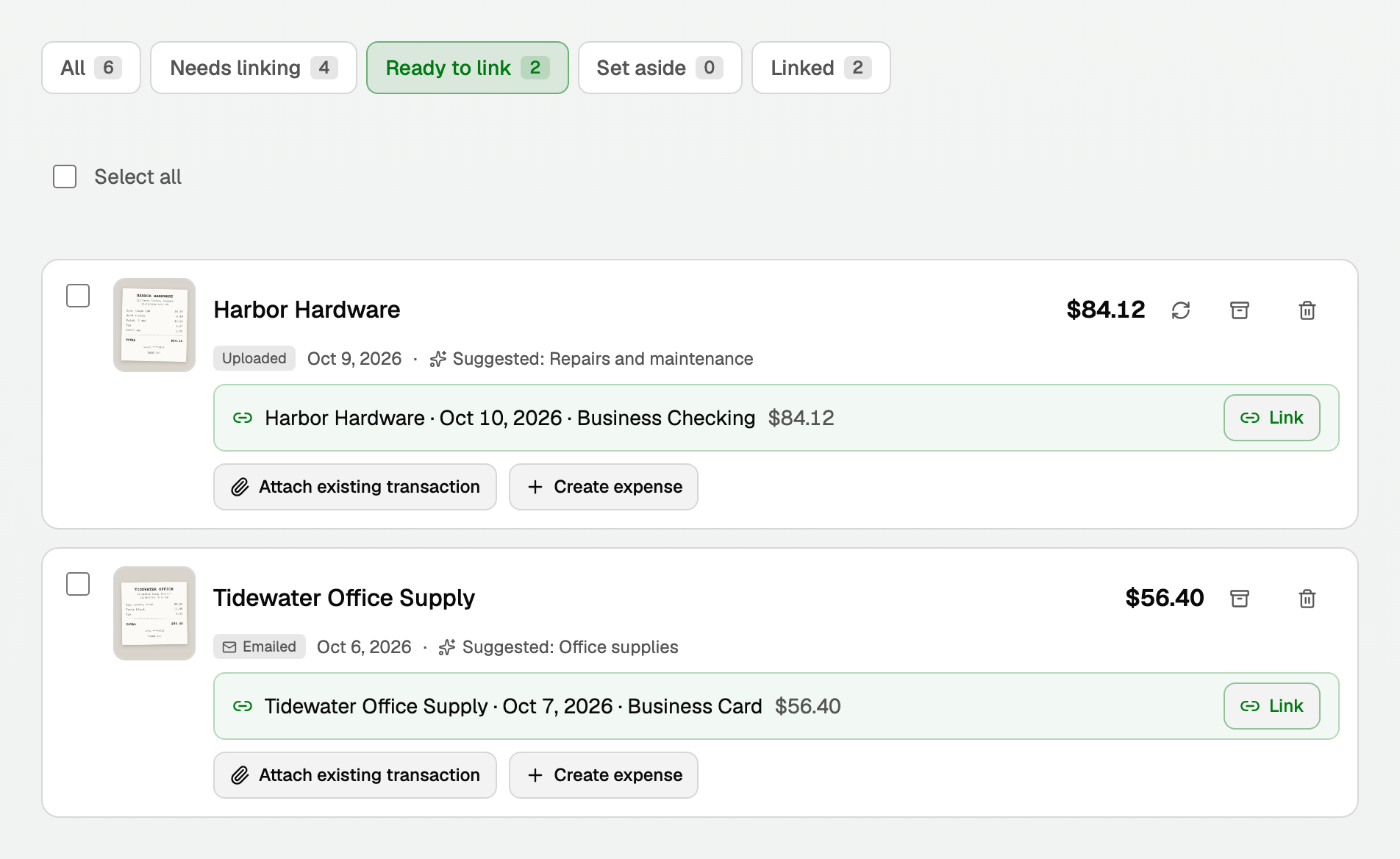
- It links by itself when the receipt is a clear purchase and one charge within three days matches it, to the cent or, when nothing matches exactly, within 50 cents. The card turns green and names the transaction.
- Otherwise it suggests one: a charge for the same amount to the cent within a week, or for a bill, the payment that names the biller up to five weeks after the bill date. The card shows it in one line with a Link button. Check it, then click Link.
Ready to link above the list shows every receipt waiting on that click. To link several at once, tick them and click the link icon in the bar. You can also ask Copilot to match your receipts.
When nothing fits
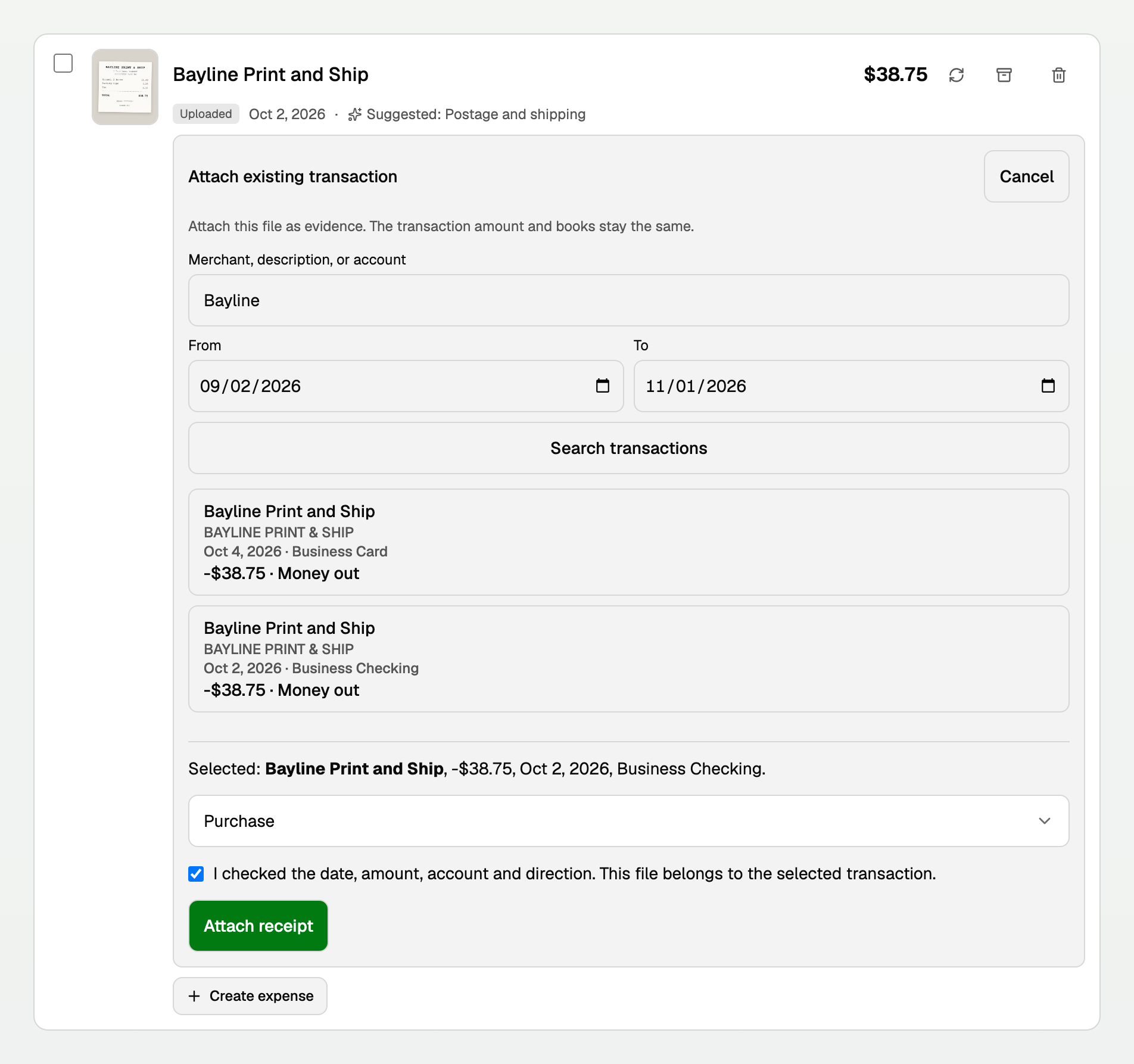
- Click Attach existing transaction on the receipt's card. The search starts 30 days either side of the receipt's date.
- Type a store, description or account, or change From and To, then click Search transactions.
- Click the right transaction.
- Choose Purchase, Refund or Not sure.
- Tick the box to confirm the date, amount, account and direction, then click Attach receipt.
When the purchase is not in your books yet
Some spending never reaches a bank feed, such as cash or a card you have not connected. Record it from the receipt:
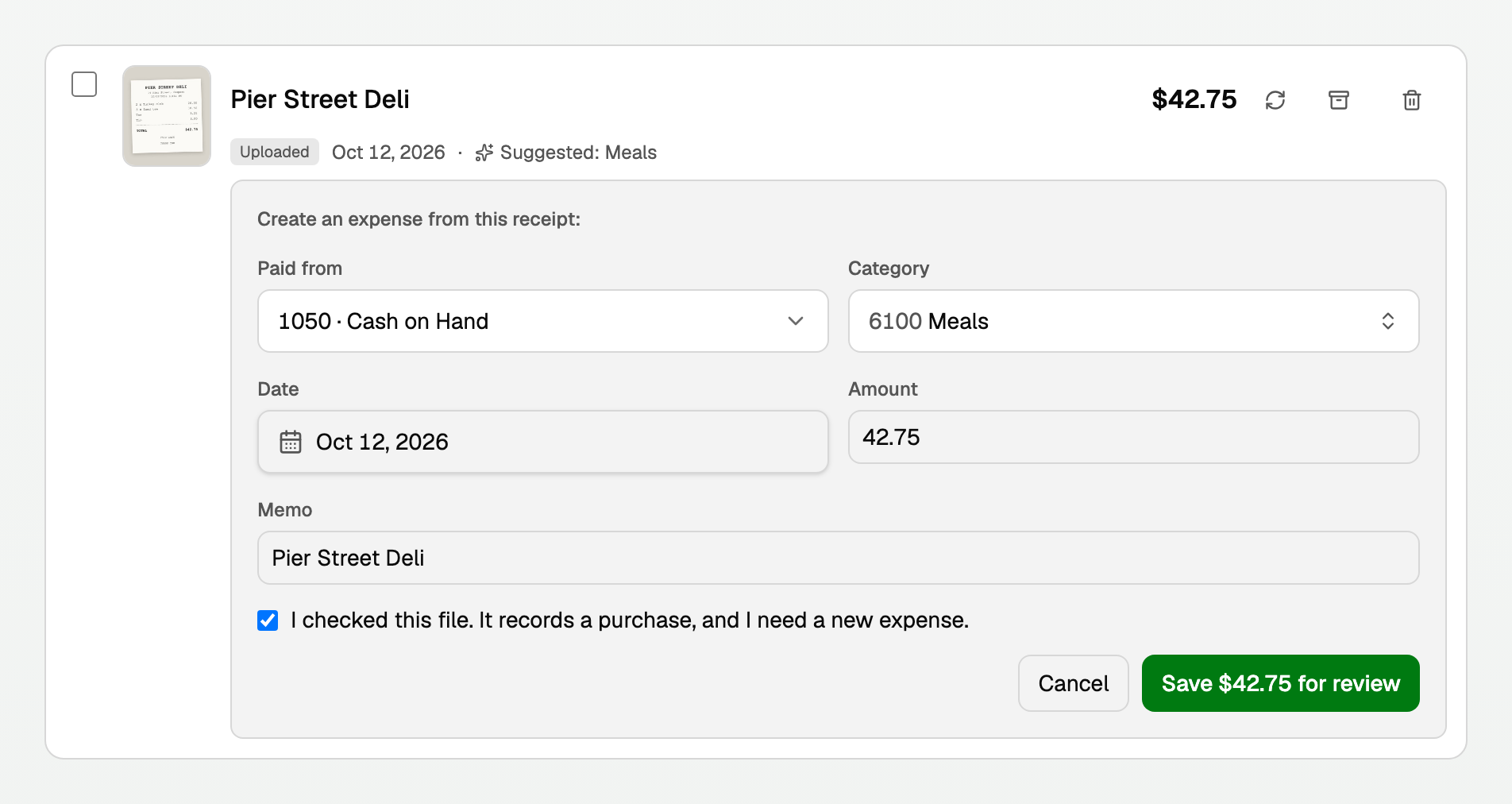
- Click Create expense.
- Check Paid from (where the money came from) and Category (what it was for). The date, amount and memo come from the receipt.
- Tick the box that says this receipt records a new purchase, then click the save button. It names the amount, such as Save $42.75 for review.
A refund receipt never creates an expense. Attach it to the money coming back in your bank feed.
What your books say now
- A linked receipt changes nothing in your books. The transaction keeps its amount and category and now carries the file. View opens the transaction, and Unlink takes the file off it.
- A new expense is saved with the receipt attached and waits in your Inbox like any new transaction. Once you approve it, the category goes up by the amount and the account you paid from goes down (or the balance you owe on the card goes up).
Keep track of what is left
The filters above the list show a count for each:
- Needs linking: read and waiting for a transaction.
- Ready to link: one transaction fits, and one click links it.
- Set aside: kept without a transaction.
- Linked: attached to a transaction.
- All: every receipt in this workspace.
Some receipts have no charge in these books: a personal purchase, a quote, a second copy. Click the box icon named Set aside on the card. The file stays saved and stops asking to be linked. To bring one back, open Set aside and click the icon named Put back in Needs linking.
A PDF with several receipts
A scanned stack arrives as one receipt. Click the scissors icon on its card, named Split into N receipts. Each page becomes its own receipt and is read and matched by itself. Blank pages are skipped. A file of up to 60 pages can be split.
To undo it, click Undo in the line above the list, or the undo icon on the file's card. That works until you link or set aside one of its pages. A long receipt that runs onto a second page is still one receipt, so do not split it.
Delete receipts, and your storage
Tick receipts and click the red trash icon in the bar, or click the trash icon on one card. This removes only the file, and a linked transaction stays in your books. It cannot be undone.
- To keep copies first, the owner or a bookkeeper can download every file in one zip: click Settings at the bottom of the sidebar, then Workspace, then Data, and click Prepare export under Download everything.
- A lock in place of the trash icon means the file stays with a bill, invoice or statement. Point at it to see why.
Receipts and Drive files share one storage allowance, 1 GB per workspace. The Storage meter on Drive shows what you have used. Email support@booksgpt.ai if a workspace needs more room.
If something goes wrong
- The store, date or amount is wrong. On the card, click the circular arrow icon named Read again (once a day per receipt). If the card says the file could not be read, click Retry reading. You can also type the right details in Create expense.
- No transaction is suggested. An Old date or No date chip means the date looks wrong, so nothing links by itself. Use Attach existing transaction with the dates printed on the receipt. If your bank has not sent the charge yet, check again tomorrow.
- A receipt is missing. The list shows the newest first. Scroll to the bottom and click Show older receipts. For an emailed receipt that never arrived, see Email receipts into BooksGPT.
Related
- Attach receipts and files to an invoice, for a copy on a customer invoice.
- Vendor Bill Inbox and matching bank payments to Bills, for a vendor bill you still have to pay.
Updated on: 17/10/2026
Thank you!