
Vendor Bill Inbox and matching bank payments to Bills
A bill is money you owe a vendor for something you already received, recorded before you pay it. Recording it when it arrives puts the cost in the month it belongs to, and your books show what you still owe (your accounts payable). When you pay, the payment closes the bill instead of counting as a second expense.
The Bill Inbox saves the typing. Upload or forward a vendor's PDF or photo, and BooksGPT reads it into a bill for you to check. A bill is not posted until you say so, and BooksGPT never sends money to a vendor. (A distributor settlement statement is the exception: it can post on its own. See Record a distributor settlement statement.)
1. Add the bill to the inbox
- Open All pages in the left sidebar, then click Purchases and Bill Inbox. The page is called Vendor Bill Inbox.
- Click Upload Bill and choose the file: a PDF up to 20 MB, or a JPEG or PNG photo up to 10 MB.
- Or forward the vendor's email. Under Forward Bills by email, click Copy and forward the email to that address. If there is no address yet, a workspace admin clicks Create email address first.
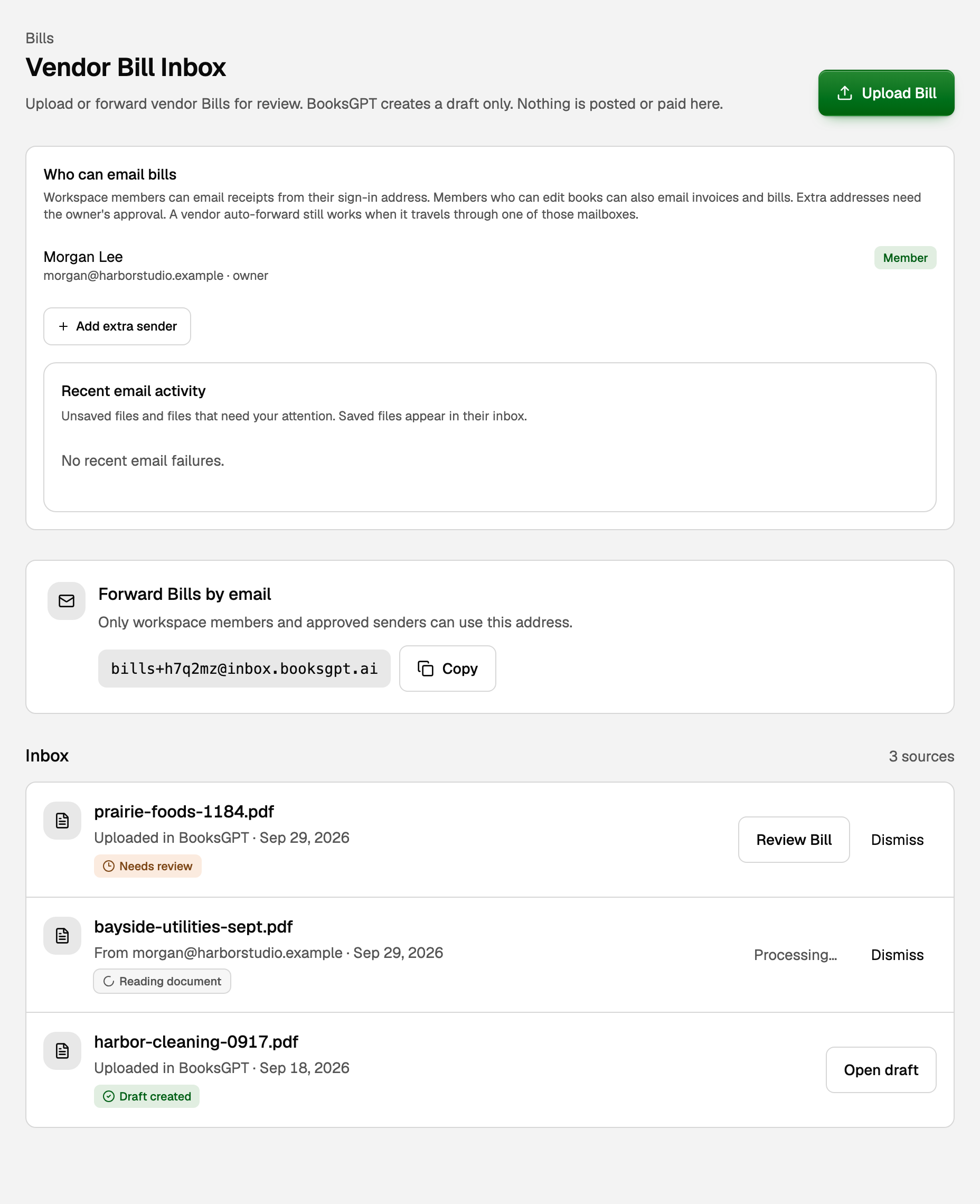
When BooksGPT has read the file, its row says Needs review.
2. Check the bill and save it as a draft
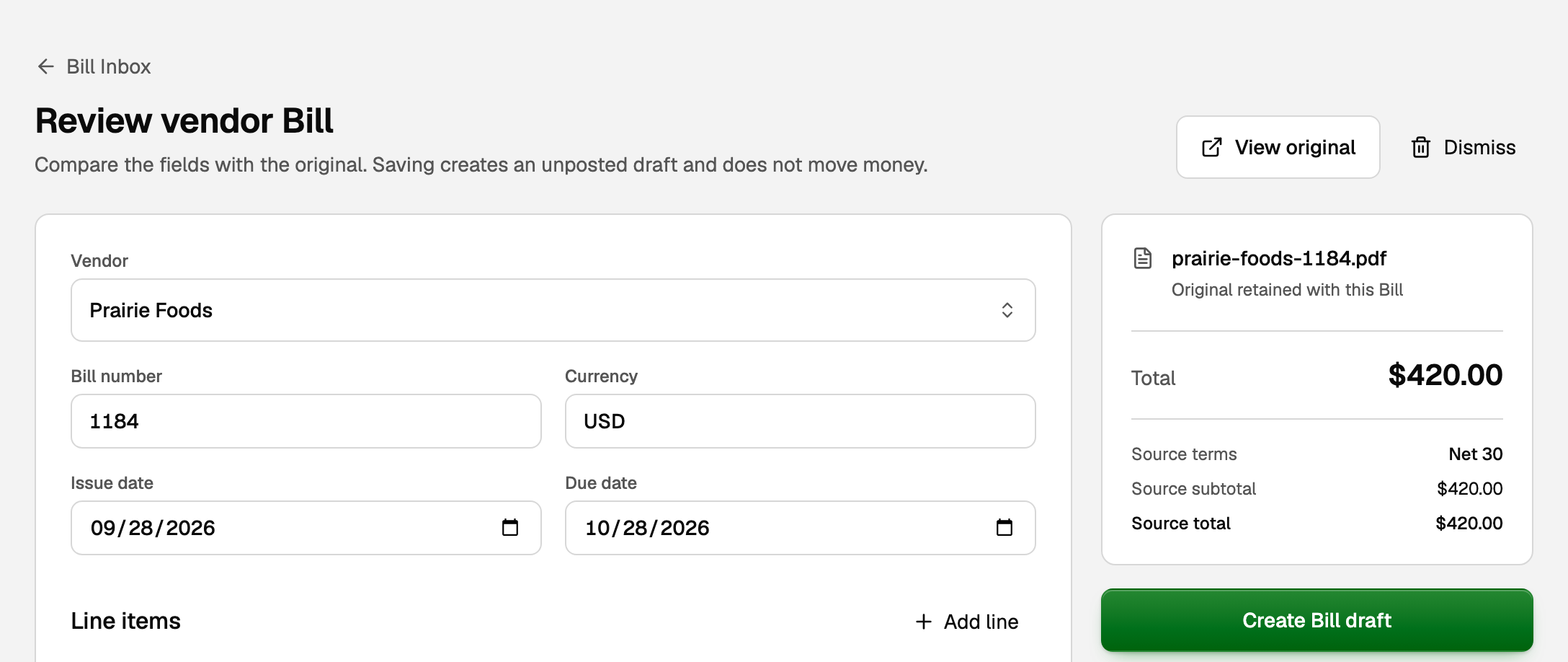
- Click Review Bill.
- Click View original, and compare it with the form: Vendor, Bill number, Issue date, Due date, and each line's Description, Qty and Unit price.
- Choose a Category for every line. The category is the expense account the cost goes to, such as Office Supplies or Repairs, and it decides where the cost shows on your profit and loss.
- If an orange Check before saving box appears, fix what it lists. When it asks, tick the box that says you compared the flagged fields.
- If it says the bill may already exist, click Open possible duplicate and compare. If the two are the same bill, stop here and Dismiss this one. Only if they really differ, tick Create a separate Bill after reviewing the possible duplicate and type a Reason.
- Click Create Bill draft.
If a line is goods you keep in stock, or freight on that stock, the page also asks how each line should be recorded. Leave Ordinary Bill for anything that is not stock. For stock, see Receive inventory on Bills.
3. Post the bill
A draft is not in your books yet. Posting it is what records the cost and the amount you owe.
- On the inbox row, click Open draft. You can also open All pages, then click Purchases and Bills, and the bill.
- Check it once more, then click Save & post.
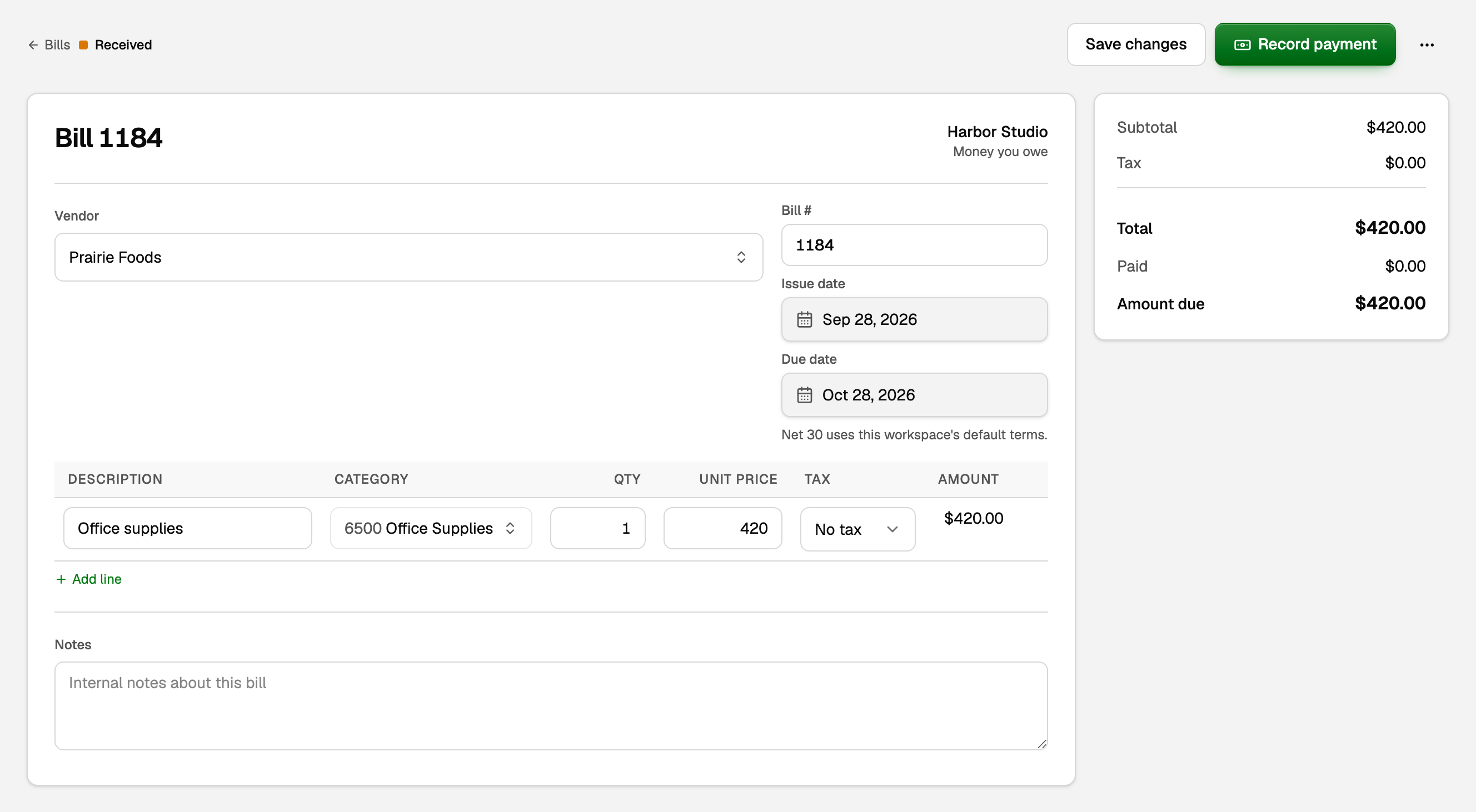
The status now reads Received, which means you owe the full amount.
4. Match the bank payment to the bill
When you pay the vendor, the money leaving your bank or card shows up in your bank feed. That payment is not a new expense: the expense was recorded with the bill. Matching tells BooksGPT the payment settles the bill.
- Open All pages, then click Daily work and Transactions, filtered to To review. Review inbox works the same way.
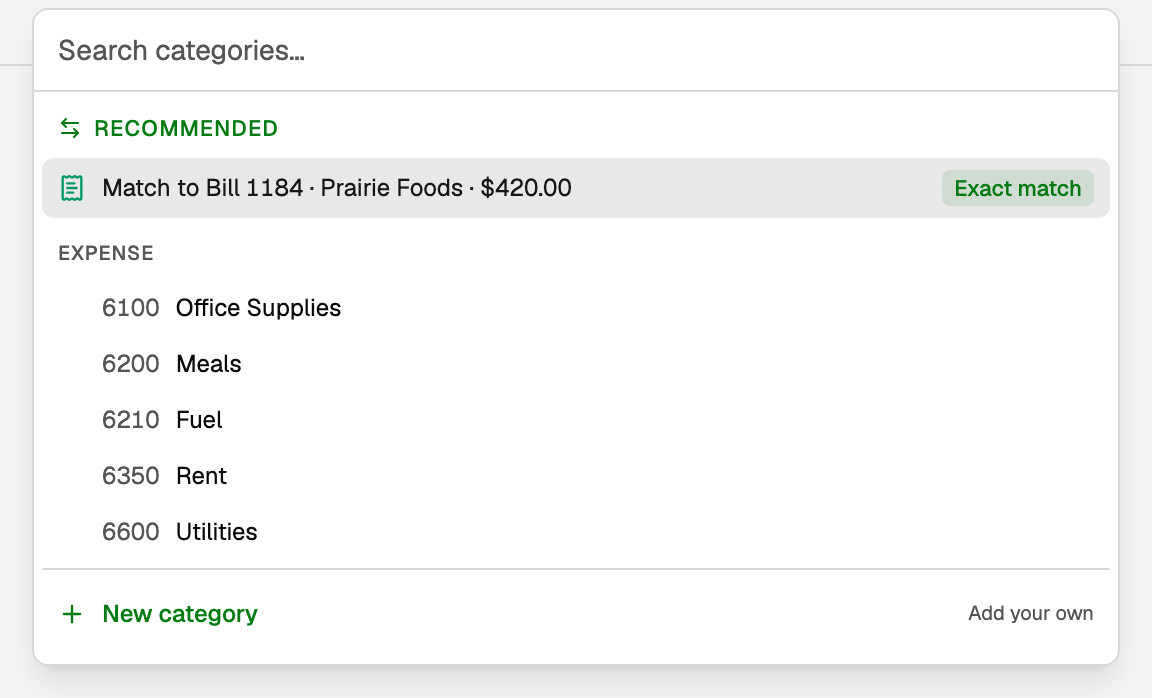
- Find the payment and open its category list.
- Under Recommended, choose Match to and the bill. Exact match means the payment equals what the bill still owes.
- In Match to vendor Bills, tick the bill. If one payment covered several bills from the same vendor, tick each of them.
- Click Match to Bill. With more than one bill ticked, the button says how many, such as Match 2 Bills.
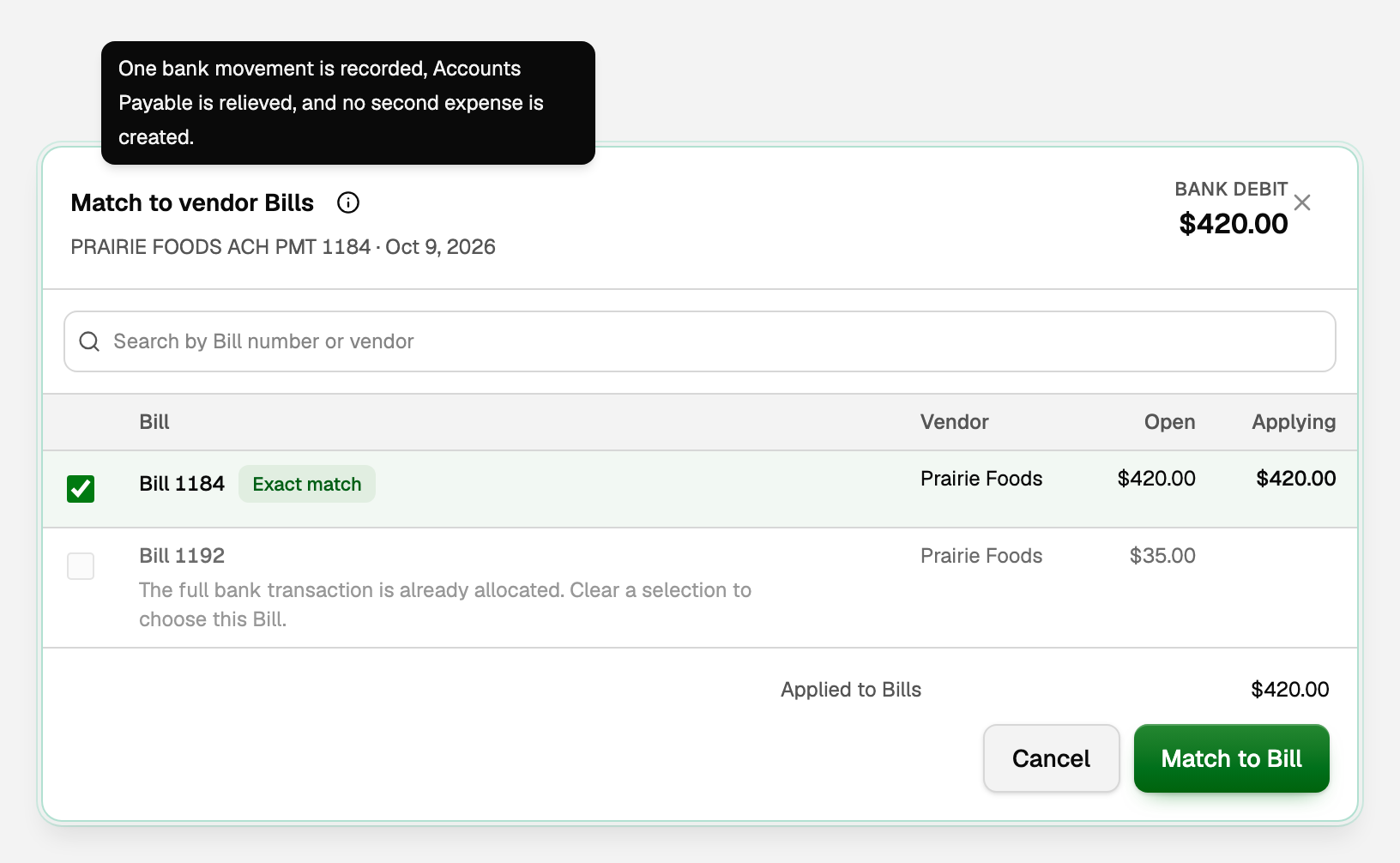
A payment smaller than the bill pays part of it, and the rest stays open. A payment larger than the bills you ticked pays them, and the extra becomes a Vendor prepayment: a credit with that vendor for a later bill.
Record the payment from the bill instead
On a posted bill, click Record payment.
- If the payment is in your bank feed, click Already paid from a connected account? and pick it. For a payment larger than the bill, use Transactions instead, so the extra can become a prepayment.
- If the payment will never appear in a connected account, such as cash, fill in Amount, Date and Paid from, then click Record payment. This records a payment you already made. It does not send money.
What your books say now
Using the $420.00 bill from Prairie Foods:
- When you post the bill: Office Supplies goes up by $420.00 on your profit and loss, and accounts payable goes up by $420.00.
- When the payment arrives in your bank feed: your bank balance goes down by $420.00, and the $420.00 waits in Uncategorized Expense until someone reviews it. Until you match it, your profit and loss shows the cost twice.
- When you match the payment: the $420.00 moves out of Uncategorized Expense, and accounts payable goes down by $420.00. The bill reads Paid, and the cost is counted once, on the bill.
If something goes wrong
- The bill is not offered in the category list. Post it first: drafts are never offered. If the bank row already has a category, clear the category and open the list again. Only bills issued from 90 days before to 30 days after the payment date are offered. For a payment outside that window, click Record payment on the bill with the date the money left, then choose Link to recorded payment on the bank row.
- You matched the wrong bill. On Transactions, open the payment and click Unmatch Bill payment. On Review inbox, click the button where Approve was (its tip says Unmatch). The row goes back to review, and the bill is open again.
- BooksGPT could not read the file. Click Retry extraction, or Enter the bill by hand and type it from the original.
Related
- Bills: track what you owe and match bank payments, to type a bill yourself
- Receive inventory on Bills, for stock
- Create an invoice draft from a PDF or photo, for an invoice you send
- Email receipts into BooksGPT, for a receipt you already paid
Updated on: 16/10/2026
Thank you!