
Receive inventory on Bills
A posted bill that names a tracked product adds that Qty to On hand and records what you owe. With costing on, Inventory goes up by the stock's cost. Cost of goods sold is booked when you sell.
Enter a stock bill
- Open All pages in the left sidebar, then click Purchases and Bills, then New bill.
- Pick the vendor.
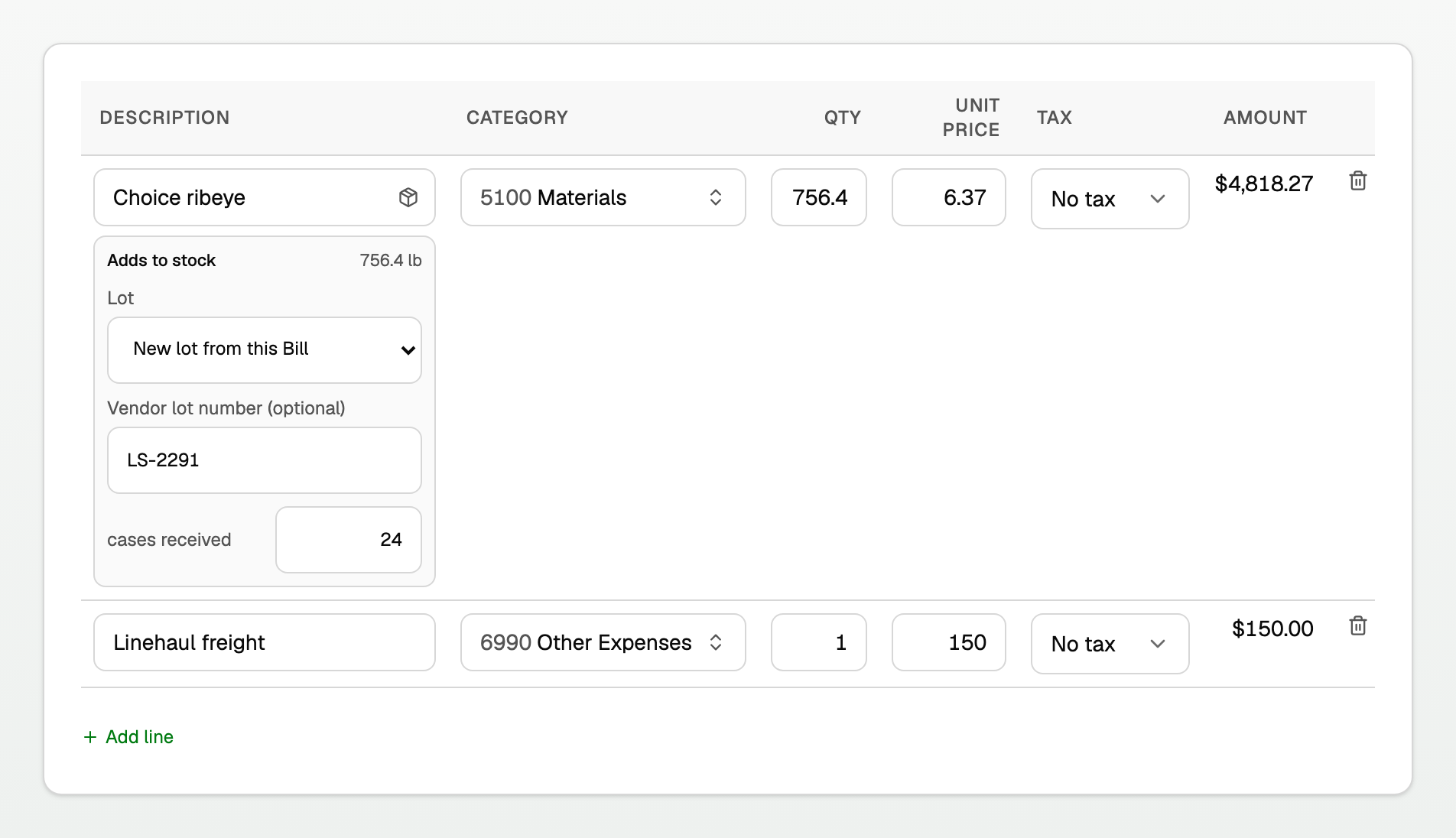
- On a line, pick the product. An inventory product shows Adds to stock under Description.
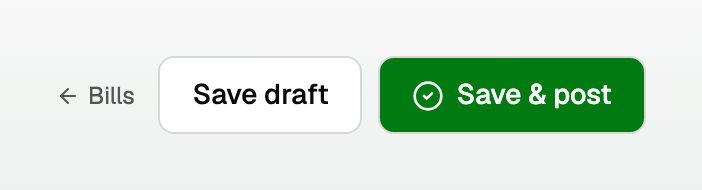
- Check Qty, then click Save & post.
Good to know
- Turn on Track stock for this product from New item or Edit item. See Track stock quantities.
- A Bill refuses an archived product, or one with Bought from vendors off. See Customers, vendors, and products & services.
- A category line, such as freight, has no Adds to stock box and does not change On hand.
- Stock quantities take up to four decimal places.
- With costing on, a stocked line may carry Tax. Tax the business cannot reclaim is added to the stock's cost, so Inventory and later cost of goods sold include it.
- Tax the business can reclaim goes to the Input tax recoverable account set under Purchase tax and is never added to stock. A freight or other landed charge carries the tax it cannot reclaim with it.
Lots and catch weight
- Track lots: choose New lot from this Bill, or an existing lot. Vendor lot number (optional) is the packer's code for a new lot.
- Count it two ways (catch weight): enter the second unit received. The field reads cases received when that unit is cases. Qty is still the weight.
Those fields appear only when that product uses them.
From a purchase order
Open All pages in the left sidebar, then click Purchases and Purchase orders. Open the order, click Create bill, enter the quantity that arrived, then Save & post.
A purchase order never posts. See Purchase orders.
From a captured vendor PDF
- Open All pages in the left sidebar, then click Purchases and Bill Inbox.
- Click Upload Bill. On an inventory purchase, Review vendor Bill offers Create Bill and update stock.
The tax on a captured vendor document is its own line, with no product.
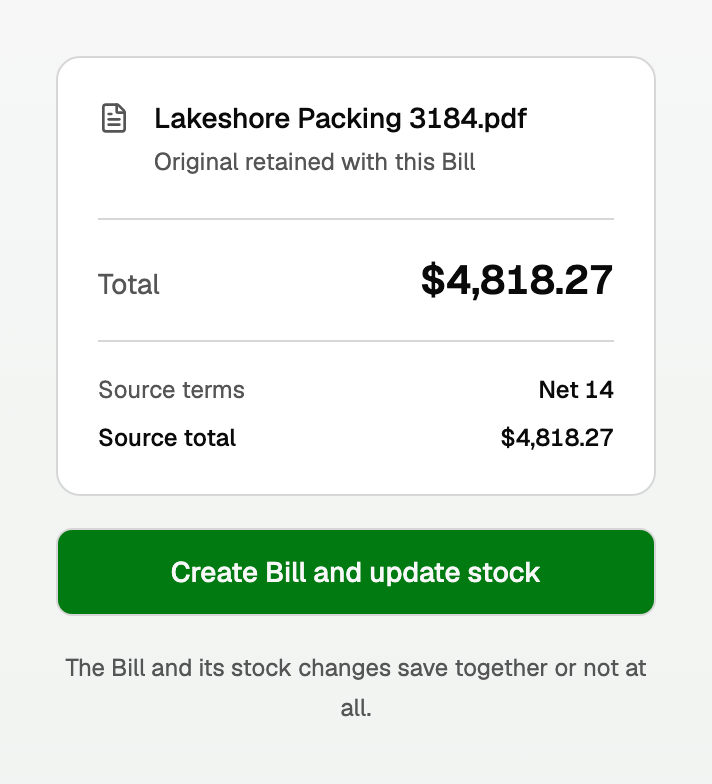
Without inventory, the capture still creates a draft. To place freight on lots, see Split a freight or storage bill across your lots.
After it posts
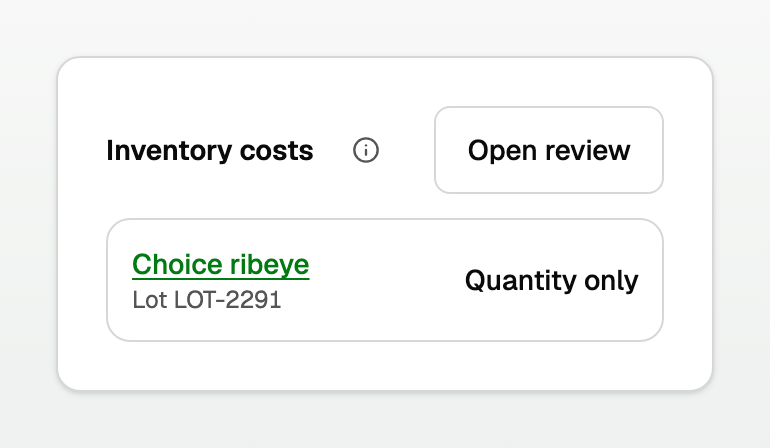
The bill shows Inventory costs.
- Quantity only when costing is off. On hand still moved.
- A dollar amount when costing is on.
- Freight or storage you placed on lots has its own line. What Updating costs and Unavailable mean is in Inventory costing and landed costs.
Open All pages in the left sidebar, then click Inventory and Products & stock. Stock movements lists the Bill.
- Change Qty with Save changes, or choose Delete under More, until a payment is recorded.
- With costing on, BooksGPT may refuse a change that would remove stock a later sale already used. The message says what to undo or correct first, or to contact support. See Sell inventory and post cost of goods sold.
To turn costing on, see Set up inventory costing. Uploading a bill never turns it on.
Updated on: 08/10/2026
Thank you!