
Inventory costing and landed costs
A landed cost is what it took to get stock onto your shelf, on top of the supplier's price: freight, duty and handling, and storage if you choose to add it to stock value. Good books add those charges to the cost of the goods instead of expensing them in the month the bill arrives. The units you sell then carry their share into cost of goods sold, and the units still on hand carry the rest on your balance sheet.
BooksGPT reads each freight bill you send in, and each storage bill once storage is added to stock value, and proposes which lots each charge belongs to. You check the proposal and apply it on Landed costs. How to place a charge on your lots is in Split a freight or storage bill across your lots. This article covers the rest: finding your costs, what posts, finishing a bill, and undoing one.
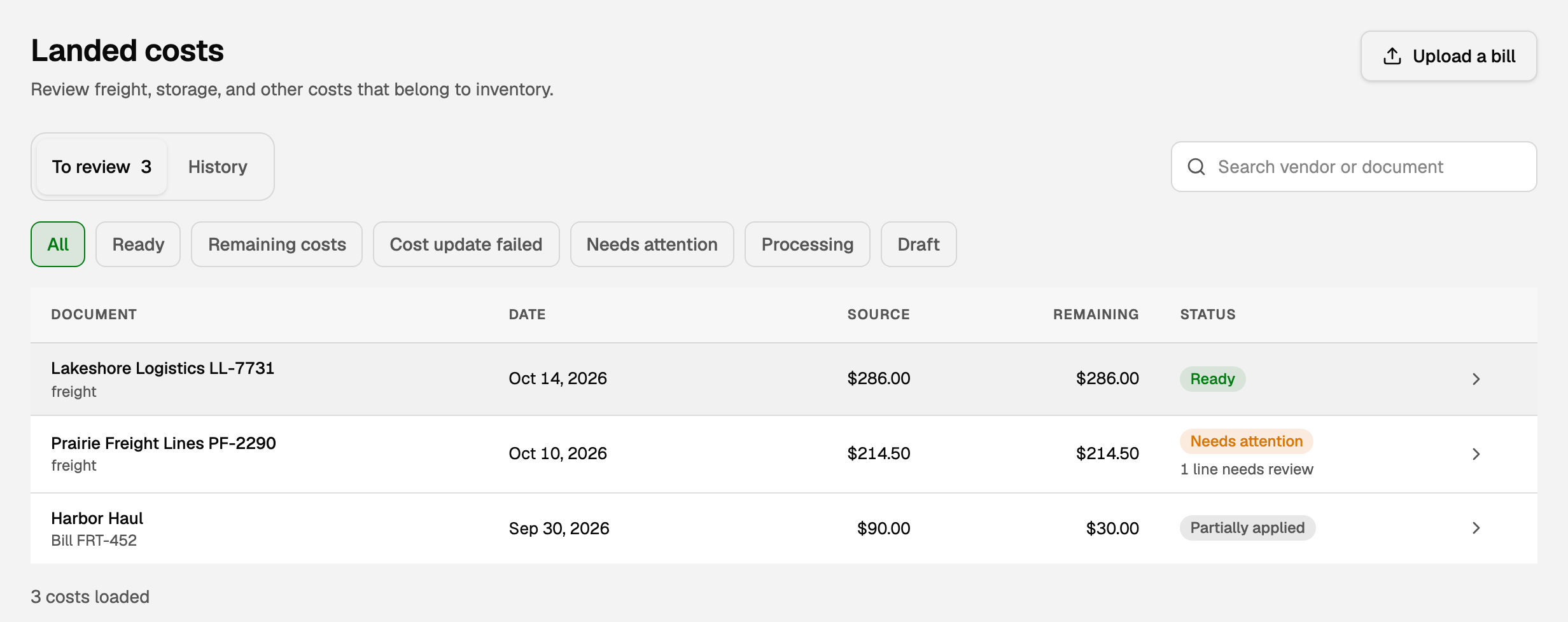
Open Landed costs
- Open All pages in the left sidebar, then click Inventory and Landed costs.
- To review holds work still open. History holds costs already applied or reversed.
- Narrow the list with a filter or Search vendor or document, then click a row.
To send in a new bill, click Upload a bill, or drop the file into Copilot.
The filters on To review you will use most:
- Ready: the lots are placed and the cost is waiting for you to apply it.
- Remaining costs: part of the bill is applied and some dollars are still left.
- Needs attention: something must be fixed first. The review says what.
Apply a cost
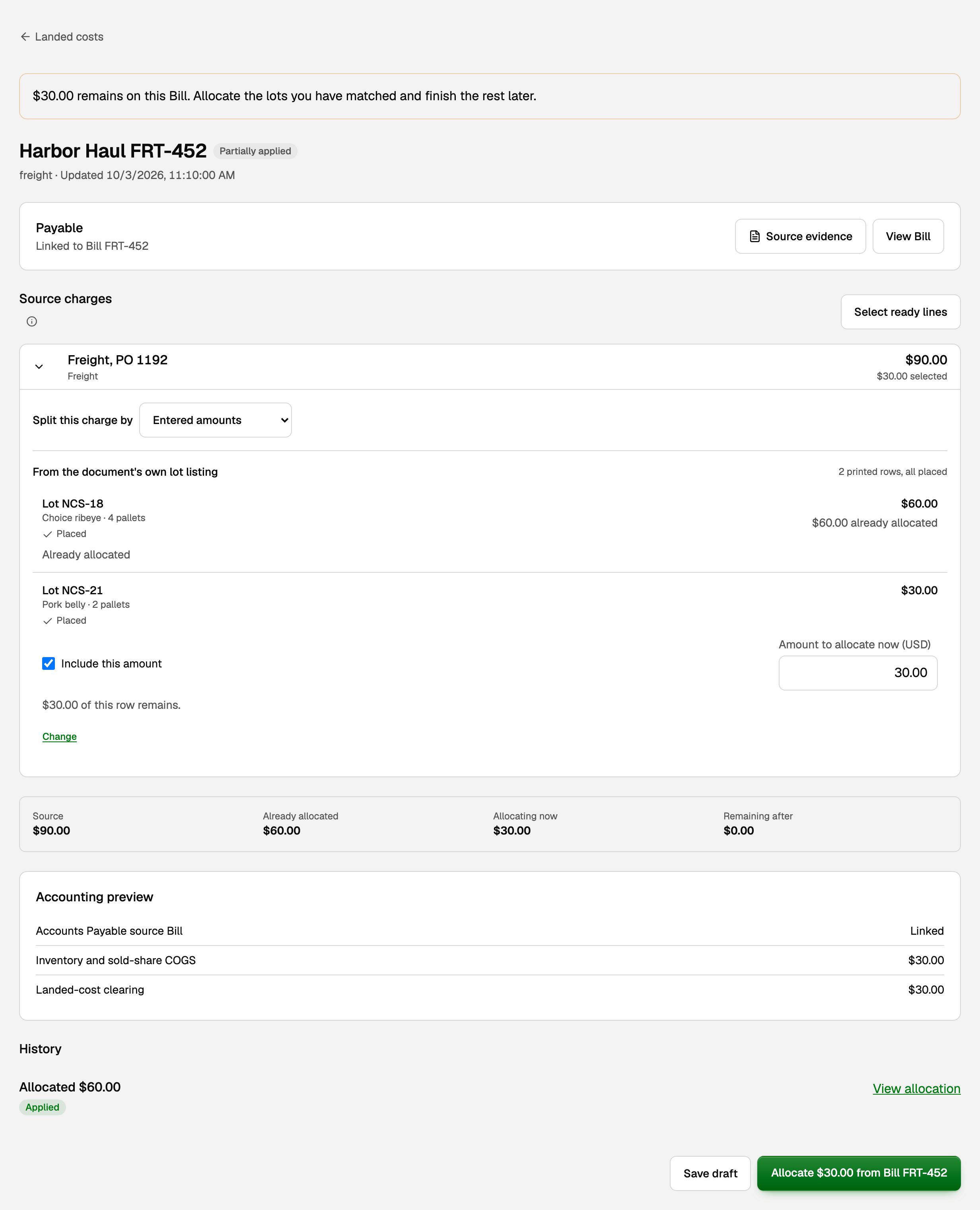
Before anything posts, the review shows an Accounting preview with three lines:
- Accounts Payable source Bill: the vendor Bill for this document. Created first means BooksGPT will create it, Linked means it already exists.
- Inventory and sold-share COGS: the amount you are applying now, split between the stock still on hand and cost of goods sold for units already sold.
- Landed-cost clearing: the same amount leaving your clearing account.
The green button names the step, such as Create Bill and allocate or Allocate an amount from Bill and its number. With no Bill yet, the button opens Review vendor Bill, and nothing posts until you approve the Bill there. That first approval creates one Bill, and every later amount from the same document goes on that same Bill.
What your books now say
The Bill records what you owe the vendor and puts the charge in Landed cost clearing. Applying it moves the charge out of clearing:
- The share for units still on hand goes onto their value in your inventory account.
- For freight, duty, handling and similar charges, the share for units already sold goes to cost of goods sold, because the charge covered every unit you received.
- Storage you capitalize goes only onto the units still on hand on the charge date, because a warehouse bills for what it is holding. If that lot had nothing left, it follows the units sold.
Units sold after the charge date carry their share into cost of goods sold as they sell. Anything you leave unplaced stays in Landed cost clearing on your balance sheet.
Finish the rest of a bill
You do not have to place every dollar the first time. When the rest is ready, for example once you know which lot the last pallets belong to:
- On To review, click Remaining costs, then the bill.
- The note at the top says how much remains on this Bill.
- Tick each row you are ready to post (Include this amount, on a printed lot listing) and check its amount.
- Click Allocate the amount from Bill and its number.
The strip above the preview shows Source, Already allocated, Allocating now and Remaining after. It is still the same Bill.
Check an applied cost, or reverse it
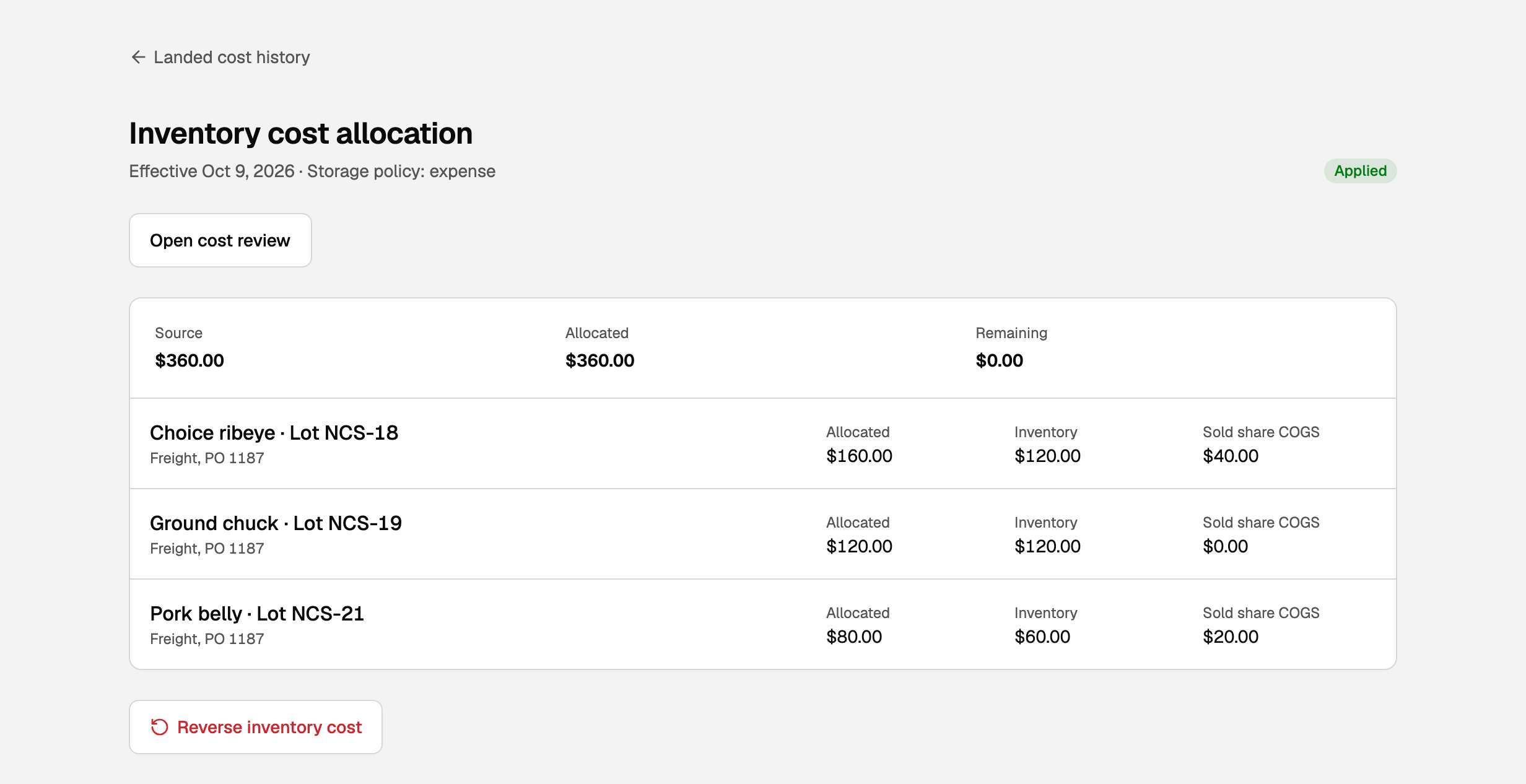
Open History, then the row. Inventory cost allocation shows each lot with Allocated, Inventory (still on the shelf) and Sold share COGS. Its status reads:
- Updating costs: BooksGPT is still putting the cost on your stock. Click Check cost update if it takes a while.
- Applied: the cost is on your stock.
- Reversed: the cost has been taken back off.
To undo an applied cost:
- Click Reverse inventory cost.
- In Reverse this inventory cost?, click Reverse cost.
The reversal is dated today, and the original stays in history. A reversal cannot itself be reversed.
Paying the Bill
Match the bank payment to the Bill like any other Bill. See Vendor Bill Inbox and matching bank payments to Bills. On the bank transaction, Inventory impact shows what the Bill put on your stock.
If something goes wrong
- A cost did not finish updating. Click the Cost update failed filter and open the row. Your Bill and any dollars still left are saved. Click Retry cost update.
- The date is before costing started. A landed cost has to take effect on or after the day inventory costing started. The vendor Bill itself can be older. There is no field to change that date, so contact support with the Bill number.
- A reverse is refused because stock moved. If any of that stock moved after the cost was applied, whether sold, received, returned or adjusted, BooksGPT cannot reverse it automatically. Contact support with the Bill number.
- Your role cannot apply costs. You can view landed costs only. Ask the workspace owner for a role that can edit the books.
For stock value, cost of goods sold and margin, see Read inventory value, COGS, and margin.
Updated on: 17/10/2026
Thank you!