
Split a freight or storage bill across your lots
What a lot of stock cost you is more than the price on the supplier's bill. Getting it to you (freight) and, if you choose, keeping it in a warehouse (storage) are part of its cost too. Adding those charges to the lots they belong to is called landed cost.
It matters when you sell. Each lot then carries its true cost, so cost of goods sold includes its share of the freight, instead of the whole freight bill landing as an expense in the month it arrived.
BooksGPT reads the bill and proposes which lots each charge belongs to. You check them and tick the ones you agree with. Nothing moves onto your lots until you create or post the Bill.
Send the bill in
Drop the PDF or photo into Copilot, or open Landed costs and click Upload a bill. See Drop a bill into Copilot.
Then open it:
- Open All pages in the left sidebar, then click Inventory and Landed costs.
- Stay on To review and click the bill.
Each charge on the bill is a line under Source charges. Open one to see the lots BooksGPT picked, and why: for example Exact internal lot, From the document's own lot listing, or Lot received against the purchase order this bill cites. BooksGPT never ticks a lot for you.
A storage bill with the warehouse's lot list
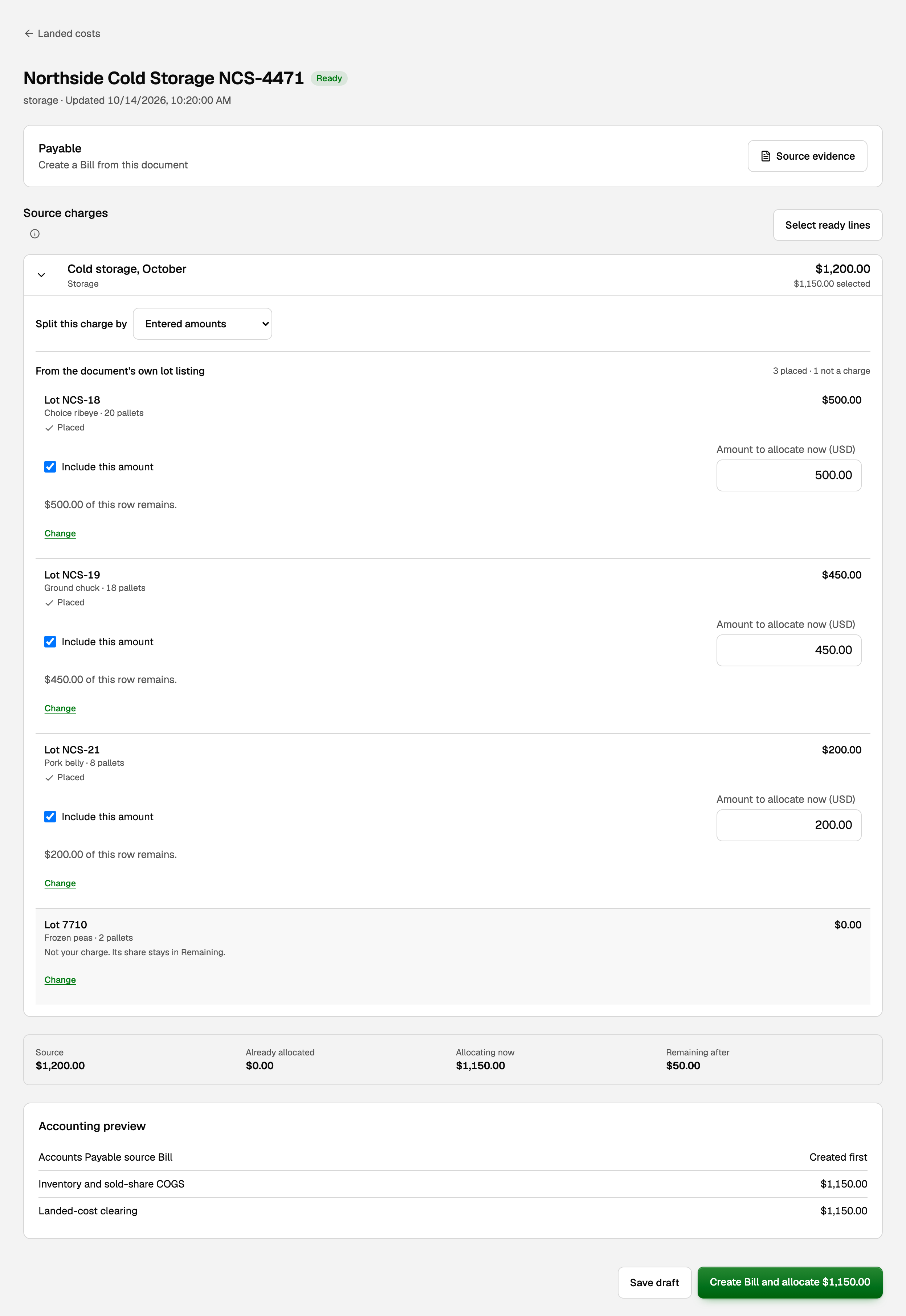
Cold-storage warehouses usually print one row per lot, with its pallets and its dollars. In the example, $1,200.00 of October storage covers 48 pallets: three of our lots, and two pallets that belong to someone else.
- Check each row against the bill. Source evidence shows the line BooksGPT read.
- Click Select ready lines, or tick Include this amount on each row you agree with.
- If the bill gives a row a different amount, type it under Amount to allocate now.
- A row that is not yours, such as another customer's pallets in the same room: click Not a charge.
- A row BooksGPT could not place: click Find a lot, search by product name or SKU, and pick the lot.
A freight bill with only an order number
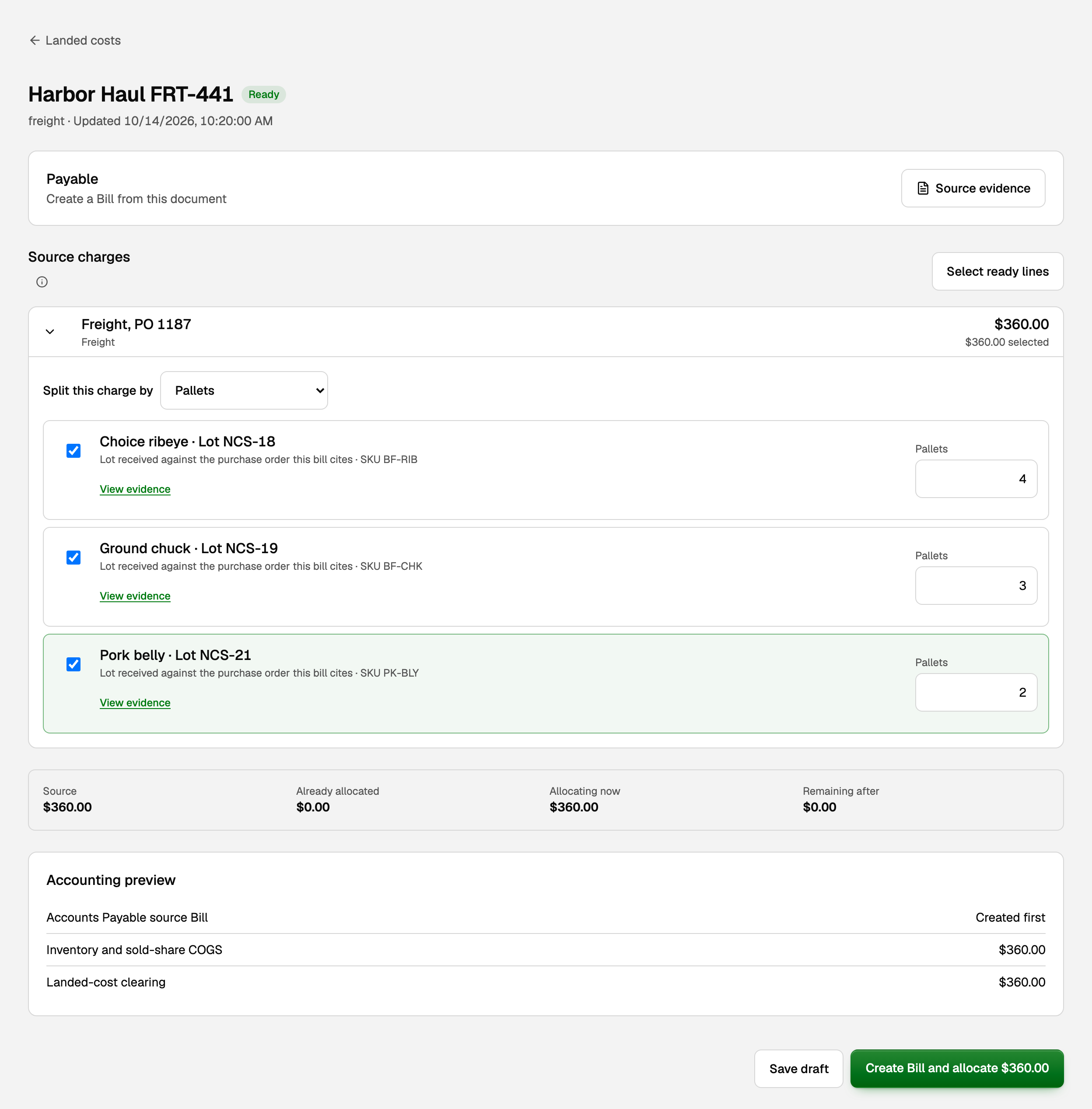
Carriers rarely print a lot number. They print your purchase order, and BooksGPT finds the lots you received against it.
- Tick each lot the freight belongs to.
- Under Split this charge by, choose how it divides: Weight, Pallets, Cases, Quantity, Value, Percentage or Entered amounts.
- Check each lot's figure, such as its pallets, against the bill.
When the bill does not say how a charge divides
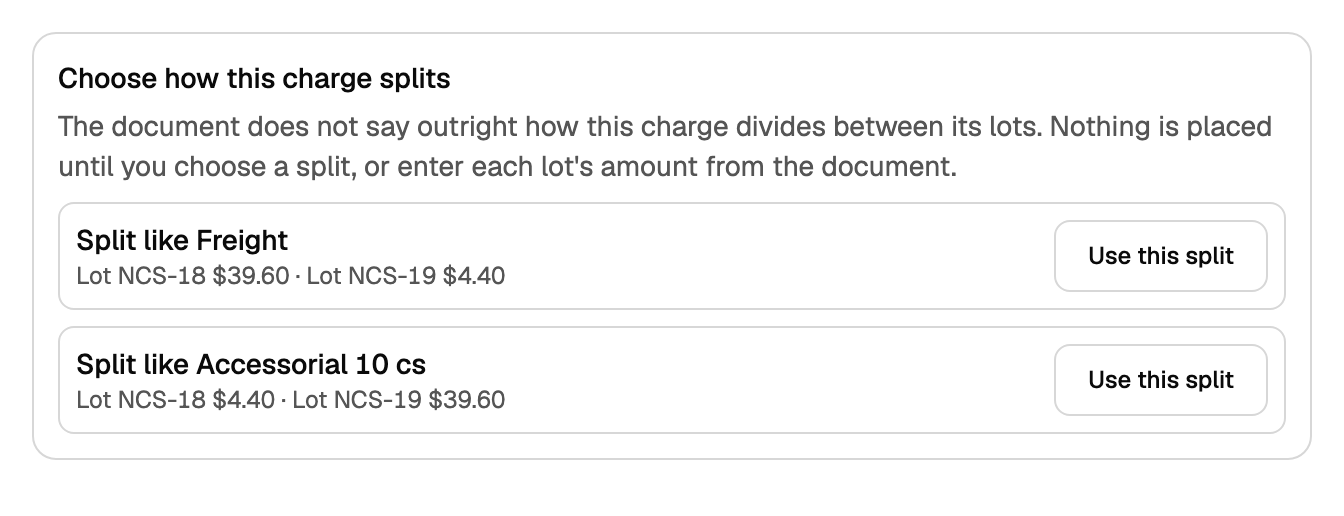
Some lines name their lots but not the dollars, such as a fuel surcharge that rides on a freight line. BooksGPT places nothing on those until you choose.
Open the charge. Under Choose how this charge splits, each offer lists the dollars it gives each lot. Click Use this split on the one that matches the bill, or type each lot's amount yourself. Stop using this split lets you choose again.
Check the totals and create the Bill
The strip under the charges has four figures:
- Source: the charges on this bill that can go onto stock.
- Already allocated: what you placed earlier from this Bill.
- Allocating now: what your ticks add up to. The green button uses the same amount.
- Remaining after: what is still not placed.
The green button names the next step:
- Create Bill and allocate $1,150.00 when there is no Bill yet. It opens Review vendor Bill: check the vendor, dates and total, then click the green button there.
- Allocate $1,150.00 from Bill NCS-4471 when the Bill is already posted.
- Open and post Bill when the Bill is still a draft.
Save draft, beside it, keeps your ticks and posts nothing.
What your books now say
In the storage example, the Bill records the $1,200.00 you owe the warehouse, held at first in the Landed cost clearing account you chose when you set up costing. $1,150.00 moves from there onto lots NCS-18, NCS-19 and NCS-21, raising their cost.
- Storage goes onto the units still on hand. Units already sold take none of it.
- For freight, the share of units already sold goes to cost of goods sold.
The guest pallets' $50.00 stays in Landed cost clearing, on your balance sheet, and shows as Remaining after. For what to do with money left on a Bill, statuses, and how to undo an allocation, see Inventory costing and landed costs.
If something goes wrong
- A charge such as handling prints no lot. The line asks for one. Choose the lot it belongs to and click Use this lot. When the same bill delivers that product, only this delivery's own lot is offered.
- A totals row repeats the rows above it. Click Totals already listed, compare it with the bill, tick the box, and click Confirm repeated totals. It is not a second charge.
- Check before applying lists a problem. Each line says what to fix. Open Source evidence and type only amounts the bill supports; anything it does not prove stays unallocated.
Updated on: 16/10/2026
Thank you!