
Drop a bill into Copilot
Drag a vendor bill onto the chat. BooksGPT reads it and opens the right review.
Drop the file
- Click the BooksGPT logo, or Home, in the left sidebar.
- Drag the PDF or photo over the ask box. A green dashed frame appears around the chat, with the label Drop a bill, receipt or statement. Let go.
- Or click + next to the ask box, then Add files, then Receipt, and pick the file.
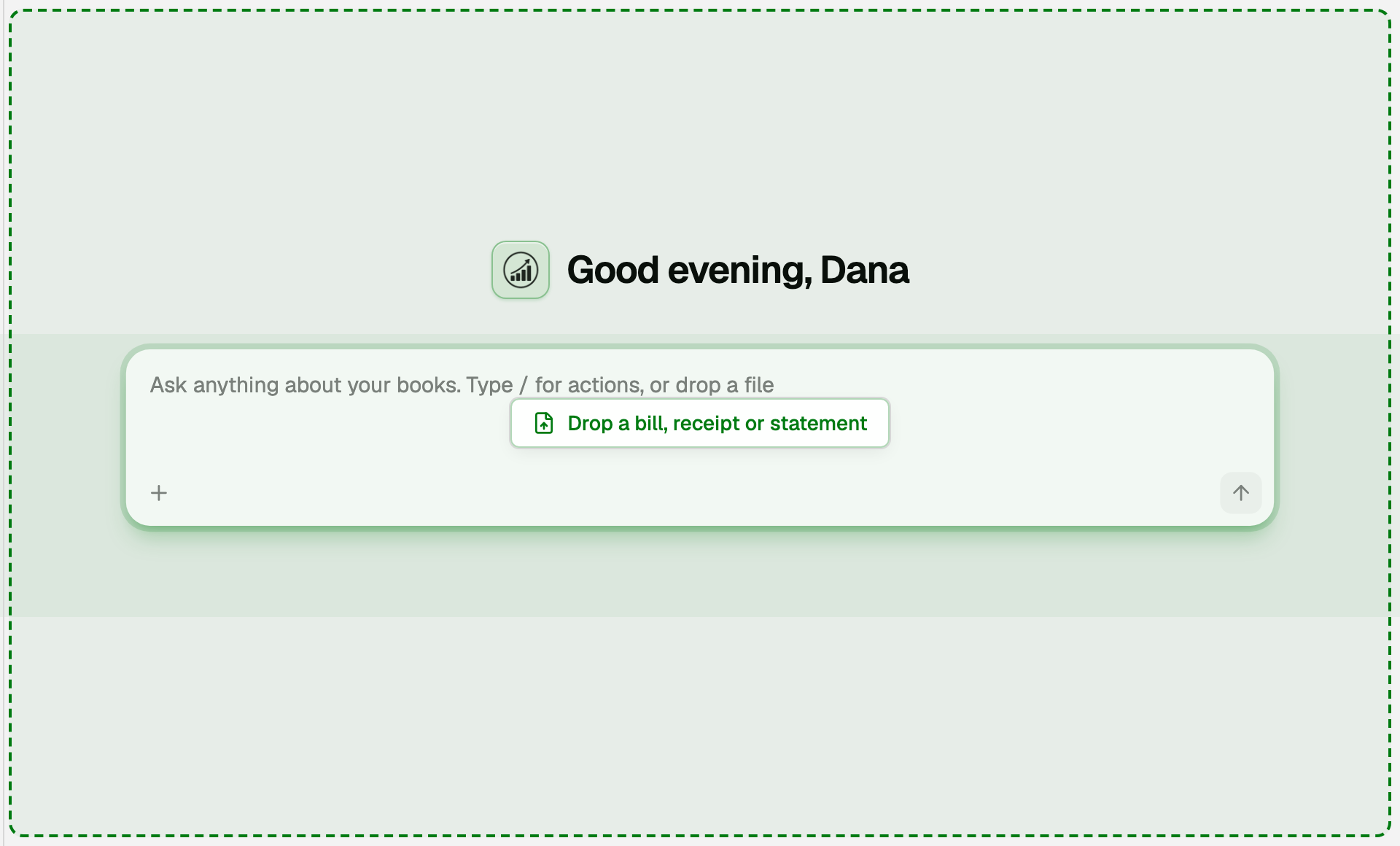
- PDF, JPG or PNG. Up to 10 files in one drop. A CSV, TSV or Excel file is treated as books to import, not as a bill.
- The chat keeps the file with your receipts first, so the upload stops at 10 MB. Upload Bill on the Bill Inbox sends a PDF straight to the bill review, so a PDF there can be 20 MB. Photos are 10 MB either way, and both read at most 10 pages.
While it reads, the bubble says Opening the file, Going through the pages, Reading the document, then Matching it to your books.
What the bubble says
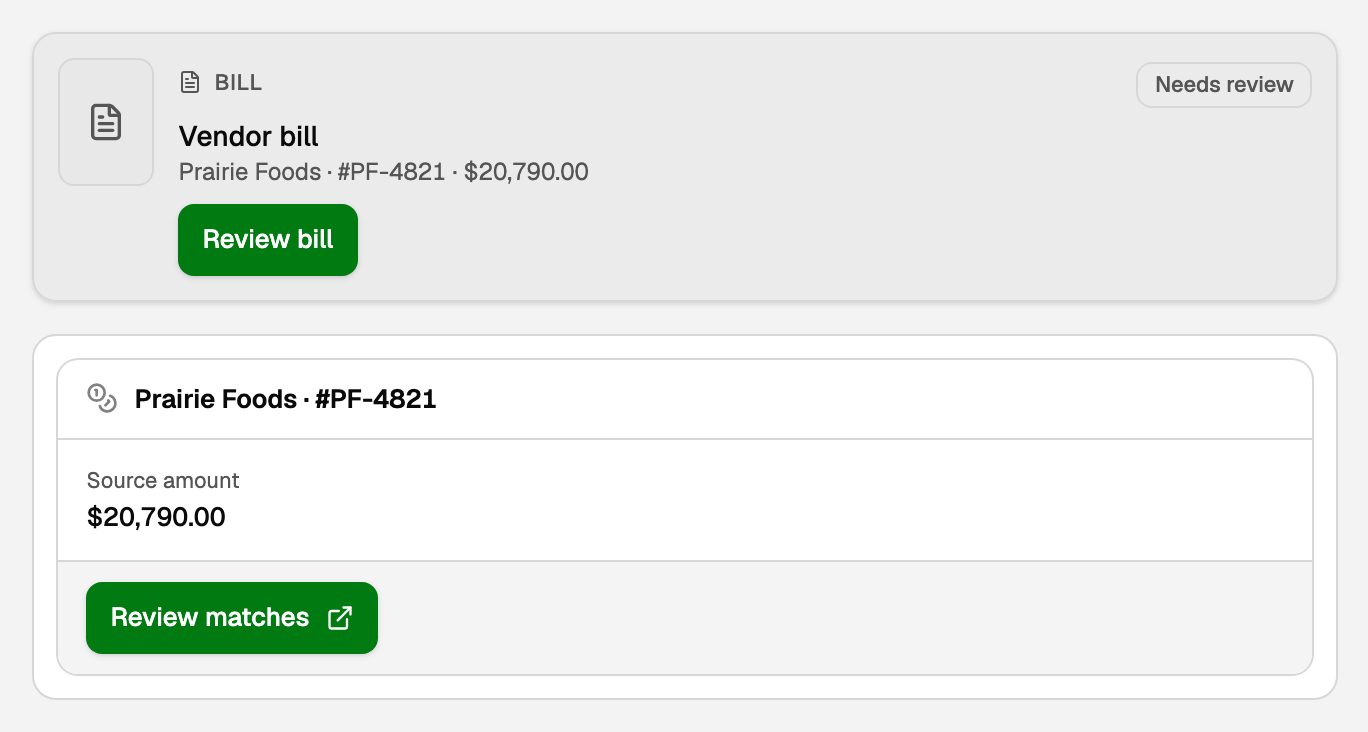
- BILL, reading Vendor bill: a bill you owe, with the vendor, number and total. Review bill opens the review.
- A stock, freight or storage bill adds a second card under that bubble. It shows the Source amount, and Review matches opens the inventory review. Start there.
- When Copilot reads that review, the card also shows Charges. It adds Selected, Waiting on a lot and Allocated when each is above zero. When the review has a Bill, the card links Bill, with the number when there is one.
- The card states This review is blocked. with Needs attention, The cost update for this review failed. with Cost update failed, Costs are updating from this review. with Updating costs, or This document is still being read. with Processing.
- DOCUMENT, reading Document to review: confirm on the review page that your business owes the vendor.
- INVOICE: an invoice your business issued. Nothing was created or sent. Review invoice opens that review. See Create an invoice draft from a PDF or photo.
- RECEIPT: something you already paid. Save for review on Proposed entry files a transaction that still needs review. It does not post. See Receipts: upload, match, and your storage limit.
- BANK STATEMENT: handed to the statement importer. Its card follows in the chat. Nothing is imported until you confirm there. See Upload a bank statement.
A bill for stock
A captured stock bill goes to the inventory review before the Bill is created.
Ask how to make the Bill when the review has none. Copilot states the facts it has and that it cannot create the Bill from the chat. Finish the review on the page.
- Click Review matches. Tick the lots, or click Select ready lines.
- Click Create Bill and update stock. For freight or storage, click Create Bill and allocate and the amount. That opens Review vendor Bill.
- Check the fields there, tick the confirmation if it asks, and click the green button.
Inventory goes up by the Bill's net amount, and cost of goods sold is booked when you sell. Freight or storage split across lots is in Split a freight or storage bill across your lots.
An ordinary bill
Review bill opens Review vendor Bill, and Create Bill draft saves an unposted draft and does not move money. Check before saving lists what to compare with the original. See Vendor Bill Inbox and matching bank payments to Bills.
Find it later
- Open All pages in the left sidebar, then click Purchases and Bill Inbox. The file is Uploaded in BooksGPT, with Review Bill beside it.
- Stock, freight and storage bills also wait on To review. Open All pages in the left sidebar, then click Inventory and Landed costs.
Good to know
- A packing list or bill of lading behind the invoice is usually read as part of that one bill. If the review's Check before saving says This file contains more than one document. Split it and upload one Bill at a time., split it and upload the invoice on its own. Two bills in one file are not split. Upload them one at a time.
Related: Ask Copilot about inventory, Inventory costing and landed costs.
Updated on: 15/10/2026
Thank you!