
Edit a transaction from chat
Every transaction in your books has a category, the account that says what the money was for. It can also carry a class (or another tag your workspace uses, such as a location) so reports can show each part of the business separately.
A split divides one bank transaction into several lines, each with its own category. A $100 store run can be $80 of office supplies and $20 of meals: the bank still shows one $100 charge, and your profit and loss shows each part where it belongs.
Copilot fills in these changes for you. You look them over and save.
Change a category, class or note
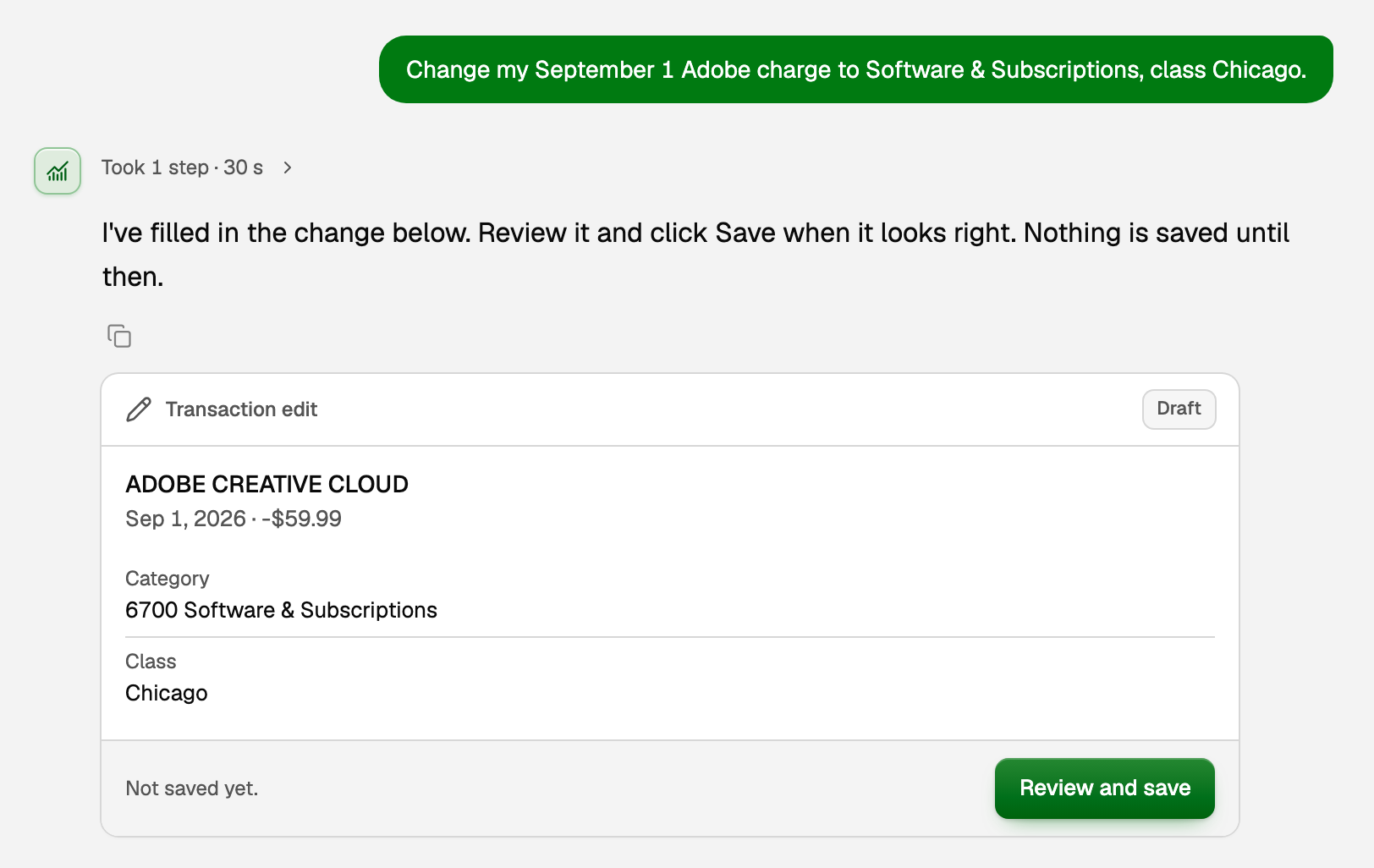
- Ask Copilot, naming the transaction by merchant, date or amount, and using the names from your chart of accounts. For example: Change my September 1 Adobe charge to Software & Subscriptions, class Chicago.
- Copilot answers with a Transaction edit card tagged Draft. It lists what would change. Nothing is saved yet.
- Click Review and save. The transaction opens over the chat with Copilot's changes already filled in.
- Check the fields. Tick Mark as reviewed if you also want it cleared from review.
- Click Save. The card now says Saved, and Edit again reopens the transaction.
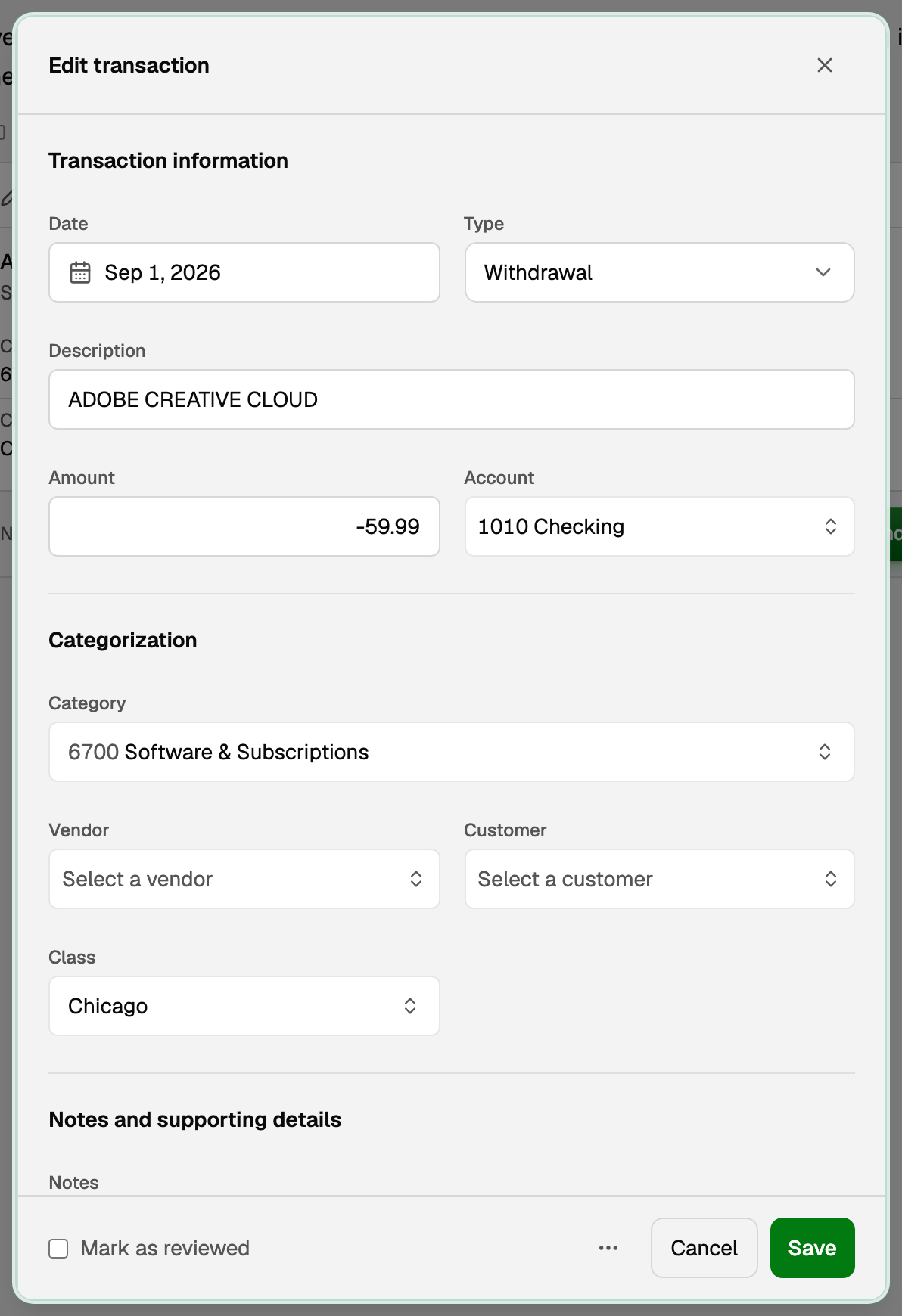
Once the transaction is reviewed, your profit and loss counts it under its new category: the old account's total goes down by the amount and the new one goes up by the same amount. A transaction still waiting for review is not filed yet, so tick Mark as reviewed when the change is all it needed.
Split a transaction
- Ask with the parts and their amounts. For example: Split my September 3 Costco purchase: $80 Office Supplies and $20 Meals & Entertainment.
- The card shows the Proposed split with each line. Click Review and save.
- Review split opens. Check each line's category and amount. The lines must add up to the whole transaction, and BooksGPT shows Fully allocated when they do.
- Click Save split, then Done to go back to the chat.
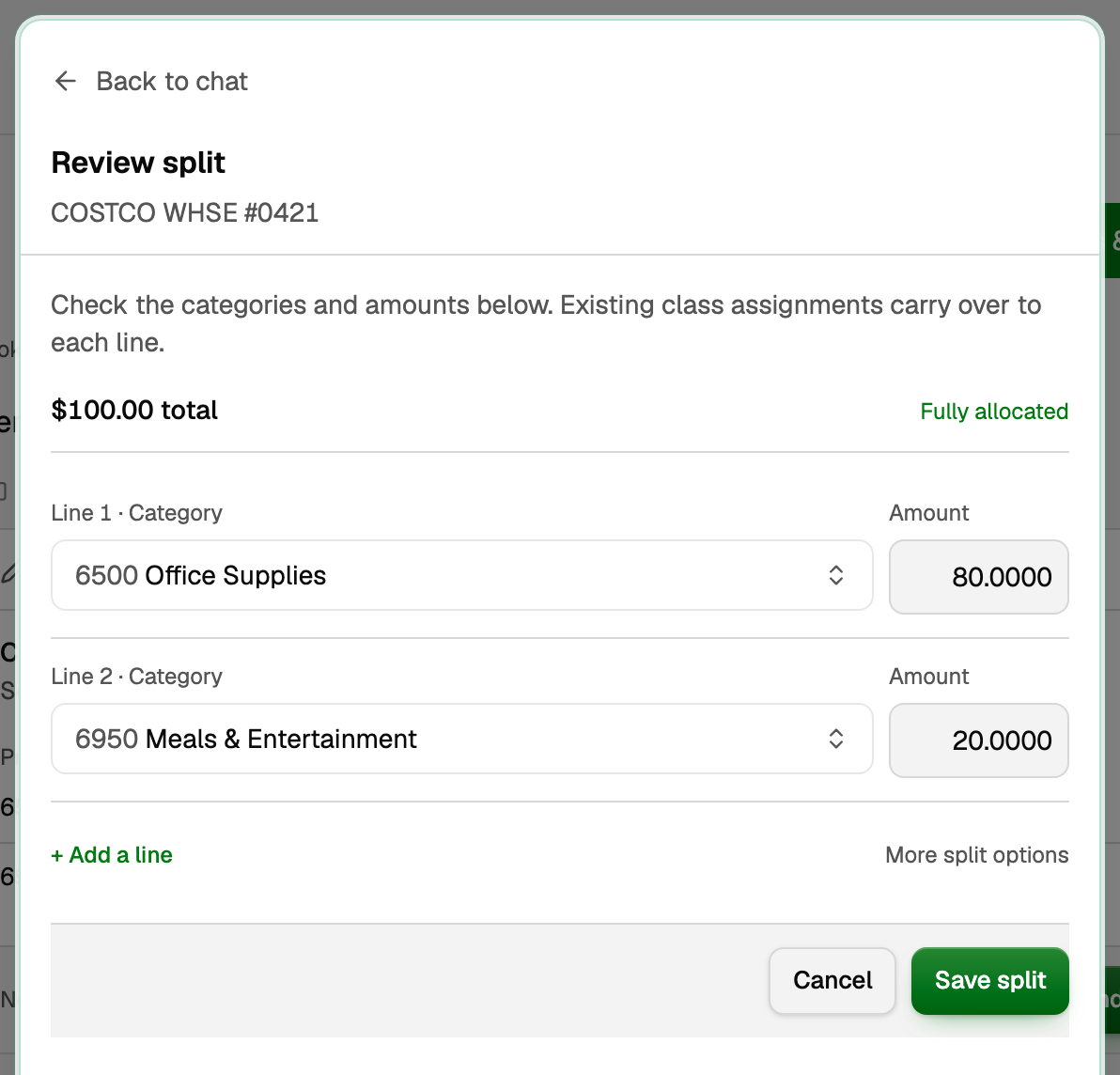
Each line now appears in your books under its own category, and the total still matches the bank. To split by hand from Transactions, see Split one transaction across categories.
Split several transactions the same way
Ask Copilot to split up to 50 transactions the same way in one message, for example every monthly phone bill into Telephone and Internet. It prepares one Split transactions card.
- Every transaction on the card starts ticked. Untick any you want left out.
- Click Split transactions on the card. This card is only approved with its own button, never by typing yes or by Approve all.
Change several transactions at once
Ask for two or more category or class changes in one message, for example Move all my Uber rides in September to Travel. Copilot prepares one Bulk recategorize card that lists every transaction it would change.
- Untick a row to leave it out. The button changes from Approve all N to the number still ticked.
- A row Copilot cannot change is shown without a checkbox, with the reason.
- Most approved cards can be undone for 30 days.
How cards, Reject and Undo work: Approve, undo, or ask Copilot for a change.
Answer a bookkeeping question
Sometimes Copilot needs to know something before it can file a transaction, for example whether a payment to a person was for a contractor or a loan. It asks on a small card with the merchant and date at the top.
- Click one of the answers, or type your own in the message box.
- Your answer only answers the question. Any change it leads to still comes as a card for you to approve.
If something goes wrong
- The transaction changed after Copilot read it. The editor opens with the latest values instead of Copilot's suggestion. Check them, or ask Copilot again for a fresh card.
- It is in a closed period. BooksGPT will not change it until you reopen the period. See Close the books for a month or year.
- It is reconciled, or matched to an invoice or bill. The editor says what it can't change and why. Some changes, such as the bank amount, have to be made where the match or reconciliation lives.
Updated on: 16/10/2026
Thank you!