
Split one transaction across categories
A $100.00 warehouse run might be $80.00 of office supplies and $20.00 of meals. Splitting gives each part its own category. The amount on your statement stays the same.
Split a transaction
- Open All pages in the left sidebar, then click Daily work and Transactions.
- Click the transaction, then Split transaction at the bottom of the pane.
- Pick a category and type the amount on each line. + Add a line adds another.
- Click Save split.
The first line starts as the whole amount, four decimal places (100.0000 here).
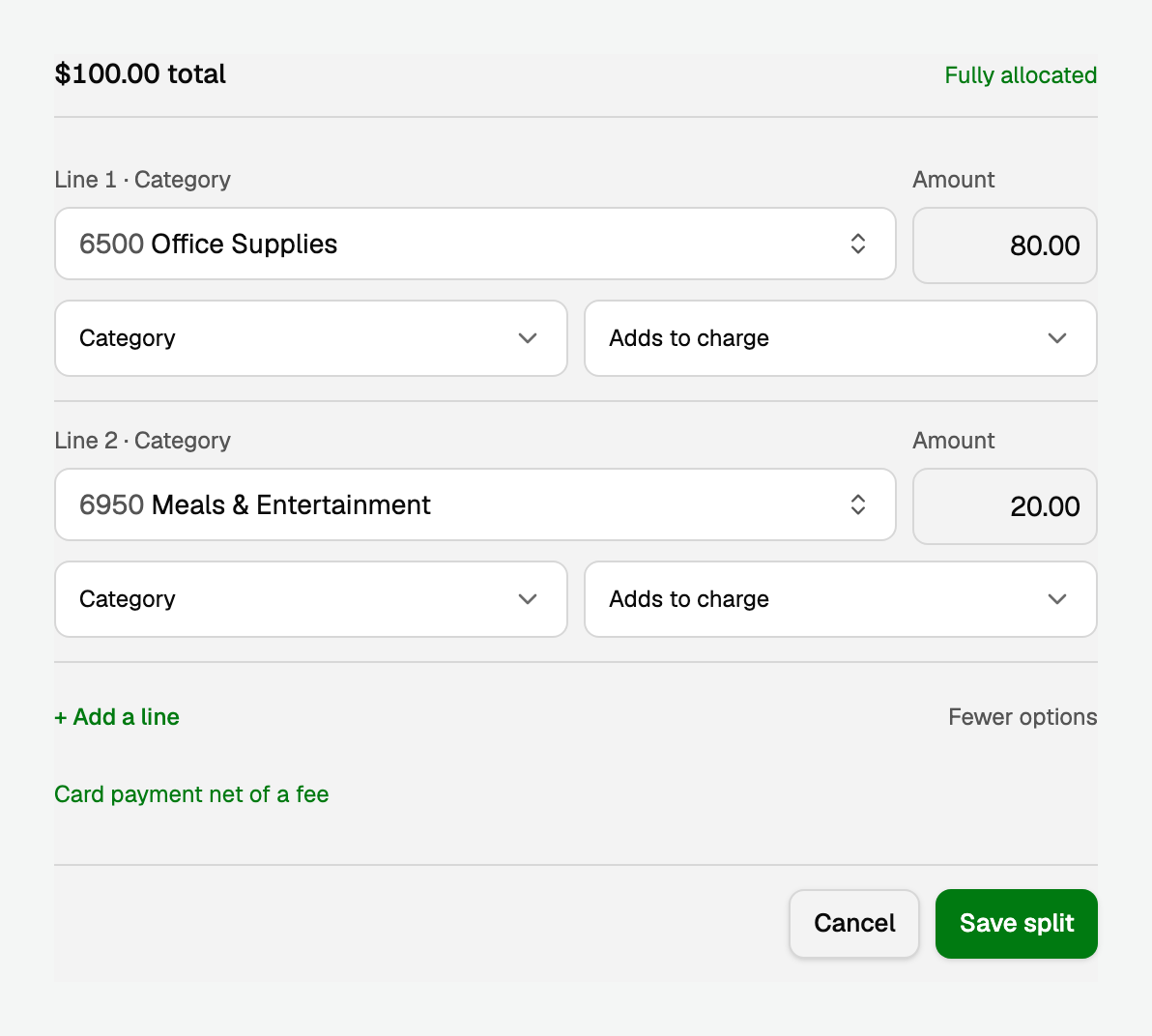
The pickers are already open. Fewer options hides them. More split options shows them again.
- Category, Customer payment, or Vendor payment. The one that does not match the line stays unavailable.
- On a charge: Adds to charge or Offsets charge. On a deposit: Adds to deposit or Offsets deposit. An offset is labelled Offset.
Card payment net of a fee puts the whole amount on Customer payment (deposit) or Vendor payment (charge), and the fee on the next line as Offset. You choose the invoice or bill after saving.
How the amounts add up
- $100.00 total is the bank amount. Fully allocated means the lines match it.
- $0.01 left or Over by $0.01 can still be saved. The largest line takes that cent.
- Any further off, Save split says how much is still unallocated or over.
- An unfinished line shows Enter complete line amounts.
After you save
The sheet stays open on Split saved with your lines. The word beside the title is the split's status: Posted means every line is in your books. Hover it for the details, such as how many lines posted and any rounding.
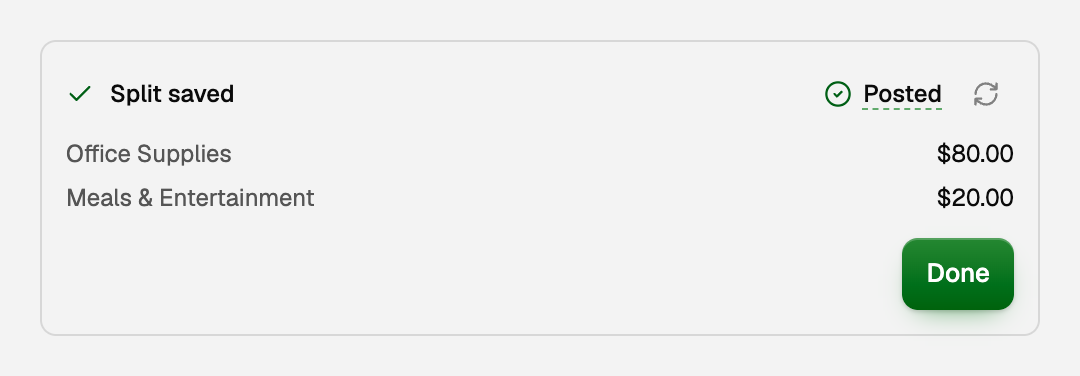
- A Customer payment or Vendor payment line has Match now beside it. Click it to choose the invoice or bill. Any you leave wait in To Review.
- The refresh icon beside the status reads it again.
- Done closes the pane.
Your books now show $80.00 in Office Supplies and $20.00 in Meals & Entertainment, and the bank account still moves by $100.00.
Open a split later
Click the split row again. The pane shows Split into 2 lines, the status, and each line signed against the bank amount: in this $43.27 deposit, Bank Fees reads -$1.73 beside Sales $45.00.
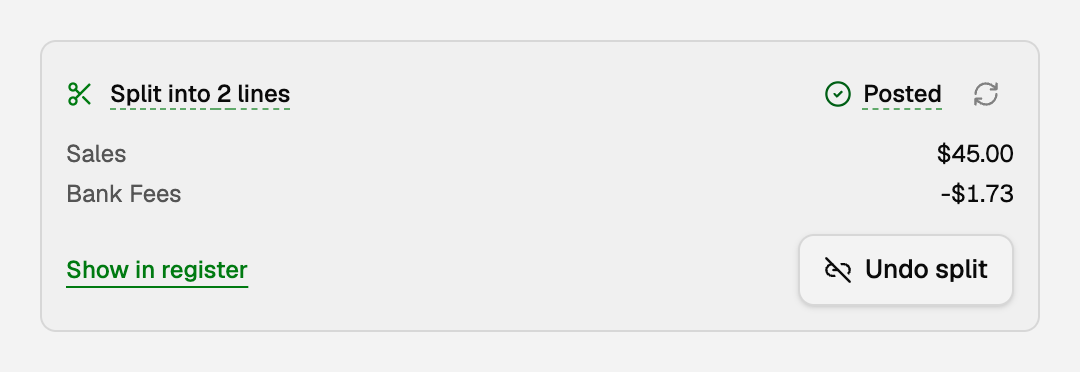
- The split reconciles as one line for $43.27, the amount on your bank statement. Hover Split into 2 lines for a reminder.
- An unmatched payment line has a Match button.
- Show in register lists just this split and its lines in Transactions.
- On Reconcile and in the account register, open the row with Split into 2 categories.
See Reconcile your books and how transfers auto-match and Open an account register.
Undo a split
- Open the split row and click Undo split.
- Click Undo split again to confirm, or Keep the split.
If Undo split is unavailable, the card says why. If it asks you to check the status first, click Check status.
Good to know
- A line inside a split says This is one line of a split transaction. Show the whole split opens the card. It does not offer Split transaction.
- An imported row already posted as several lines, and a transfer, do not offer Split transaction. See "Transfers, credit-card payments, and owner draws".
Updated on: 17/10/2026
Thank you!