
Connect your bank account
A bank feed is a read-only link between BooksGPT and your bank. Once it is connected, BooksGPT reads the new transactions from your bank every day, so you never type them in or upload a statement. What is left for you is giving each transaction a category: the account that says what the money was for.
The connection can see your transactions. It can never move money.
Connect a bank
- Open All pages in the left sidebar, then under Daily work click Banking.
- Click Connect a bank at the top right. Only the Owner or a Client sees it.
- Under Bank or card issuer, search for your bank by name, or click one of the Popular banks. Over 12,000 US banks and credit unions are listed.
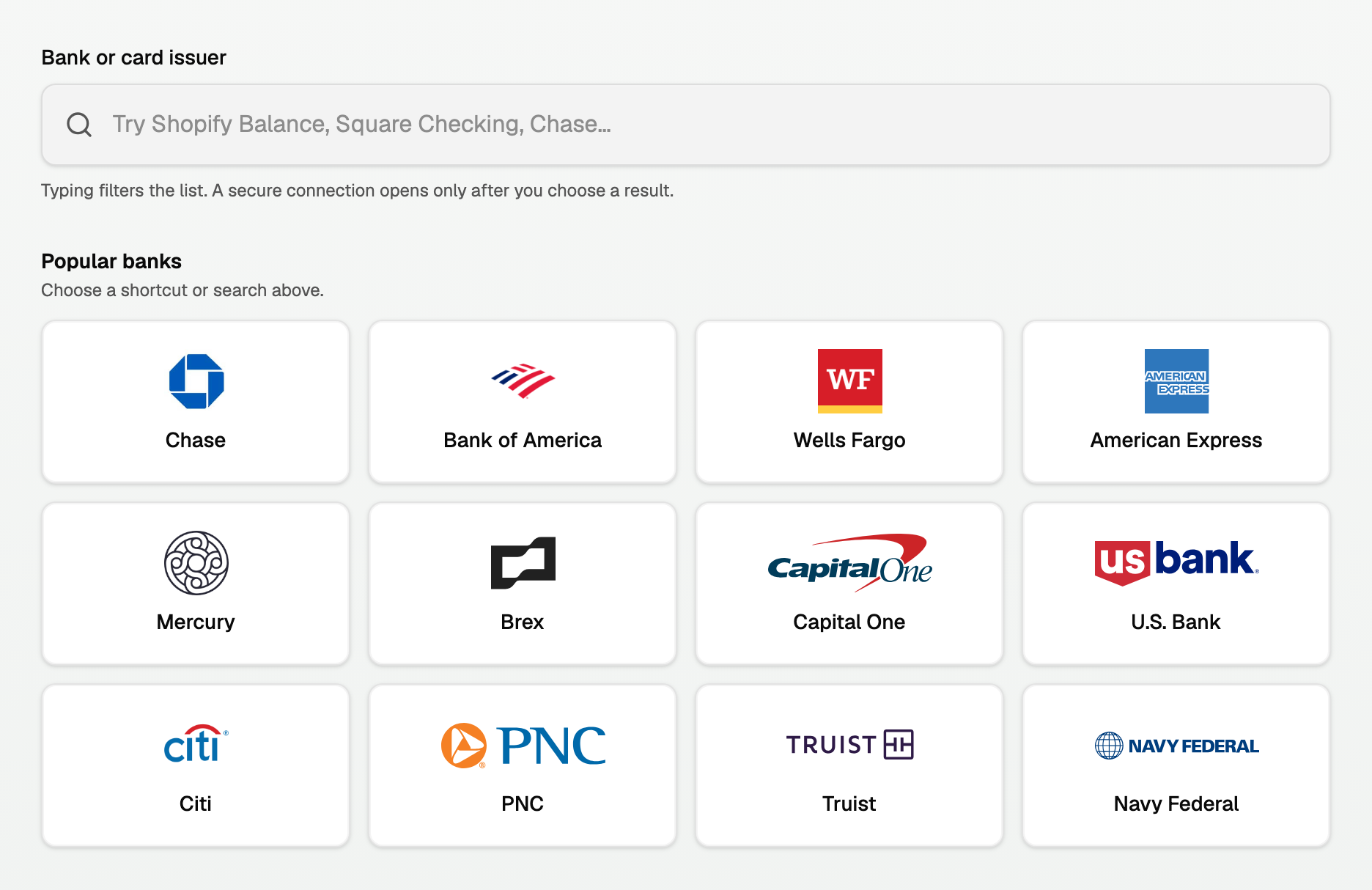
- A secure window opens. Sign in to your bank and choose which accounts to connect.
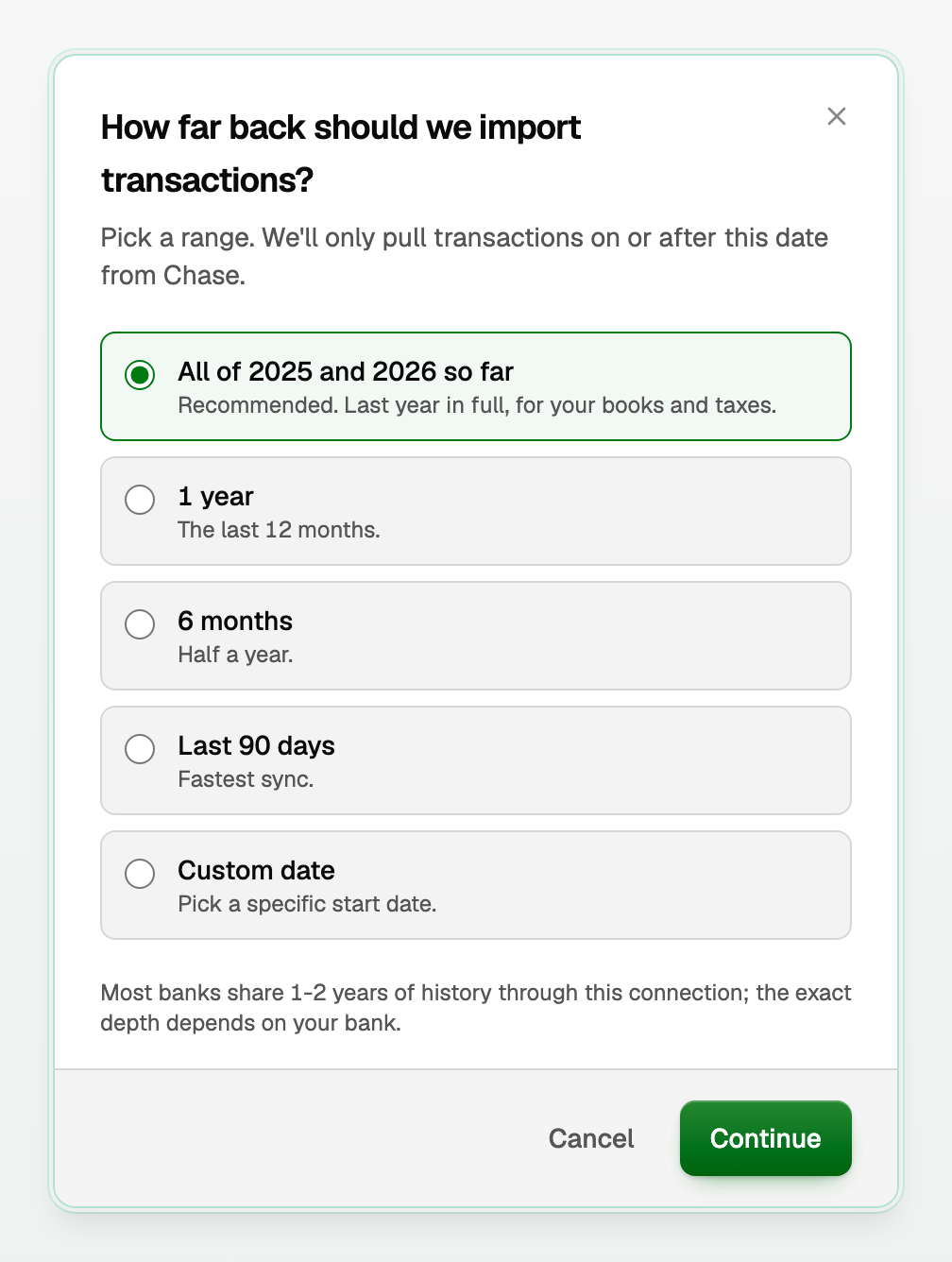
- Back in BooksGPT, answer How far back should we import transactions? All of last year and this year so far is selected when your bank shares that much, otherwise the longest range it shares. Click Continue.
- If your chart of accounts already has an account that looks like this one, BooksGPT asks Is this a bank account already in your books? Pick Use existing beside the right account, or Keep as a new account, then click Continue.
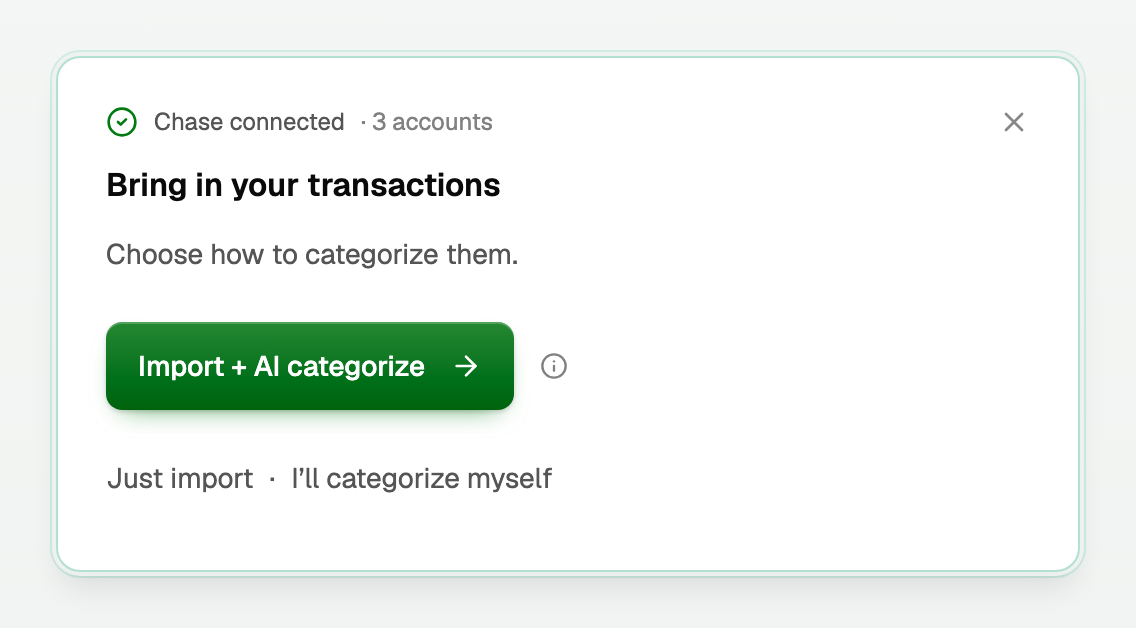
- In Bring in your transactions, choose Import + AI categorize to have BooksGPT suggest a category for each transaction, or Just import · I'll categorize myself.
How far back a bank shares depends on the bank. For anything older, upload statements: see Upload a bank statement and How BooksGPT connects to your bank, and how much history you get.
What your books show now
- Each connected account is now an account on your chart of accounts: a bank account for checking or savings, a credit card account for a card. The empty starter Checking, Savings or Credit Card account is removed, so you do not end up with two.
- New transactions arrive in Review inbox, waiting for a category. Until you approve them, your reports count them as uncategorized. That is expected, not an error.
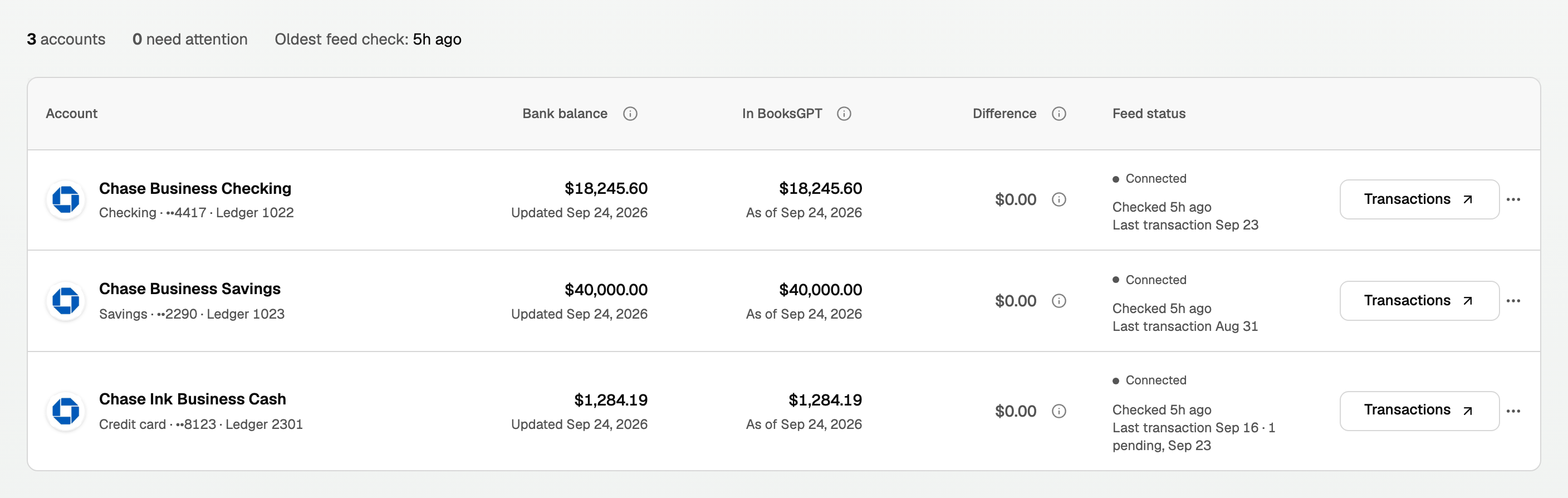
- On Banking, each account says how current it is. Under Feed status, Checked 5h ago means BooksGPT has everything your bank had shared when it was last reached. The line under it is your newest transaction, plus any charges still pending at the bank.
- Bank balance is what your bank reports, In BooksGPT is the same account in your books, and Difference is $0.00 when the two agree. Right after connecting it often is not, because the money in the account before your first imported day is not in your books yet. Click the amount to see why, or see Set an account's opening balance.
If you imported your books first
Books imported from QuickBooks, Wave or a General Ledger file already hold your past bank transactions, and the new feed can send some of the same ones again. BooksGPT holds back each one that matches, so the same money is never counted twice.
- When BooksGPT asks Is this a bank account already in your books?, pick Use existing beside the imported account. The feed then adds to that account instead of starting a second one.
- If the account's row on Banking shows possible duplicates, click Review duplicates.
- Under Already in your books, each bank transaction sits beside the imported one it matches. Click Confirm duplicate, or tick Select all and click Confirm 2 as duplicates (with your count).
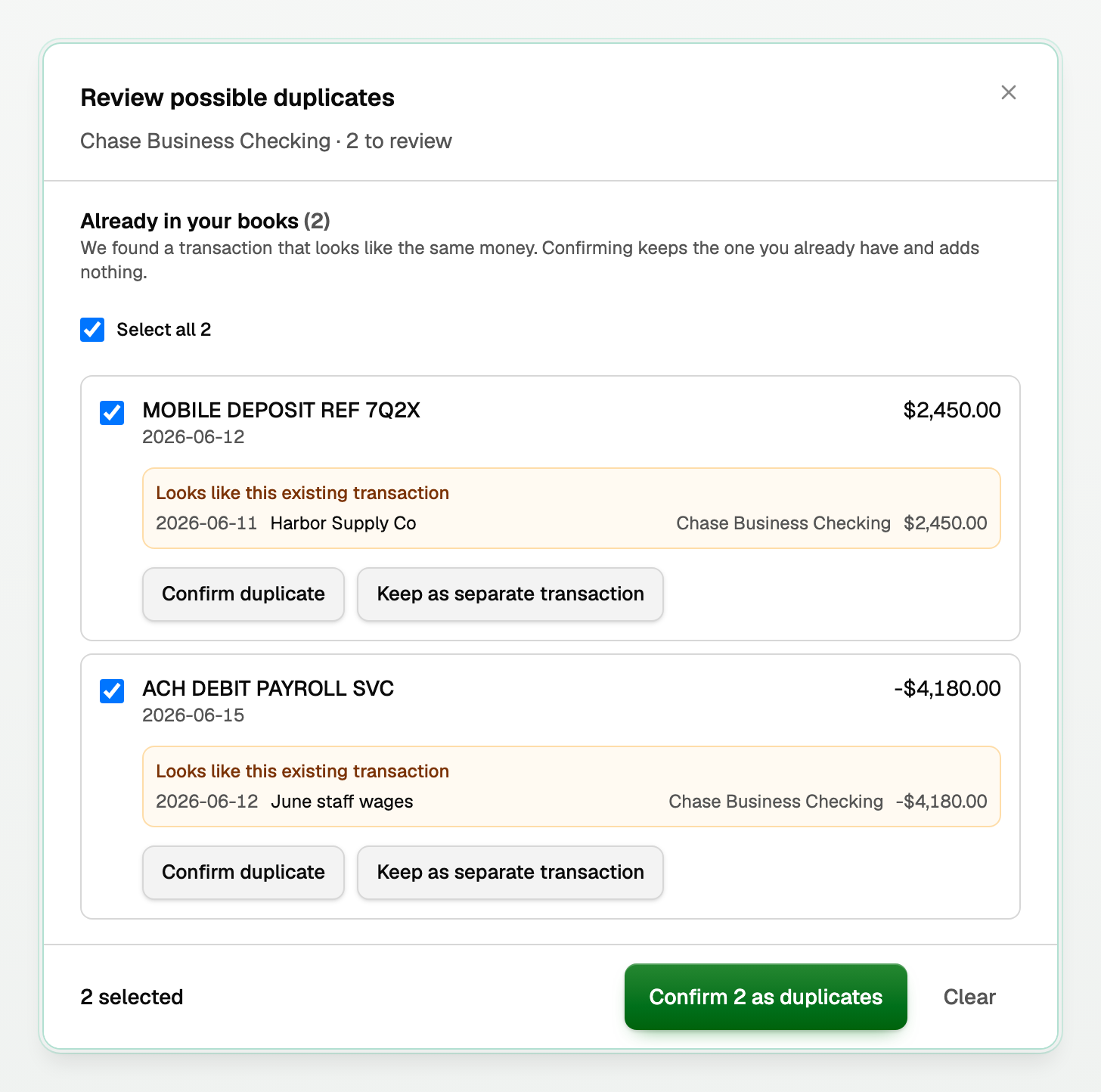
BooksGPT keeps the imported transaction, with its category, and adds nothing. Your balance does not change.
In Review inbox, a bank transaction dated inside your imported history waits on the On hold tab, and Approve & post all skips it. Check your books for it first. If it really is missing, click Post anyway… on its row, then Post it anyway.
The other kinds of possible duplicates are covered in Fix a bank connection.
If something goes wrong
- BooksGPT says the account is already in this workspace. Go to Banking instead of connecting again. If the account shows Connection issue, click Reconnect. Otherwise it is already working.
- You closed the import choice by mistake. The account waits on Banking with Finish import. Click it to choose how to bring in the transactions.
- You cannot find your bank or card. Cards are listed by the bank that issues them, not the brand on the card, so search for the issuer. If it still will not connect, see My bank is not supported, or will not connect. You can also bring transactions in from a file: open All pages, then under Setup click Import.
- Chart of accounts shows One bank account, two ledger accounts. That happens when you connect a bank first and import QuickBooks later. See Merge a duplicate bank account.
- An account later shows Feed delayed or Connection issue. See Fix a bank connection.
Updated on: 16/10/2026
Thank you!