
How BooksGPT connects to your bank, and how much history you get
A bank connection is a secure, read-only link: BooksGPT can see your transactions and balances, so your books stay current without typing, and it can never move money. The link runs through one of two providers, and your bank decides how much history it shares through each. Anything older than that comes in from a statement or a file instead.
The two providers
- Stripe Financial Connections, marked Recommended. Connects to over 12,000 US banks and credit unions.
- Plaid, which QuickBooks and many finance apps use. It reaches further back in history at most banks.
You do not have to pick before you start. Before any window opens, the Connect a bank page shows which provider it will use.
"Link" is a sign-in screen, not a payment service
When you connect through Stripe, the secure window is branded Link. That is Stripe's name for the screen where you sign in to your bank and choose which accounts to share.
BooksGPT receives transaction history and balances. Nothing else.
How much history you get
Your bank decides how far back it will share. The provider sets the ceiling, and the bank sets the real number underneath it.
Through Stripe:
- Most banks share up to about 6 months. Chase, Wells Fargo, Citibank and KeyBank all give the full 6 months.
- Some card issuers share only about 90 days.
Through Plaid:
- Most banks share 1 to 2 years. American Express gives well over a year.
- Capital One stops near 90 days. That limit is Capital One's own, so no provider gets past it.
If you need more history than your bank will share, upload a statement or a CSV instead. Open All pages in the left sidebar, then under Setup click Import. Under Other ways in, click Upload a statement or Upload transactions.
Choose the provider for your workspace
Only the workspace owner or a bookkeeper sees this setting.
- Open All pages in the left sidebar, then under Daily work click Banking.
- Above the account cards, under Default connection provider, pick Stripe Financial Connections or Plaid. It saves right away.
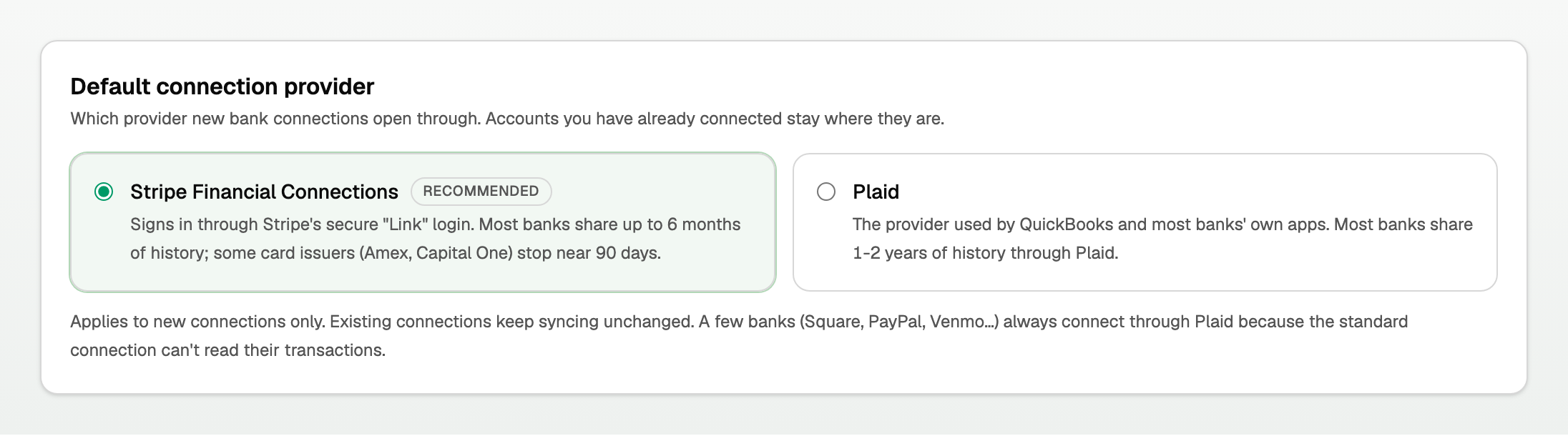
- The choice applies to new connections only. Accounts you already connected keep syncing as they are.
- The Connect a bank page names the provider new connections use. If you can change it, a Change link there opens this card.

Banks that always use Plaid
Some banks share little or nothing through Stripe, so the search on Connect a bank always connects them through Plaid, whatever your setting says. They include:
- Square Checking, Shopify Balance, PayPal, Venmo and Cash App
- Mercury and Novo
- American Express and Capital One
Connect these from Banking: click Connect a bank and search for the bank there, and BooksGPT routes it to Plaid. The Bank feed button on Home, the bank step when you first set up BooksGPT, and the connect button in a personal workspace open your default provider straight away, so do not use them for these banks.
Bring in more history after you connect
If you chose a short range when you connected, you can reach further back later, up to the bank's limit. The workspace owner or a Client can do this.
- Open All pages in the left sidebar, then under Daily work click Banking.
- On the account's row, open the three-dot menu and click Import more history. If an account brought in nothing because its transactions are older than the range you chose, the Import more history link beside it opens the same window.
- Click the Import from date and pick an earlier start. It begins at the earliest date your bank shares: about 6 months back through Stripe, about two years through Plaid.
- Click Import more history.
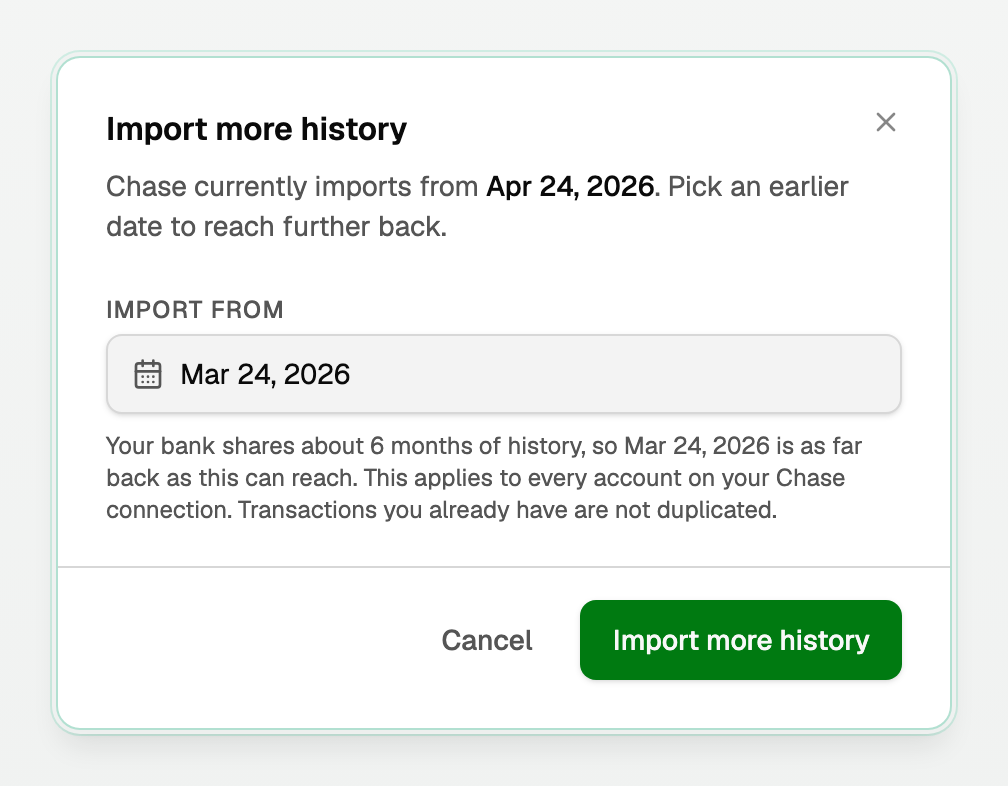
What happens next:
- It applies to every account on that bank's connection.
- Transactions this connection already brought in are not added again.
- One that matches a transaction from imported books (QuickBooks, Wave or a General Ledger file) or a file you uploaded waits on Banking as a possible duplicate. See Connect your bank account for how to clear them.
- Check any months you typed in by hand. A transaction worded differently from the bank's can come in twice.
- The older transactions come in as the bank sends them, and wait in Review inbox for a category, like any new bank transaction.
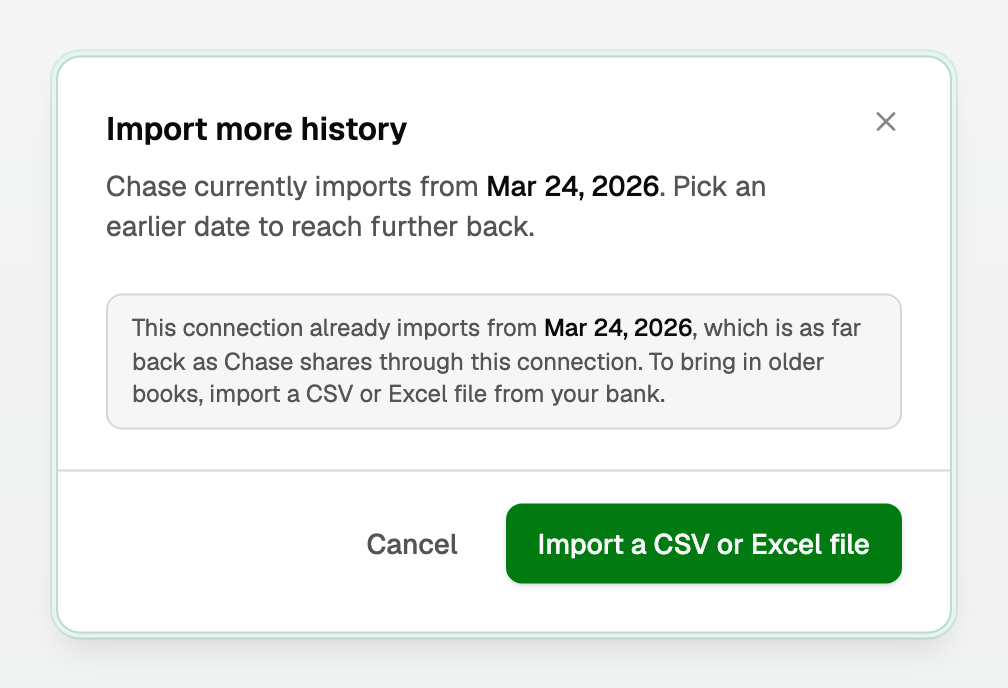
If the connection already reaches as far back as the bank allows, the window has no date to pick and offers Import a CSV or Excel file instead. See Import a CSV from any bank or app.
How many banks can I connect?
There is no per-bank fee, and one connection covers every account you share at that bank. Paid plans have no limit on banks; some trials allow three. For the details by plan and trial, see What counts as a bank connection, and what each plan includes.
If your bank will not connect at all, see My bank is not supported, or will not connect, or Fix a bank connection for one that stopped syncing.
Updated on: 17/10/2026
Thank you!