
Fix a bank connection
A bank feed works because your bank lets BooksGPT read your account through the secure sign-in you gave when you connected. Banks end that sign-in now and then, after a password change, a new security step or an expired permission. Until you sign in again, nothing new arrives and your books fall behind your bank.
Find the problem on Banking
Open All pages in the left sidebar, then under Daily work click Banking. Any account that needs you is listed under Needs attention, with a line that says what is wrong.
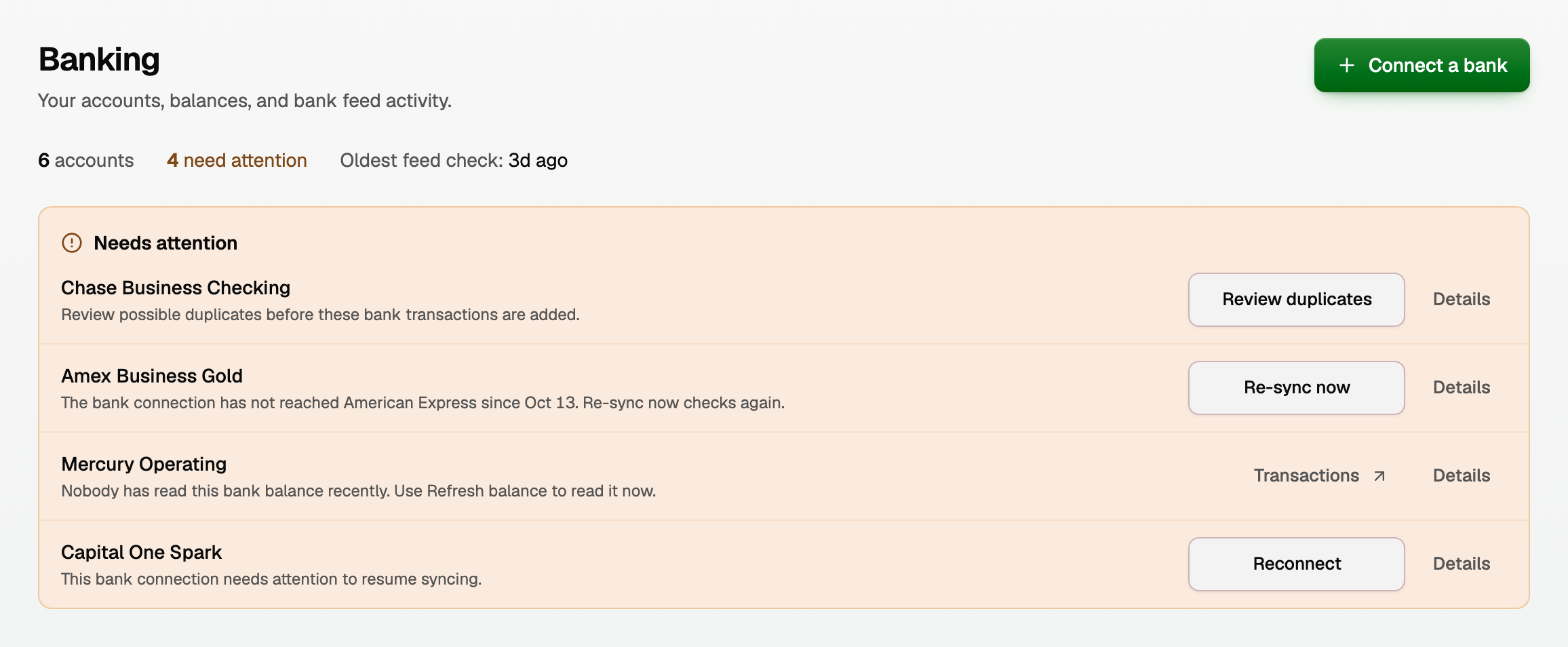
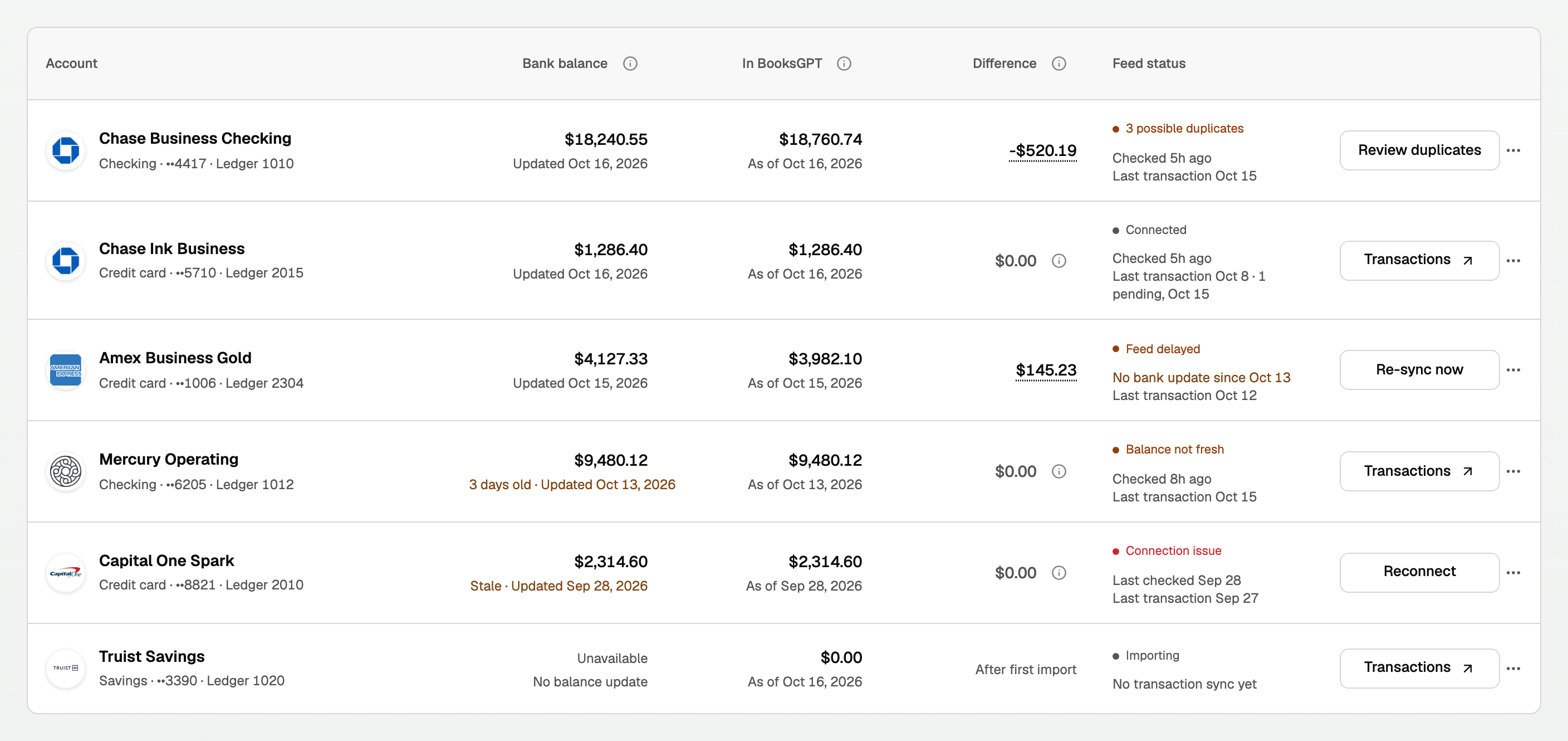
The status under Feed status says what is going on:
- Connection issue: your bank needs a new sign-in. See "Reconnect your bank".
- Feed delayed: BooksGPT could not confirm the account is up to date. See "New transactions are late".
- possible duplicates, with a count: see "Review possible duplicates".
- Balance not fresh: the transactions are fine; the balance is old. See "The bank balance is out of date".
- Finish import: click Finish import and choose how to bring in the first transactions.
- Importing: the first batch is still coming. Some banks take a few minutes.
- Possible coverage gaps: some dates may be missing. See "Older transactions are missing".
- Not syncing: the connection was replaced or closed. Nothing to fix.
Reconnect your bank
- Click Reconnect on the account's row.
- Sign in to your bank in the secure window.
- If this bank login also feeds another BooksGPT workspace, choose every account it holds. Leaving one out can stop the other feed.
The account, its ledger account and its history stay as they are, and the feed fills in what it missed. Nothing is duplicated.
A Feed delayed account sometimes shows Reconnect instead of Re-sync now. That means only a new sign-in can fix it.
New transactions are late
A quiet account is not a broken one: a card you did not use this week has nothing to send. Look at Checked under Feed status, not at the last transaction.
When an account says Feed delayed:
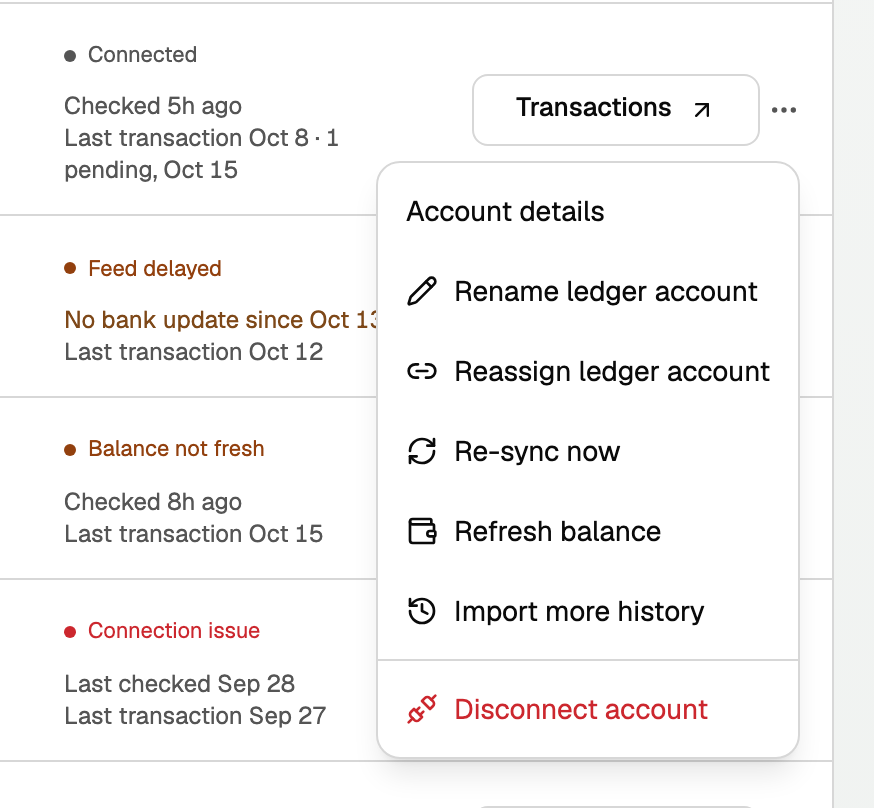
- Click Re-sync now on the row, or in its three dots menu. The button changes to Check status.
- After a minute or two, click Check status. BooksGPT says what your bank sent back.
- A charge still pending at the bank comes in when the bank posts it.
- Re-sync now checks for transactions only, not the balance.
- Still Feed delayed a day later? Message us from the chat bubble.
Older transactions are missing
Some banks share only a few months of history at first.
- Open the account's three dots menu and click Import more history.
- Under Import from, pick an earlier date. The dialog says how far back your bank shares.
- Click Import more history.
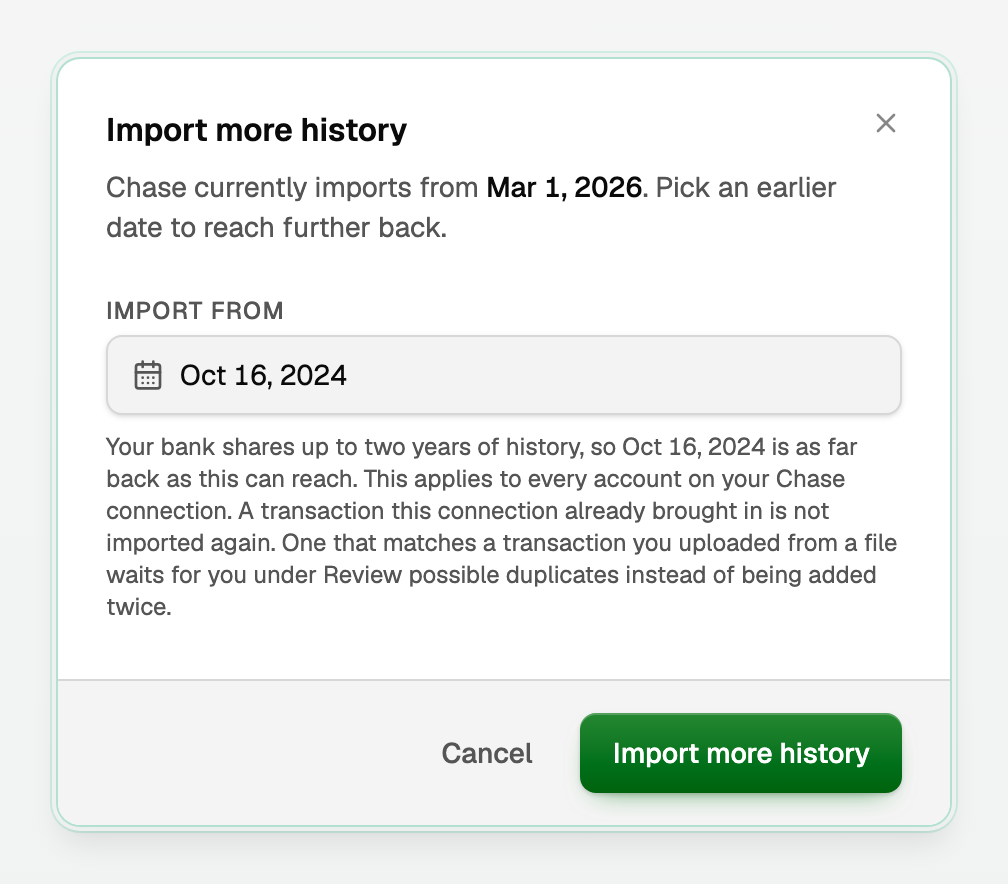
It covers every account on that bank connection, and nothing comes in twice.
- Older than your bank shares? See Upload a bank statement.
- A gap in the middle? If an account shows Possible coverage gaps, or its Difference is not $0.00, see Fill a possible gap in bank history.
Review possible duplicates
When a bank transaction might already be in your books, BooksGPT holds it back so the same money is not counted twice. Click Review duplicates and decide each one:
- Already in your books: it looks like a transaction you have, shown beside it. Confirm duplicate keeps yours and adds nothing.
- Covered by history you imported: it matches your imported books. Select them and click Keep the imported copy.
- Not in your books yet: nothing matches. Keep as separate transaction adds it to your books, ready for a category.
- Removed by your bank: the bank stopped listing it after it reached your books. If your balance is right, click Dismiss. If it should come out of your books, exclude it in Transactions first.
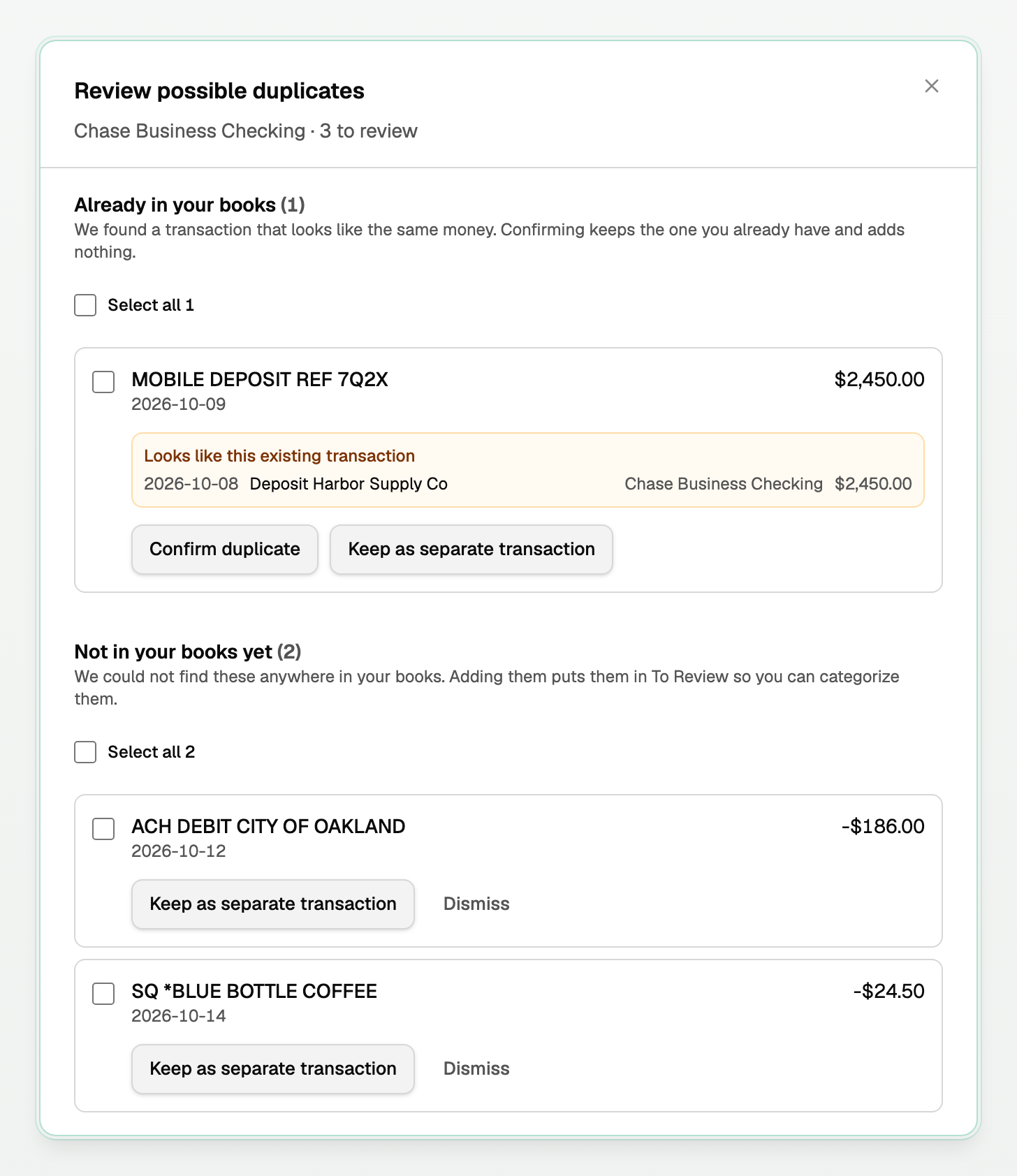
Dismiss adds nothing and takes nothing out. A row under Not in your books yet can be dismissed too, but then that money never enters your books: do it only if the money is already there another way, such as your opening balance. BooksGPT asks you to confirm. To undo one, click Put back under Dismissed at the bottom of the dialog.
The bank balance is out of date
Under Bank balance, each account says when its balance was last read. Amber means old:
- 3 days old, or a similar age: open the three dots menu and click Refresh balance. If it is not there, the balance updates on its own. Do not reconnect.
- Stale: the balance stopped updating. If the row says Connection issue, reconnect it. If it says Balance stale, open the three dots menu and click Account details to check the connection.
The feed posts to the wrong account
Each bank feed posts to one account on your chart of accounts. If a feed landed on a new account when you already had one for that bank, move it:
- Open the account's three dots menu and click Reassign ledger account.
- Under Post transactions to, pick the right account. BooksGPT says how many transactions move with it.
- Click Reassign. If two feeds are on each other's accounts, click Swap ledger accounts.
The feed and its transactions now sit on that account. If an empty account is left, see Merge a duplicate bank account.
Stop syncing an account
Open the three dots menu, click Disconnect account, keep Disconnect this account and keep its history selected, and click Disconnect account.
Still stuck? Message us from the chat bubble and we will look at the connection directly.
Updated on: 16/10/2026
Thank you!