
My bank is not supported, or will not connect
BooksGPT connects to over 12,000 US banks, but a few will not appear or will not link. Here is the order to work through.
1. Search, do not scroll
The tiles on the connect page are shortcuts, not the whole list.
- Open All pages in the left sidebar, then under Daily work click Banking.
- Click Connect a bank.
- Type your bank into Bank or card issuer.
If nothing matches, you will see Search the full bank directory. Click Search all institutions to search the complete directory inside the secure window. Most "missing" banks are found here.

2. Some accounts use a different secure provider
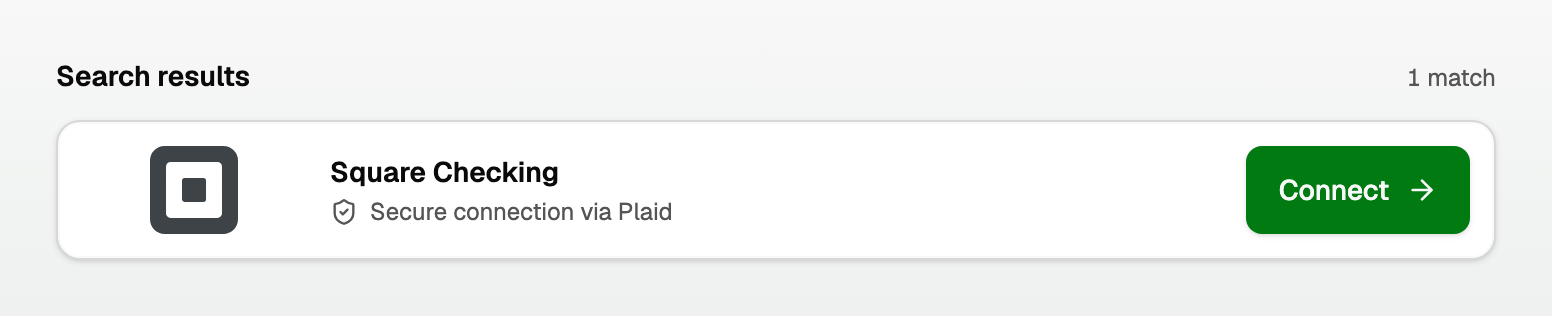
Square Checking, Shopify Balance, Venmo, and Cash App do not work well on the standard connection, so we route them to a second provider automatically. You do not have to pick.
The result row tells you which one is about to open.
3. If the connection fails
The error panel gives you the next move:
- Retry connection. Banks time out. A second attempt often works.
- Try Plaid instead. Offered when the standard connection failed.
- Upload a statement. Skips the live feed entirely.
Also worth checking:
- We support US checking, savings, and credit card accounts. Loan, investment, and merchant accounts often will not link.
- Business accounts sometimes need the primary login, not a bookkeeper login.
4. CSV always works
No bank feed can stop you using BooksGPT. Every bank lets you download a CSV statement.
- Open All pages, then under Setup click Import.
- See "Import a CSV from any bank or app" for the columns we need.
Your books, reports, and reconciliation all work exactly the same on imported transactions.
Ask us to add your bank
Email support@booksgpt.ai with the bank's full name and website. Send the CSV route in the same breath so you are not blocked while we look at it.
Some banks (Square Checking, Shopify Balance, PayPal, Venmo, Cash App) always connect through Plaid, and BooksGPT does that for you. See "How BooksGPT connects to your bank, and how much history you get".
Updated on: 16/10/2026
Thank you!