
Review the inbox and file Uncategorized transactions
When a bank transaction arrives, BooksGPT usually puts the money in Uncategorized Income or Uncategorized Expense and suggests a category for it. The Review inbox is your to-do list: you check each suggestion and approve it, and the money moves to the account it belongs in. A few minutes a week keeps your profit and loss accurate.
How BooksGPT picks its suggestions, and how to turn AI up or down, is in How automatic categorization and review work.
Open the inbox
Open All pages in the left sidebar, then click Daily work and Review inbox. It has four tabs:
- Ready to post: a category is already chosen, by BooksGPT, a rule or you. Check it and approve.
- Needs a category: nobody has chosen one yet.
- On hold: these might already be in your books, so you decide.
- Posted: what you have approved.

Approve rows that are ready
- Open Ready to post.
- Check the category on each row. A green sparkle means BooksGPT suggested it. To change it, click the category and pick another account.
- Click the green circle at the end of the row. It fills solid green once the row is posted.
- To approve many at once, click Approve & post all. Or tick some rows and click Approve & post N selected.

A $0.00 row has no money to post, so its circle simply marks it reviewed.
Choose a category
- Open Needs a category.
- On a row, click Choose a category and pick the account. Your recent picks are at the top. To let BooksGPT pick, choose Ask BooksGPT to suggest one. To add an account, choose New category at the bottom of the list.
- Click the green circle to approve the row.
To work on many rows, tick them first. Set category gives them all the same account, and Suggest categories asks BooksGPT to suggest one for each. Then click Approve & post N selected.
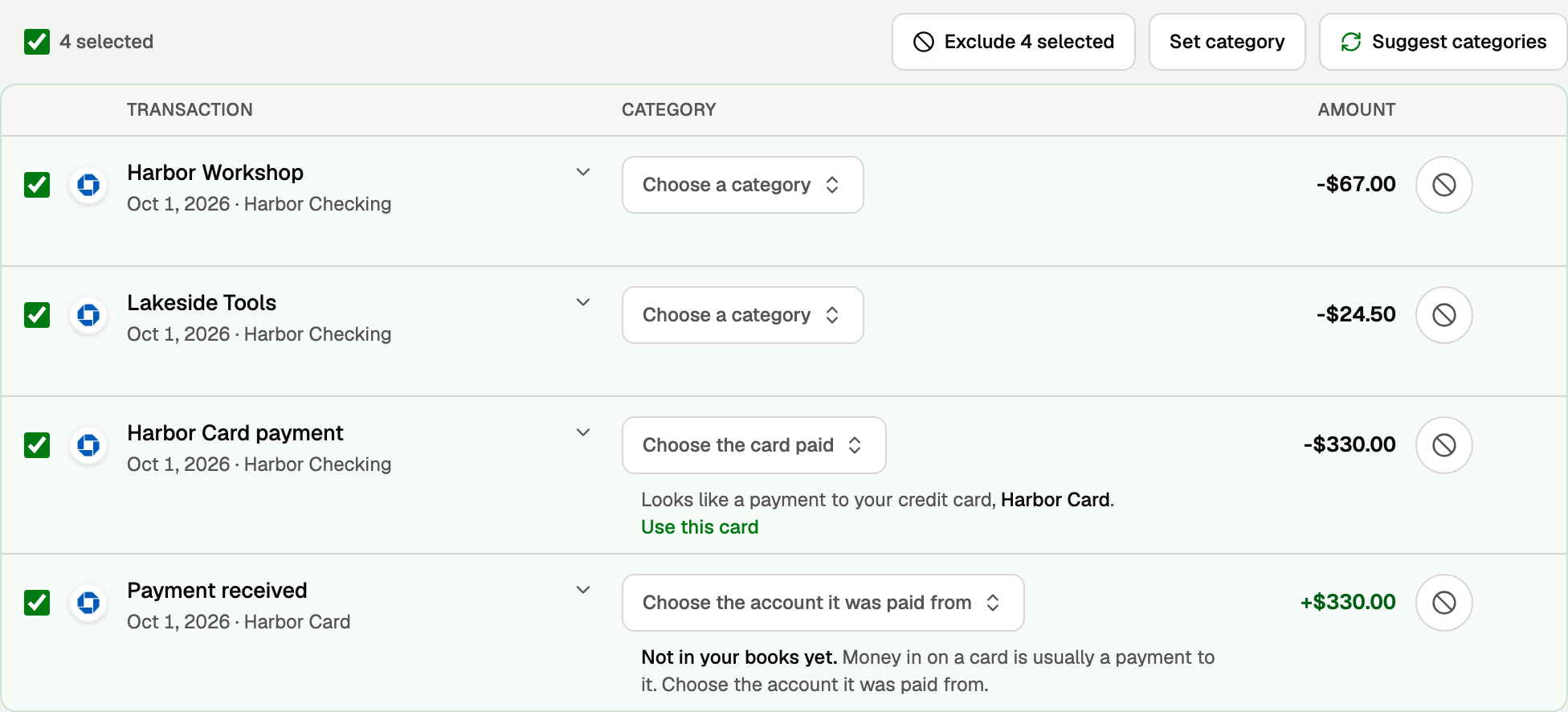
A payment to one of your credit cards is not an expense, so its row asks for the card instead. Click Use this card when BooksGPT recognizes it, or pick one from Choose the card paid. That records a transfer from your bank to the card. See Transfers, credit-card payments, and owner draws.
When you change a category and approve, BooksGPT may ask Remember this choice. Click Remember to file that merchant the same way from now on, or Not now to skip it. See Categorization rules: teach it once.
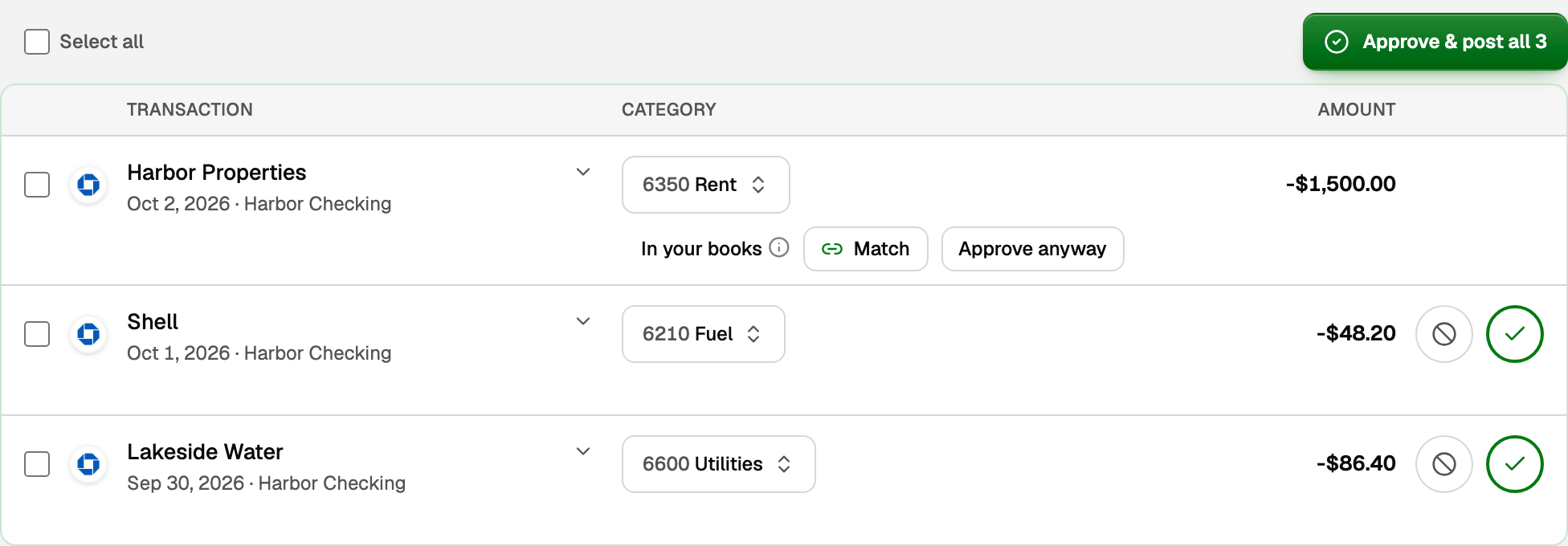
A row that says In your books
The money on this row is already recorded: you entered the payment or deposit, or a recurring entry posted it. Approving the row as well would count the money twice.
- Click Match to tie the bank row to the entry you already have. Nothing new is posted.
- Click Approve anyway only if this really is a separate payment. BooksGPT asks you to confirm first.
Hover the info icon to see what recorded the money, and when. Approve & post all leaves these rows for you.
Exclude a row that does not belong
Excluding takes a row out of your books, so its money counts on no report. Use it for a row that should not be there at all, such as a second copy of a charge you already have. A real personal purchase on a business card still belongs in your books, as an owner draw.
- On a row in Ready to post or Needs a category, bank or credit card, click the circle with the ban sign, left of the green circle.
- For several rows, tick them and click Exclude N selected.
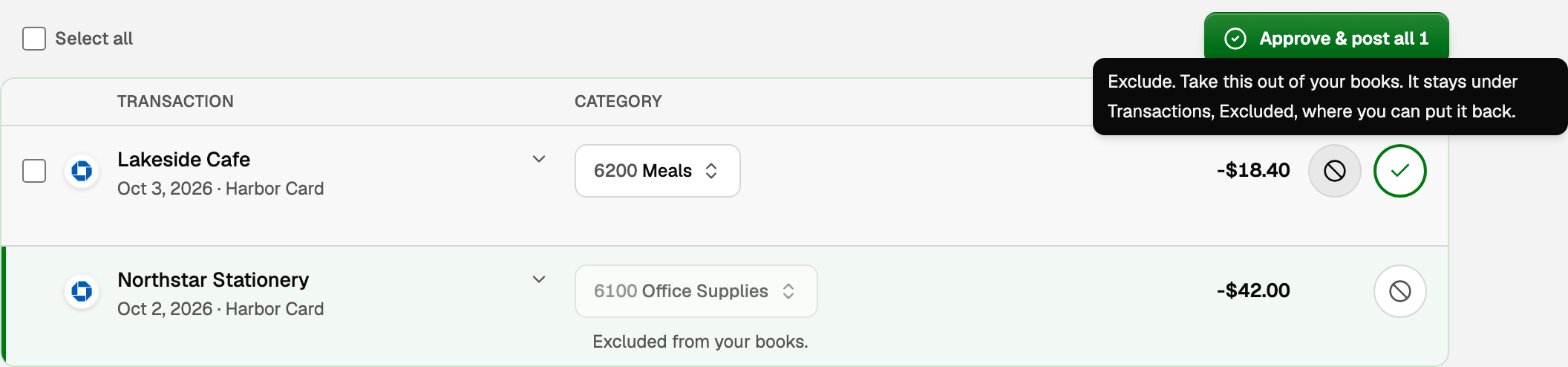
To put one back after you leave the page, find it in Transactions under Excluded, open it and click Put back in review.
On hold: possible duplicates
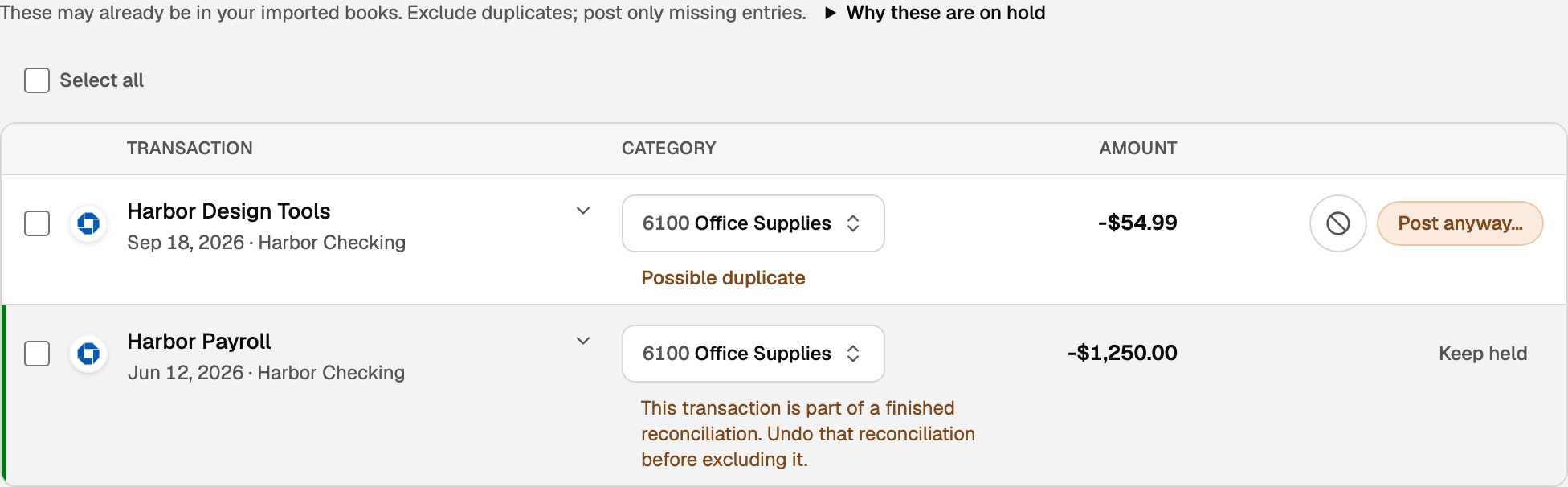
These rows might already be in your books, from books you imported or an account's opening balance. Open Why these are on hold for the details, then decide each row:
- It is already in your books. Exclude it with the ban circle, or tick several rows and click Exclude N selected.
- It is really missing. Click Post anyway… on the row. For several, tick them, click Review N to post, tick each one you checked, and click Post N checked anyway.
Undo
Hover the circle of a row you posted or excluded, and click it to undo. On a phone, tap it twice. The bar at the bottom of the page offers Undo all for everything you did on this visit.
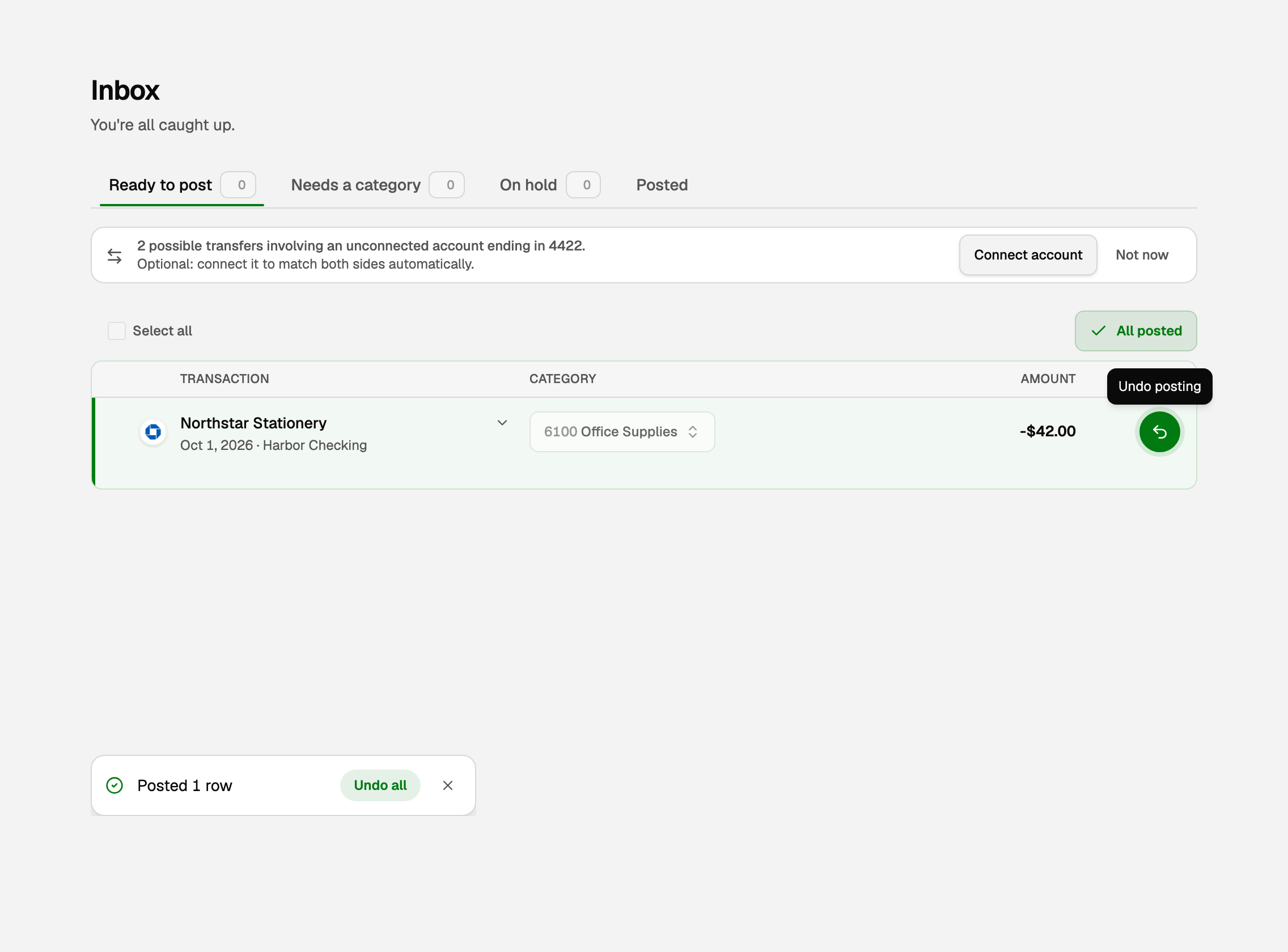
Undo works while you stay on the page. To change a row later, open it in Transactions: see Fix or change a transaction's category.
What your books say
- An approved row's money moves from Uncategorized to the account you chose, and your profit and loss shows it there. Most rows were already in your bank balance when they arrived, so approving does not change it. A row you post from On hold counts for the first time.
- A matched row counts once, on the entry you already had.
- An excluded row counts on no report until you put it back.
If something goes wrong
- Some rows did not post. They stay ticked, and BooksGPT says why on the page. A common reason is a date in a period you closed.
- A row cannot be excluded. When you click its ban circle, the reason shows under the row, for example a finished reconciliation that includes it.
Updated on: 17/10/2026
Thank you!