
Categorization rules: teach it once
A rule is a standing instruction: whenever a bank transaction looks like this, file it here. Most businesses pay the same places every month: a gas station, a software plan, a supplier. With a rule you choose the category once, and the same spending always lands in the same account, so your profit and loss stays consistent.
A rule can fill in a category, a vendor, a customer, or any mix. When a transaction arrives, BooksGPT runs your rules before AI suggests anything. Payments to your credit cards and transfers it can match between your accounts are the exception: they are recorded as transfers, and no rule touches them. How automatic categorization and review work explains the whole order.
To see your rules, open All pages in the left sidebar, then click Accounting and Categorization rules.
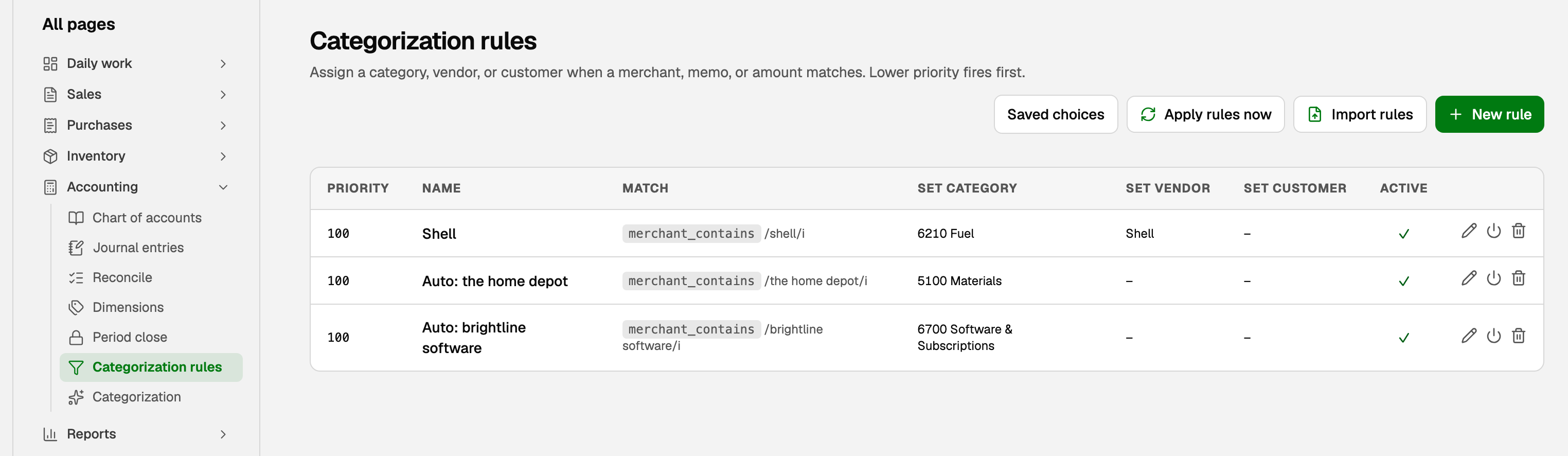
Create a rule
- Click New rule.
- Give it a Name you will recognize, such as Shell.
- Choose a Match type, then fill in what the rule looks for:
- Merchant contains: a word or phrase from the merchant name or bank description, such as shell. Capital letters do not matter. Most rules use this.
- Amount equals or Amount range: one exact amount, or a Min and Max.
- Memo regex: a text pattern, for advanced users.
- Fill in at least one of Set category, Set vendor and Set customer.
- Check the count under the fields: how many waiting transactions the rule would match. If it is 0, or far more than you expect, change the text it looks for.
- Click Save rule.
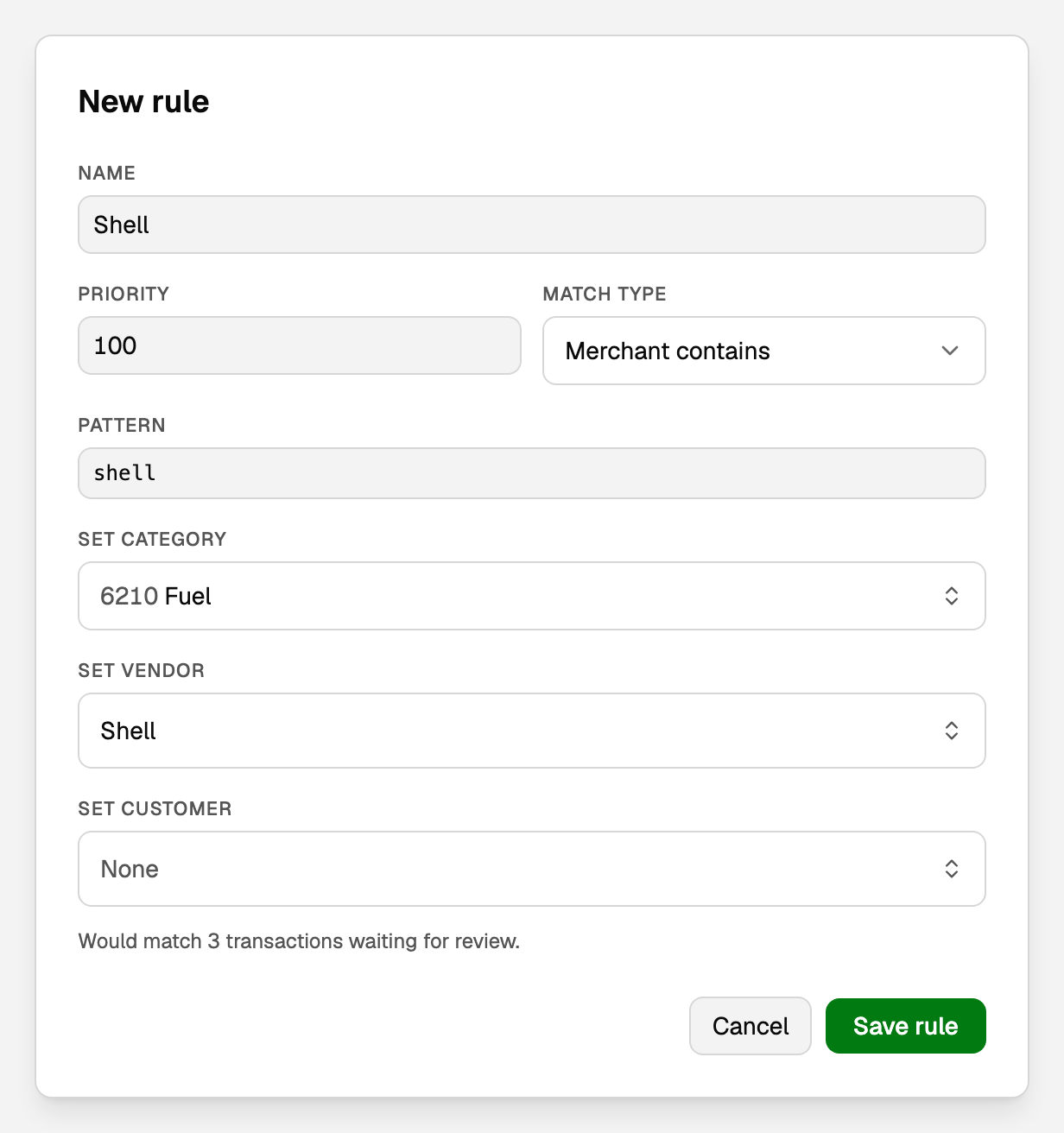
Leave Priority at 100 unless two rules could match the same transaction. Lower numbers run first, and the first rule that matches files the transaction.
To edit a rule, click the pencil on its row. The power icon switches it off, and the trash can deletes it.
Let BooksGPT write the rule for you
The quickest way to make a rule is to correct a category. When you change a category and approve the transaction in Review inbox, or pick a category on Transactions, BooksGPT asks Remember this choice.
- Remember saves it as a rule. Also file those N now, when shown, also files that merchant's waiting transactions that have no category. Untick it to leave them.
- Edit rule… lets you change the bank text it looks for, keep it to money going out (or coming in), and add a vendor or customer.
- Not now skips it.
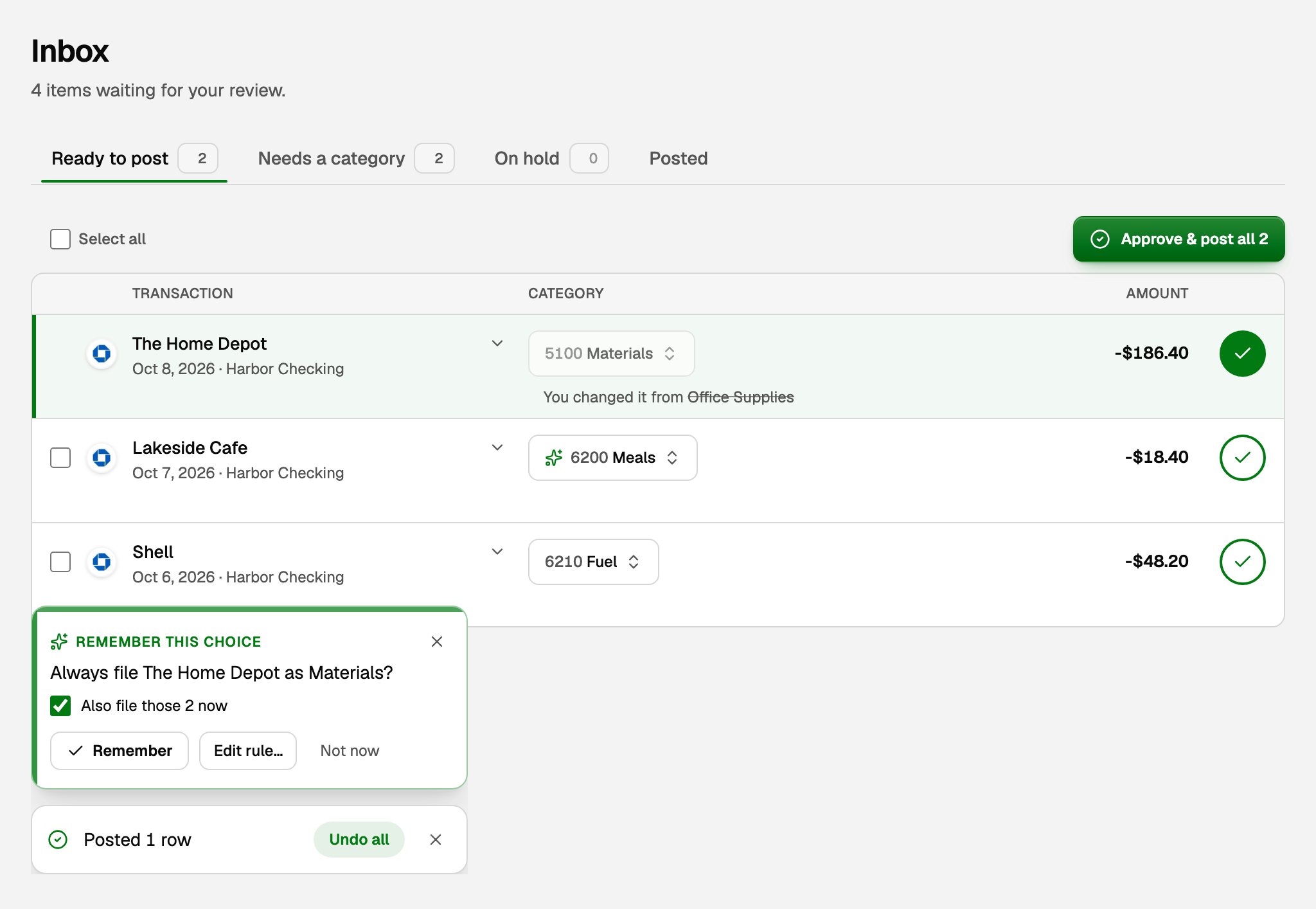
A remembered rule appears on the rules page named Auto: plus the merchant. BooksGPT does not offer one for a credit card payment, a transfer, or a bank line with a one-off reference that will never repeat.
If one of your rules already files that merchant differently, the note says so and lets you pick: Add a new rule just for this merchant, Change your rule, or Keep mine.
A question you leave unanswered waits under Saved choices on the Categorization rules page.
Copilot also suggests rules for merchants you keep filing the same way. Click Accept or Dismiss. Accept adds nothing if a rule already covers that merchant or the category was removed, and the card says so.
Apply rules to transactions already waiting
Rules file new transactions as they arrive from a bank connected with Import + AI categorize. A bank set to Just import files nothing automatically, rules included. To run your rules on transactions already waiting for review:
- On the Categorization rules page, click Apply rules now.
- Read the list: each rule, how many transactions it would file, and where they would move.
- Choose what your rules may replace:
- Transactions with no category yet are always filled in.
- Re-file N transactions BooksGPT guessed is ticked, because your rules win over AI suggestions.
- Re-file N transactions you categorized yourself is unticked, so your own picks stay unless you tick it.
- Click File N transactions.
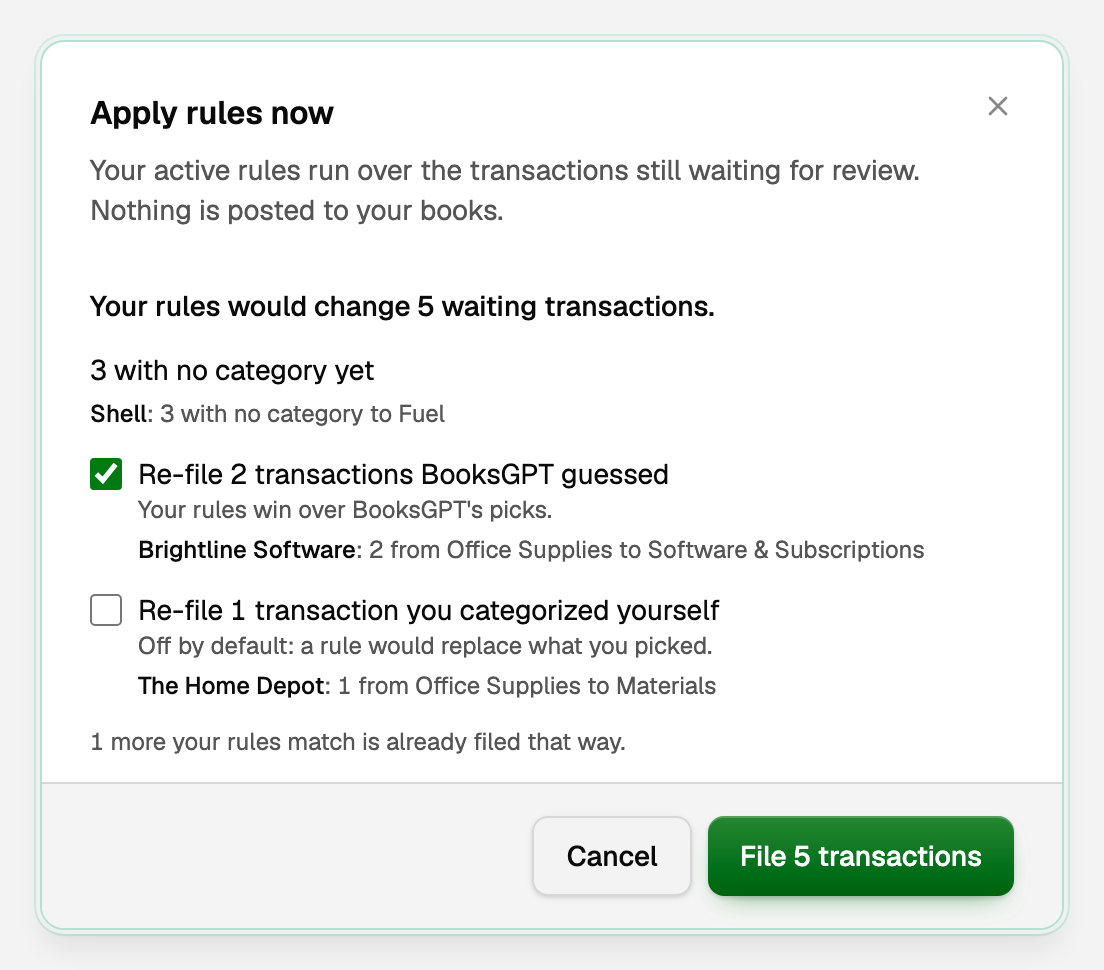
It runs only your rules, never AI, and posts nothing: the transactions still wait for your approval.
Import rules from a spreadsheet
To add many rules at once:
- Click Import rules.
- Click Download template for a starter sheet. Its columns are Rule name, Match text, Money in or out, Category, Vendor and Customer.
- Paste rows from your spreadsheet, or click Choose a file for a CSV or Excel file.
- Tick Create vendors and customers that aren't in BooksGPT yet if your sheet names some you have not added.
- Click Preview. Each row says whether it will import, or why not.
- Click Import N rules.
See or forget what BooksGPT remembers
Click Settings at the bottom of the left sidebar, then AI preferences. Under Choices BooksGPT remembers, each one shows what it files, who added it and how many transactions it has filed.
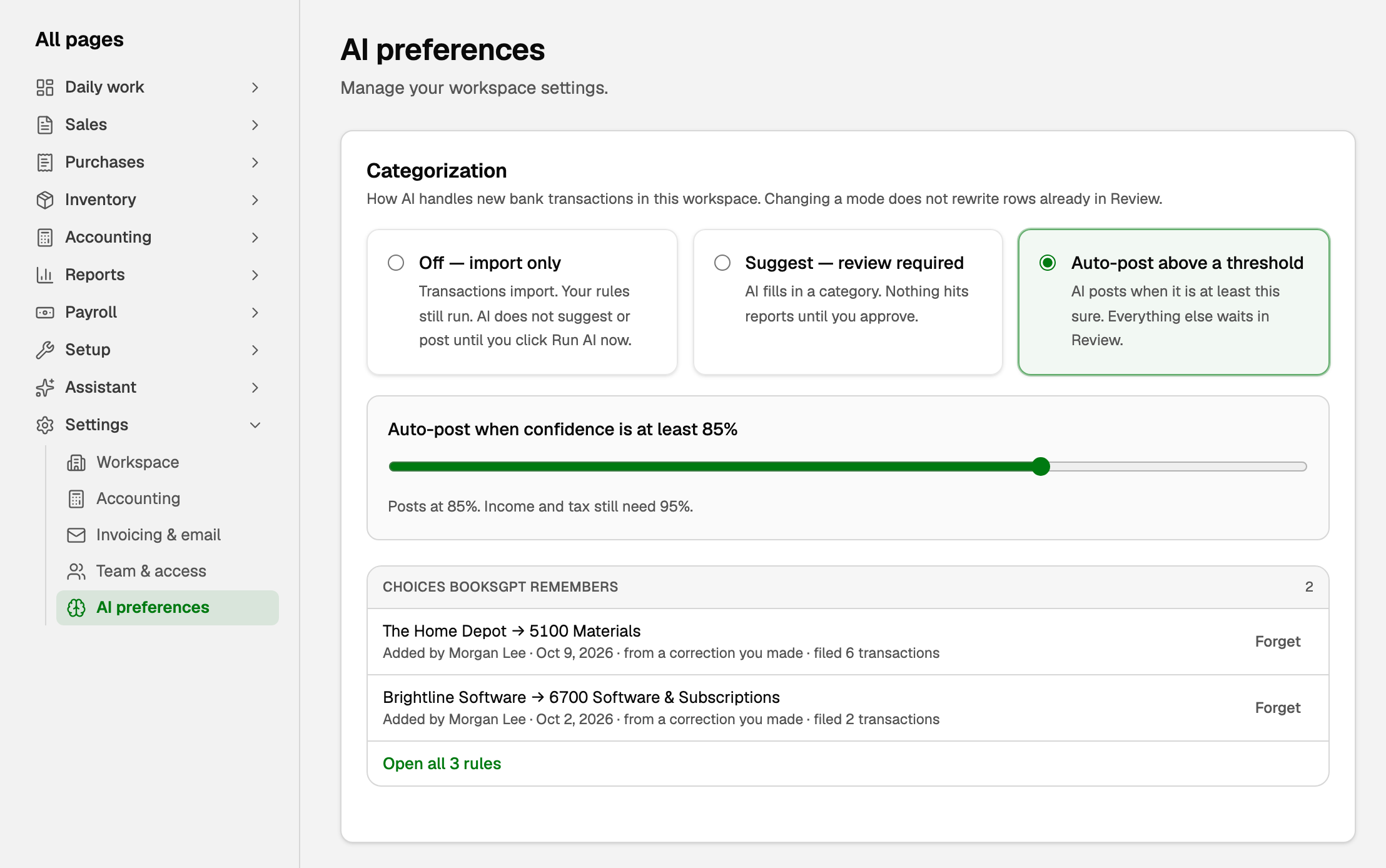
To stop one, click Forget. Approved transactions keep their category. For ones still waiting, you can tick a box to clear their category so you choose again. This changes nothing in your books, because a waiting transaction is not yet posted to its category.
Choices you answered Not now are under Choices you said no to. Ask again puts one back in Saved choices.
What your books say
A rule only chooses the category. You still approve the transaction, and approving is what posts it. Say your Shell rule sets Fuel:
- When a $48.20 Shell charge arrives, it shows under Ready to post in Review inbox with Fuel and the vendor Shell already chosen. Until you approve it, the $48.20 sits in Uncategorized Expense.
- When you approve it, the $48.20 moves from Uncategorized Expense to Fuel on your profit and loss.
Rules never change an approved transaction. To fix one, see Fix or change a transaction's category.
If something goes wrong
- A rule shows Never matches. The reason is under the tag, usually an empty Pattern. Click the pencil, fill in what it should look for, and click Save rule.
- A rule did not file a transaction. If it was already waiting when you made the rule, or its bank was set to Just import, click Apply rules now. To have a Just import bank filed automatically from now on, open Settings, then AI preferences, and click Resume AI on imports.
- The wrong rule filed a transaction. Two rules matched it, and the one with the lower Priority number ran first. Edit the rule that should win and give it a lower number.
Updated on: 16/10/2026
Thank you!