
Analyze a document with Copilot
Analyze a document
Use this for a payroll PDF or an order CSV you want Copilot to read and act on. Scanned PDFs work too. It is not the receipt door, and it is not the invoice-from-a-file door.
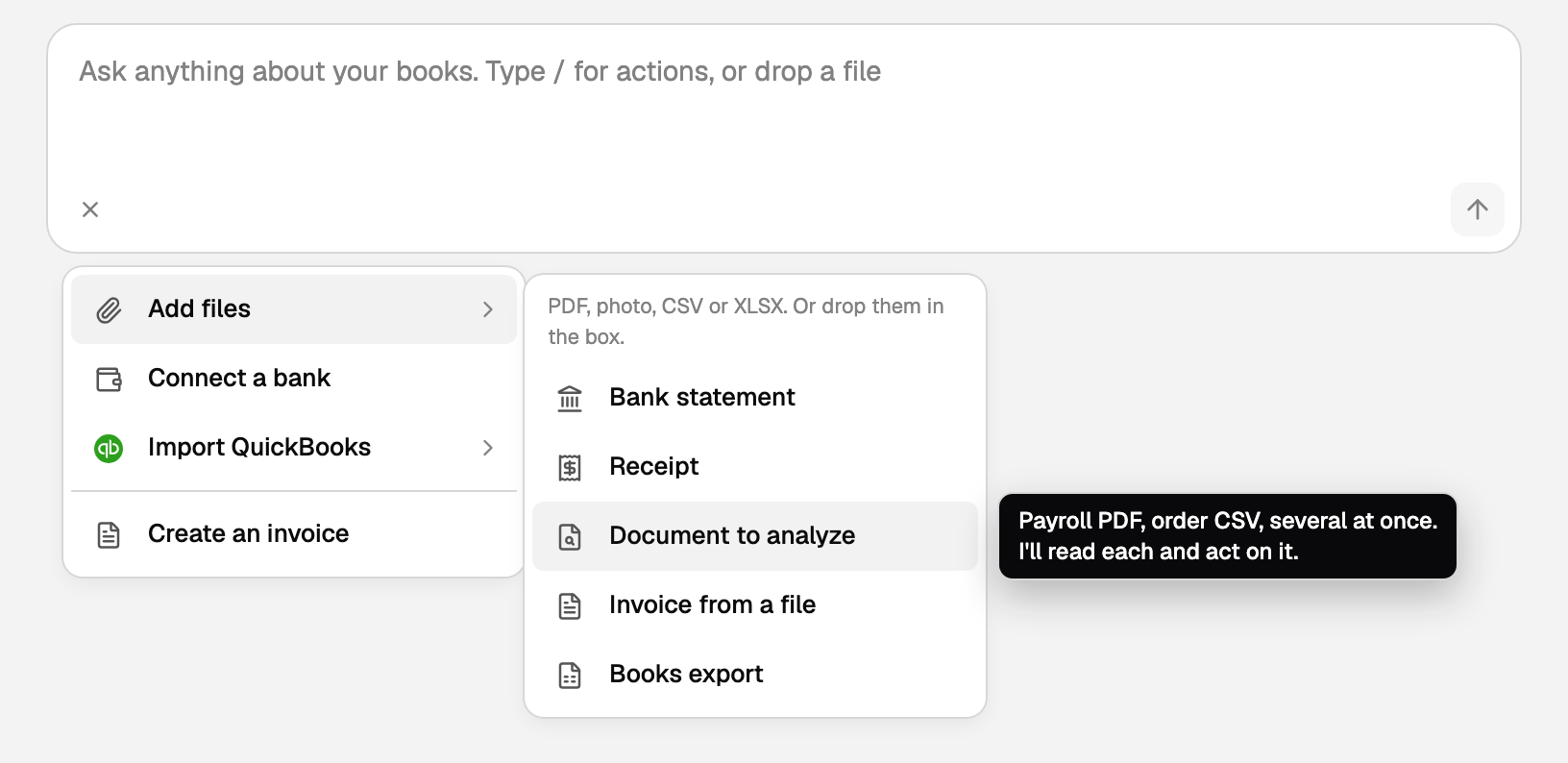
- Click the + next to the ask box. The control is labelled Add or connect. You can also type / in an empty box.
- Click Add files, then Document to analyze. Its tooltip says Payroll PDF, order CSV, several at once. I'll read each and act on it.
- Pick one or more PDF, CSV, TSV, or TXT files, each up to 8 MB.
While Copilot reads:
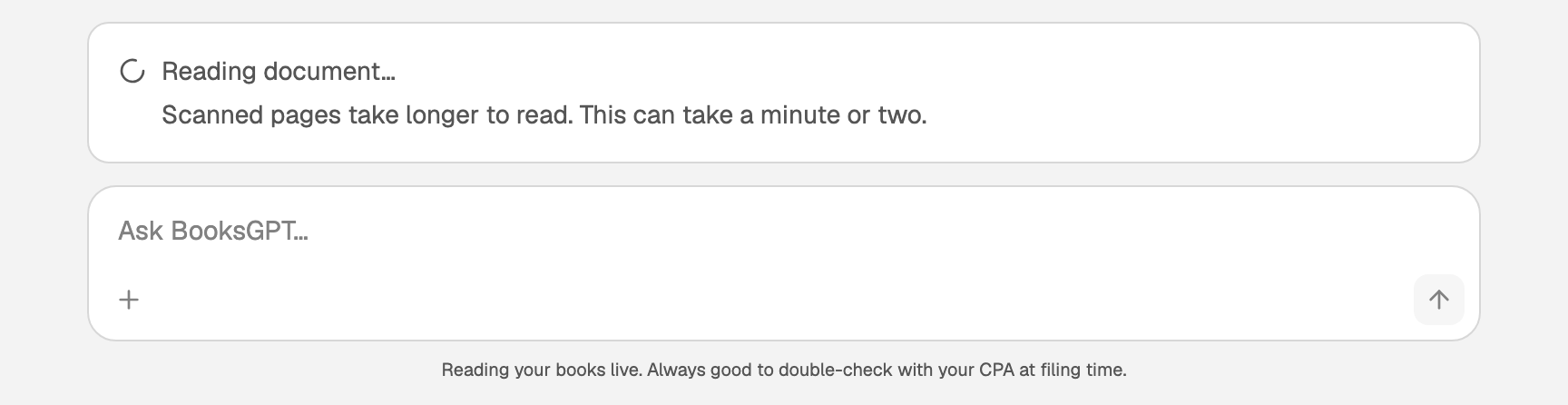
- A scanned PDF takes longer. If reading passes 20 seconds, a second line says Scanned pages take longer to read. This can take a minute or two.
- When it is done, Copilot sends one message for all the files you picked and answers it. If a reply is still running, that message waits for it to finish.
- A bank or card statement is imported, not analyzed. Its statement card says, for example, march-statement.pdf looks like a bank statement, so I am importing it as one. Finish it on that card. See "Upload a bank statement".
- If a file cannot be read, a red note above the ask box says why and what to do next.
- Leaving the chat does not stop the reading. Ask Copilot about the file later instead of uploading it again. A statement waits with the others: ask Copilot to "Finish the statements that are waiting".
A T-Cetra or VidaPay settlement
The original PDF from T-Cetra or VidaPay, where you can select the text, is a settlement statement. A scanned PDF of another document still uses Document to analyze, above.
- Document to analyze and Bank statement both stop with a red note that this is a T-Cetra settlement statement. Neither route hands the file to Settlement statements, so nothing posts from that upload. Drop the original PDF again.
- Drop it on the ask box. The card says Settlement statement. Choose Open statement.
- Or open All pages in the left sidebar, then click Purchases and Receipts. Drop the PDF where it says Drop a file here, or click to browse. Choose Open statement.
See Record a distributor settlement statement.
Other ways to add a file
Other ways in:
- A receipt, as a photo or PDF, goes through Add files, then Receipt.
- Invoice from a file, also under Add files, is for a customer invoice PDF or photo. Review stays beside the chat. See "Create an invoice draft from a PDF or photo".
- Create an invoice is the describe-it door. See "Create or send an invoice from chat".
- Bank statement, under Add files, is the bank-history door. See "Upload a bank statement".
Worked example: an Amazon order CSV
- Download the order history from Amazon as CSV.
- Click +, then Add files, then Document to analyze, and pick that file.
- Copilot matches each row's date and amount to the AMZN lines already in your bank feed (dates may sit a few days apart because of settlement).
- It then queues category changes so "AMZN Mktp" can become the real items. Approve each card. Until you do, the bank lines stay as they are. See "Approve, undo, or ask Copilot for a change".
Updated on: 30/09/2026
Thank you!