
Copilot: the basics
Copilot is the AI bookkeeper built into BooksGPT. It reads your books (transactions, invoices, bills and reports) and answers questions about them in plain language, the way a bookkeeper would if you leaned over and asked.
Copilot can also change your books when you ask. Some changes it makes right away; others arrive on a card for you to approve first. If Auto-post is on (open Settings in the left sidebar, then AI preferences), BooksGPT also files the categories it is sure of without asking.
Open Copilot
- Click Home, or the BooksGPT logo, in the left sidebar. The chat fills the page, and each visit starts a fresh chat.
- On any other page, click the round BooksGPT button at the bottom left, just outside the sidebar. Copilot opens over the page you are on.
- Earlier conversations are under Chats in the left sidebar.
- On Home, Chat and Panel at the top switch between the chat and your numbers. A personal workspace says Overview instead of Panel.
Ask a question
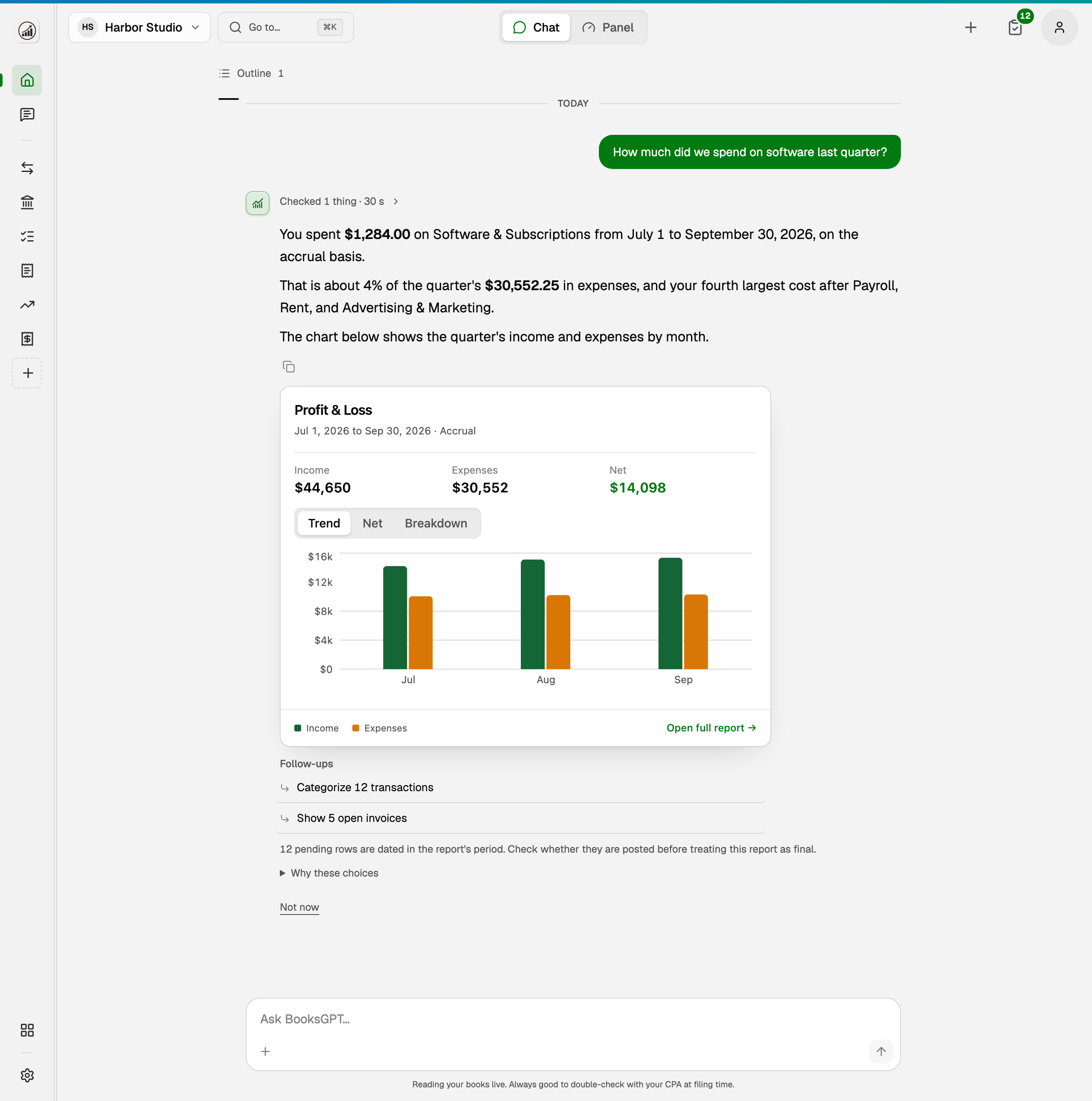
- Type your question in the box at the bottom, in your own words. For example: How much did we spend on software last quarter?
- Press Enter, or click the arrow button (Send).
- Copilot reads the parts of your books it needs. A line above the answer says how many things it checked. Click it to see what it read.
- The answer appears under your question. A question about a report often brings a chart under the answer.
Questions that make a good start:
- What was my profit last month?
- Which invoices are overdue?
- Where do I reconcile? (Copilot answers with a link to the page.)
Ask about the page you are on
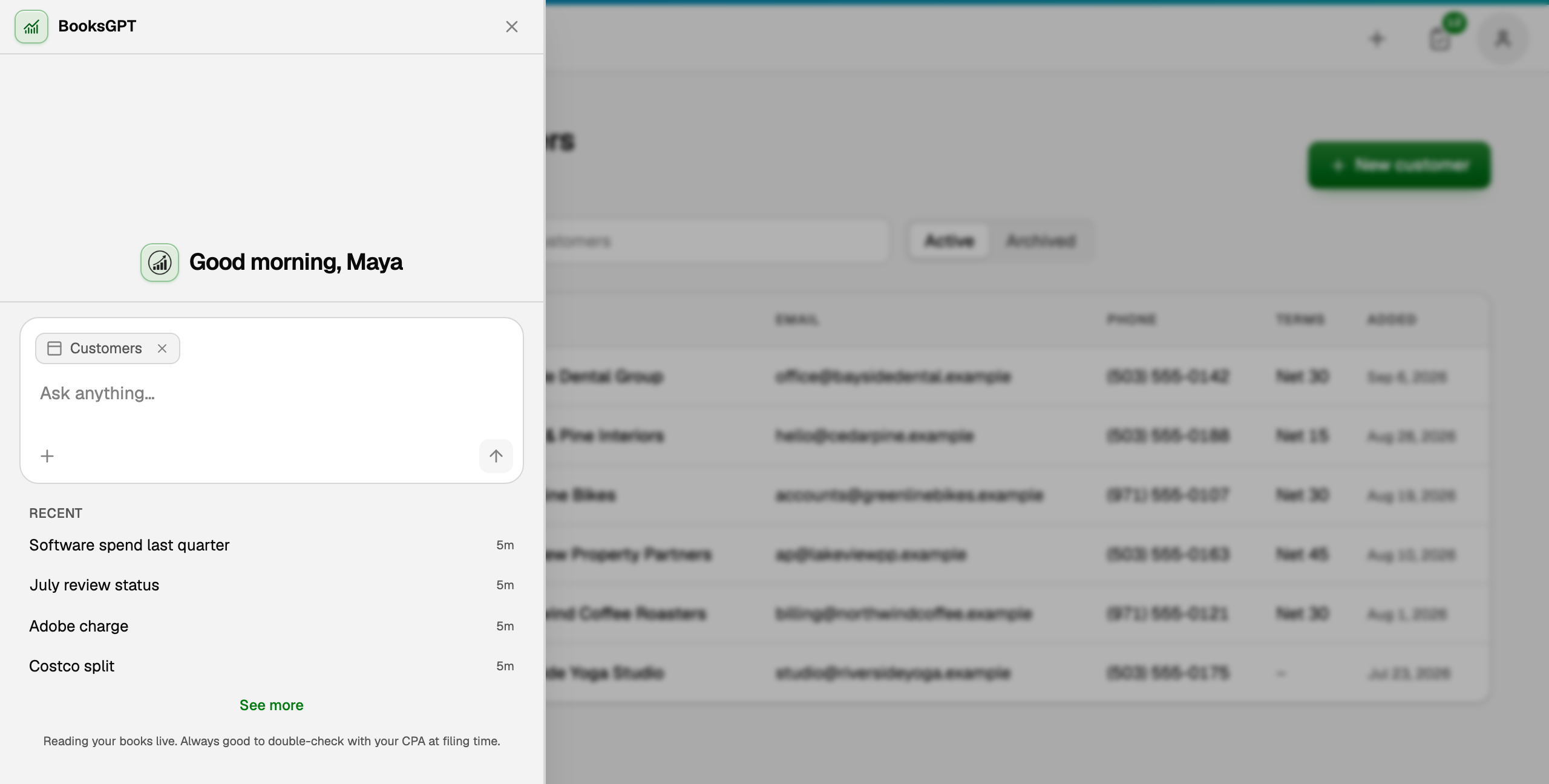
When you open Copilot over another page, a chip in the message box names that page, such as Customers or Account register. Copilot then knows what you are looking at, so you can ask Which of these customers owes us the most? without explaining where you are.
- Click the X on the chip to leave the page out of your next message.
- Click Use this page to put it back.
Ask for a change
Ask in your own words, for example Add a vendor called Harbor Print. Copilot makes these changes right away, by the same rules as the pages (closed periods and reconciled lines stay protected, and it only does what your role allows):
- Add or change accounts (opening balances too), customers, vendors, products and services, and classes and tags.
- Post a journal entry, or reverse or correct one already posted.
- Add a transaction by hand, or delete one.
Everything else, such as bank transaction categories, invoices, bills, merges, reconciliations and rules, arrives as a card that shows exactly what would change. Click Approve to make the change, or Reject to drop it. Asking to categorize many transactions opens a review pop-up instead.
A bar above the message box counts this chat's changes, with Undo all to remove what it added. Cards, History and Undo all: Approve, undo, or ask Copilot for a change. The categorize pop-up: Review what Copilot suggests. One transaction or a split: Edit a transaction from chat.
Enter a file in your books
In a business workspace, Copilot can read a file in almost any layout, such as an export from another accounting program, and enter it for you. Click +, then Add files, then Any file (up to 100 MB), or drop a JSON, XML, IIF or QIF file into the chat. Copilot checks that every entry balances before it says the books are in.
Follow-ups
After an answer, Copilot may list up to three next steps under Follow-ups, worded from your books, such as Categorize 12 transactions or Show 5 open invoices. Click a row to ask for it, as if you had typed it.
Needs attention and the daily briefing
The clipboard icon at the top right opens Needs attention: the work waiting for you, most urgent first. Its green number counts transactions waiting for review.
- Fix first: problems that affect your books, such as a bank feed that needs you.
- Transactions to review: opens the Review inbox.
- Next up: everyday work, such as unsent invoices or bills due in the next 7 days.
- Worth a look: what Copilot noticed overnight. Click one to open the Daily briefing chat.
What Copilot does not do
- Billing, cancelling, refunds, or reaching a person. Messages in the Copilot chat don't reach our team. Click Message us, which Copilot offers, to open our support chat.
- Anything your role cannot. A viewer can ask questions but cannot make or approve changes, and Copilot only links pages your role can open.
If something goes wrong
- An answer looks wrong. Ask Copilot which report or account it read, then open that report and compare. Usually a transaction is uncategorized or still waiting for review.
- A reply stopped partway, or you stopped it. See Stop a response and what Copilot just did before you ask again.
- You can't find a file you uploaded. Ask Copilot where it went. It names the page that holds it, such as Receipts.
More about Copilot
- Create or send an invoice from chat
- Drop a bill into Copilot
- Analyze a document with Copilot
- Copilot's books checkup
- Draft and download your tax return with CPA-GPT
Updated on: 19/10/2026
Thank you!