
Review what Copilot suggests
Every bank transaction needs a category: the account that says what the money was for, such as Software & Subscriptions or Sales. Categories are what turn a list of bank lines into a profit and loss report.
Copilot suggests a category for each waiting transaction, from your rules, your past choices and the bank line itself. Until you approve it, a waiting transaction sits in Uncategorized. Approve & post files each one you agree with under its category. (With Auto-post on in Settings > AI preferences, BooksGPT files the ones it is sure of without asking.)
Ask Copilot to categorize
- Ask in the chat, for example Categorize my September transactions. Or click Categorize N transactions when Copilot offers it under an answer.
- Say yes when Copilot asks to start.
- A pop-up titled Categorize N transactions opens with only the transactions Copilot just queued. Rows fill in as BooksGPT reads them.
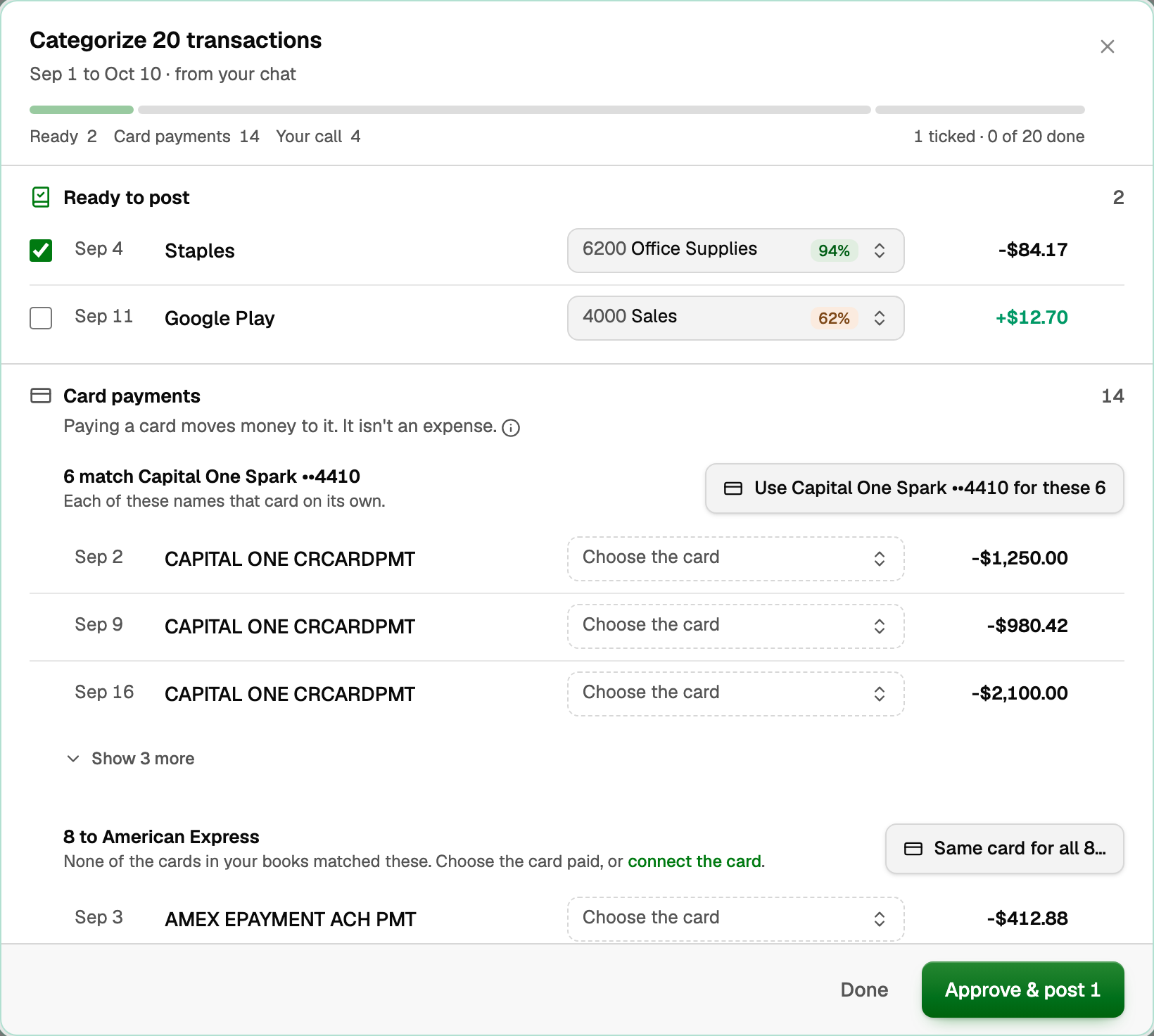
The rows are grouped by what each one needs.
- Ready to post: rows that have a category, from BooksGPT, a rule, or you.
- Card payments: payments from your bank account to a credit card.
- Needs your call: rows left for you, such as a deposit with no payer.
- BooksGPT didn't get to these: rows it could not read, with the reason.
- Can't change here: for example a row in a closed period, with the reason.
- N already done or handled elsewhere: closed at the bottom.
Check and post
- In Ready to post, check the category on each row. When BooksGPT picked it, a tag in the field says how sure it is, such as 94%.
- A green tag means 80% sure or more, and the row starts ticked. An amber tag means less sure, or a catch-all account like Other Expenses at any percentage, and the row starts unticked. Tick it once you agree.
- To change a category, choose another one on the row. That saves and ticks it, but does not post it yet.
- Click Approve & post N at the bottom. (Clicking a payee opens that row's details.)
Every ticked row moves out of Uncategorized and onto its category in your profit and loss.
Card payments
Paying your credit card from your bank account is not an expense: the purchases on the card are, and they are recorded on the card's own account. So each payment is recorded as money moved from your bank account to the card, which lowers what you owe on it. Nothing is counted twice.
- When the bank's words name one of your cards, the rows are grouped under it. Click the button that names it, such as Use Capital One Spark ••4410 for these 6.
- When they name only the card company, choose the card on each row with Choose the card. Or click Same card for all N…, which lists the rows first, then Use it for all N.
More on how card payments work: Transfers, credit-card payments, and owner draws.
Pair a transfer
When a row matches a row on another of your accounts, a line under it names the match.
- Click Pair (or Choose, when there are several possible matches).
- Check the row on your other account.
- Click Pair and post both. Both rows go into your books as one transfer between your own accounts, not as income or an expense.
Needs your call, and Remember my answers
Choose a category for each row in Needs your call. On a computer, a row's chat button, Ask BooksGPT about this one, puts it in the chat box so you can ask.
When you give two or more rows from the same payee the same category, the footer shows Remember my answers, already ticked, and says what it will keep: the payee, the category, and how many waiting rows the rule will also file.
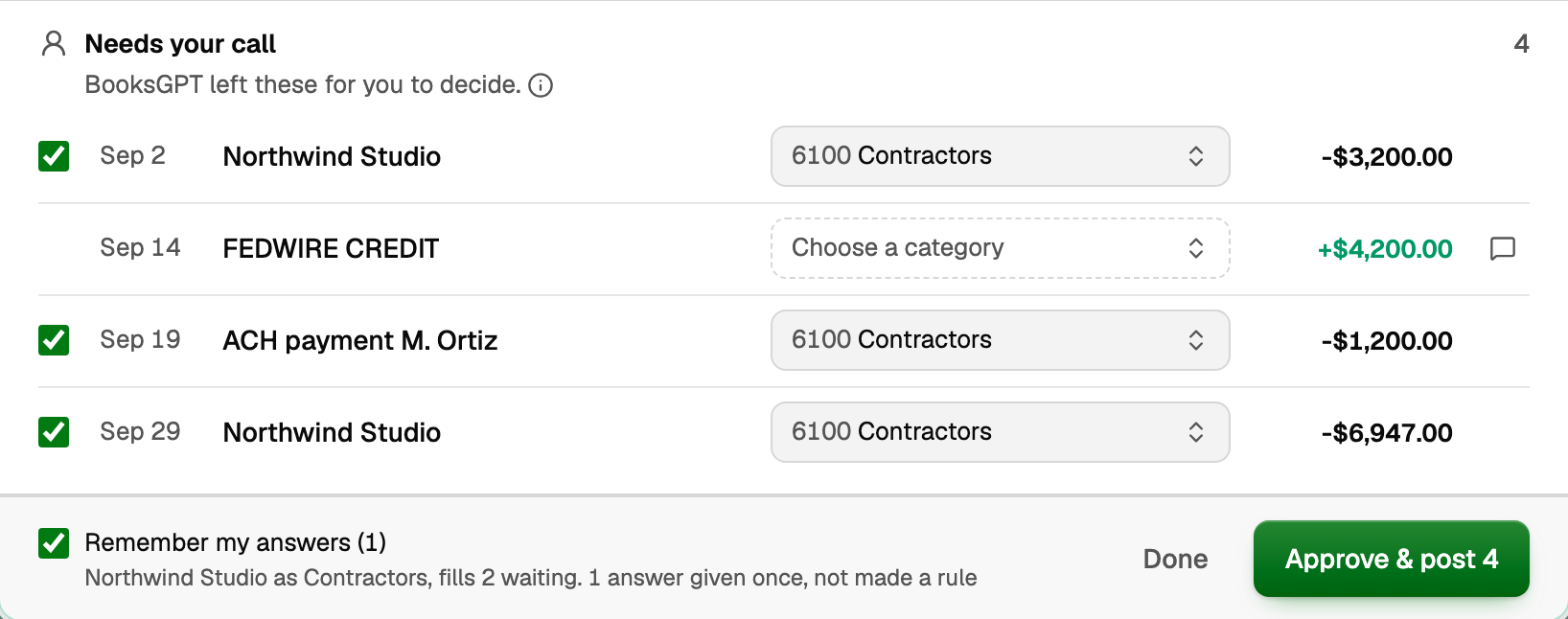
- Clicking Approve & post N turns each kept answer into a categorization rule, so the next transactions from that payee are filed for you.
- An answer you gave only once is never made a rule.
- The top of the pop-up then says what was kept, with Undo, which removes the rule and puts back the rows it filed.
- Untick Remember my answers to post without keeping anything.
How rules work: Categorization rules: teach it once.
Rows BooksGPT didn't get to
This group says why. Ask BooksGPT again appears when asking again can help, and Open AI preferences when AI categorization was off. You can always choose a category yourself.
When you close it
Click Done or close the pop-up. A line stays in the chat with what is left, and Review this batch under it reopens the batch. Everything else waiting is in the Review inbox.
See what is stopping rows from being approved
Ask, for example, What is stopping my July transactions from being approved? Copilot answers with a To Review status card. The check approves nothing.
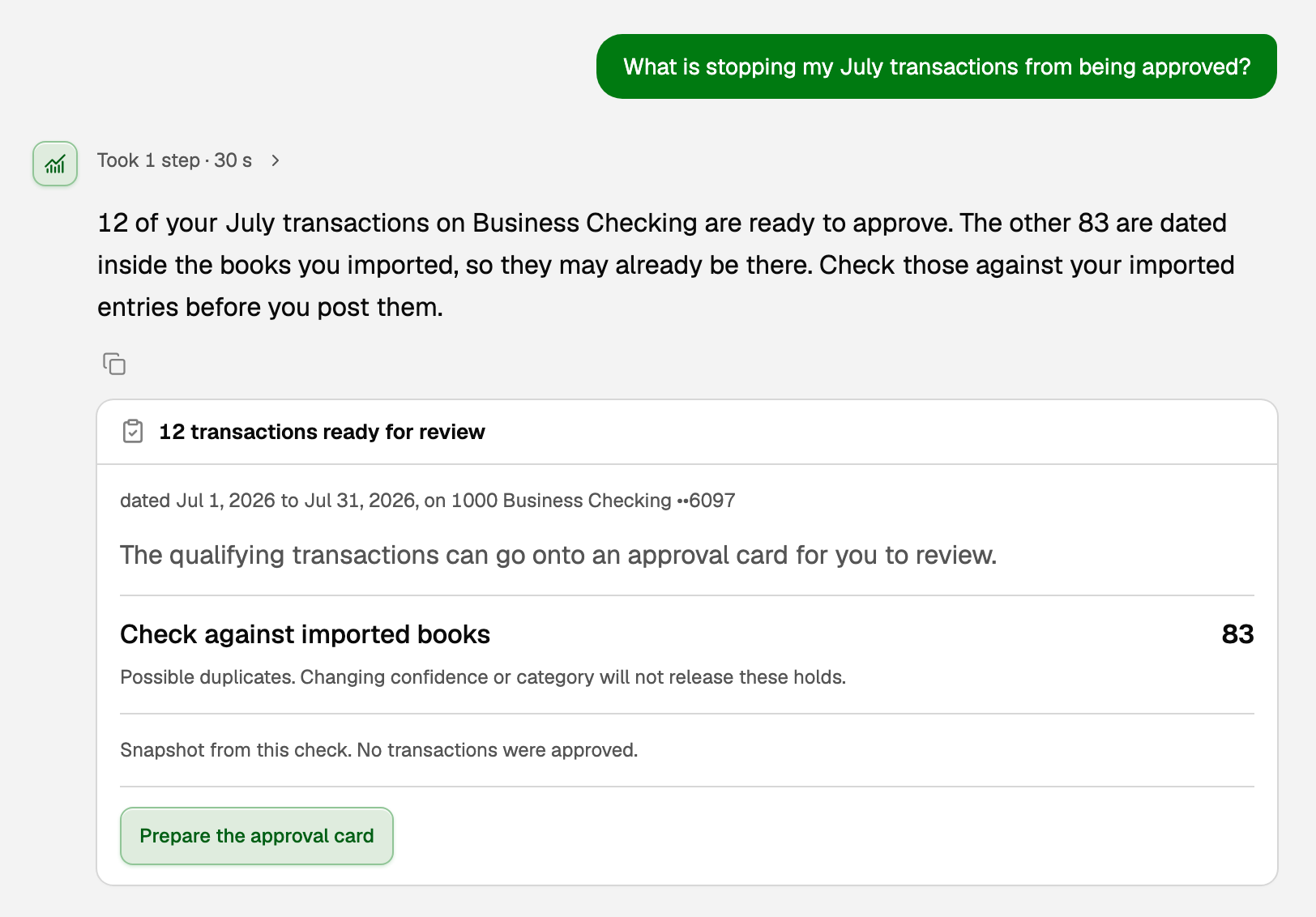
The card counts every row it left out under one reason:
- Check against imported books: the row is dated inside books you imported, so it may already be there.
- Review individually: rows that can't be approved in bulk, such as a split or a transfer.
- Need a category: ask Copilot to categorize them first.
- Review category confidence: suggestions below the confidence you asked for.
When rows are ready, the card's button, Prepare the approval card, puts one Approve To Review rows card in the chat. Nothing is approved until you click Approve on it. When rows must be checked against imported books instead, the button is Investigate possible duplicates, which compares them with your imported entries. You decide those on the On hold tab of the Review inbox.
Review what the daily briefing named
Each night Copilot checks your books and writes a Daily briefing in your chats. Open it from Worth a look in Needs attention, or from Chats.
- Under the briefing, click Review these N transactions.
- A list opens with only the rows that briefing named. Click a row to open it.
- A briefing names at most ten rows per check. Open review queue shows everything.
If something goes wrong
- A row was not posted. The reason shows on that row, with Open in Transactions to fix it there.
- The pop-up won't let you change anything. Your role can only view the books.
- A posted row is in the wrong category. See Fix or change a transaction's category.
Updated on: 16/10/2026
Thank you!