
Track stock quantities
Tracking stock means BooksGPT keeps a running count of what is on your shelf, product by product. A posted bill adds stock, a posted invoice takes it away, and a count or an adjustment corrects it when the shelf and the books disagree.
These are quantities, such as 756.4 lb or 12 each. Turning them into dollars, the inventory value on your balance sheet and the cost of goods sold on your profit and loss, is a separate step an owner takes in Set up inventory costing. Until then, counts and adjustments post nothing to your books.
Turn tracking on for a product
Open All pages in the left sidebar, then click Inventory and Products & services.
- Click New item.
- In New product / service, tick Bought from vendors and Track stock for this product. Enter the Unit, such as lb or each.
- Tick Track lots if each delivery should stay its own lot, for expiry dates or recalls. A posted bill creates the lot.
- Click Create.
To add an SKU, a Reorder point, or a second unit for catch weight, open the item and click Edit. In Edit item, tick Count it two ways (catch weight) for something counted in both pounds and cases, enter the Second unit, and click Save changes.
Stock quantities take up to four decimal places.
See what you have on hand
Open All pages in the left sidebar, then click Inventory and Products & stock.
- On hand is what the books say is on the shelf now. A catch-weight product shows its second count beside it.
- Search with Search all products, or filter with Below reorder point, Out of stock, Oversold, or Check counts.
- Oversold means more was sold than the books show on hand. Usually a bill has not been entered yet.
- Check counts means one unit is above zero and the other below it. Count both units again.
- A lot-tracked product shows how many lots still hold stock, such as 2 open lots.
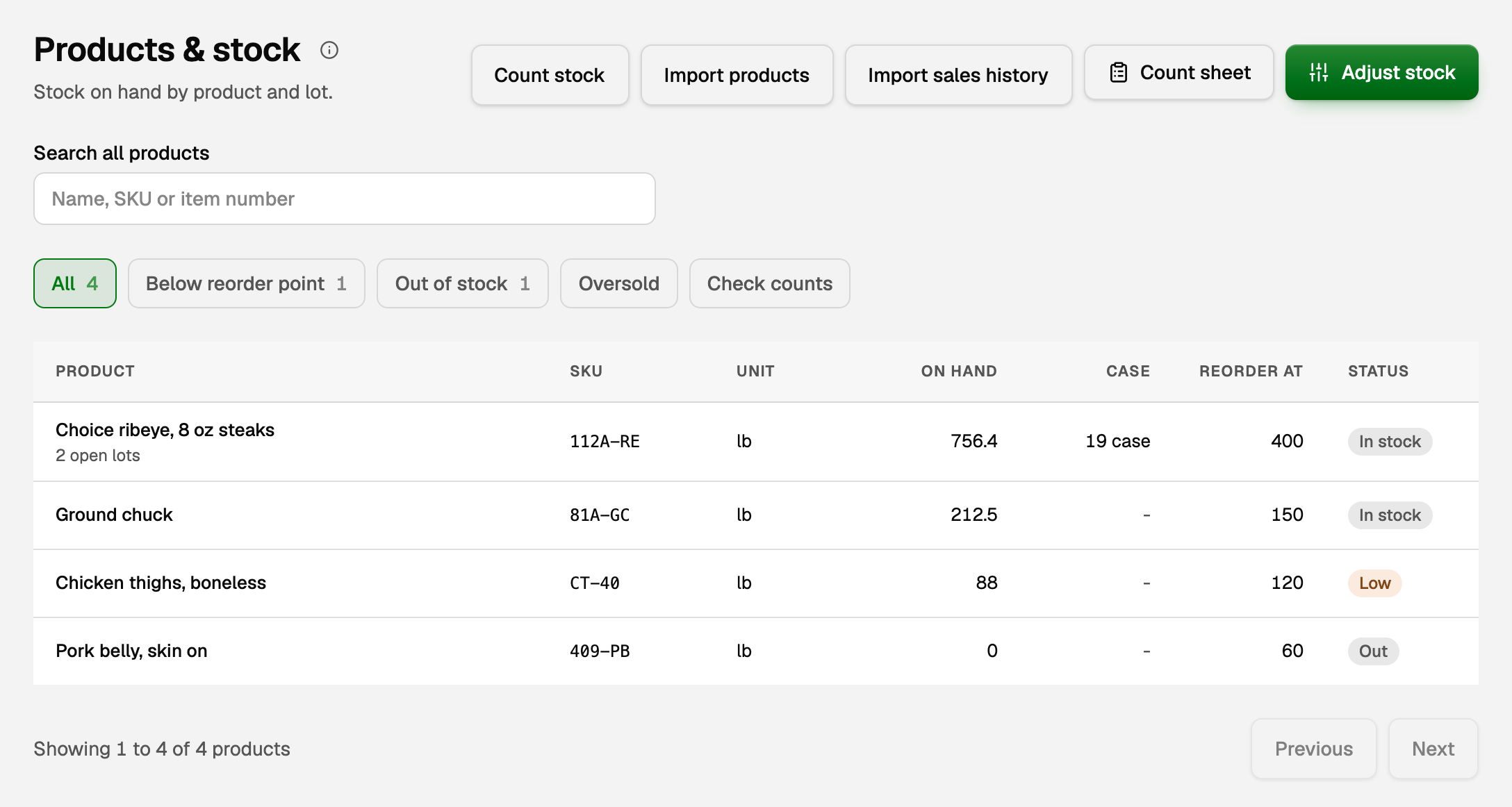
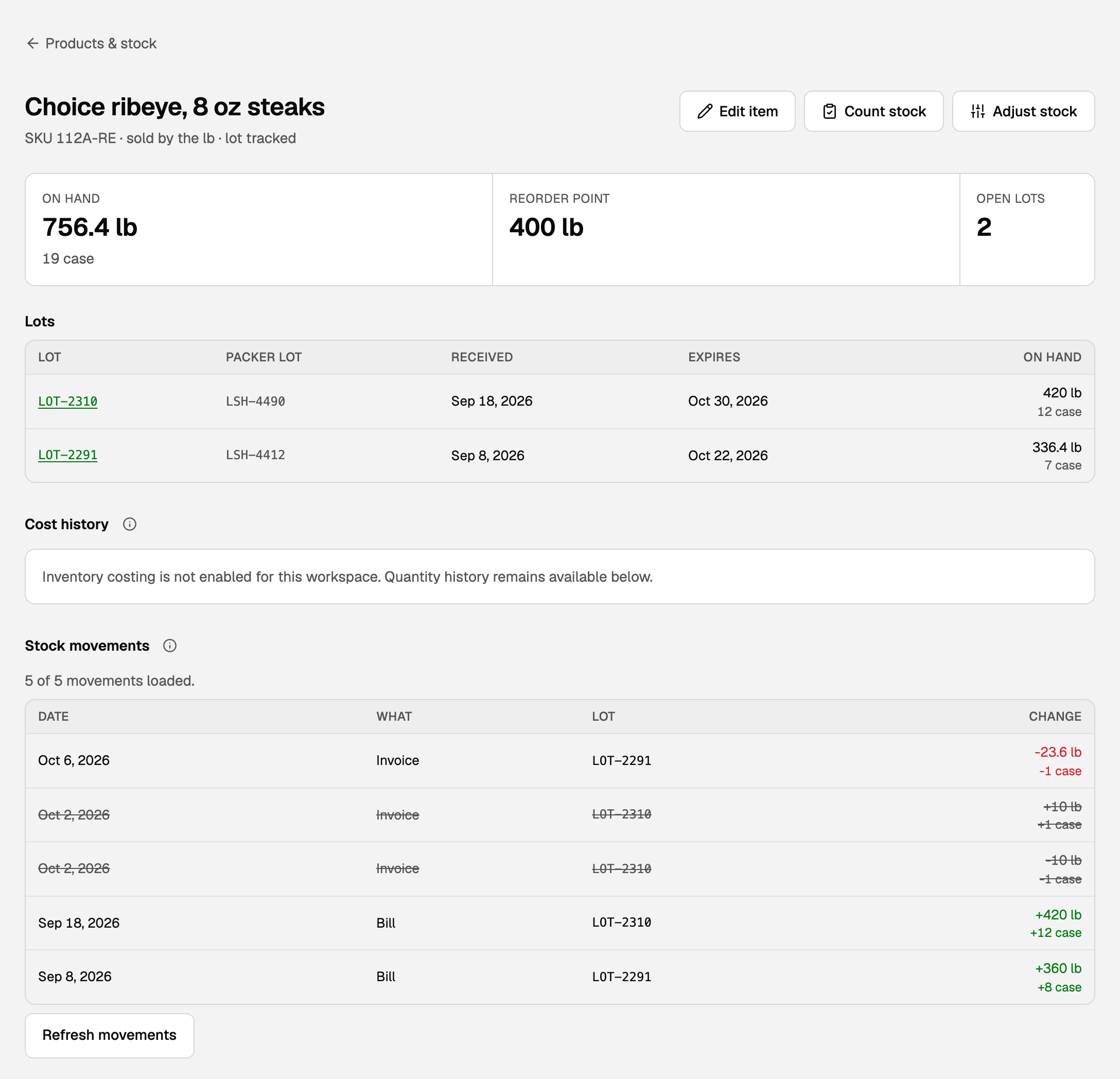
Click a product to open its stock page:
- Lots lists each lot with its Packer lot, Received date, Expires date and On hand. A lot a draft bill named reads Not received yet.
- Stock movements lists every bill, invoice, count and adjustment that moved this product, newest first. A reversed movement is struck through and no longer counts.
- On hand at the top is the full balance, opening stock included, so it can differ from the rows loaded below it.
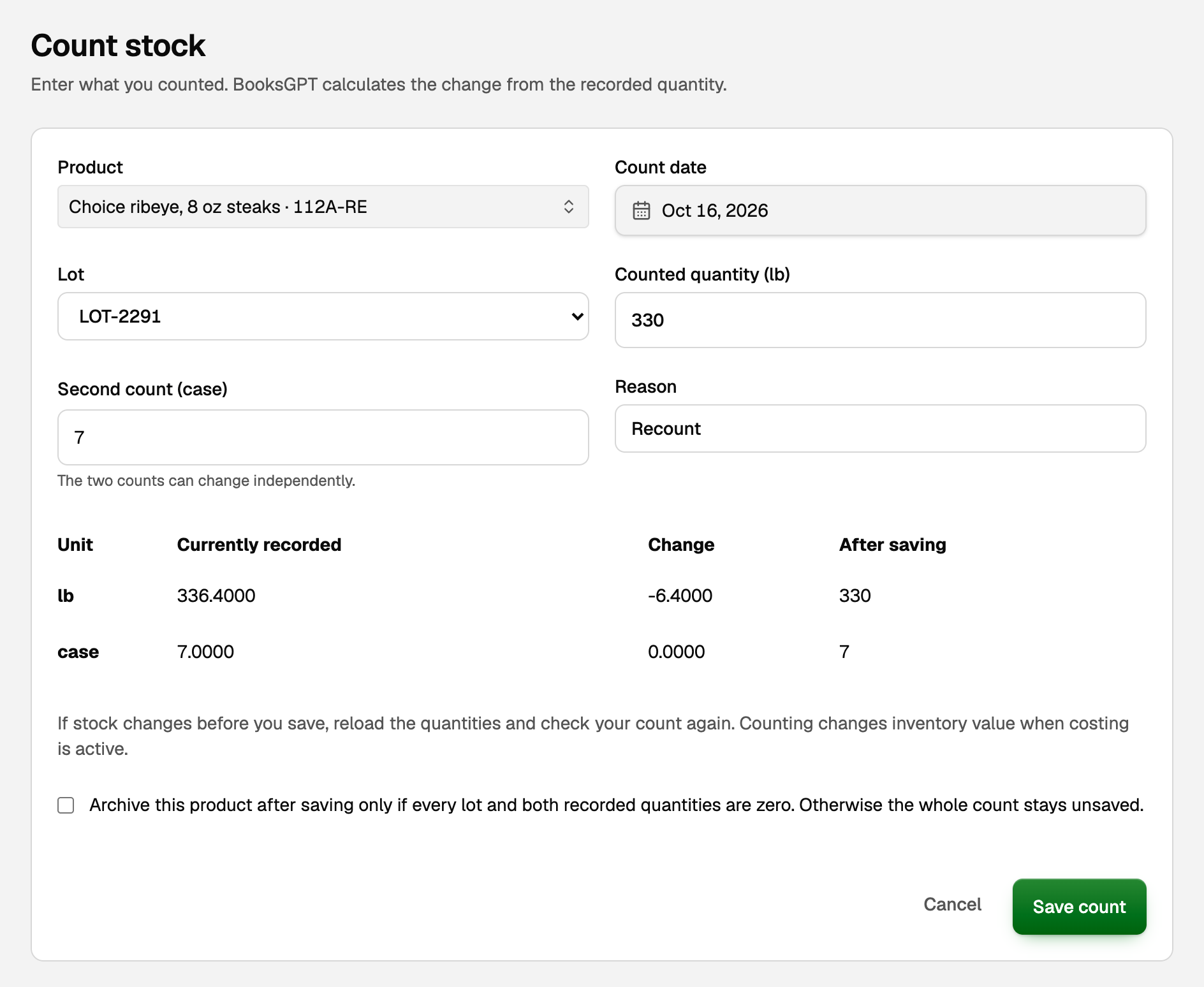
Count stock
A count is the simplest way to fix the books: you type what is on the shelf, and BooksGPT works out the change.
- On Products & stock, click Count stock.
- Choose the product, and for a lot-tracked product, the lot.
- Enter Counted quantity, including zero. For catch weight, enter Second count too.
- Check Currently recorded, Change and After saving for each unit.
- Click Save count.
Record damage, loss, or stock that arrived another way
Use a stock adjustment when you know what moved rather than what is left: spoiled goods, a broken case, a sample, or stock no bill will ever cover. If a vendor's bill is coming, post the bill instead. An adjustment as well would count the stock twice.
Open All pages in the left sidebar, then click Inventory and Stock adjustments. Click Adjust stock.
- Pick the Date, a Reason such as Damaged or Spoilage, and a Memo if you want one.
- Under What moved, choose the product, In or Out, and a Quantity. For catch weight, enter both numbers.
- For a lot-tracked product, choose the lot. Taking stock out needs an existing lot. Putting stock in can use New lot (created on save).
- Click Add line for another product, then Save adjustment.
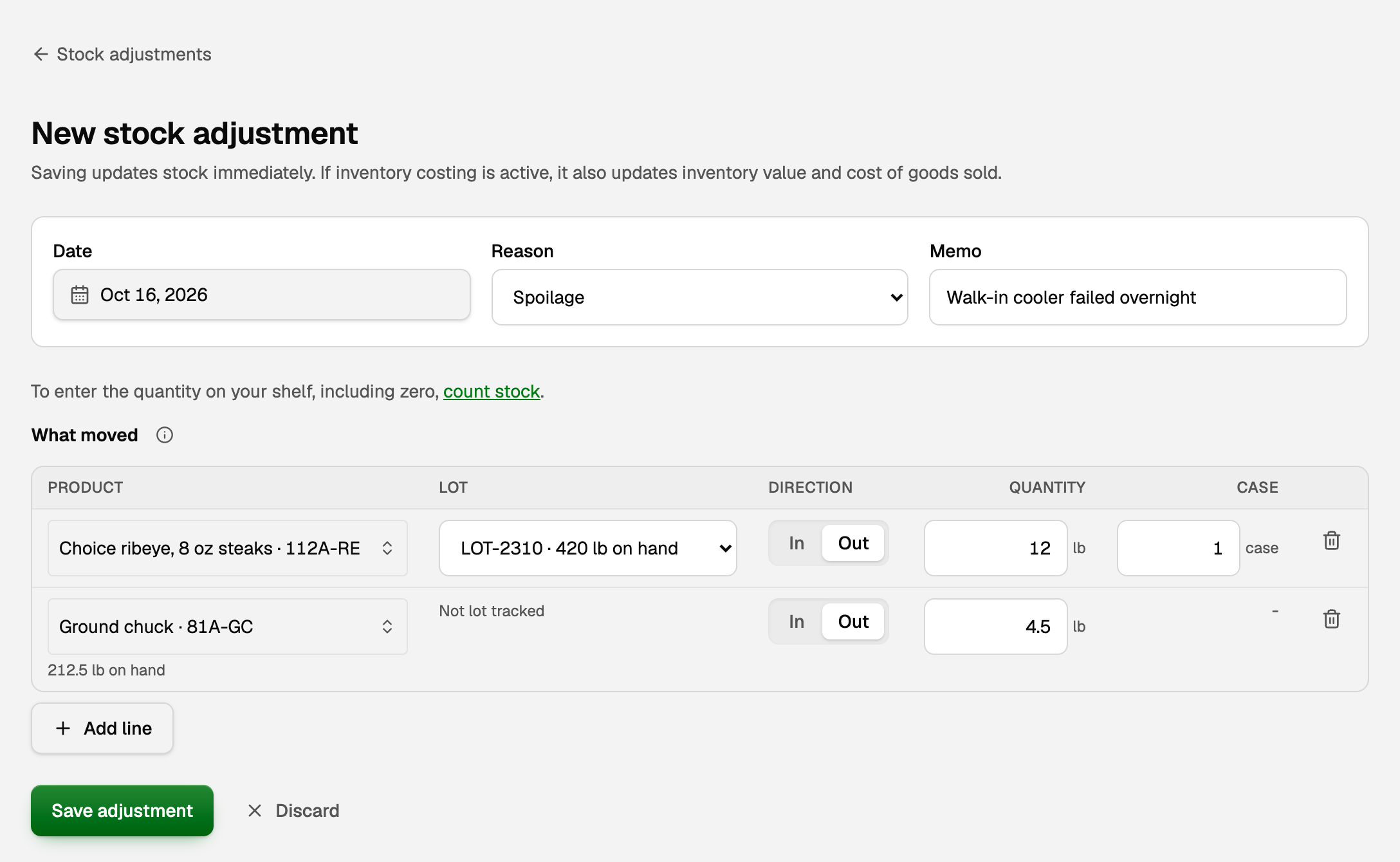
To see what an adjustment moved, click its number on Stock adjustments, such as ADJ-0003. To take it back, click Undo, then Undo adjustment. That reverses the change, and the number is never used again.
Import products from a spreadsheet
On Products & stock, click Import products.
- Choose a CSV or Excel file of up to 5 MB.
- Match the columns, then click Preview products.
- Fix any row with Review row, then Preview this row again.
- Click the button that says how many are ready, such as Import 12 ready products.
The import adds new products and updates existing ones. It records no stock: quantities in the file are not counted. New products start with Bought from vendors off unless your file says otherwise, so turn it on for anything you buy, or its bills will not add stock. Afterward, enter what is on the shelf with Count stock.
What the books now say
Without costing, a count or an adjustment changes only the quantity on hand and posts nothing. A posted bill still records what you owe and puts its cost on the bill line's account, often cost of goods sold, and an invoice still records the sale.
Once an owner turns costing on, the same actions also change dollars. A posted bill adds inventory value, a sale moves its cost into cost of goods sold, and a count or adjustment moves value between inventory and cost of goods sold at the average cost.
If something goes wrong
- A product shows Oversold. Enter or post the bill for the stock that came in. If the shelf really is short, count it.
- The count says on hand changed since you counted. Someone posted a bill or invoice meanwhile. Click Reload current quantities, which clears what you typed, then enter your count again and save.
- Costing refuses a date on an adjustment. With costing on, stock has to move in date order. Use the date or the step the message suggests, or see Sell inventory and post cost of goods sold.
Updated on: 17/10/2026
Thank you!