
Attach receipts and files to an invoice
Attach receipts or other files to an invoice, choose which ones go with each email, and download the invoice and its files as one PDF.
Attach a file
Open All pages in the left sidebar, then click Sales and Invoices, and open the invoice.
Under Attachments, add receipts or other files to email with the invoice. The section is in the editor and on a sent invoice's summary.
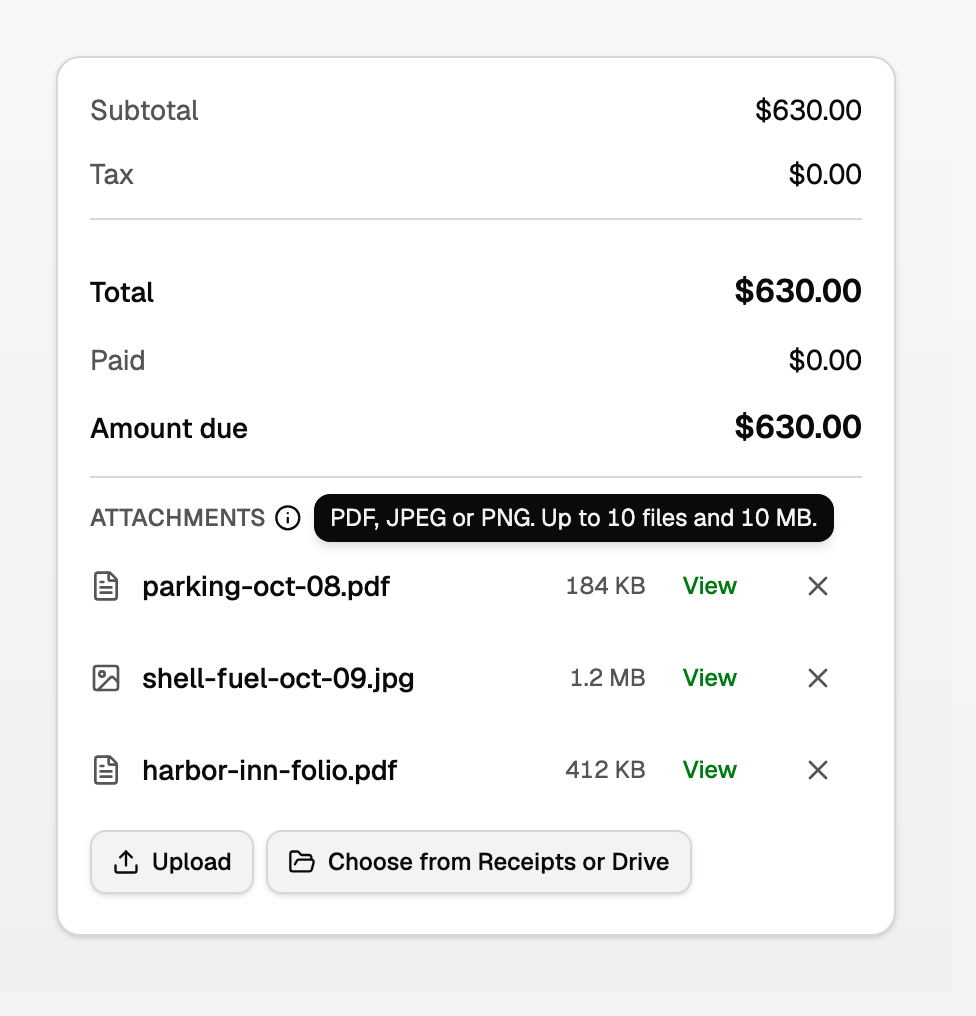
- Upload adds a PDF, JPEG, or PNG from your device. You can also drop files on the section.
- Choose from Receipts or Drive attaches a copy. The original stays where it is. Receipts and Drive say A copy is attached to invoice N. If you delete the original, the confirmation says the invoice keeps its own copy.
- View opens a file. Remove takes it off the invoice.
- Point at or tap the info icon beside Attachments for the limits. It says PDF, JPEG or PNG. Up to 10 files and 10 MB. The invoice PDF is extra. An HEIC photo is refused; save it as a JPEG and attach it again.
- On a new invoice, choose a customer and add a line first. BooksGPT saves the draft before it attaches files.
Choose which files go with the email
Click Save & send on a draft. On a posted invoice, click Send invoice in the header while the status is Final · not sent. With any other status, open More invoice actions and choose Send again. Each one opens the send window. So does the Send invoice shortcut on the invoice's row in the Invoices list.
If the invoice has files, an Attachments card sits at the top of the send window's preview column: the invoice PDF is marked Always attached, and each file starts ticked. Untick a file to leave it out of this email. The email names the files it carries (Also attached: …).
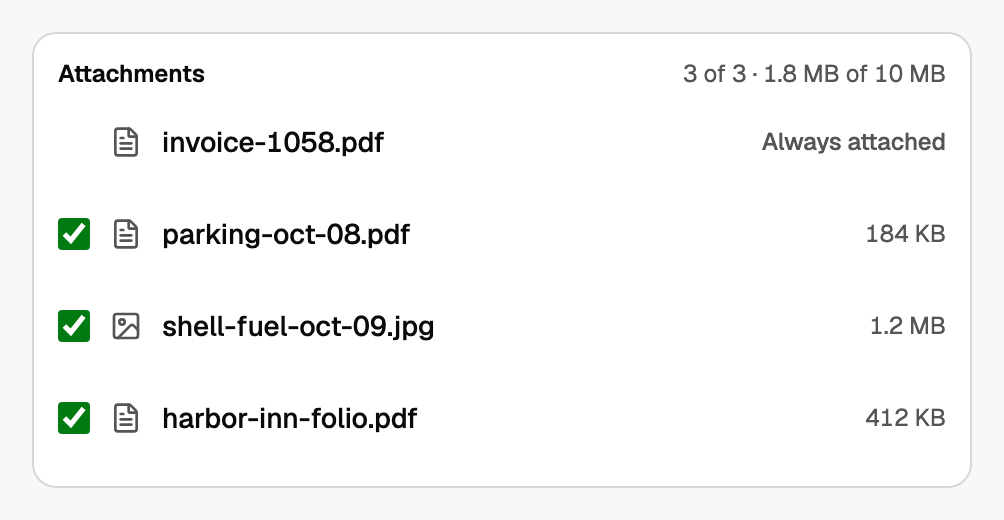
When the list is right, click Send invoice.
- A workspace can send up to 200 invoice emails with attachments in 24 hours.
- Activity shows Attachment added and Attachment removed. A delivery line names how many attachments went with the email. See See whether an invoice was delivered or opened.
Download the invoice with its files
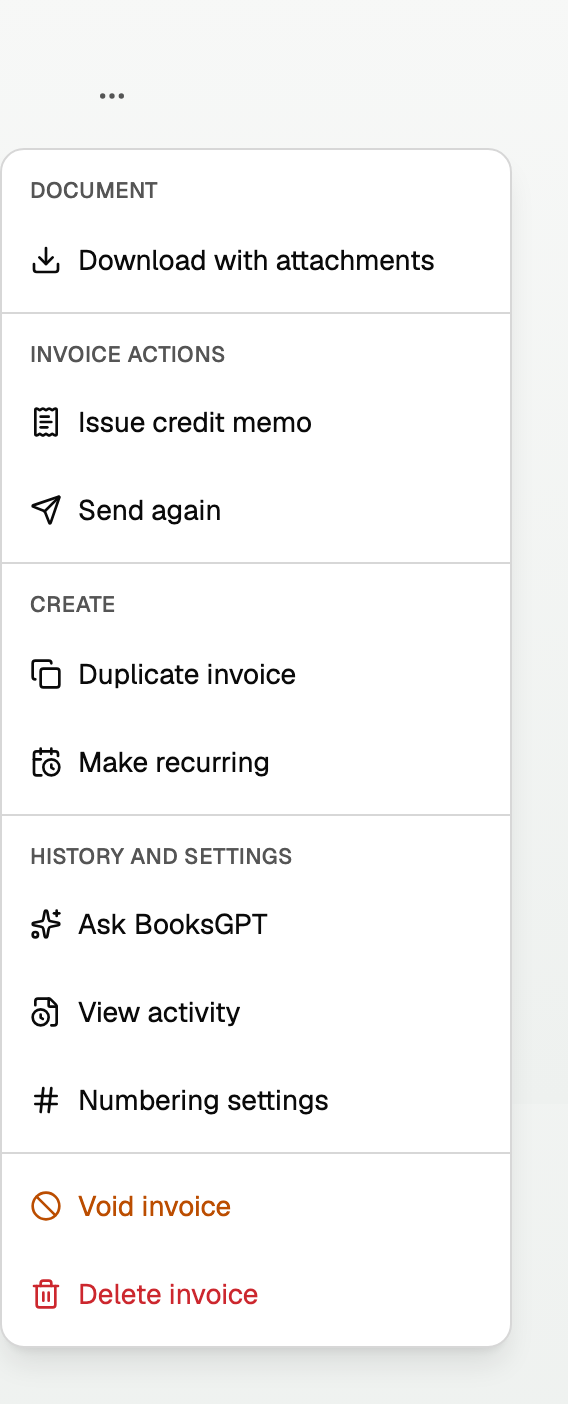
On the invoice, when it has files, More invoice actions has Download with attachments: one PDF of the invoice followed by each file. BooksGPT builds it in the background (Building the PDF with 3 attachments. then Your PDF with 3 attachments is ready. and a Download button).
Good to know
- A voided invoice keeps its files, and Remove still works. To attach new ones, Duplicate invoice.
- Recurring schedules, duplicates, and payment reminders start without attachments.
- Duplicate invoice, under More invoice actions on the invoice, copies the invoice to a new draft. Attachments stay on the original invoice.
- Make recurring, in the same menu, repeats an eligible invoice on a schedule. Attachments stay on this invoice; each new invoice in the schedule starts without them. See Recurring invoices and payment reminders.
- To create and send the invoice itself, see Create, send, and get paid on an invoice.
- To void an invoice or change one you already sent, see Change, void, or delete an invoice.
Updated on: 13/10/2026
Thank you!