
Issue a credit memo
Use a credit memo when you shipped less than you invoiced, gave a later discount, or took goods back. It reduces what the customer owes.
Start from the invoice
- Open All pages in the left sidebar, then click Sales and Invoices.
- Open the invoice.
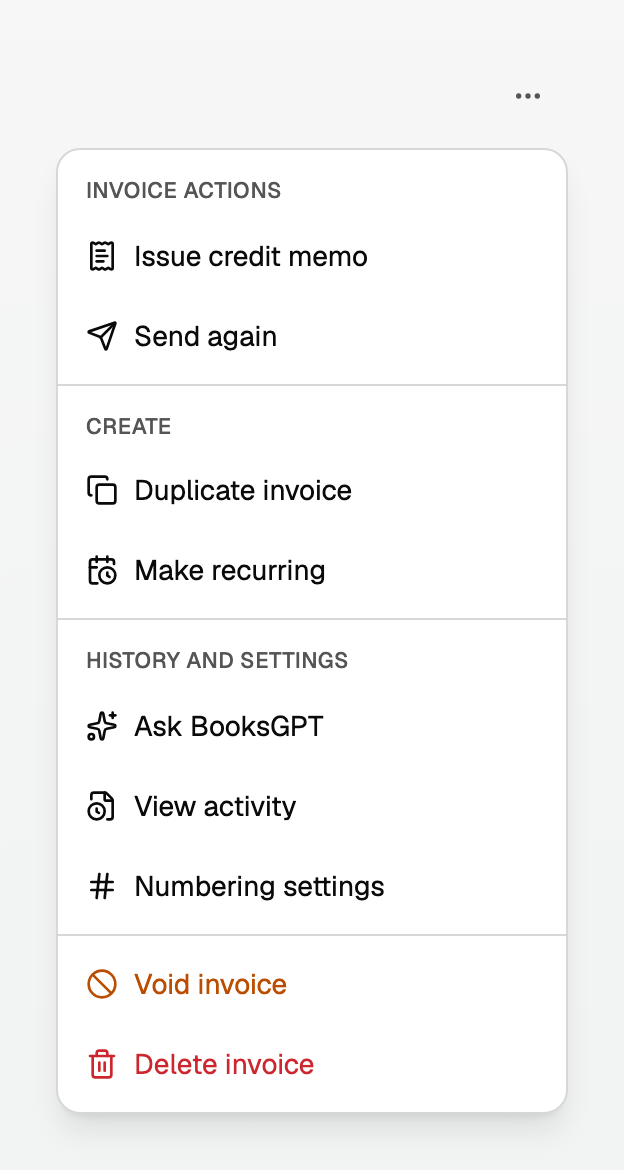
- Click More invoice actions, then Issue credit memo.
Build the credit
The dialog is titled Credit invoice and the invoice number. You complete 1 · Build, then 2 · Review books.
- Set the Credit memo date. It cannot be before the invoice date, and it must be in an open accounting period.
- Type an Internal reason for the credit. Customers do not see it.
- Under Items to credit, tick only the lines you are crediting and set the quantities. Each line keeps its name and its details note.
- Leave Apply available credit to this invoice off unless this invoice's balance should drop now. Leftover credit stays with the customer. Apply it later from one of their open invoices.
- Click Review impact.
If goods from a line can come back into stock, Return credited items to stock appears under it. Leave it off when the customer keeps the goods. For returns, including items sold at no charge, see Return inventory with a credit memo.
Review, then issue
- Read the totals.
- Tick I reviewed the revenue, tax, A/R, and customer-credit impact.
- Click Issue credit memo.
Apply a credit later
If you left the credit unapplied:
- Open an invoice this customer still owes.
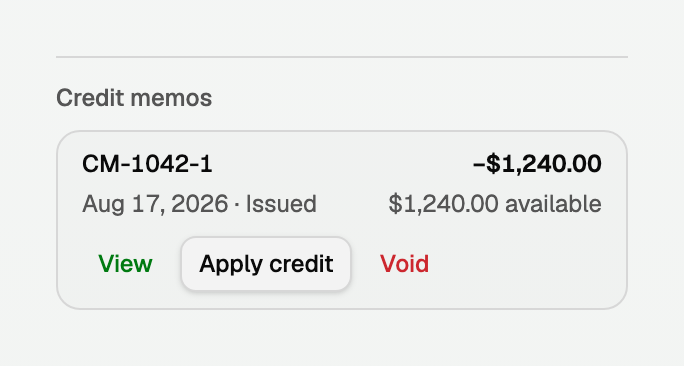
- Under Credit memos, click Apply credit.
- In Apply credit memo, set the Application date, the Amount to apply, and a Reason for application. The date must be in an open accounting period, and it cannot be before the credit memo date.
- Click Review impact, tick I reviewed the accounting and customer balance impact., then Apply credit.
Applying the credit does not put money in the bank. It lowers the balance on the invoice you chose.
The invoice stays locked
While a credit memo issued against this invoice is still open:
- Void invoice and Delete invoice are unavailable in More invoice actions.
- Correct amounts & dates is unavailable in Edit invoice. Revise details stays.
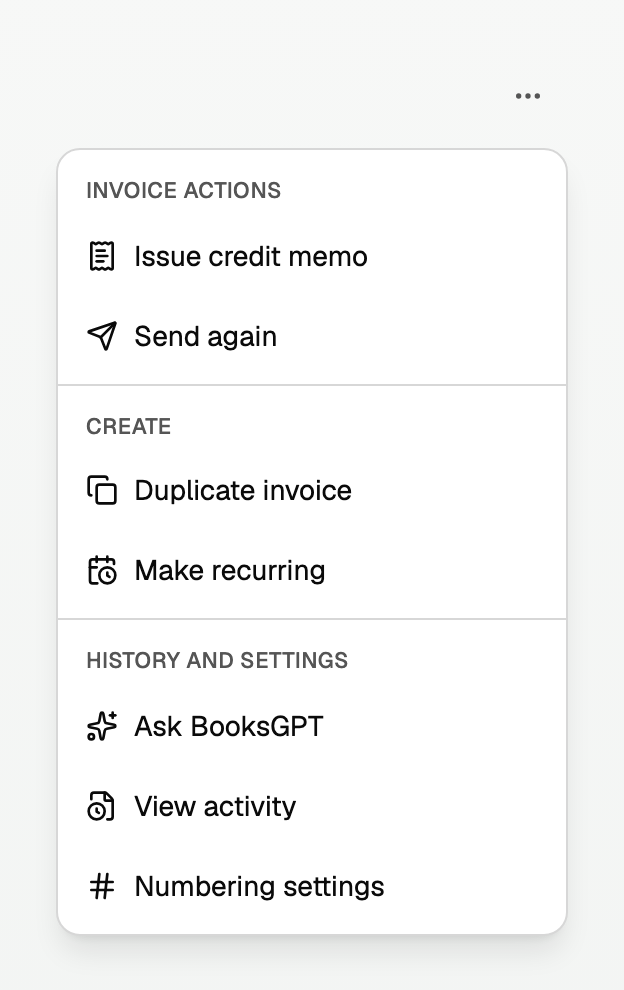
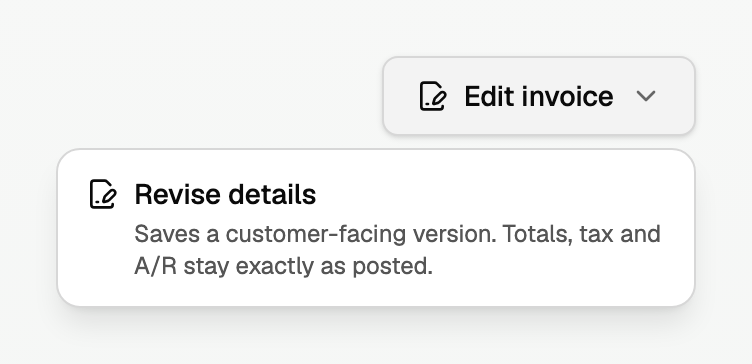
Un-applying the credit puts the balance back on the invoice. To void, delete, or correct the invoice, void the credit memo first. BooksGPT says "Credit memo CM-1042-1 was issued against this invoice." Your memo's number is in that sentence.
If the credit was issued on a different invoice, un-apply it on this invoice first.
Void the credit memo
Void appears when none of the credit is applied. If some of it covers an invoice, un-apply that amount first. The button reads Un-apply and the amount. If the card names another invoice, open that invoice and un-apply it there.
- Under Credit memos, click Void.
- Set the Reversal date. It cannot be before the credit memo date, and it must be in an open accounting period.
- Type a Reason for void.
- Click Review impact, tick I reviewed the accounting and customer balance impact., then Void credit memo. A stock return says Void stock return.
The memo stays on the invoice, marked Void. That posts the opposite of the credit. If the memo had returned stock, that stock goes back out on the reversal date.
Good to know
- With costing on, BooksGPT may refuse a date or change that would take stock out of order. The message offers a date that works, says what to undo first, or says to contact support. See Sell inventory and post cost of goods sold.
- To record cash the customer sent, use Record payment on the invoice. See Create, send, and get paid on an invoice.
- Customers cannot pay by card through BooksGPT. Collect the payment your usual way, then record it.
- Invoices imported from QuickBooks can take a credit memo here.
Updated on: 04/10/2026
Thank you!