
Email invoices into BooksGPT
An invoice records a sale: what you did or sold, and the money the customer now owes you. If you make some invoices outside BooksGPT, in a job app, a spreadsheet template or a word processor, those sales still belong in your books.
Forward the invoice to your workspace's invoice inbox and BooksGPT reads it and fills in an invoice for you to check. It becomes a draft only when you save it, and nothing is sent to your customer or recorded until you say so. Your sales land in your books without retyping.
1. Get your invoice inbox address
- Open All pages in the left sidebar, then click Settings and Invoicing & email. On a phone, pick it in Settings section.
- Scroll to Invoice inbox.
- If there is no address yet, a workspace admin (the owner or a bookkeeper) clicks Create an invoice inbox address.
- Click Copy. The address starts with
invoices+.
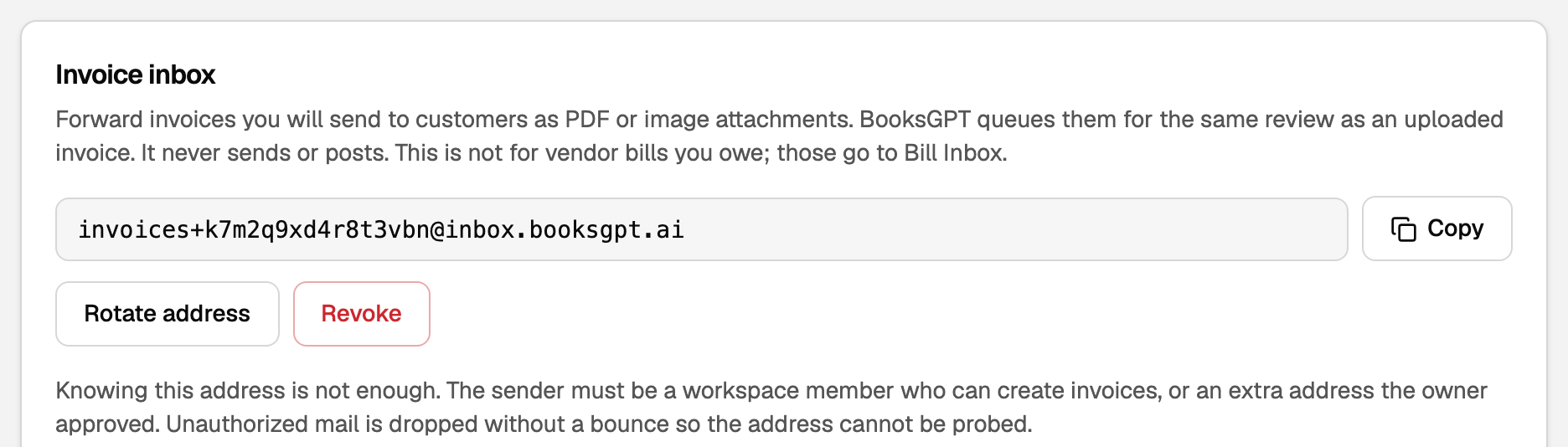
Each workspace has its own address, so send each business's invoices to its own workspace.
2. Decide who can send to it
Knowing the address is not enough. BooksGPT accepts mail only from the senders listed under Who can email invoices:
- Workspace members who can edit the books, from the address they sign in with. That is every role except a viewer.
- Extra senders the owner approved. An approved address can also email receipts and bills to this workspace.
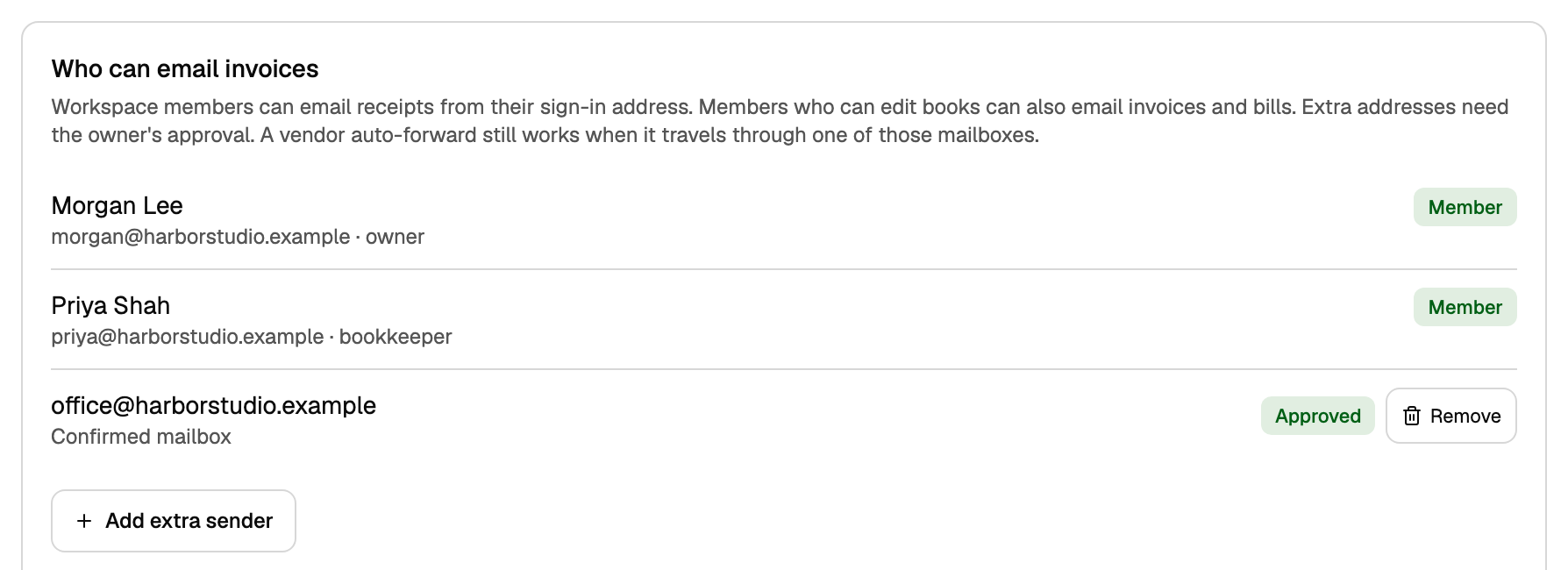
To approve another address, the owner:
- Clicks Add extra sender and types the address.
- Picks one:
- A mailbox someone will confirm, for a person or a shared inbox. BooksGPT emails it a link, and nothing from it is saved until someone opens the link and confirms. If the email does not arrive, the owner clicks Resend.
- A mailbox or platform that sends invoices or bills directly, for an app you have set up to send invoices here. There is no confirmation email.
- Clicks Add sender.
Mail from anyone else is not saved, and the sender gets no bounce.
3. Forward the invoice
Attach the invoice to an email to that address. BooksGPT reads only the attachments, not the message.
- Send one invoice per file: a PDF up to 20 MB and 10 pages, or a JPEG or PNG photo up to 10 MB. Save a spreadsheet or word-processor invoice as a PDF first.
- One email can carry up to 20 files, 25 MB in all. Send a large backlog in batches of about 50 files an hour.
- A photo can be skipped if your mail app puts it in the body of the message, as many phone mail apps do. Send a PDF when you can, or upload the photo yourself.
- A password-protected PDF cannot be read. Remove the password first.
4. Review the invoice and save the draft
- Open All pages in the left sidebar, then click Sales and Invoices. When something is waiting, the line under Invoices says how many are to review. Click it to open Needs review.
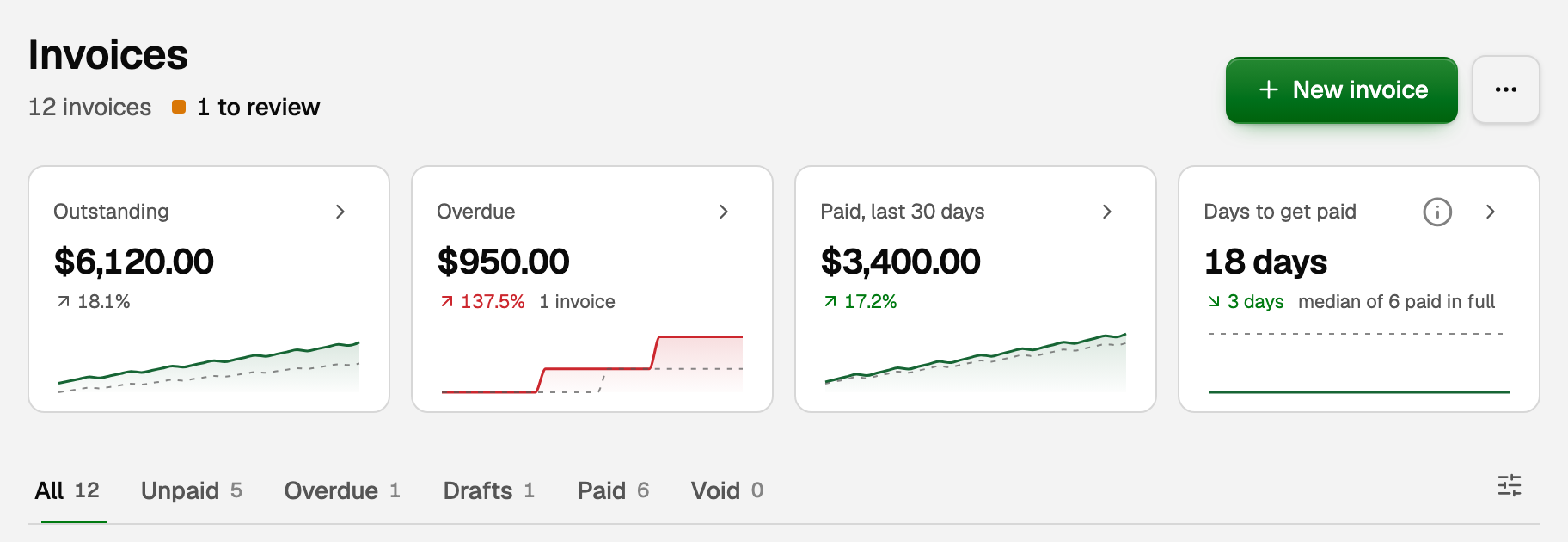
- Find the file. Once BooksGPT has read it, its row offers Review invoice.
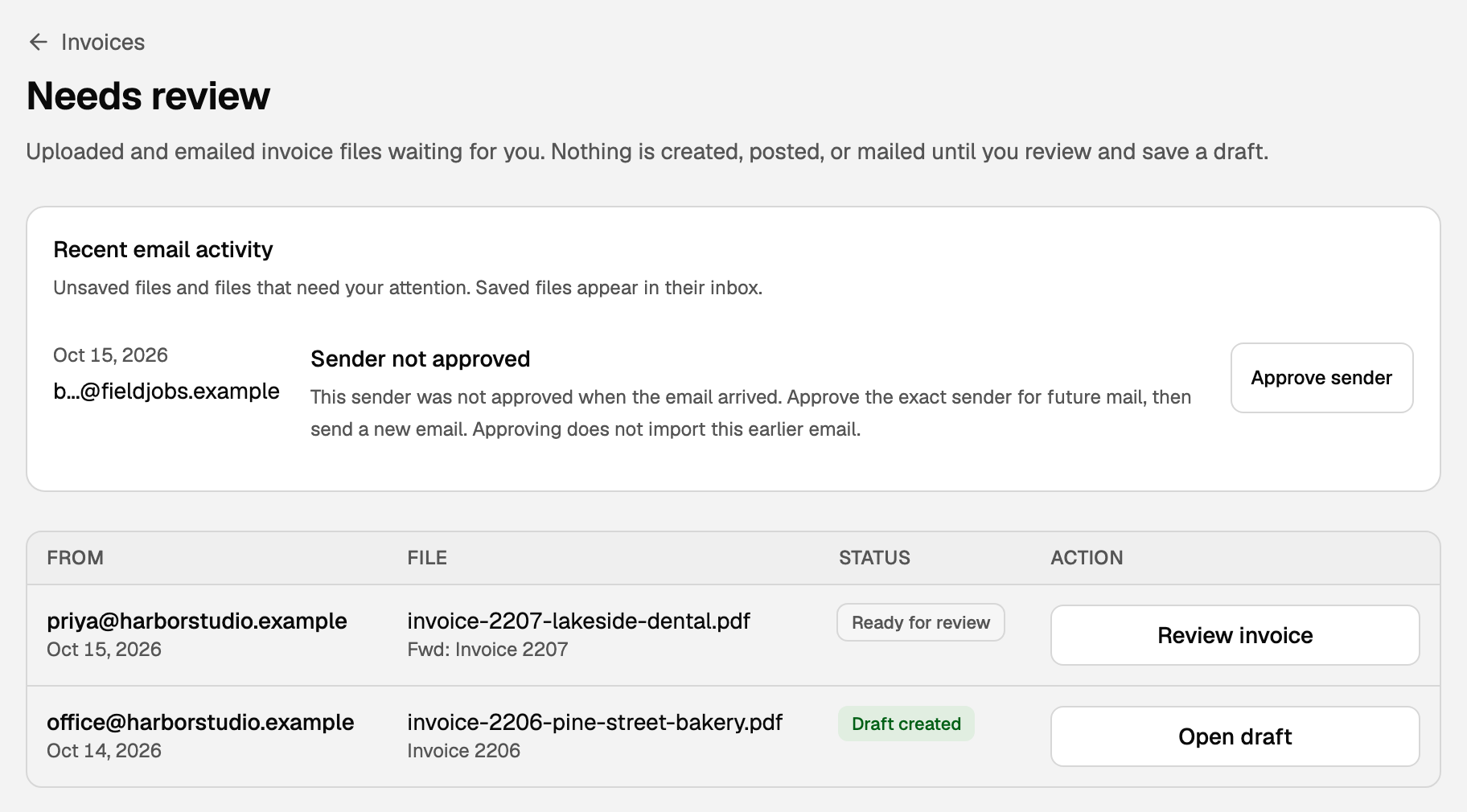
- Click Review invoice. The invoice form opens filled in from the file. To see the original, click View in the panel beside the form, or open Source & evidence on a smaller screen.
- Check Bill to, the dates and every line against the file. Bill to must be one of your existing customers. BooksGPT never creates one from a file, so add a new customer under Sales and Customers first.
- Click Save draft. The saved draft opens.
- Click Save as final to record the sale without emailing anyone, since the customer already has it, or Save & send to also email it from BooksGPT.
Each saved draft counts toward your plan's monthly invoice limit, if your plan has one. For each check on the review form, see Create an invoice draft from a PDF or photo. For sending and recording the payment later, see Create, send, and get paid on an invoice.
What your books say now
Say you forwarded invoice 2207, a $1,250 invoice to Lakeside Dental with no sales tax:
- After you forward it, and after Save draft: nothing changes in your books. A draft is not a sale yet.
- After Save as final or Save & send: income goes up $1,250 (on cash-basis reports, when the payment is recorded), and accounts receivable (what customers owe you) goes up $1,250.
- When Lakeside Dental pays and you record it: accounts receivable goes down $1,250, and your bank balance goes up $1,250. If the deposit is already in your bank feed, match it to the invoice so it is counted once.
If something goes wrong
The invoice never showed up. Recent email activity, at the top of Needs review and under Who can email invoices in Settings, lists files that were not saved and why.
The sender was not approved. The owner clicks Approve sender on that row, then Send confirmation. Once someone confirms from the email BooksGPT sends to that address, new mail from it is accepted. Approving does not bring back the missed email: tick Also import earlier emails and choose it before you confirm, or ask for it to be sent again. If the sender is an app or a no-reply address nobody reads, use Add extra sender instead, choose the option for a platform that sends directly, and ask for the invoice to be sent again.
The file could not be read. Its row, in Recent email activity or in the list under it, says why. Click Dismiss if the row offers it, then send the invoice again as an attached PDF or clear photo, not pasted in or linked. If it still fails, upload it yourself: on a new invoice, open More invoice actions and click Create draft from file.
Someone who should not have the address has it. A workspace admin clicks Rotate address for a new one. Update any forwarding rule, because mail to the old address is not saved. Revoke turns the inbox off.
Updated on: 17/10/2026
Thank you!